How to remove the location from a video on iPhone before you share it
Published 2 November 2026 · 5 min read
If Location Services is on for the Camera, an iPhone video can store the place where it was filmed. Sending it to a stranger, a marketplace buyer or a public group can hand over more than you meant to. The quick fix is one switch in the share sheet, and it needs no app at all.
This guide covers that switch, how to remove the location from a video that is already in Photos, what compressing a video does to the location, and what a location switch cannot hide.
How do I share a video without its location?
On iOS 13 or later, the share sheet can leave the location out of what you send. Menu wording can differ slightly between iOS versions:
- 1Open the video in Photos and tap the Share button.
- 2At the top of the share sheet, tap Options.
- 3Turn off Location, then tap Done.
- 4Choose how to send it, such as Messages, Mail, AirDrop or another app.
Your original in Photos is not changed; only the copy that is sent goes without the place. If you do not see a Location switch, the video most likely has no location stored in the first place. The setting applies to that one share, so you need to repeat it next time.
How do I remove the location from a video already in Photos?
On iOS 15 or later, Photos lets you edit the location of a video in your library:
- 1Open the video, then tap the info button (the i in a circle) or swipe up on it.
- 2Tap Adjust next to the place, or Adjust Location.
- 3Choose No Location.
This changes the video in your library, so every future share of it goes without the place. The same screen lets you put a location back if you change your mind. Before removing it from a video you want to keep, remember that Photos uses it for the Places map and for memories.
Can I stop new videos getting a location?
Yes. Open Settings, Privacy & Security, Location Services, then Camera, and choose Never. New photos and videos are then saved without a place. It does not remove the location from videos you already filmed, and you give up the Places map for new ones, so many people prefer the per-share switch above.
What happens to the location when I compress a video?
Compressing writes a new file, and some tools drop the location on the way. That can look like a privacy win, but it is not something to rely on: other tools copy it across.
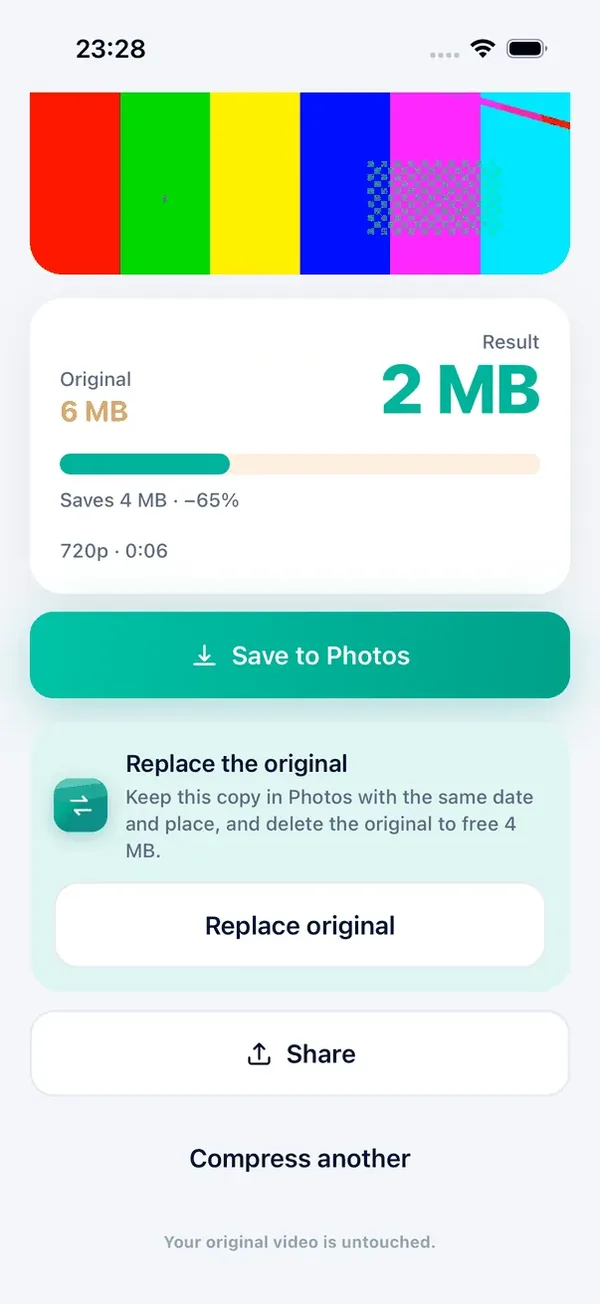
Minivid copies it across on purpose. When a video that came from your Photos library is compressed, the copy is saved to Photos with the original’s date and place, and the recording date and location are also written into the new file. That is what keeps a compressed holiday video on the right day and place in your timeline, and it applies in the free version and in Pro. It also means a Minivid copy of a video with a location still has one.
So if the video is going to someone you do not know, do the location step on the copy: save it to Photos, then share it from Photos with Options, Location off, or choose No Location on the copy before you send it. Minivid has no setting that strips the location; the iOS steps above are the way. Minivid also writes the device make and model into the copy when the original had them.
The compression itself runs on the iPhone, nothing is uploaded and your original is never changed. The free version handles one video at a time, up to 100 MB, at 720p; larger videos, 1080p or 4K output and batches are part of Pro.
What removing the location does not hide
- What is visible in the picture. A street sign, a shop front, a view from your window or your house number can reveal the place just as well as the stored location.
- The date and time, and the device model, which can stay in the file. The Location switch only covers the place.
- Anything you say or write in the video or in your message.
- Apps that read the original. If you share a link to the video, or let an app read your library, it may read the original with its location. The Options switch only covers the file you send from the share sheet.
Before you post a video publicly, play it once with fresh eyes and look at what the background gives away.
Frequently asked questions
Do iPhone videos contain the location?
They can. If Location Services is on for the Camera, the place where a video was filmed is stored with it. If it is off, or there was no signal, the video may have no location.
How do I send a video from iPhone without the location?
Open the video in Photos, tap Share, tap Options at the top, turn off Location and tap Done, then choose how to send it. It works on iOS 13 or later and applies to that share only.
How do I remove the location from a video already in Photos?
On iOS 15 or later, open the video, tap the info button or swipe up, tap Adjust next to the place and choose No Location.
Does Minivid remove the location when it compresses a video?
No. It keeps the original’s date and place on purpose, so the copy stays in the right spot in Photos. To share without the place, turn Location off in the share sheet’s Options or choose No Location in Photos.
Does turning off the location hide where I am?
Only the stored place. Things visible in the video, such as signs or buildings, can still show where it was filmed.
Want to know the size before you compress?
Minivid compresses video on your iPhone and shows the final size before it starts. Your videos are never uploaded.