Why does my compressed or edited video show today’s date on iPhone, and how to fix it
Published 13 October 2026 · 6 min read
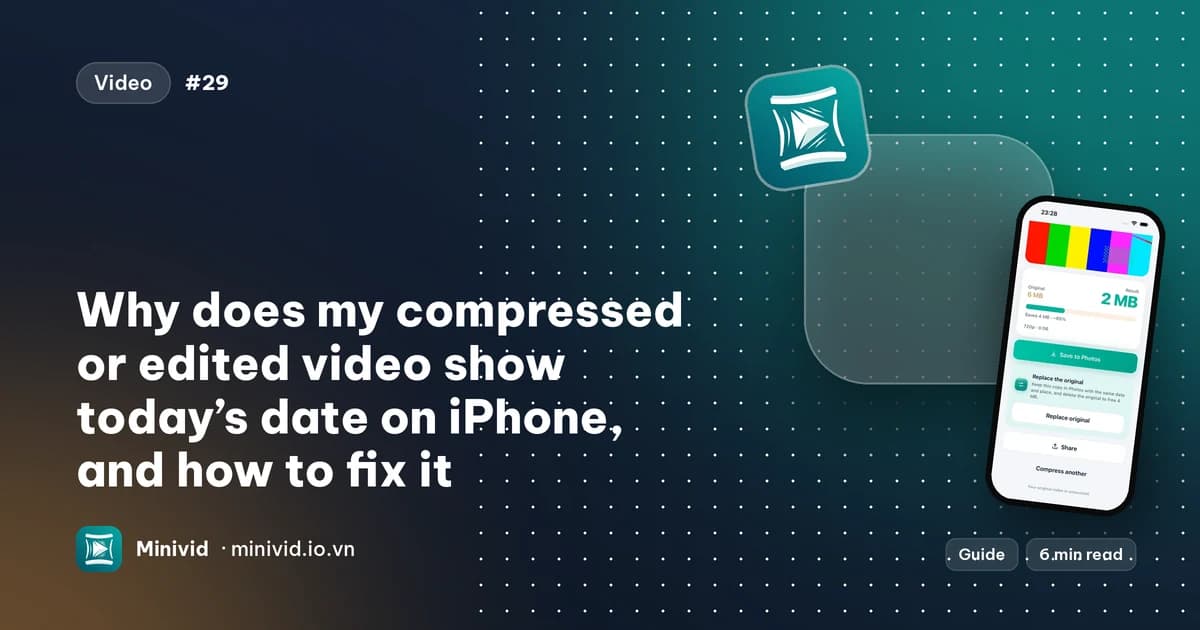
A compressed or exported video often lands in Photos with today’s date, and sometimes with no location, because making a smaller copy creates a brand-new file and not every tool copies the recording date and place into it. You can fix the date by hand: open the video in Photos, tap the info button, and choose Adjust Date & Time. To avoid the problem next time, compress with a tool that carries the date across; Minivid does this for every copy it saves to Photos.
This guide explains why the date changes, how to correct a video that is already in the wrong place in your timeline, and what to check before you delete an original. The first two parts need no app at all.
Why does my video get today’s date after I compress or edit it?
Compressing a video does not shrink the existing file; it writes a new one. A new file starts empty, and the recording date and location have to be copied into it on purpose. Photos sorts your library by that date, so if it is missing, the copy is dated from the moment it was saved, and it jumps to the very top of your library as if you had just filmed it.
Whether the date survives depends on the tool. Some editors and converters copy it, some do not, and some apps that save into Photos stamp the new item with the current time. People report the same symptom after exporting from editors, downloading from cloud services, and receiving a video through a chat app: the date becomes the day the file arrived.
Nothing is wrong with the video itself. It is only filed under the wrong day.
How do I change the date of a video in Photos?
On iOS 15 or later, Photos can correct the date, time and location of a photo or a video. Menu wording can differ slightly between iOS versions, but the route is the same:
- 1Open the video in Photos.
- 2Tap the info button (the i in a circle), or swipe up on the video.
- 3Tap Adjust next to the date, or Adjust Date & Time.
- 4Pick the right day and time, and check the time zone, then tap Adjust.
- 5To fix a location, use Adjust Location on the same screen.
To change several videos at once, tap Select in the grid, tick them, then open the info view. If you change your mind, the same screen has a Revert option that goes back to the date the file started with. Note that the video will move to its new position in the library once the date changes.
The catch: you have to remember the right date. If the original is already deleted, nothing in Photos can tell you when it was filmed, so this fix only works while you still know the day.
How do I keep the original date when I compress a video?
Before you delete the original, look at where the smaller copy appears in Photos. If it sits next to the original, in the right place on the timeline, the date came across and you are fine. If it is at the very top with today’s date, correct it first with the steps above, or the big original is the only thing that still knows when it was filmed.
If you compress with an app, check whether it states that it keeps the date. Many do not say. The safest habit is to compress one video, check its date in Photos, and only then delete the original.
How does Minivid keep the date and place?
When you compress a video that came from your Photos library, Minivid saves the copy to Photos with the original’s date and place, so it lands in the same spot in your timeline and not at the top. It also writes the recording date and location into the new file itself, which helps when the file is opened by other apps. This applies to every copy Minivid saves, in the free version and in Pro. If you share a video into Minivid from another app instead, there is no Photos original to copy from, so Minivid uses the date stored in the file, if it has one.
To swap the big original for the small copy in one go:
- 1Open Minivid and pick the video from your library.
- 2Choose a preset or a size, and tap Make it small. Keep Minivid open while it runs.
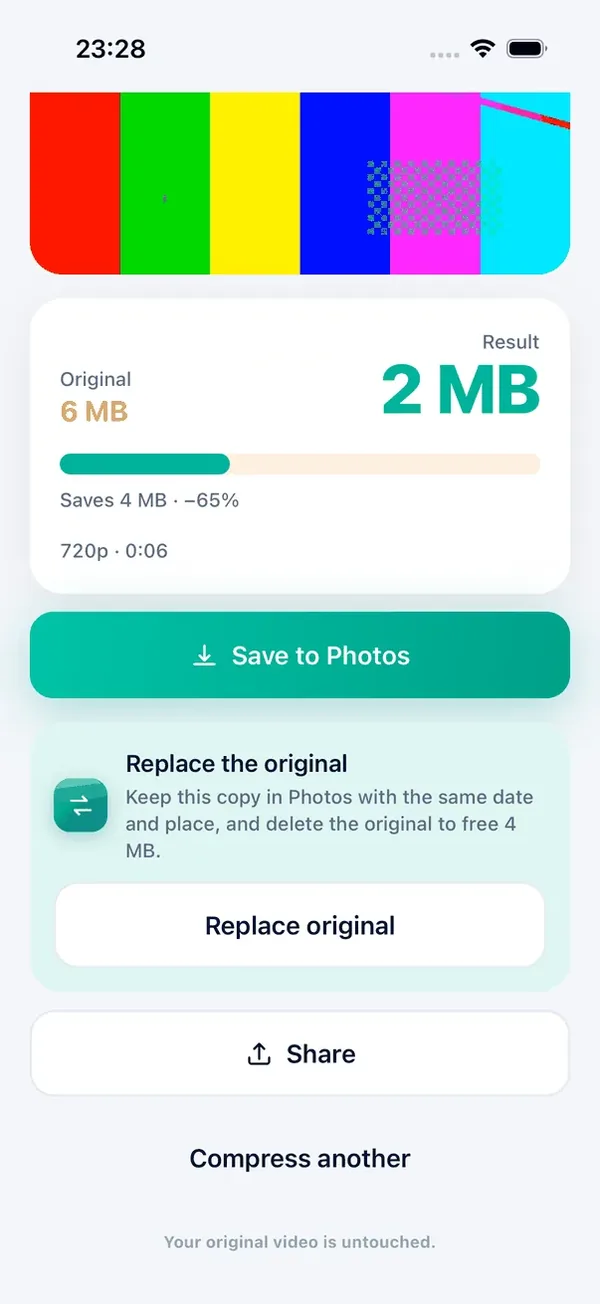
- 3On the result screen, check the size, and tap Save to Photos, or go straight to the Replace the original card.
- 4Tap Replace original, then Replace. Minivid saves the smaller copy first, keeping its date and place. Only then does iOS ask you to confirm deleting the original.
The deleted original goes to Recently Deleted and stays there for 30 days, so the space only comes back once you empty it. The replace card appears only when the copy can really stand in for the original: it is not offered for a trimmed or sped-up copy, since that is a different video. Your original is never changed by Minivid itself, and nothing is uploaded; everything runs on the iPhone.
What Minivid cannot do
- It does not repair a date that another tool already changed. Use Adjust Date & Time in Photos for that.
- It cannot invent a date. If the file never had one, there is nothing to copy.
- A copy that already lost its date cannot be fixed by compressing it again.
The free version compresses videos up to 100 MB at 720p, one at a time. Larger videos, 1080p or 4K output and batches are part of Pro.
Frequently asked questions
Why does my edited video show today’s date on iPhone?
Editing or compressing writes a new file, and not every tool copies the original recording date into it. Photos then dates the copy from the moment it was saved. You can fix it in Photos with Adjust Date & Time.
How do I change the date of a video on iPhone?
On iOS 15 or later, open the video in Photos, tap the info button or swipe up, tap Adjust Date & Time, choose the day and time, and confirm. A Revert option is on the same screen.
Does Minivid keep the original date and location?
Yes. A video compressed from your Photos library is saved with the original’s date and place, in both the free version and Pro. Videos shared in from another app use the date stored in the file, if there is one.
Is it safe to delete the original after compressing?
Check first that the copy appears in the right place in Photos. Deleted items stay in Recently Deleted for 30 days. Minivid’s Replace original saves the copy with the original’s date first, then iOS asks you to confirm the deletion.
Does compressing a video lose its location?
It can, depending on the tool. Minivid carries the location across when the original has one; it cannot add a location that was never recorded.
Want to know the size before you compress?
Minivid compresses video on your iPhone and shows the final size before it starts. Your videos are never uploaded.