Now on the App Store

Make big videos small.

Pick a video and Minivid shows you exactly what it will weigh — before you commit. One tap and it is done. Your videos never leave your phone.

Original1.24 GB
Compressed86 MB
93% smaller
See the result first

The size, before you commit.

Most compressors make you wait to find out what you got. Minivid reads your video and shows the number up front, updating live as you change quality, resolution or frame rate.

The number updates as you move the quality slider.
Compress to an exact size

Under 25 MB. Exactly.

Email caps you at 25 MB. A chat app at 100. Name the limit and Minivid solves for the settings that fit under it — taking the highest resolution that still looks good, rather than crushing the picture.

  • Type the ceiling you need
  • Minivid walks the resolution ladder to match it
  • The result always lands under your limit
New in 1.4

Compress to send via…

Pick where it is going. Minivid makes it fit.

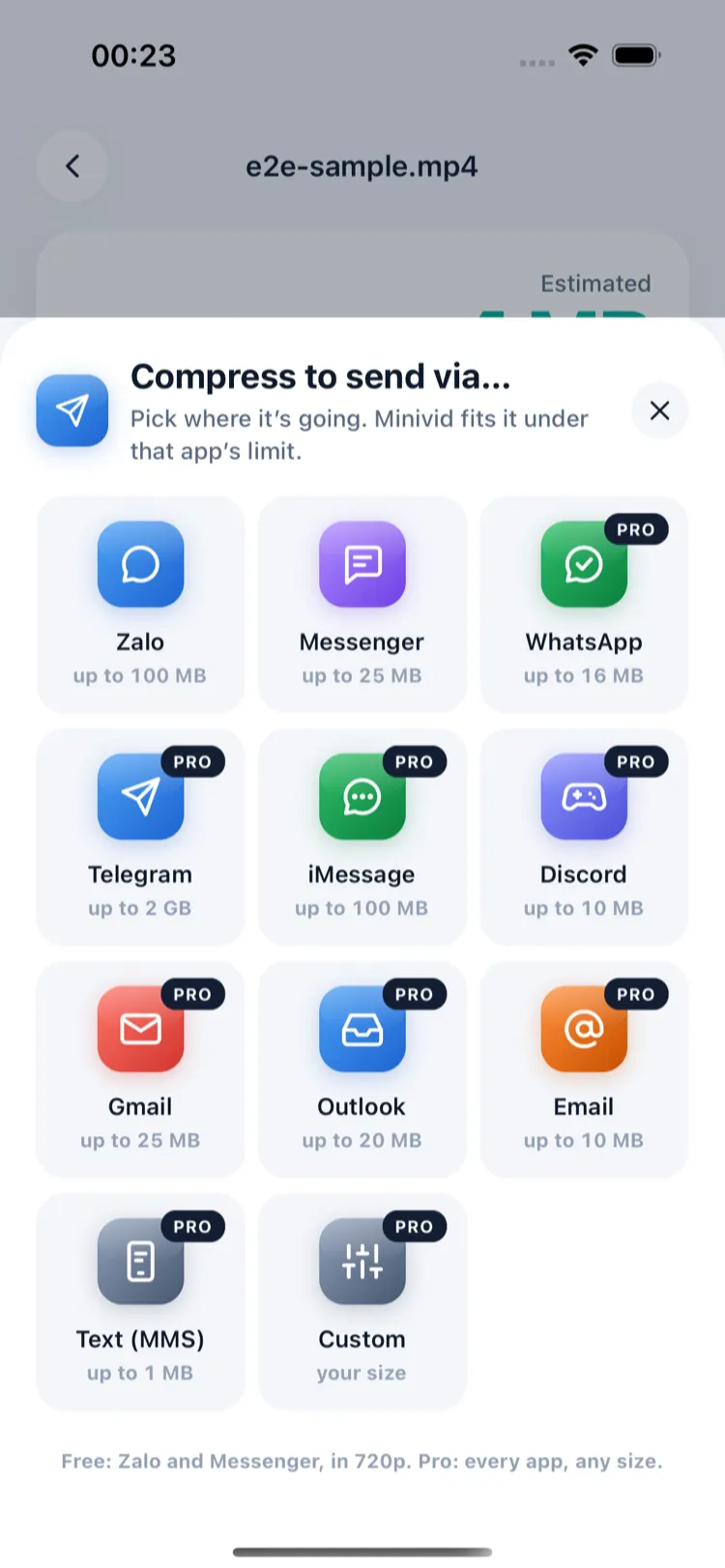
Every app caps video at a different size. Pick Zalo, Messenger, WhatsApp, Telegram, Gmail, Outlook, Discord, iMessage or email, and Minivid fits the video under that app’s limit — then opens the share sheet.

  • Pick a video, tap Send via… and choose the app
  • Minivid compresses it to fit under that app’s limit
  • The share sheet opens on its own — send it straight away
  • Share a video into Minivid from another app and it asks where it’s going first

Send via

  • ZaloFree
  • MessengerFree
  • WhatsAppPro
  • TelegramPro
  • iMessagePro
  • DiscordPro
  • GmailPro
  • OutlookPro
  • EmailPro

Free sends via Zalo and Messenger in 720p. Pro covers every app and any size you name.

The Compress to send via… sheet with tiles for Zalo, Messenger, WhatsApp, Telegram, iMessage, Discord, Gmail, Outlook and Email, each showing its size limit
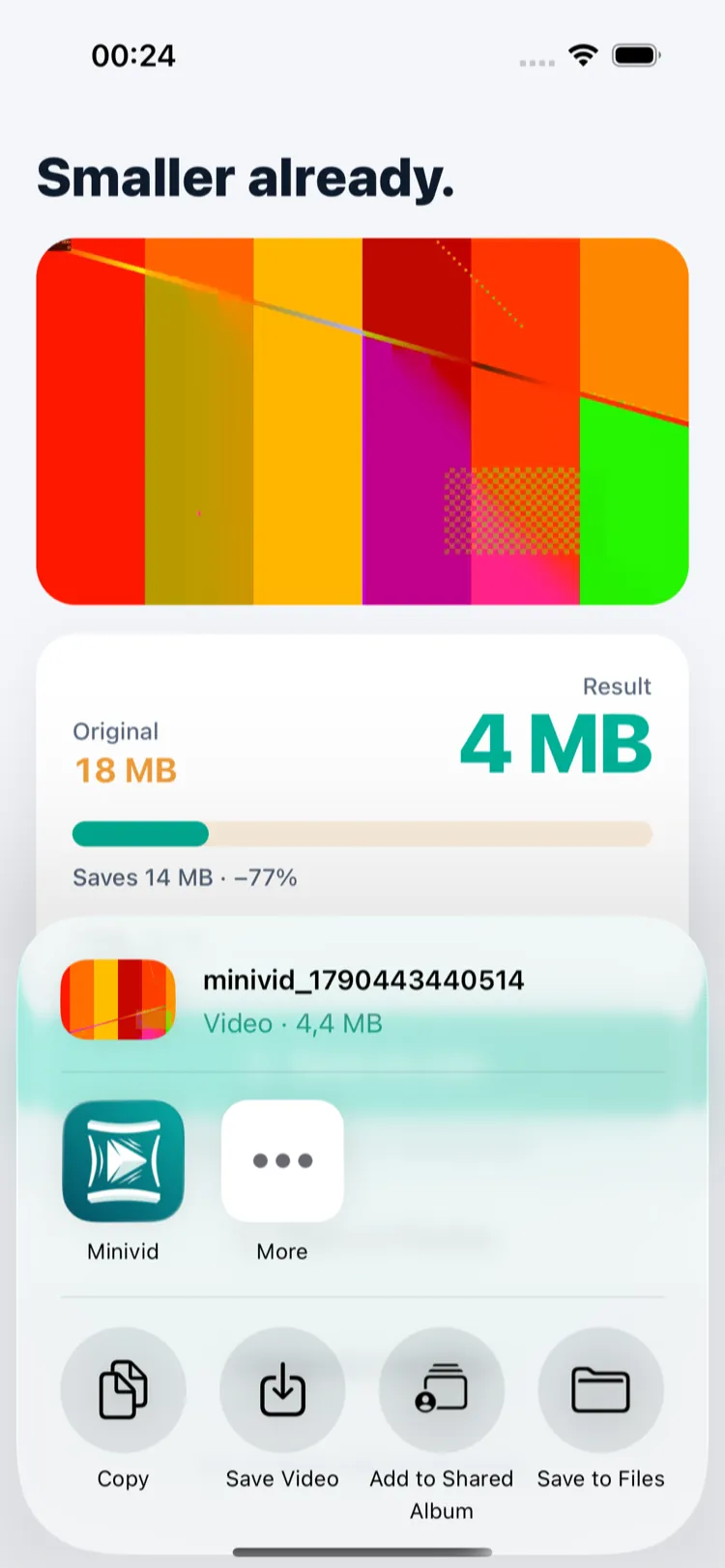
Result screen: an 18 MB video compressed to 4 MB, with the iOS share sheet already open
New in 1.5.1

Minivid everywhere

Shrink your newest video without hunting for the app.

Minivid now sits where you already look — the Lock Screen, the Home Screen, Control Center, the Action button and Siri. One tap opens your latest video, ready to shrink.

  • Lock Screen widgets

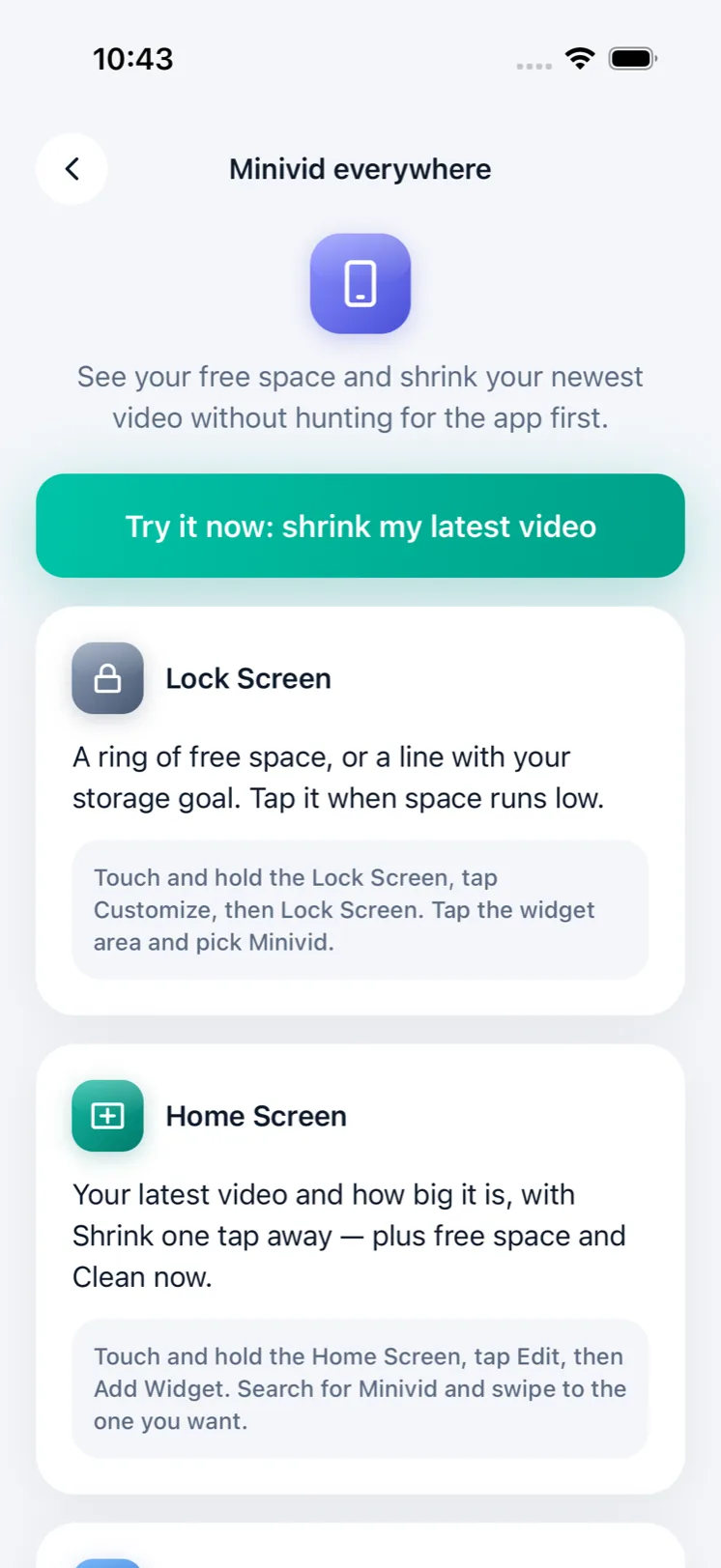
    A ring of free space, or a line with your storage goal. Tap it when space runs low.

  • Latest video widget

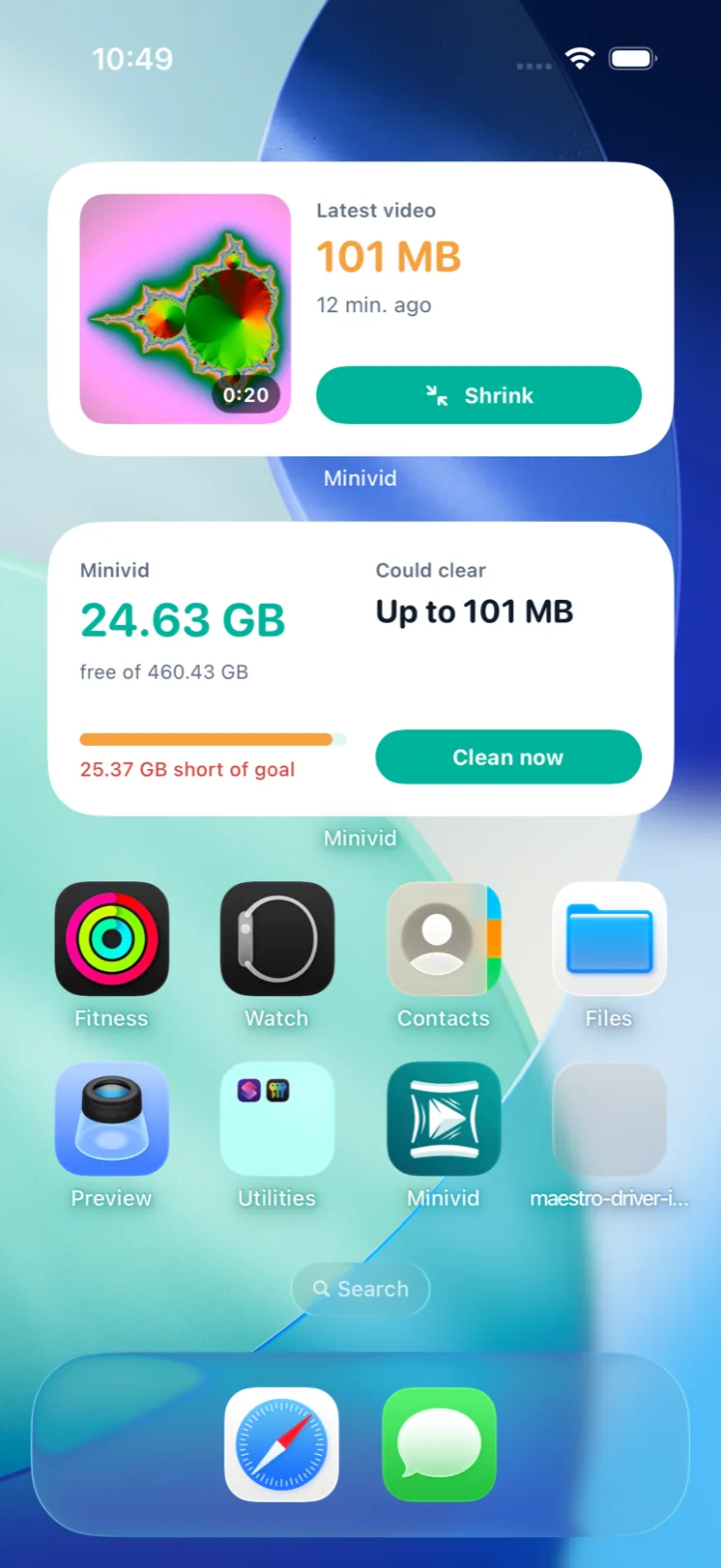
    Your newest video’s size, length and age on the Home Screen, with a Shrink button.

  • Control Center & Action button

    “Compress Latest Video” opens your newest video in Minivid, one press away.

  • Siri, Shortcuts & Spotlight

    Say or type “Compress my last video with Minivid”.

Free for everyone. Widgets read free space and your newest video on this iPhone — nothing is uploaded. Lock Screen widgets need iOS 16, the Shrink button iOS 17, the control iOS 18.

Home Screen with the Latest video widget — a 101 MB video from 12 minutes ago with a Shrink button — above the Minivid storage widget
The Minivid everywhere guide in the app, with a Try it now button and steps for the Lock Screen and Home Screen widgets

Inside the app

Not a mockup — this is the real app

Every image below was captured straight from the running app with sample videos and photos. No retouching.

01/ONE SCREEN FOR EVERYTHING

Every tool, one tap from Home

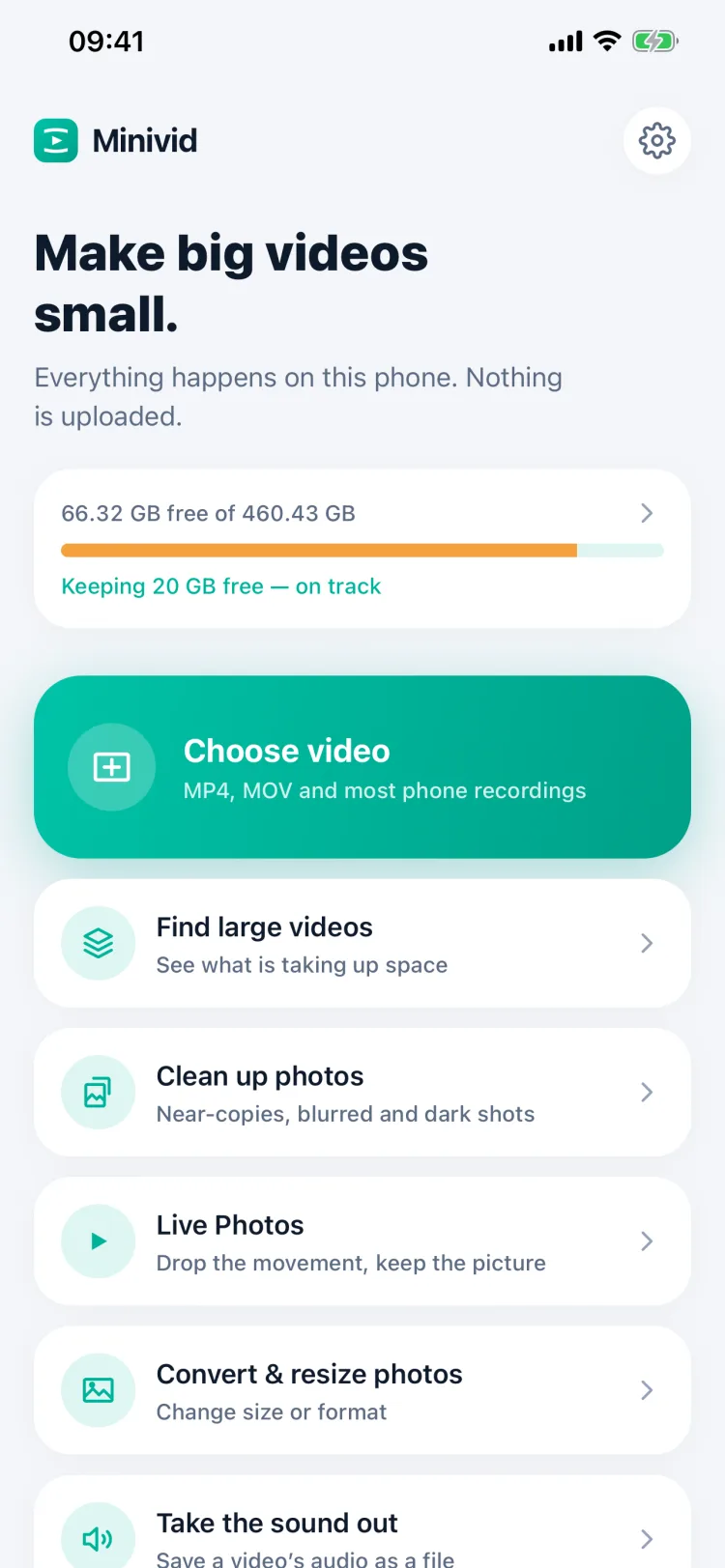
Compress a video, find the heavy ones, clean up photos, take the sound out or erase something from a picture — all from the first screen, with your free space right at the top.

  • Shows how much space is free and how close you are to your goal
  • No account, no sign-in, nothing to set up first
Minivid home screen with storage bar, Choose video button and the list of tools

02/SEE IT BEFORE YOU COMMIT

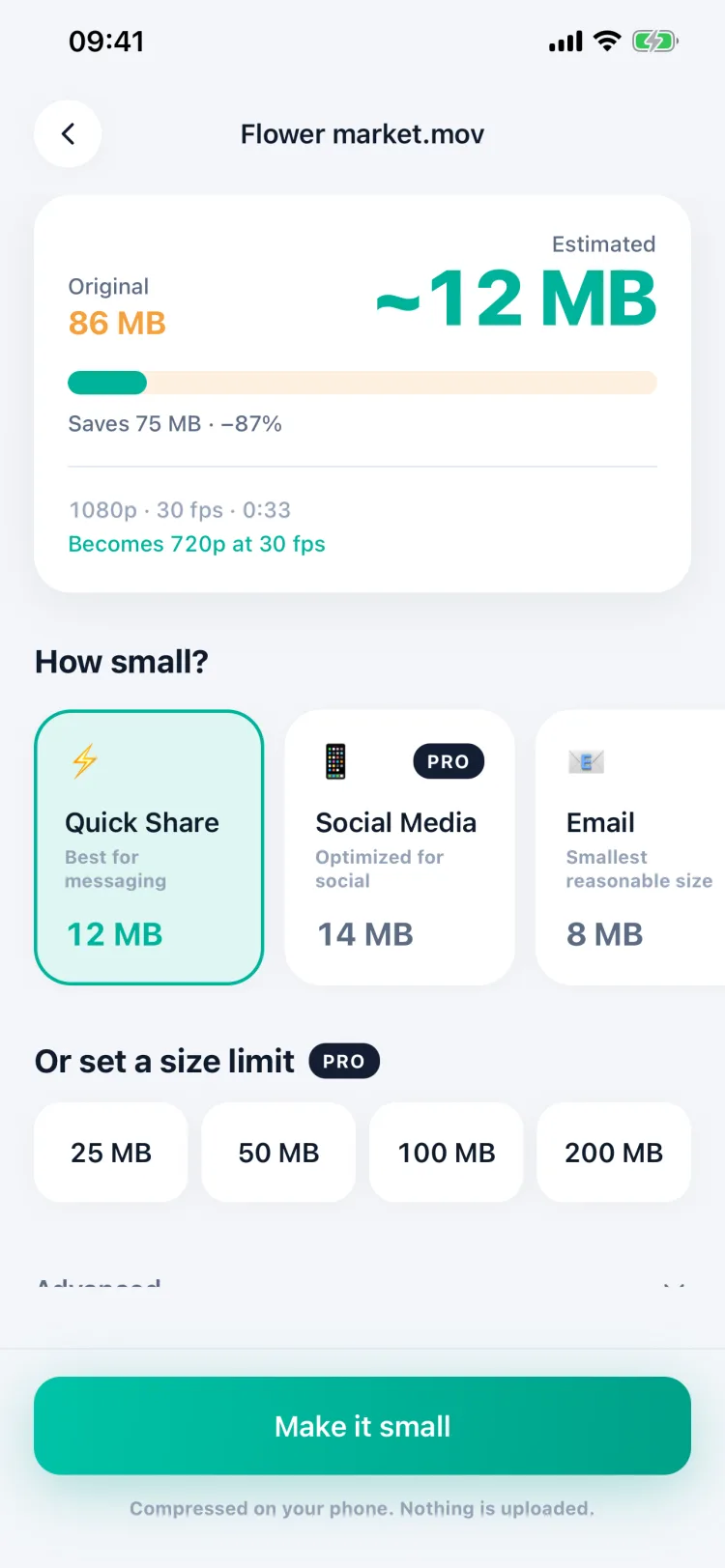
Know the size before you compress

Pick a video and Minivid shows what it will weigh — before a single frame is encoded. Change the preset and the number updates as you go.

  • Five presets, from Quick Share to Keep Quality
  • Or name a limit — 25, 50, 100 or 200 MB — and it fits under it (Pro)
Setup screen estimating an 86 MB video will come out at about 12 MB

03/TRIM FIRST

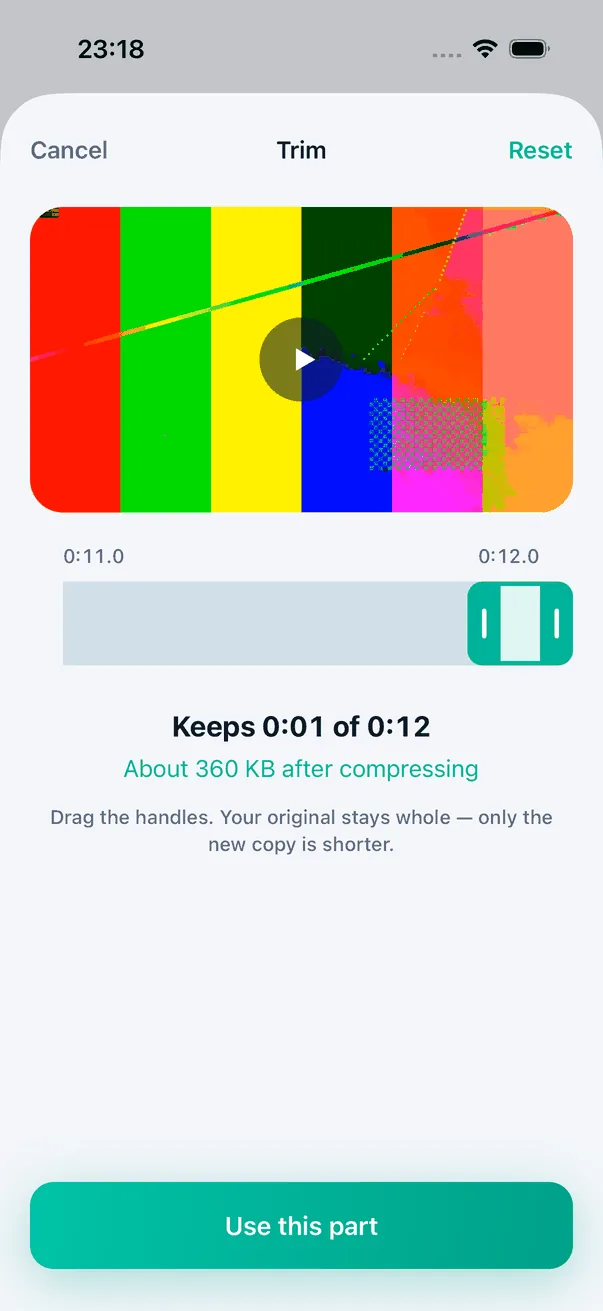
Keep only the part you need

Drag two handles over a live preview and the estimate follows — a shorter clip is a smaller file. Your original stays whole; only the new copy is shorter.

  • Free for everyone
  • The answer when a video is too long to fit a Send via… limit
Trim sheet keeping 1 second of a 12-second clip, about 360 KB after compressing

04/THE ORIGINAL IS NEVER TOUCHED

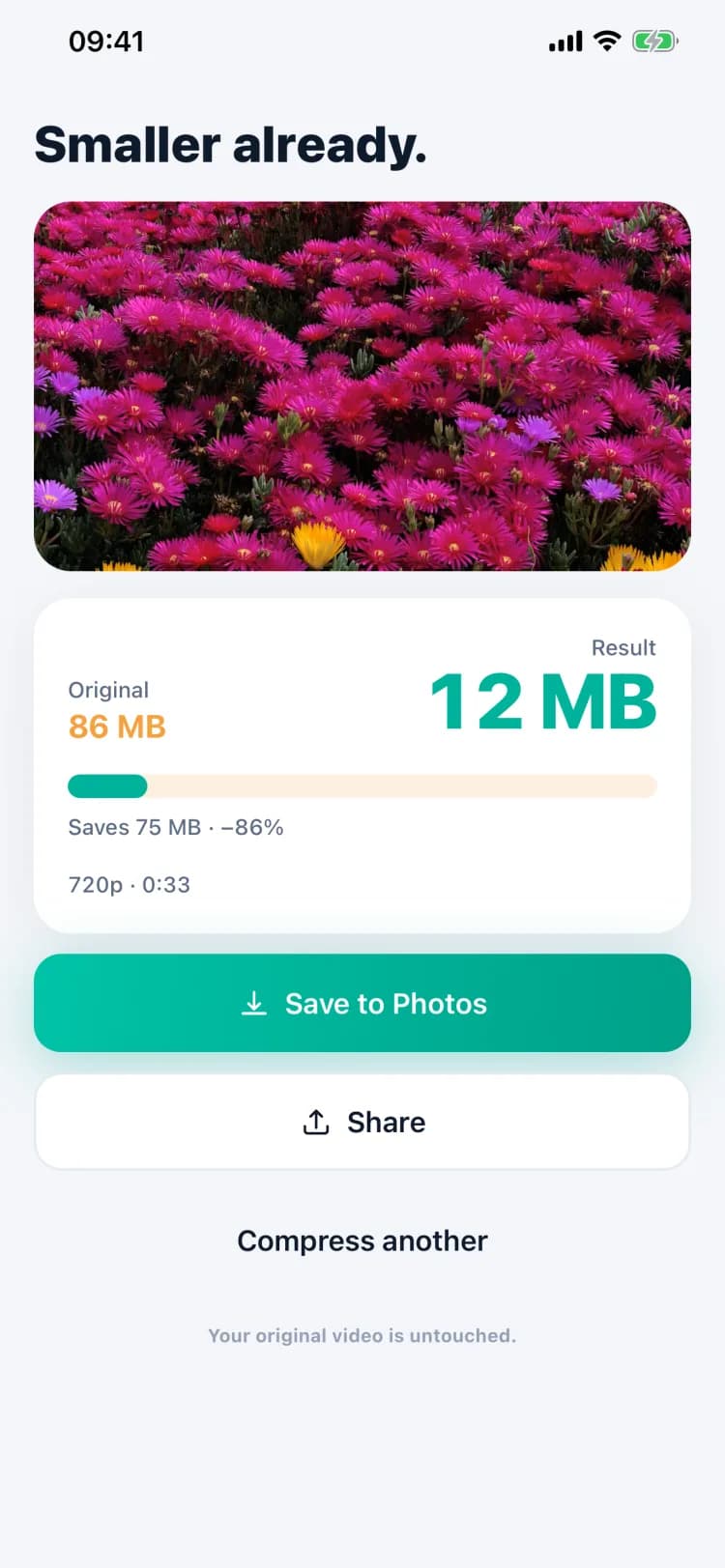
Smaller, and straight to Photos

The compressed copy is saved next to your original — never over it. Save it to Photos, share it anywhere, or watch it before and after.

  • Uses the same hardware encoder as your camera
  • Works in airplane mode — your video is never uploaded
Result screen showing an 86 MB video compressed to 12 MB with Save to Photos and Share

05/REPLACE THE ORIGINAL

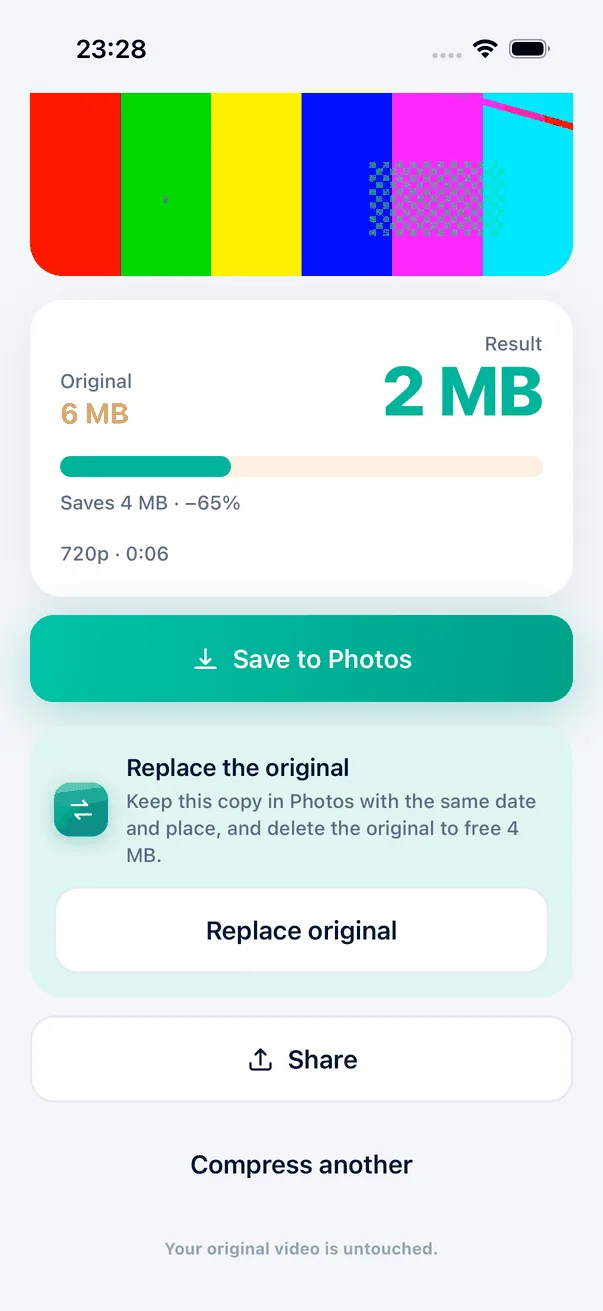
Keep the small one. Lose the big one.

Happy with the result? Replace original saves the small copy to Photos with the original’s date and place, then iOS asks you before the big one is deleted.

  • The copy stays in the same spot in your Photos timeline
  • Deleted videos sit in Recently Deleted for 30 days — Minivid tells you, and opens Photos to empty it
Result screen: a 6 MB video compressed to 2 MB, with a Replace the original card that keeps the same date and place and frees 4 MB

06/WHERE YOUR SPACE WENT

Find the videos eating your storage

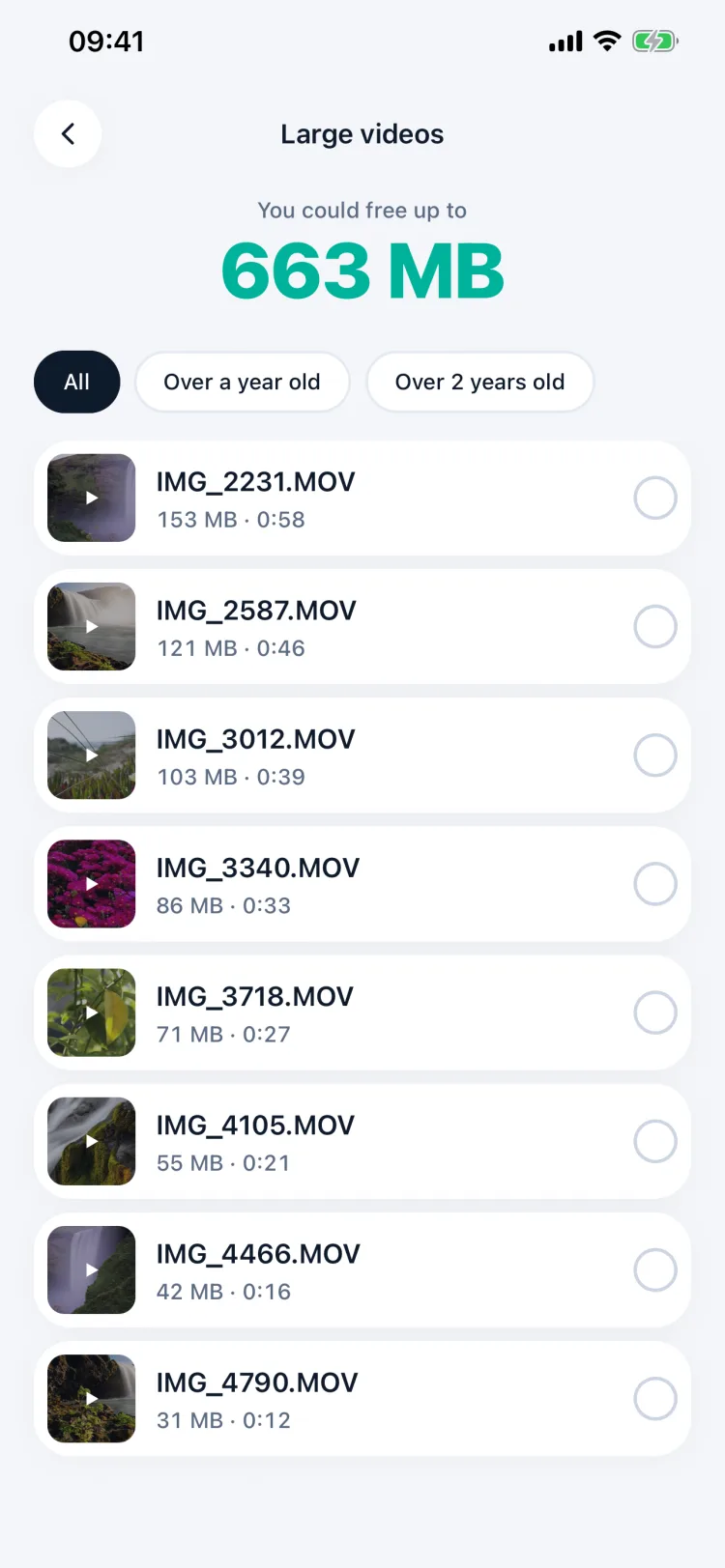
Every video on your phone, ranked by size, with the total you could get back. Filter to the ones over a year or two old — the ones you are least likely to miss at full size.

  • Select several and compress them in one run (Pro)
  • Then delete the originals once the smaller copies are safe in Photos
Large videos screen: 663 MB could be freed, videos sorted by size

07/PHOTOS, TOO

Clean up near-copies and bad shots

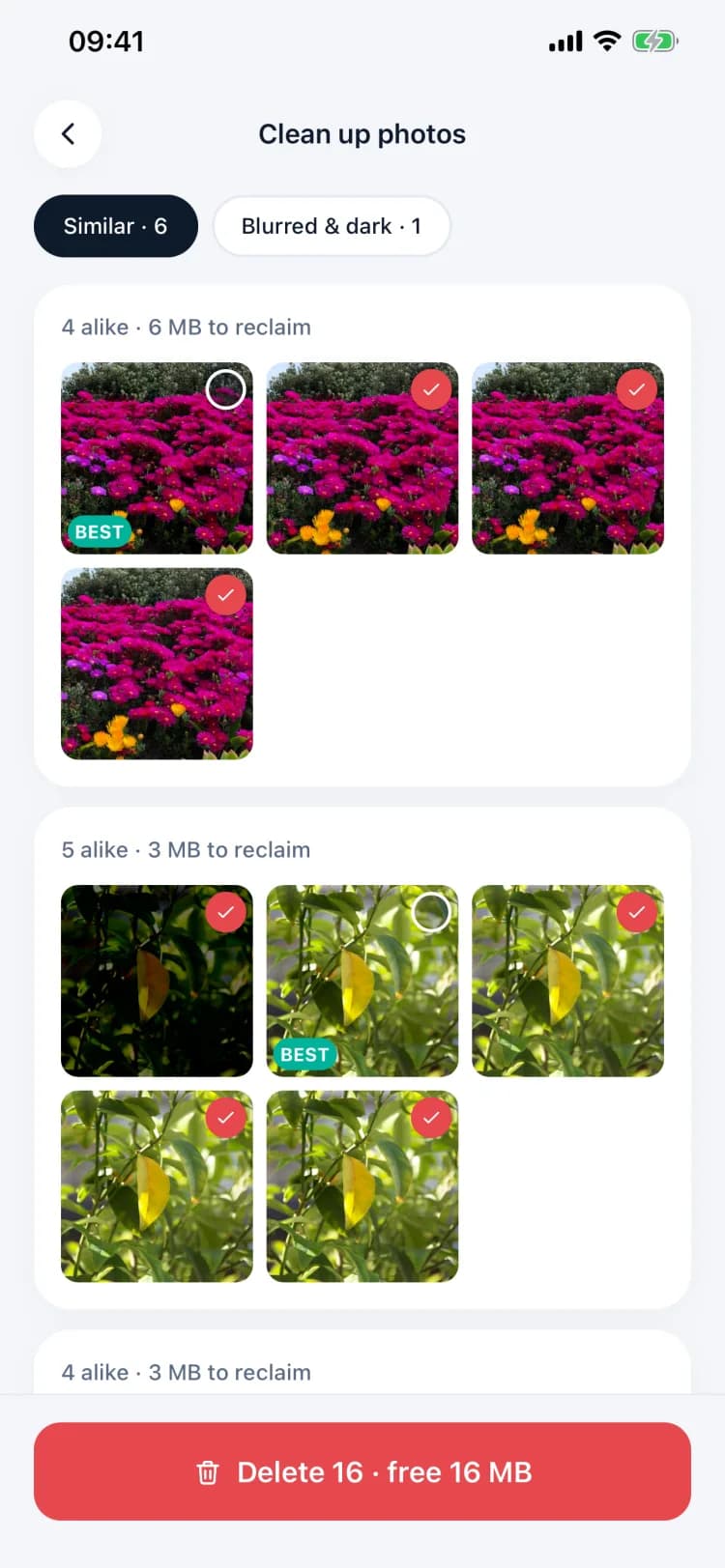
Near-identical photos are grouped together with the sharpest one marked Best, so clearing a burst is one tap. A second tab collects blurred, dark and blown-out shots.

  • Nothing is deleted until you confirm
  • Deleted photos go to Recently Deleted, like anywhere else in iOS
Clean up photos screen grouping near-identical flower and leaf photos

08/STAY AHEAD OF A FULL PHONE

Set a storage goal

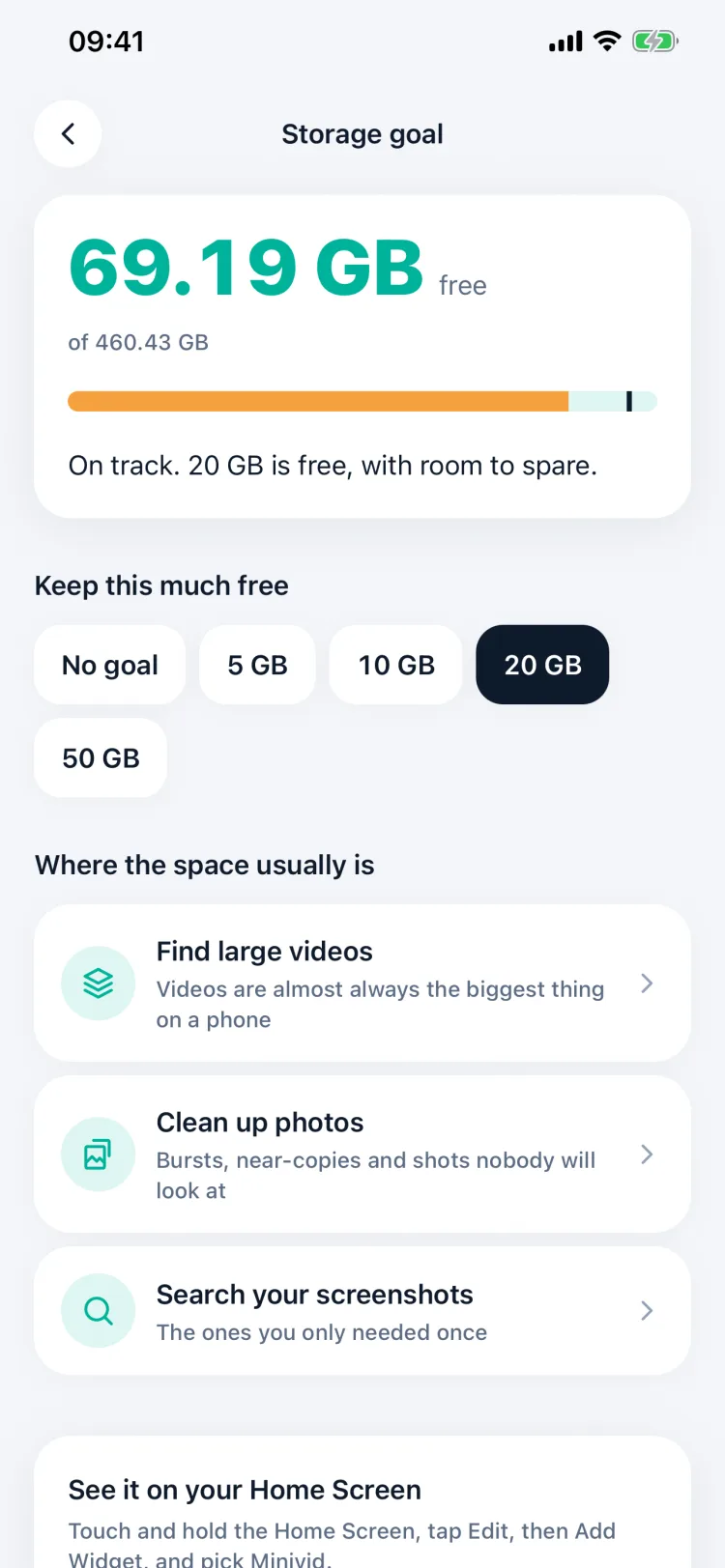
Pick how much space you want to keep free — 5, 10, 20 or 50 GB — and Minivid tells you whether you are on track and where the space usually goes.

  • The same goal shows on Home and in the widget
  • Points you at the tool that frees the most
Storage goal screen: 69.19 GB free, on track for a 20 GB goal

09/ERASE OBJECTS

Paint over it, and it is gone

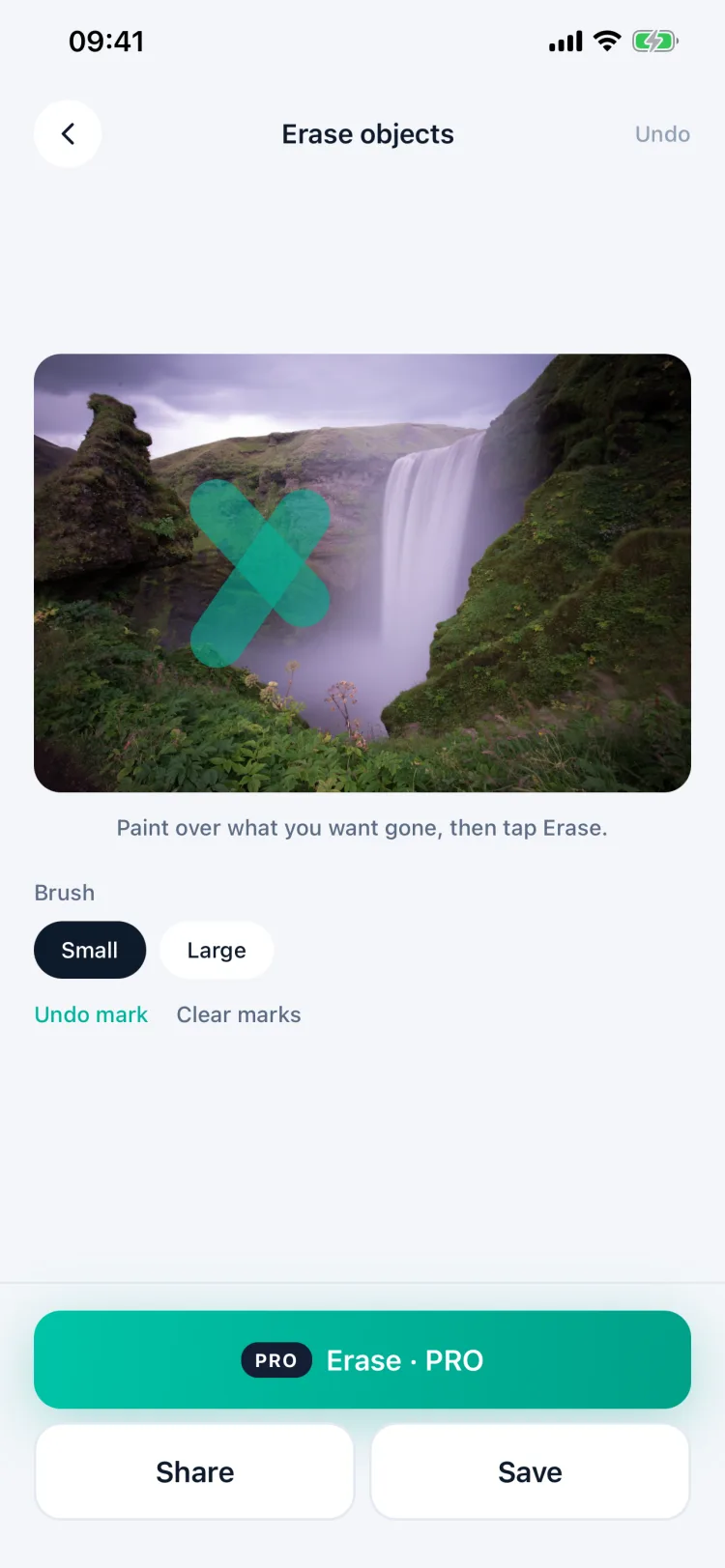
Brush over a stranger, a sign or a cable and Minivid fills the area in from what is around it — on the phone, not on a server.

  • Small and large brush, undo per stroke
  • Save the result or share it (Pro)
Erase objects screen with a brush stroke painted over part of a waterfall photo

10/TAKE THE SOUND OUT

Keep just the audio

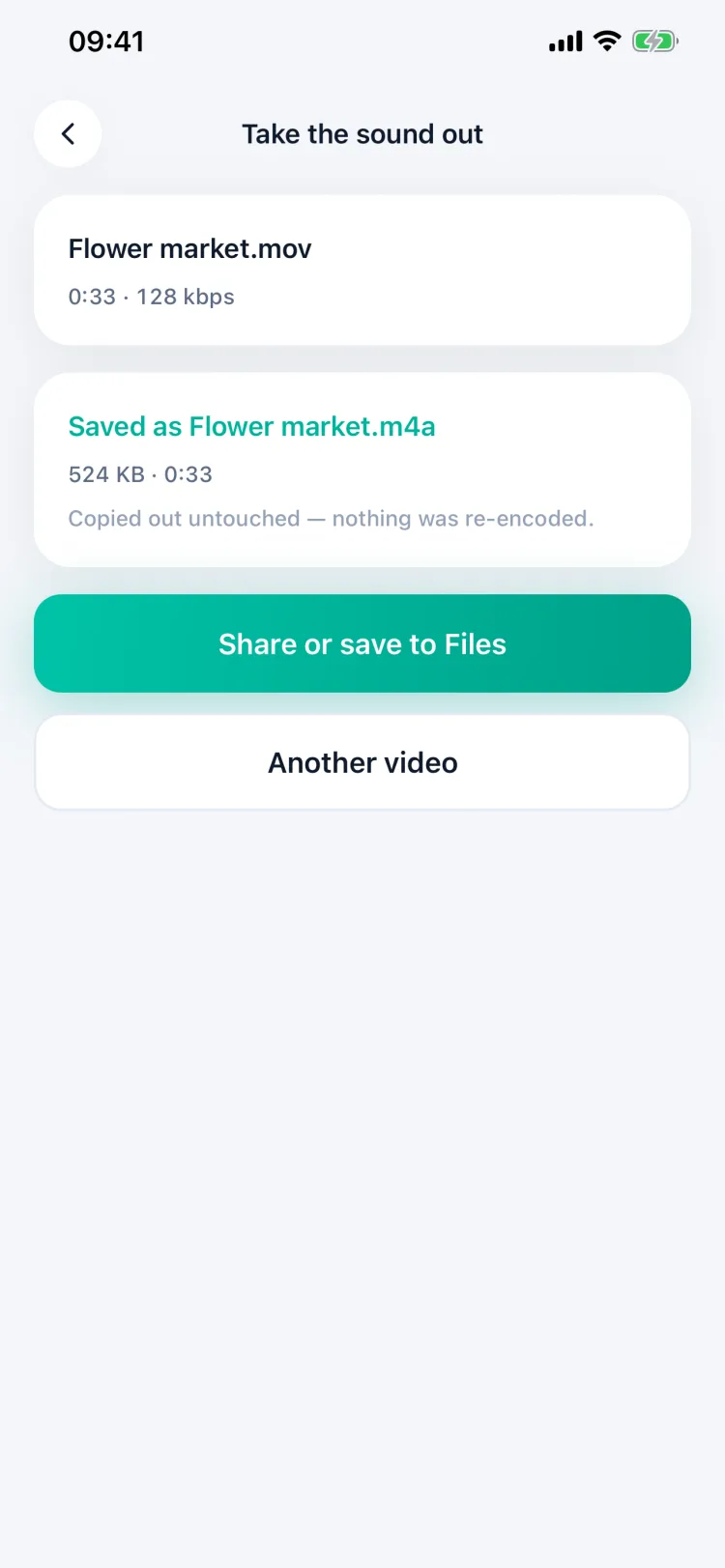
Save a video's soundtrack as its own file — a talk, a song from a concert, a voice note someone filmed. It is copied out untouched, not re-encoded.

  • Share it or save it to Files
  • The video itself is left exactly as it was
Take the sound out screen: Flower market.m4a saved, copied out untouched

11/MORE THAN SHRINKING

Time-lapse, watermark and more

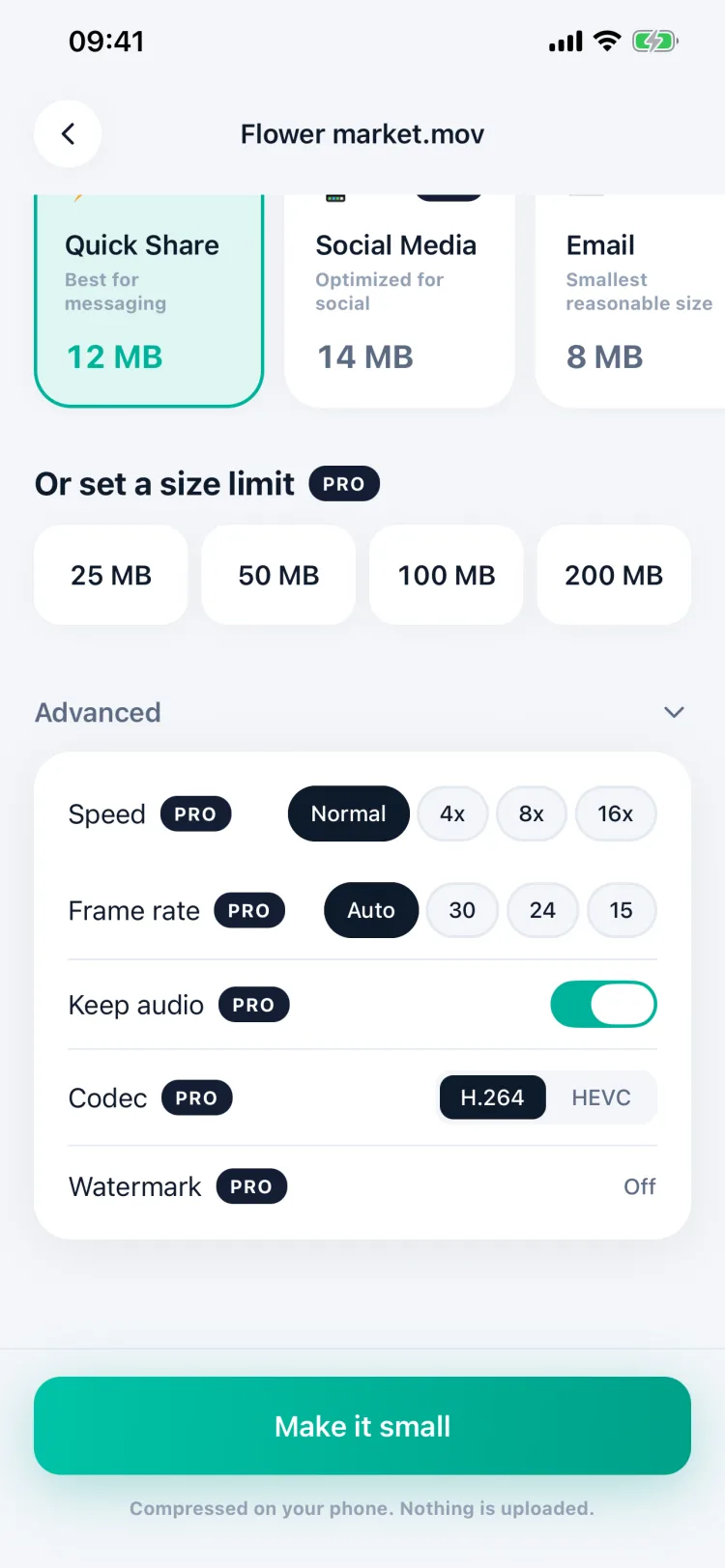
Speed a long clip up 4×, 8× or 16×, pick the frame rate, keep or drop the audio, switch to HEVC, and stamp your name on every frame.

  • Frame rate matters: 30 → 15 fps halves the bitrate budget
  • All in Advanced, on the same setup screen (Pro)
Advanced settings: speed, frame rate, keep audio, codec and watermark

12/A PRIVATE VAULT

Photos only you can open

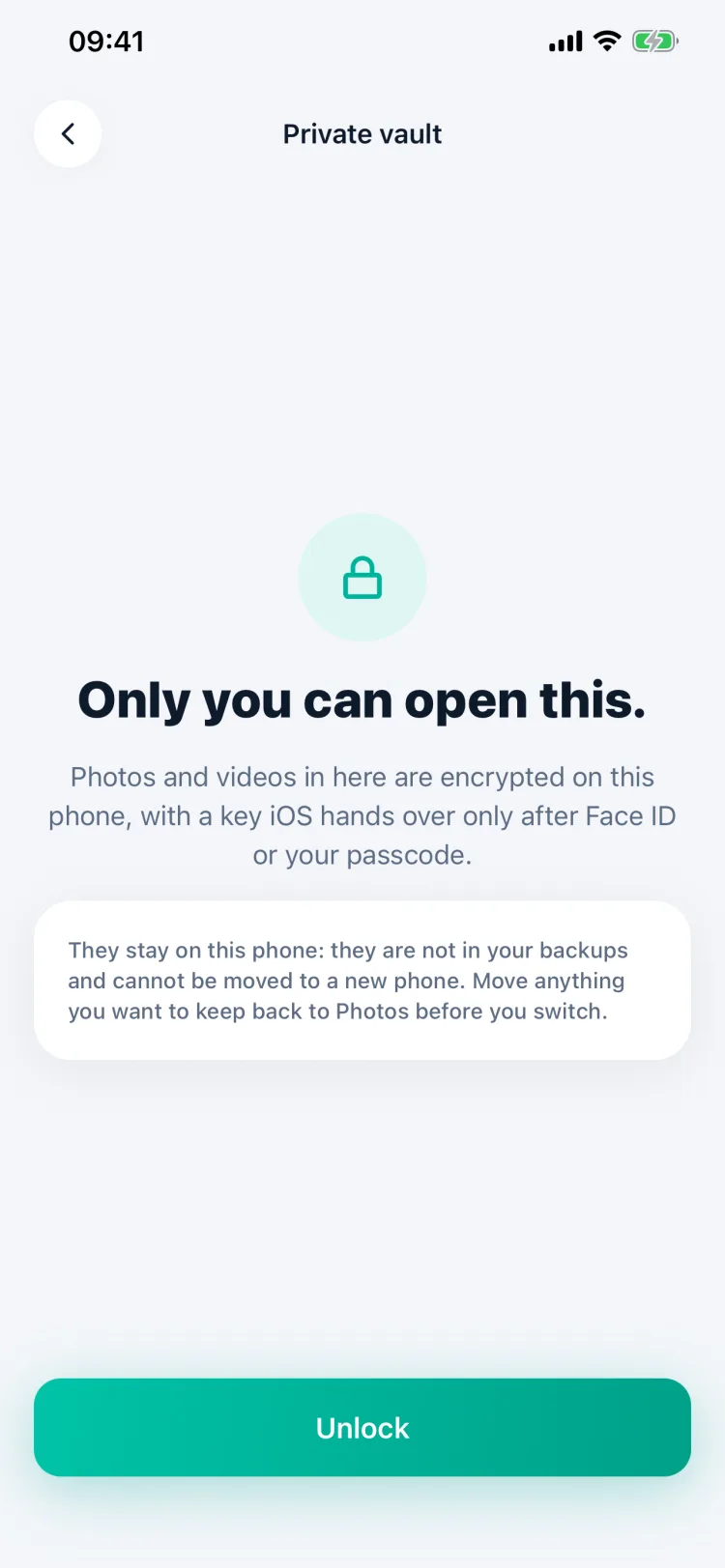
Move photos and videos into a vault that is encrypted on this phone and opens only with Face ID or your passcode.

  • Not included in your backups, and not moved to a new phone
  • Export back to Photos before you switch devices
Private vault locked screen: Only you can open this
More than a compressor

A whole toolkit, not one feature.

What quietly fills a phone is not only heavy video. Minivid finds the rest of it too.

  • Compress video

    Shrink it to any size, keep it watchable.

  • Clean up photos

    Duplicates, blurry and dark shots, found and cleared.

  • Live Photos

    Drop the movement, keep the picture.

  • Screenshot search

    Find one by what it says, not when you took it.

  • Erase objects

    Pro

    Paint over what you want gone. Minivid fills in the rest.

  • Private vault

    Face ID-locked, hidden from your camera roll.

  • Batch compress

    Pro

    Select several videos, compress them in one go.

  • Time-lapse

    Pro

    Turn a long clip into a short one, up to 16x.

  • Watermark

    Pro

    Your name or logo, on every frame.

  • Extract audio

    Save just the sound, as its own file.

  • Convert & resize photos

    Change size or format, one at a time.

  • Storage goal

    Track what is left right from the Home Screen.

  • Send via…

    Fit a video under Zalo, WhatsApp or Gmail’s limit, then send it.

  • Trim

    Cut a video down to the part you need before compressing.

  • Replace original

    Swap the big video for the small copy, same date and place.

  • Widgets & controls

    Lock Screen, Home Screen, Control Center and the Action button.

  • Siri & Shortcuts

    “Compress my last video” without opening the app.

  • Weekly cleanup digest

    Opt-in. New large videos and screenshots worth a look.

New in 1.5

Cut it shorter. Then let it replace the big one.

All of these are free for everyone — no Pro needed.

  • Trim before compressing

    Keep only the part you need. The size estimate follows as you drag.

  • Replace the original

    Save the small copy to Photos, then delete the big one — iOS asks first.

  • Keeps date & place

    Compressed videos keep the original’s date and location, so they stay in the right spot in Photos.

  • Where the space went

    Deleted videos sit in Recently Deleted for 30 days. Minivid says so, and opens Photos for you.

  • Minivid everywhere

    Lock Screen and Home Screen widgets, a Control Center control and Siri phrases.

Five ways to shrink

Pick the purpose and let Minivid work out the settings.

  • 01

    Quick Share

    Best for messaging

  • 02

    Social Media

    Optimized for social platforms

  • 03

    Email

    Smallest reasonable size

  • 04

    Save Space

    Maximum compression

  • 05

    Keep Quality

    Minimal compression

Privacy

Your videos are never uploaded. Ever.

Minivid uses the same hardware video encoder your camera uses, on your own phone. There is no server to send your video to, no account to create, and it works in airplane mode. No ads, no tracking across apps — just anonymous usage statistics you can turn off in Settings.

  • Videos never uploaded

    Every video is read, compressed and written on device.

  • No account

    No sign-up, no email, no password.

  • Your original, your call

    Minivid writes a new file. The original goes only if you choose Replace original and confirm.

  • Works offline

    Compression needs no connection at all.

Free to try. Pro when you need it.

The free tier is enough to prove it works before you pay.

Free

$0

  • Videos up to 100 MB, 720p output
  • Clean up duplicate, blurry and dark photos
  • Live Photos, dropped to stills
  • Screenshots, searched by what they say
  • Extract a video's audio track
  • A private vault, up to 10 items
  • Send via Zalo and Messenger, 720p
  • Trim a video before compressing
  • Replace the original, same date and place
  • Widgets, controls and Siri
  • Save straight to Photos

Pro

Every limit removed

Monthly

$1.99

Yearly

$9.99

7-day free trial

Lifetime

$14.99

One-time purchase

  • Any file size, any length
  • 1080p and 4K output
  • Compress to an exact size
  • Send via any app
  • A whole batch in one go
  • Time-lapse at up to 16x
  • Your own watermark on every frame
  • Erase anything out of a photo
  • An unlimited private vault
  • HEVC for smaller files
  • Remove the audio track
  • Choose your frame rate
  • Full compression history

The yearly plan starts with a 7-day free trial. Subscriptions renew until cancelled and can be managed in your App Store account settings.

Frequently asked

Does Minivid upload my video?

No. Compression happens entirely on your phone, using the device's own hardware encoder. There is no server that receives your video — turn on airplane mode and compress something to see for yourself.

Will it delete my original?

Not unless you ask. Minivid writes a new file and leaves the original alone. If you tap Replace original on the result screen, the small copy is saved to Photos with the original’s date and place, and iOS asks you to confirm before the big one is deleted.

I replaced the original. Why is my storage still full?

iOS keeps deleted videos in Recently Deleted for 30 days. Minivid tells you this right after replacing and offers to open Photos — empty Recently Deleted there to get the space back now.

How small can it get?

It depends on the video, but 80–95% smaller is typical. Phone footage carries far more bitrate than it needs, so it shrinks hard without a visible difference.

Does Send via… upload my video to Zalo or Gmail for me?

No. Minivid only compresses the video to fit the app you pick, then opens the iOS share sheet. You send it from that app as usual — Minivid never signs in to or connects with any account.

Which formats are supported?

MP4 and MOV in; H.264 or HEVC out. HEVC gives smaller files at the same quality.

Does it work without a connection?

Yes, including airplane mode. Only restoring a purchase needs the network.

How do I cancel?

Open Settings on your iPhone, tap your name, tap Subscriptions, then cancel Minivid Pro. Cancellation is handled by the App Store, not by Minivid.

See all questions

Available now on iPhone.

Free to download — go Pro when you need more. Feedback or a question? Email me any time.