How to send a video on Telegram from iPhone without losing quality
Published 12 October 2026 · 6 min read
To send a video on Telegram from an iPhone without losing quality, send it as a file instead of as a video: Telegram then skips its own re-encoding and delivers the original, up to its 2 GB limit per file (4 GB with Telegram Premium). If the original is huge and the upload is slow, shrink it first so it keeps its sharpness but is much smaller.
This guide explains why a video picked from your gallery can look softer after Telegram, what “send as file” gives you and costs you, and where Minivid, an iPhone app that compresses video on the phone itself, fits in. The first part needs no app at all.
Why does Telegram make my video look worse?
When you pick a video from your gallery, Telegram by default sends it as a video message. To keep uploads fast on mobile data, it re-encodes the clip first, usually at a lower resolution and bitrate than your iPhone recorded. The result is smaller and plays inline in the chat, but it is no longer the original.
A second reason can stack on top: if the clip passed through another app first (a screen recording, a message forwarded from a chat app, an editor), it may already have been squeezed once, and Telegram squeezes it again.
The file on your iPhone is not harmed. The loss happens in the copy that is sent.
How do I send the original video on Telegram?
Send it as a file. Telegram keeps a file exactly as it is. The menu names move around between versions of the app, so look for these routes rather than for one exact label:
- 1Open the chat and tap the attachment (paperclip or plus) button.
- 2Choose File rather than Photo or Video. Depending on your version, you can then pick the video from your Photos library or browse to it in the Files app.
- 3In some versions, you can also select the video in the normal gallery picker and look for a Send as File or Send Without Compression option in the menu before you tap send.
- 4Select the video and send it.
The video then arrives as a file bubble. The recipient taps it to download it, then plays it, so it does not start playing straight away in the chat the way a normal video does. Telegram allows up to 2 GB per file, or 4 GB with Telegram Premium.
When is sending as a file not the best idea?
- The video is very large. A few minutes of 4K can run to several gigabytes. It still fits under the limit in many cases, but it takes a long time to upload on mobile data and costs the other person a long download.
- The other person is on a slow or metered connection. A file bubble makes them download the whole original before they can watch it.
- The video is long and they only need to see it, not edit it. A sharp 1080p copy looks the same on a phone screen as a 4K original, at a fraction of the size.
In those cases it is better to make the file smaller on purpose and then send that, rather than leave the size to Telegram’s automatic squeeze.
How do I shrink a video before sending it on Telegram?
Trimming is the first step and costs nothing in quality: in Photos, open the video, tap Edit, drag the yellow handles to keep only what matters, tap Done and choose Save Video as New Clip. To go further, you need to re-encode the video at a lower resolution, which the built-in Photos app cannot do on its own; Shortcuts (with the Encode Media action) or iMovie can, in several tries.
With Minivid, the flow for Telegram is:
- 1Open Minivid and pick the video. Trim it first if only part of it matters; the size estimate updates as you drag the handles.
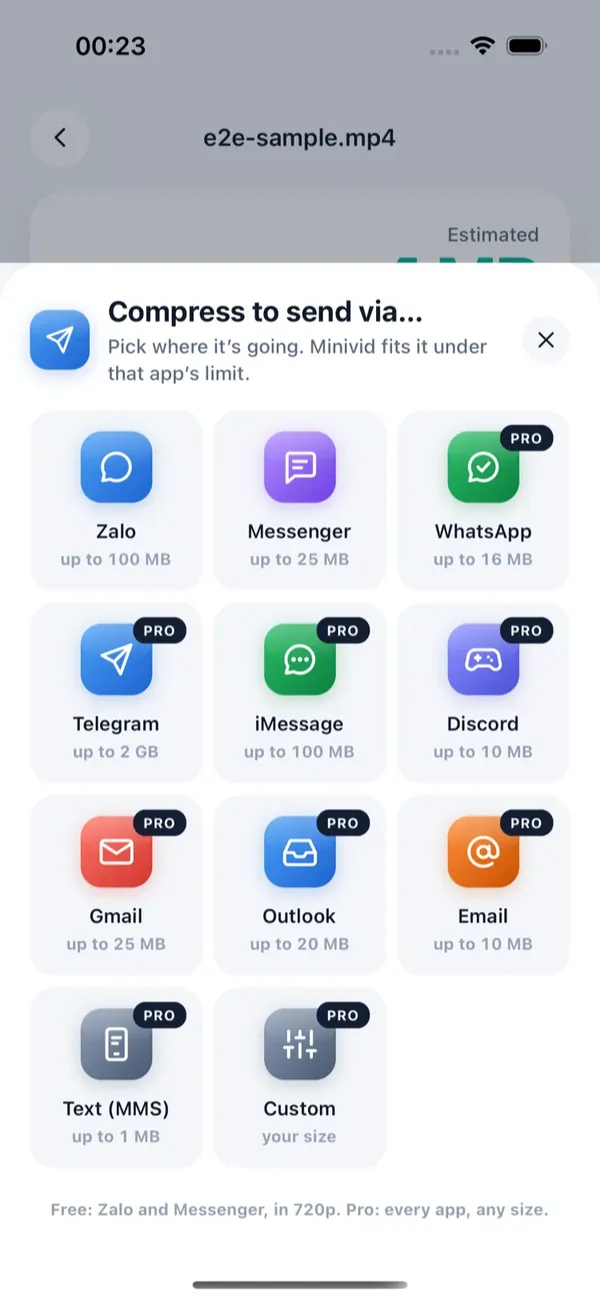
- 2Tap Send via… and choose Telegram.
- 3Check the line that shows the size the result will have and the resolution it will use, then tap Compress and keep Minivid open while it runs.
- 4On the result screen, tap Share (the send button), and choose Telegram in the iOS share sheet, then pick the chat. If Telegram offers to send it as a file, choose that to keep the picture as Minivid wrote it.
The Telegram destination in Minivid is a quality choice more than a size one, because the 2 GB cap is rarely the problem: it keeps up to 1080p, with the cap only as a backstop. The result is always an .mp4. Your original is never modified, nothing is uploaded by Minivid, and it works in airplane mode. Minivid does not send the message or sign in to Telegram; it writes a smaller copy on your iPhone, and you send it yourself.
What is free and what is Pro?
Send via Telegram is part of Minivid Pro. In the free version, Send via covers Zalo and Messenger, and you can still compress videos up to 100 MB at up to 720p with the Quick Share, Email and Save Space presets, with the estimated size shown before anything starts. Trimming, in Minivid or in Photos, is free.
You do not need Minivid to send a clear video on Telegram: the file route above works for everyone.
Other ways to get a clear video to someone
- Send a link. Copy an iCloud link in Photos, or share a Google Drive link. The other person watches it in a browser at the original quality, and it does not depend on Telegram’s limits at all.
- AirDrop, if the other person has an Apple device and is nearby. It sends the original at full speed.
- Online compressors. They work in Safari, but your video is uploaded to someone else’s server, so be careful with anything private.
Frequently asked questions
Does Telegram compress videos?
By default, yes: a video picked from your gallery is re-encoded before it is sent, so it can look softer than the original. Sending it as a file instead delivers the original.
How do I send a video on Telegram without compression on iPhone?
Tap the attachment button and choose File instead of Photo or Video, then pick the video from Photos or Files. In some versions of the app, a Send as File option also appears in the gallery picker. Menu names vary between versions.
What is the Telegram video size limit?
Telegram allows up to 2 GB per file, or 4 GB with Telegram Premium. For most videos the limit is not the problem; slow uploads and downloads are.
Why can’t the other person play my video straight away?
A video sent as a file shows as a file bubble that has to be downloaded first. A normal Telegram video plays inline but is re-encoded. That is the trade-off.
Is sending via Telegram free in Minivid?
No, the Telegram destination is part of Pro. The free version compresses videos up to 100 MB at up to 720p, and its Send via covers Zalo and Messenger. Minivid never uploads your video, and your original is not changed.
Want to know the size before you compress?
Minivid compresses video on your iPhone and shows the final size before it starts. Your videos are never uploaded.