How to send a large video from iPhone when it is too big
Published 1 October 2026 · 6 min read
You film something, try to send it, and get “this file is too large” — or it sends, but arrives blurry because the app squeezed it on the way. Every app sets its own limit, and the limits differ between email, chat apps and even the same app on phone and computer.
There are two ways out: send a link instead of the file, or make the file small enough to fit. Below are the options in the order worth trying, with the trade-offs of each.
First, know the limit you are up against
Limits change over time, so check the current figure in the app’s help pages if it matters. As a rough guide:
- Email: many services cap attachments at around 20–25 MB per message. Gmail, for example, allows 25 MB before it switches to a Google Drive link.
- Chat apps: most accept much larger videos than email, but often re-compress them, so the person receives a softer copy than you sent.
- Sending as a document or file instead of a video usually keeps the original quality, at the cost of a larger download for the recipient.
Knowing whether you are fighting a hard size limit or just the app’s own compression decides which method below makes sense.
1. Mail Drop, for email from the Mail app
If you use Apple’s Mail app with an iCloud account, Mail Drop can send files up to 5 GB. The video is stored in iCloud and the recipient gets a download link that stays available for 30 days. It does not count against your iCloud storage.
- 1In Photos, open the video, tap Share, then Mail.
- 2Address the email and tap Send.
- 3When Mail says the attachment is too large, tap Use Mail Drop.
The recipient does not need an Apple device; the link opens in any browser.
2. An iCloud link from Photos
With iCloud Photos turned on, you can share a link instead of the file. Open the video, tap Share and choose Copy iCloud Link, then paste the link into any message. The link expires after 30 days. This is handy for chat apps where you would rather not lose quality to their compression.
3. AirDrop, if they are nearby
For another iPhone, iPad or Mac in the same room, AirDrop sends the original file with no size limit worth worrying about and no quality loss. In the share sheet, tap AirDrop and pick the person. Make sure both devices have Wi-Fi and Bluetooth on and that the receiver allows AirDrop from you.
4. Send it as a file in the chat app
Many chat apps treat a document differently from a video: they deliver it untouched instead of compressing it. The exact steps vary by app, but the pattern is the same.
- 1Save the video to the Files app first: in Photos, tap Share, then Save to Files.
- 2In the chat, use the attach button and choose the option for a document or file rather than photo or video.
- 3Pick the video from Files and send it.
The recipient has to download the whole file before playing it, so this suits a clip they actually want to keep at full quality.
5. A cloud drive link
Google Drive, OneDrive, Dropbox and similar services let you upload the video and share a link. This works for very large files and recipients on any platform. The trade-offs: the upload uses your mobile data or Wi-Fi time, the file counts against your cloud storage, and the video now lives on that service, so remove the link when it is no longer needed if the content is personal.
6. Make the video small enough to fit
Often the simplest answer is a smaller file. A phone video carries much more data than a chat window needs, and a sensible compression makes it fit without looking worse on the recipient’s screen.
- Trim first. In Photos, tap Edit, drag the handles, then Done and Save Video as New Clip. Halving the length halves the size.
- Lower the resolution. For a chat, 720p usually looks the same on a phone as the 4K original.
- Re-encode with the built-in tools. The Shortcuts app’s Encode Media action, or iMovie’s Share → Options, can export a smaller copy on the phone. See our guide to compressing a video without losing quality for the full steps.
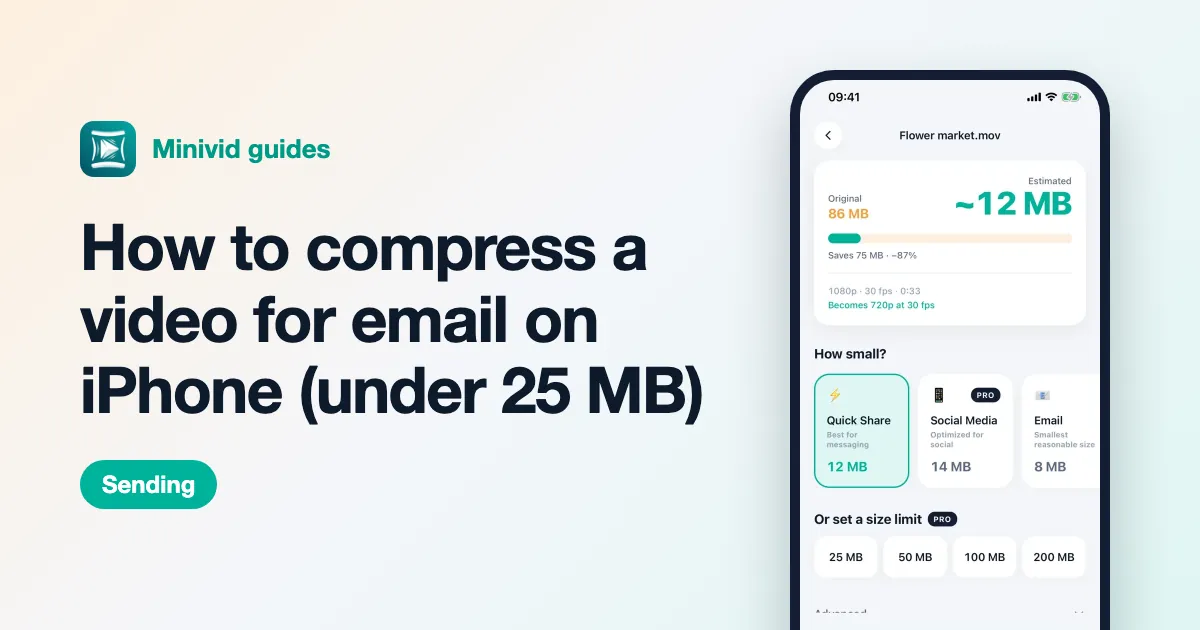
The catch is that none of these tells you in advance whether the result will fit. If the limit is 25 MB and the result comes out at 31 MB, you have to try again with lower settings.
Which method to pick
- It has to be an attachment, for example a form that only accepts files: compress it to fit.
- The recipient is in the room: AirDrop.
- Email to anyone: Mail Drop, or a cloud link.
- A chat where quality matters: send as a file, or share an iCloud link.
- A chat where it just needs to play quickly: compress to 720p and send it as a normal video.
Where Minivid helps
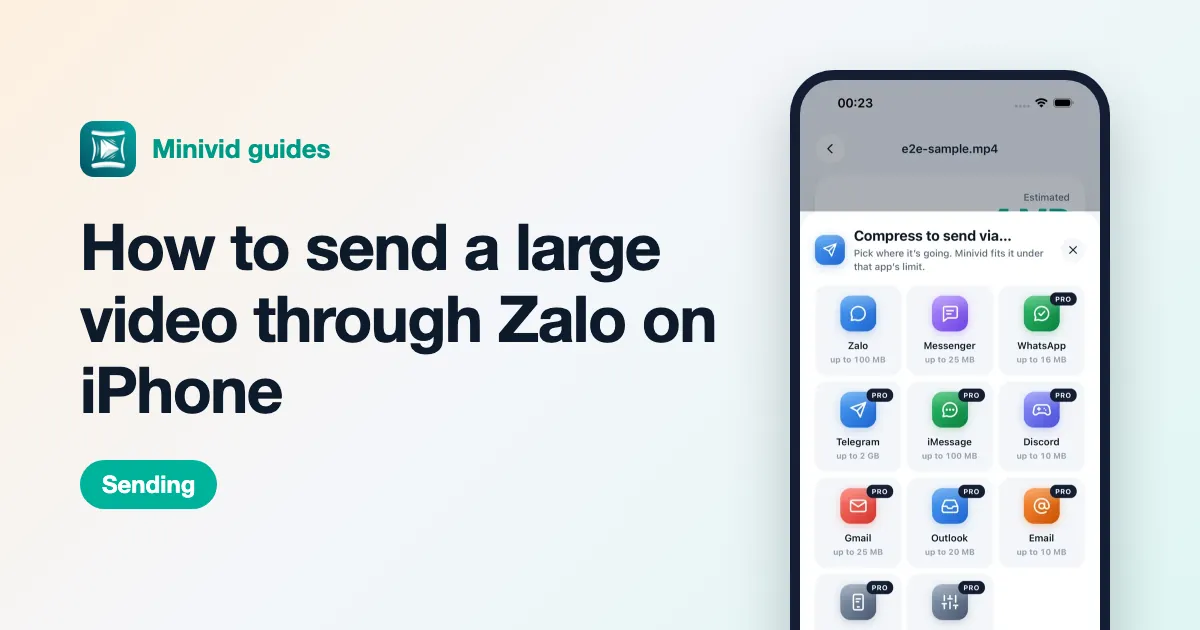
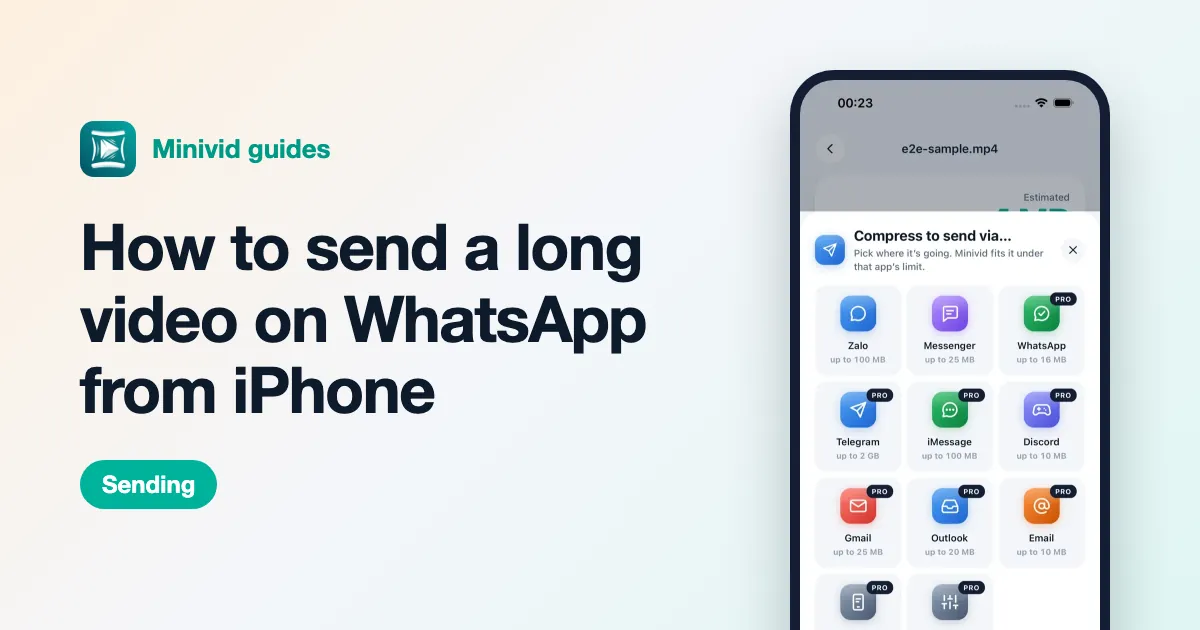
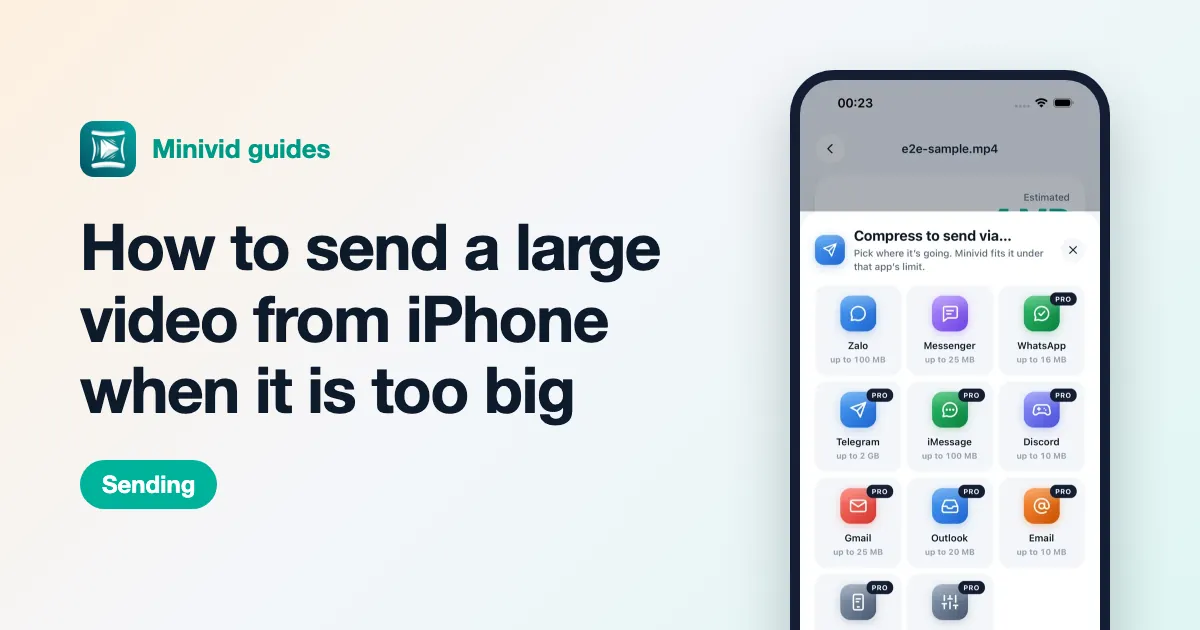
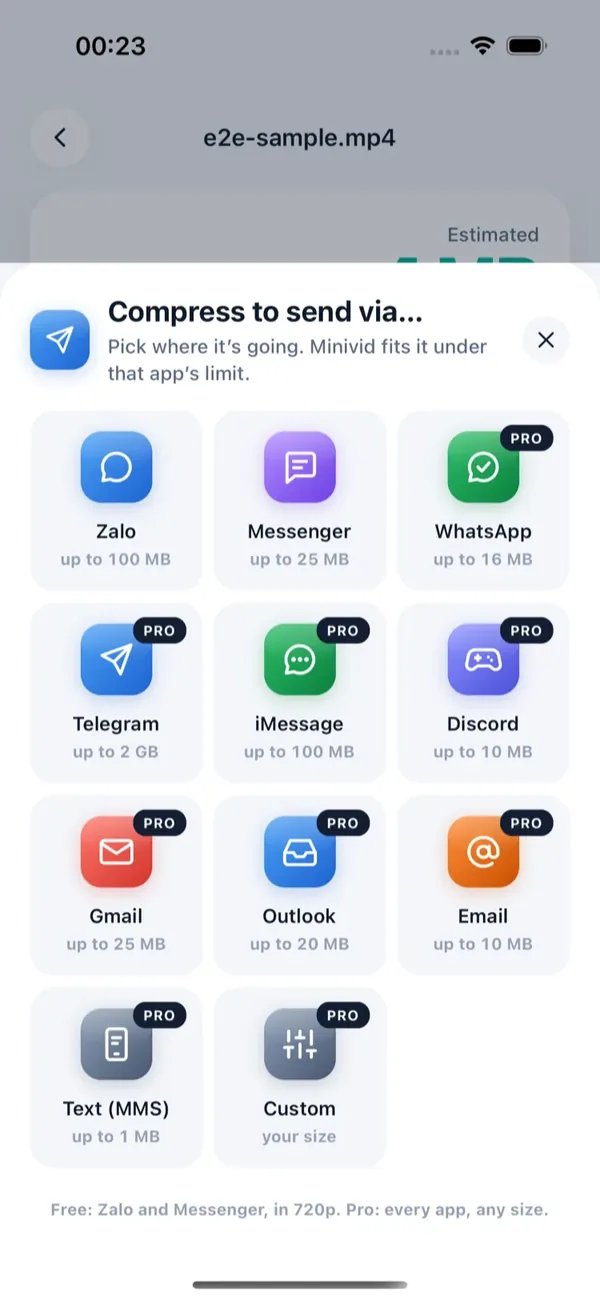
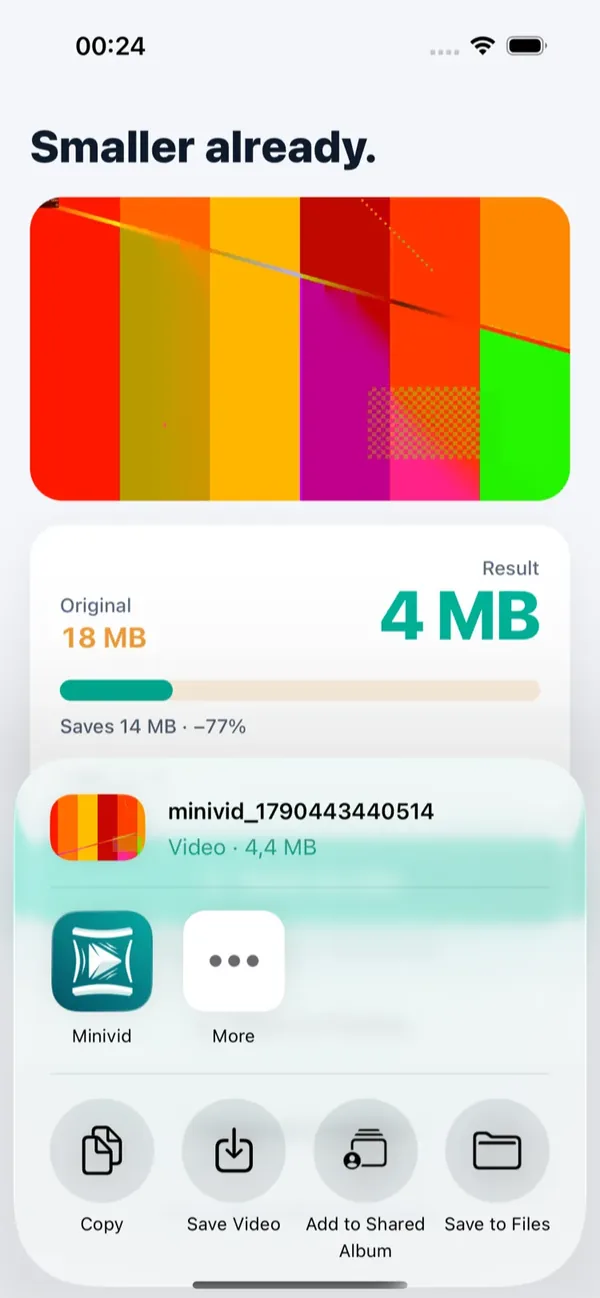
Minivid’s Send via… feature is built for the last case. Pick the video, tap Send via… and choose where it is going — Zalo, Messenger, WhatsApp, Telegram, iMessage, Discord, Gmail, Outlook or email. Minivid compresses it to fit under that app’s limit and opens the share sheet so you can send it straight away.
It never signs in to those apps or uploads the video anywhere; it only produces a smaller file on your phone. Zalo and Messenger in 720p are free, and Pro covers every destination and any size you name. If a clip is still too long to fit, trim it first and the size estimate follows as you drag.
Want to know the size before you compress?
Minivid compresses video on your iPhone and shows the final size before it starts. Your videos are never uploaded.