How to send a long video on Messenger from iPhone
Published 2 October 2026 · 6 min read
To send a long video on Messenger from iPhone, make it smaller than Messenger’s limit first: trim the parts you do not need, then shrink the rest to 720p, or share an iCloud or Google Drive link instead of the file. Minivid, an iPhone app that compresses video on the phone itself, can fit a video under Messenger’s limit for you and show the final size before it starts.
Messenger’s limit is the part nobody agrees on. Meta announced a larger cap in 2024, but its help pages and many users still report 25 MB, so this guide uses 25 MB as the safe number. If your video goes through above that, great; if not, the steps below fix it.
Why does Messenger refuse or blur my video?
Two different things happen, and they have different fixes:
- The video is over the limit: Messenger refuses it, stalls on the upload, or asks you to pick something shorter. The only fix is a smaller file.
- The video is under the limit but looks soft: Messenger re-compresses video it sends as a normal video, so the other person often sees a lower-quality copy than the one on your phone. Sending a 4K original does not help; it only makes the upload slower before Messenger shrinks it anyway.
A minute of 4K video from a recent iPhone is often several hundred megabytes, so even a short clip can be many times too big. To see a video’s size, open it in Photos and tap the info button (the i in a circle).
How much video fits in 25 MB?
A rough rule: 25 MB is about 200 megabits, so it holds roughly one minute at 3 to 3.5 Mbps, or about three minutes at 1 Mbps. At 720p that is still watchable on a phone, but long clips get soft quickly.
That is why length matters more than any other setting. If a clip is five minutes long, no honest compression will make it both small and sharp, and trimming or a link is the better route.
How do I send a long video on Messenger step by step?
Start with the free tools already on your iPhone, in this order:
- 1Trim it. In Photos, open the video and tap Edit. Drag the yellow handles to keep only the part the person needs, tap Done, then choose Save Video as New Clip. Your original stays as it is.
- 2Check the size. Open the new clip, tap the info button and read the file size.
- 3If it is still over 25 MB, lower the resolution. The Shortcuts app’s Encode Media action or iMovie’s Share › Options can export a smaller copy. 720p is plenty for a chat screen.
- 4Open the Messenger chat, tap the photo icon and pick the clip. If Messenger accepts it, you are done.
The built-in tools do not tell you the result size in advance, so a longer clip can take two or three tries.
What if the video is too long to shrink?
Send a link instead of the file. With iCloud Photos on, tap Share on the video and choose Copy iCloud Link, then paste it into the chat; the link works for 30 days. A Google Drive, OneDrive or Dropbox link works for any size, but the video then lives on that service, so remove the link when you no longer need it.
A link also suits a group chat: everyone opens the same copy instead of each phone downloading a large attachment. Our comparison of an iCloud link versus compressing helps you choose between the two.
Which way should I pick?
Use this as a quick guide:
| Option | Plays inside the chat | Quality for the viewer | Best when |
|---|---|---|---|
| Trim in Photos | Yes, if it ends up under the limit | Same as the original | Only part of the clip matters |
| Lower resolution (Shortcuts, iMovie) | Yes | Good at 720p | You can retry until the size fits |
| Minivid, Send via Messenger | Yes | Good at 720p | You want the size known before it starts |
| iCloud or Drive link | Opens in a browser or player | Original quality | The video is long, or goes to a group |
How does Minivid make this easier?
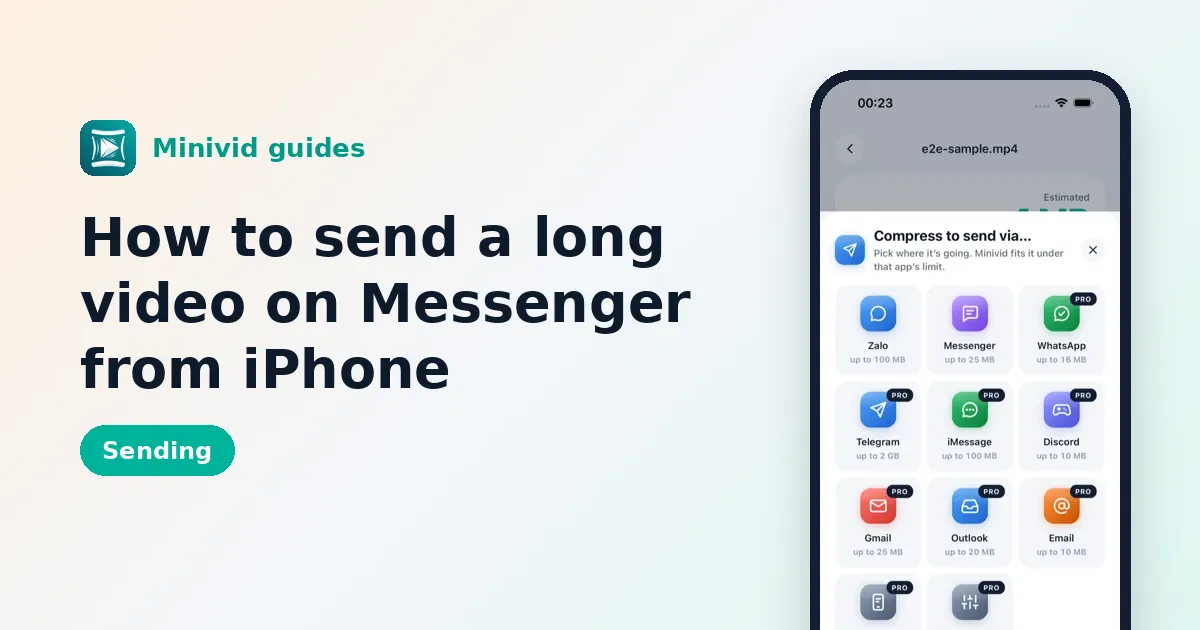
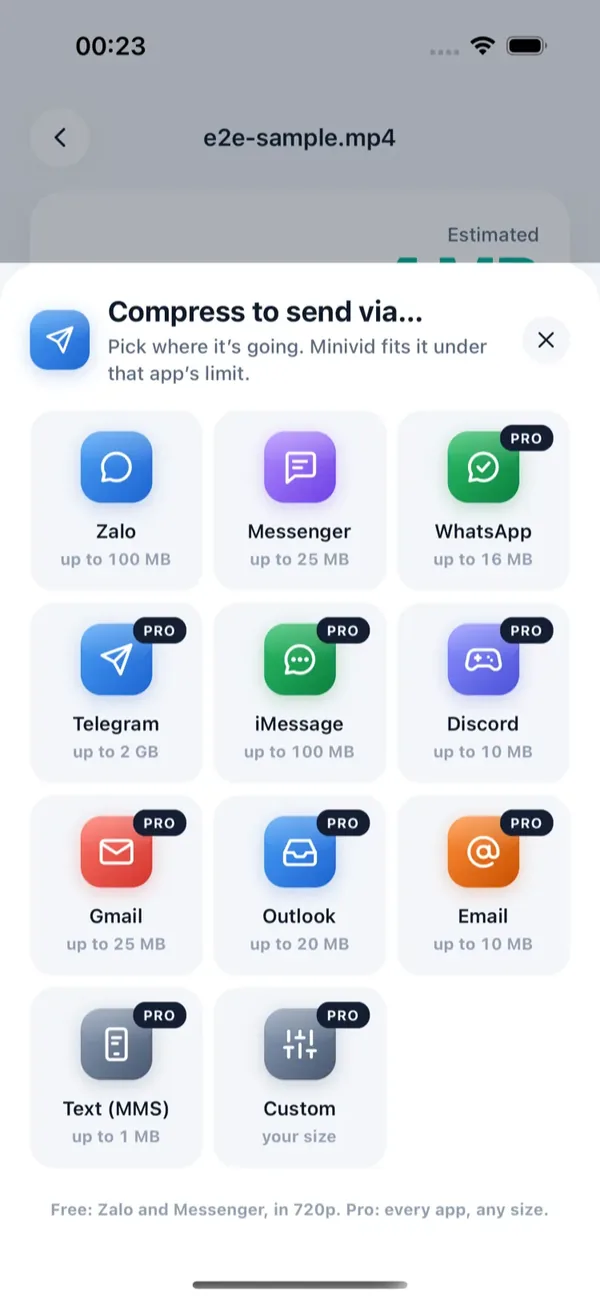
Minivid’s Send via… feature is built for exactly this. Here is the flow:
- 1Open Minivid and pick the video.
- 2Tap Send via… and choose Messenger.
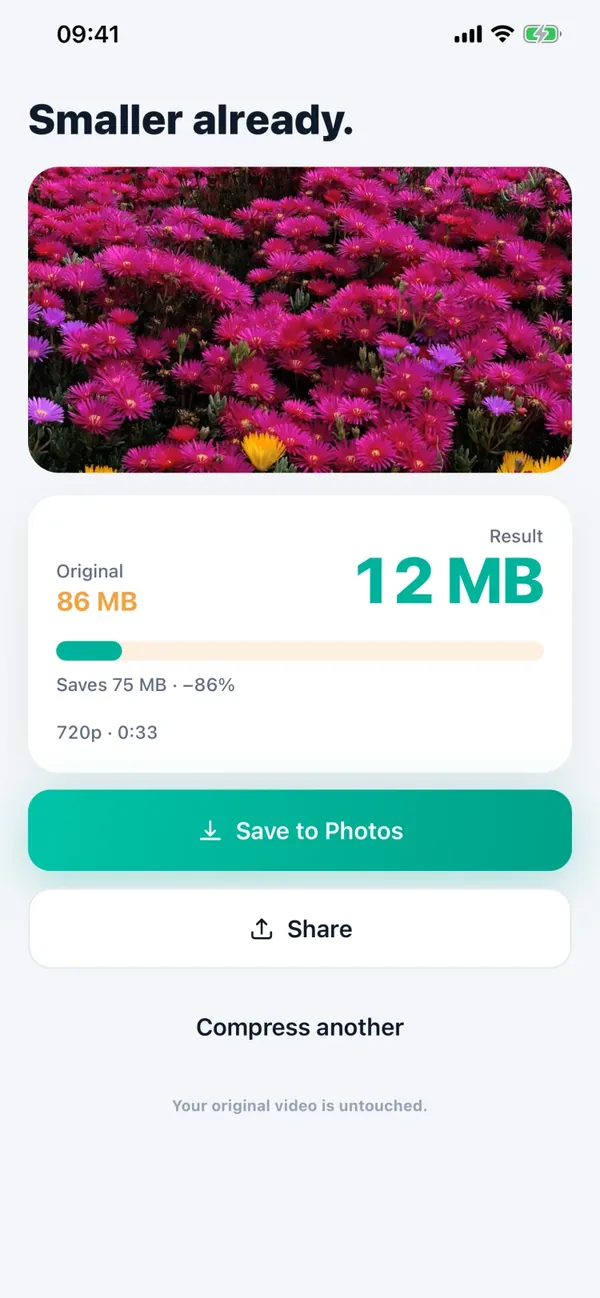
- 3Minivid shows the size the result will have, fitted under Messenger’s 25 MB, before it encodes anything.
- 4Tap Compress for Messenger and wait; keep Minivid open while it runs.
- 5Tap Send via Messenger, which opens the iOS share sheet, and pick Messenger.
If the clip is too long to stay watchable at that size, Minivid says so and suggests trimming. Trimming is free, and the estimate updates as you drag the handles.
Minivid never signs in to Messenger or uploads your video; it writes a smaller copy on your iPhone, and the original is never modified. It uses the iPhone’s own video encoder, so it works in airplane mode too. Send via Messenger at 720p is free for videos up to 100 MB; larger originals, other apps and higher resolutions need Pro.
Frequently asked questions
What is the video size limit on Messenger?
Meta has not made one number clear. It announced a larger limit in 2024, but its help pages and many users still report 25 MB, so Minivid fits videos under 25 MB to be safe. Limits change without notice, so check Messenger’s help page for the current figure.
Why does my video look blurry on Messenger?
Messenger re-compresses videos sent as normal videos to save data, so the recipient usually sees a softer copy. Sending a shorter clip at 720p gives the best result you can control.
Can I send a video longer than a few minutes?
Usually not as a normal video. Trim it to the part that matters, or share an iCloud or Google Drive link, which works for any length.
Does Minivid upload my video or sign in to Messenger?
No. Minivid compresses on your iPhone and then opens the iOS share sheet, so you send the file yourself. It never connects to your Messenger account, and your original video is not changed.
Is sending to Messenger with Minivid free?
Send via Messenger at 720p is part of Minivid’s free tier, for videos up to 100 MB. Larger videos, other destinations and higher resolutions need Pro.
Want to know the size before you compress?
Minivid compresses video on your iPhone and shows the final size before it starts. Your videos are never uploaded.