How to send a long video on WhatsApp from iPhone
Published 1 October 2026 · 6 min read
To send a long video on WhatsApp from iPhone, either send it as a document, which keeps the original quality for files up to 2 GB but has to be downloaded before it plays, or shorten and compress it so it fits WhatsApp’s media limit, long stated as 16 MB in its help centre. For anything longer, split it into parts or share a link.
WhatsApp adjusts its limits and quality options from time to time, so check its help centre for the current numbers. The steps below work regardless.
What is WhatsApp’s video limit?
WhatsApp handles a video differently depending on how you attach it:
- As a video from Photos & Videos: WhatsApp’s help centre has long stated a 16 MB maximum for media. When a video is too long, WhatsApp asks you to trim it before sending, and it compresses what it sends.
- As a document: WhatsApp allows files up to 2 GB. The video is sent as is, without compression, but appears as a file the recipient downloads before watching.
16 MB is not much video. At the bitrates WhatsApp aims for, that is often around a minute or two, and far less for high-resolution footage straight from the camera.
Why does my video look blurry on WhatsApp?
Because WhatsApp re-encodes media to save data. Newer versions show an HD option before sending a photo or video; choose HD for better quality, or Standard for a smaller, faster send. Even HD is compressed, and the recipient’s app may also download a lower quality depending on their data settings. If quality really matters, send it as a document.
How do I send a video on WhatsApp as a document?
- 1In Photos, open the video, tap Share, then Save to Files, and pick a folder.
- 2In the WhatsApp chat, tap + next to the message box.
- 3Choose Document.
- 4Pick the video from Files and tap Send.
The recipient gets the original file. It does not play inline and uses their data to download, so this suits a clip they want to keep, not one they will glance at once.
How do I trim or split a long video?
If WhatsApp offers to trim the video when you attach it, drag the handles to the part you need. To keep the whole video as several parts instead:
- 1In Photos, open the video and tap Edit.
- 2Drag the handles to keep the first part, tap Done, then Save Video as New Clip.
- 3Open the original again, which is unchanged, and repeat for the next part.
- 4Send the parts in order, and say Part 1, Part 2 in the message so they are easy to follow.
Keep each part short enough to fit the limit; at around a minute or less per part you are usually safe.
How do I compress a video to fit WhatsApp?
To keep it as a normal, playable video, make it smaller before you attach it:
- Lower the resolution: 720p is plenty on a phone screen. The Shortcuts app’s Encode Media action or iMovie’s Share › Options can export a smaller copy.
- Drop the frame rate: a 60 fps clip of people talking looks almost the same at 30 fps.
- Trim the start and end, which costs no quality at all.
Check the new size in Photos with the info button before you send it. The built-in tools do not show the result in advance, so you may need a second attempt.
Can I send a link instead?
Yes, and it suits long videos best. With iCloud Photos on, tap Share on the video and choose Copy iCloud Link, then paste it into the chat; the link lasts 30 days. A Google Drive, OneDrive or Dropbox link works for any size too, but the video then lives on that service.
Where Minivid helps
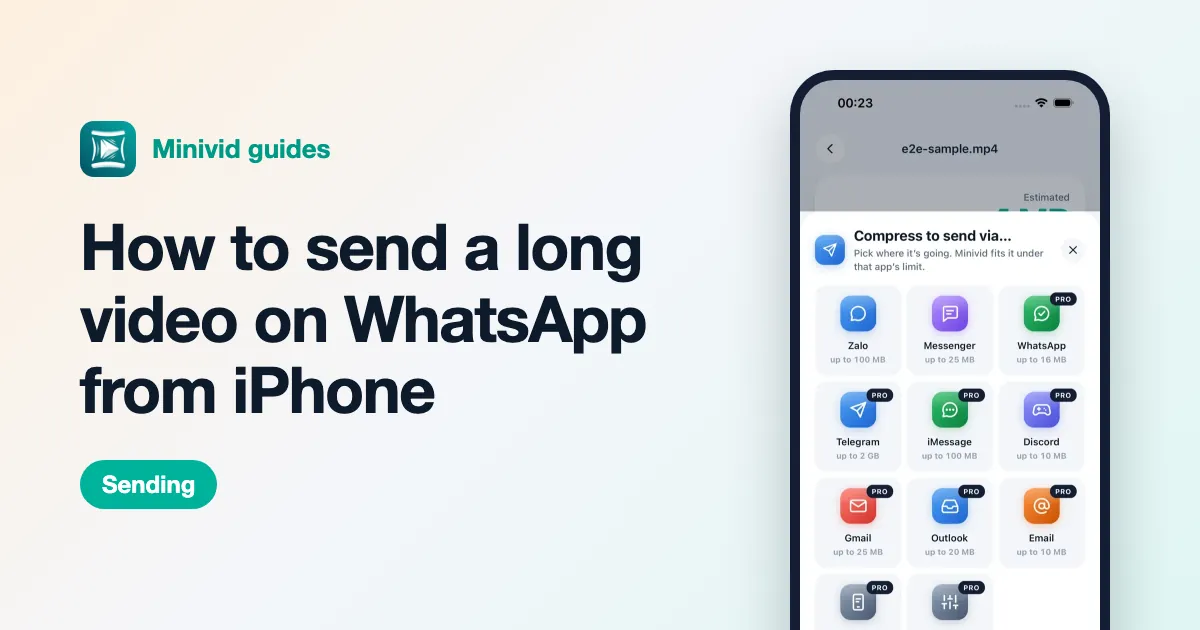
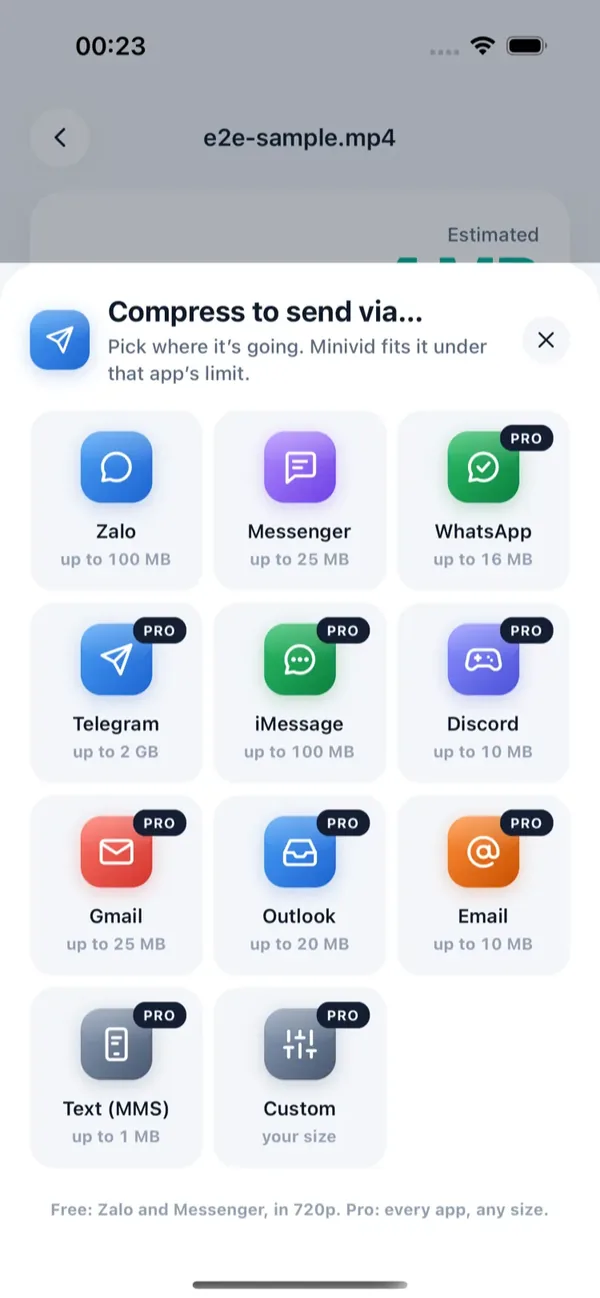
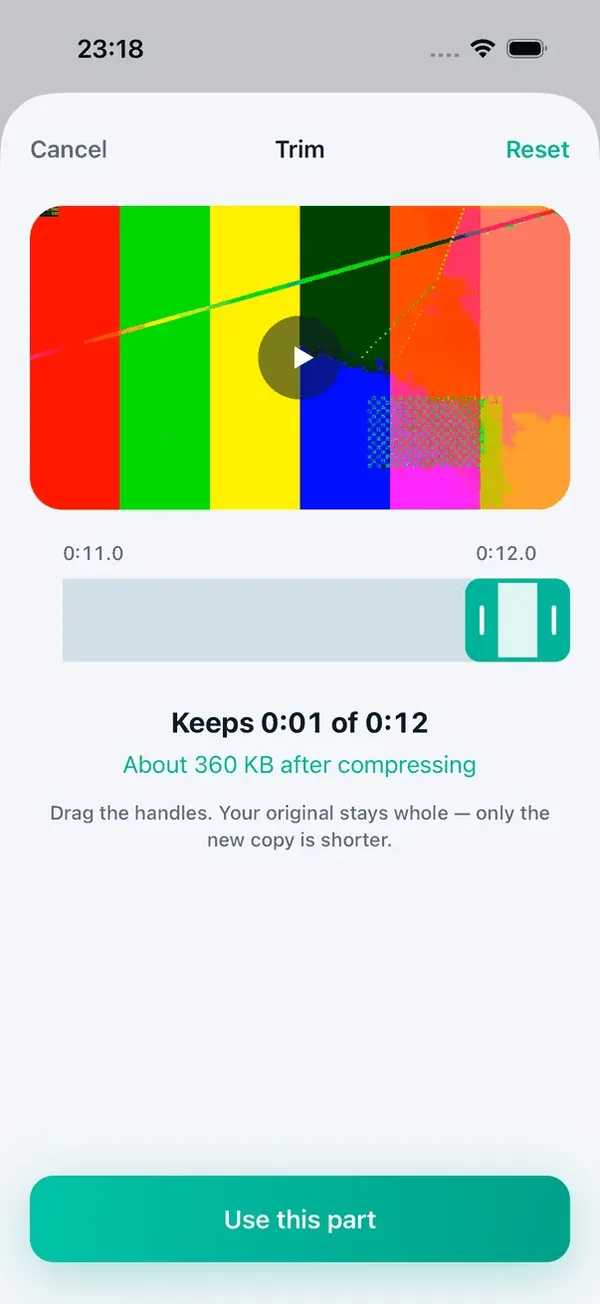
With Pro, Minivid’s Send via… WhatsApp compresses the video on your iPhone to fit under 16 MB, shows the size before it encodes, and opens the share sheet so you can send it in WhatsApp straight away. If the clip is too long to stay watchable at that size, trimming it first — free for everyone — brings it back in range, and the estimate updates as you drag.
Minivid never signs in to WhatsApp or uploads anything; it only writes a smaller copy on the phone, and the original is never modified. The free tier compresses videos up to 100 MB at 720p and includes Send via Zalo and Messenger.
Want to know the size before you compress?
Minivid compresses video on your iPhone and shows the final size before it starts. Your videos are never uploaded.