How to send a video on Discord from iPhone (10 MB limit)
Published 5 October 2026 · 6 min read
To send a video on Discord from iPhone when it says the file is too large, make the video smaller than Discord’s upload limit first: trim what you do not need, then shrink the rest to 720p, or paste an iCloud or Google Drive link instead of the file. Minivid, an iPhone app that compresses video on the phone itself, can fit a video under Discord’s limit for you and show the final size before it starts.
Discord’s limit is the number to plan around, and it has been changing. Free accounts have long been capped at 10 MB per file, and Discord has said it is raising that, but the rollout is gradual and many accounts still sit at 10 MB. This guide uses 10 MB as the safe figure: if your video goes through above it, great; if not, the steps below fix it.
Why does Discord say my video is too large?
Because iPhone video is big. A minute of 4K video from a recent iPhone is often several hundred megabytes, and even a short 1080p clip can be well over 10 MB. Discord checks the file size before it uploads, so a clip that plays fine in Photos can be many times over the limit.
To see how big a video is, open it in Photos and tap the info button (the i in a circle); the file size is shown there.
Where you send it matters too. A Discord server, a direct message and a group chat all use the limit of the account that uploads the file, so a friend with a paid plan can send a larger file than you can.
How much video fits in 10 MB?
A rough rule: 10 MB is about 80 megabits. That holds around 40 seconds of video at 2 Mbps, or about 80 seconds at 1 Mbps, sound included. At 720p that is still watchable on a phone screen, but it gets soft quickly as clips get longer.
So length matters more than any setting. A 20-second game clip shrinks to 10 MB comfortably; a ten-minute screen recording will not look good at that size, and trimming or a link is the better route.
How do I send a video on Discord from iPhone step by step?
Start with the free tools that are already on your iPhone:
- 1Trim it. In Photos, open the video and tap Edit. Drag the yellow handles to keep only the moment people need, tap Done, then choose Save Video as New Clip. Your original stays as it is.
- 2Check the size. Open the new clip, tap the info button and read the file size.
- 3If it is still over 10 MB, make a smaller copy. The Shortcuts app’s Encode Media action, or iMovie’s Share and export options, can save a lower-resolution video. 720p is plenty for a chat window.
- 4Open the Discord chat, tap the plus button next to the message box, and choose the video from your photos. If Discord accepts it, you are done.
The built-in tools do not tell you the result size in advance, so a longer clip can take two or three tries.
What if the video is too long to shrink under 10 MB?
Send a link instead of the file. With iCloud Photos on, tap Share on the video and choose Copy iCloud Link, then paste it into Discord; the link works for 30 days. A Google Drive, OneDrive or Dropbox link works for any size.
The trade-off: Discord shows a link rather than playing the video inside the chat, and the video then lives on that service, so remove the link when you no longer need it. Our comparison of an iCloud link versus compressing helps you choose between the two.
Which way should I pick?
Use this as a quick guide:
| Option | Plays inside Discord | Quality for the viewer | Best when |
|---|---|---|---|
| Trim in Photos | Yes, if it ends up under the limit | Same as the original | Only a short moment matters |
| Lower resolution (Shortcuts, iMovie) | Yes | Fine at 720p | You can retry until the size fits |
| Minivid, Send via Discord | Yes | Fine at 720p, shorter clips look best | You want the size known before it starts |
| iCloud or Drive link | No, it opens in a browser or player | Original quality | The video is long, or you need full quality |
How does Minivid make this easier?
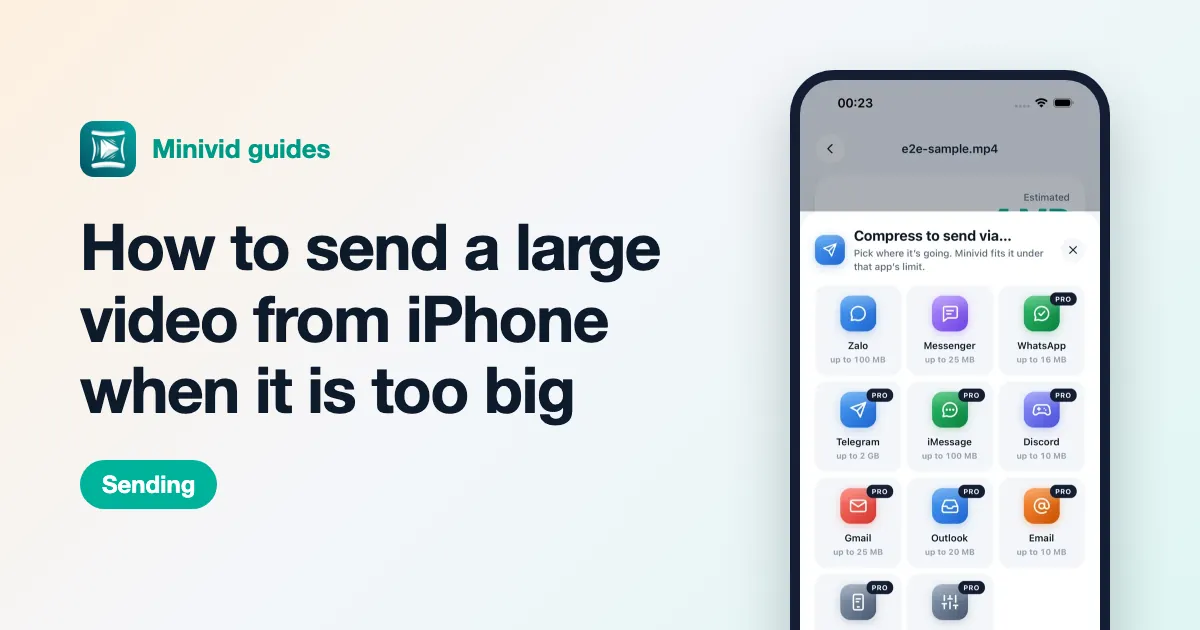
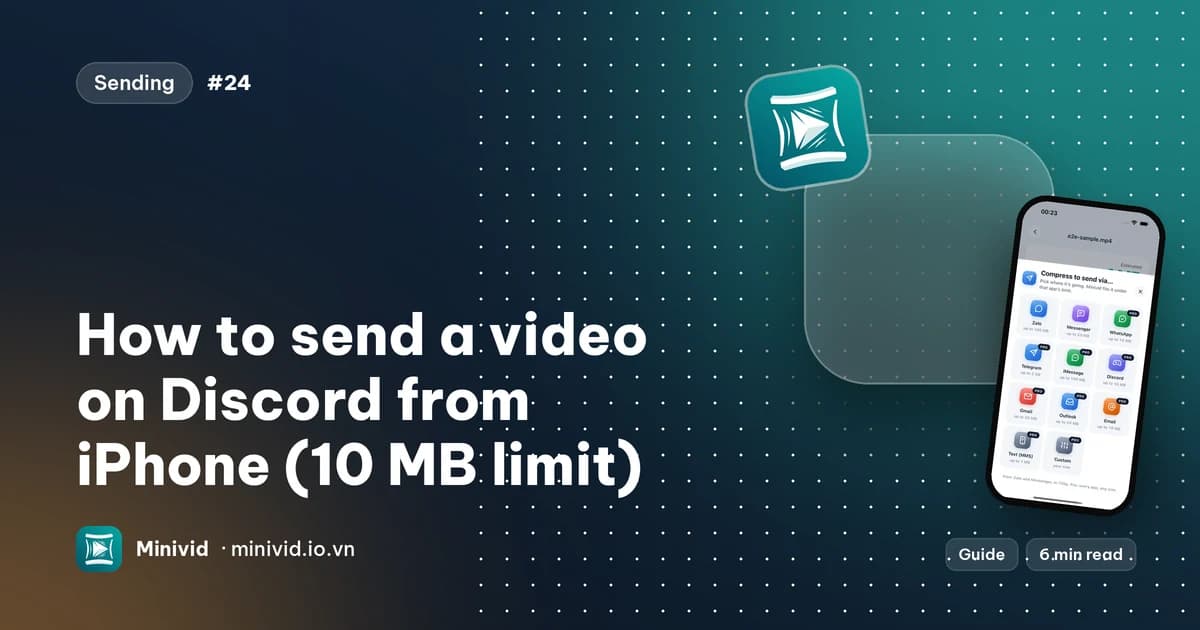
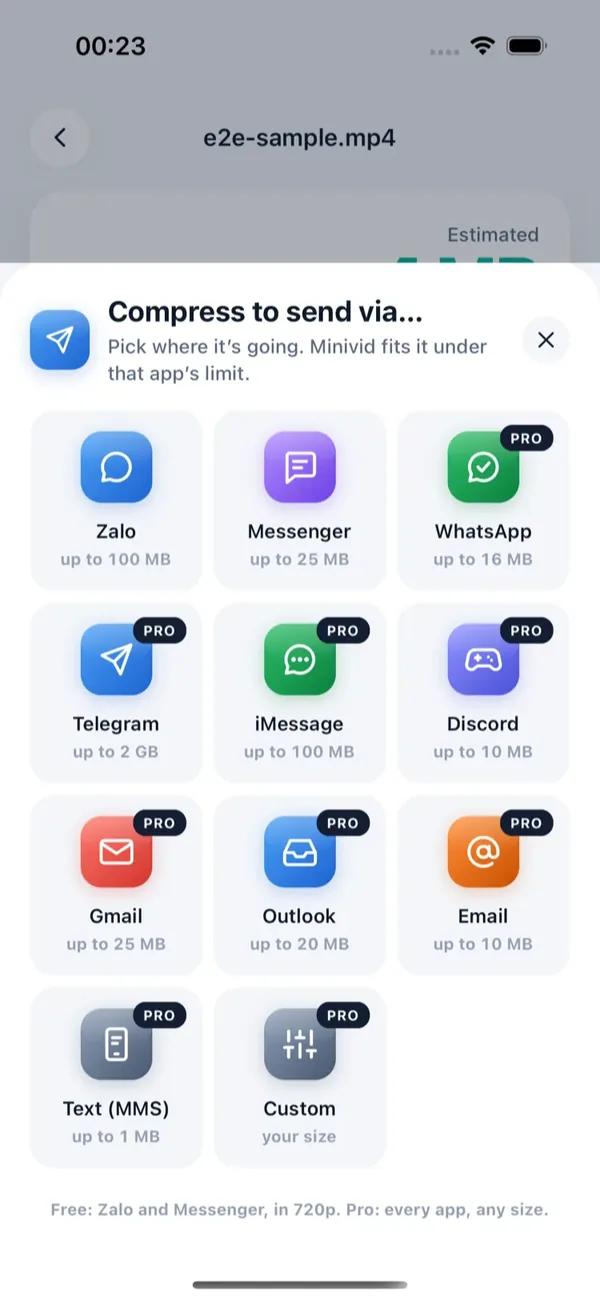
Minivid’s Send via… feature is built for exactly this. Discord is one of the destinations, with its limit already set to 10 MB. Here is the flow:
- 1Open Minivid and pick the video.
- 2Tap Send via… and choose Discord.
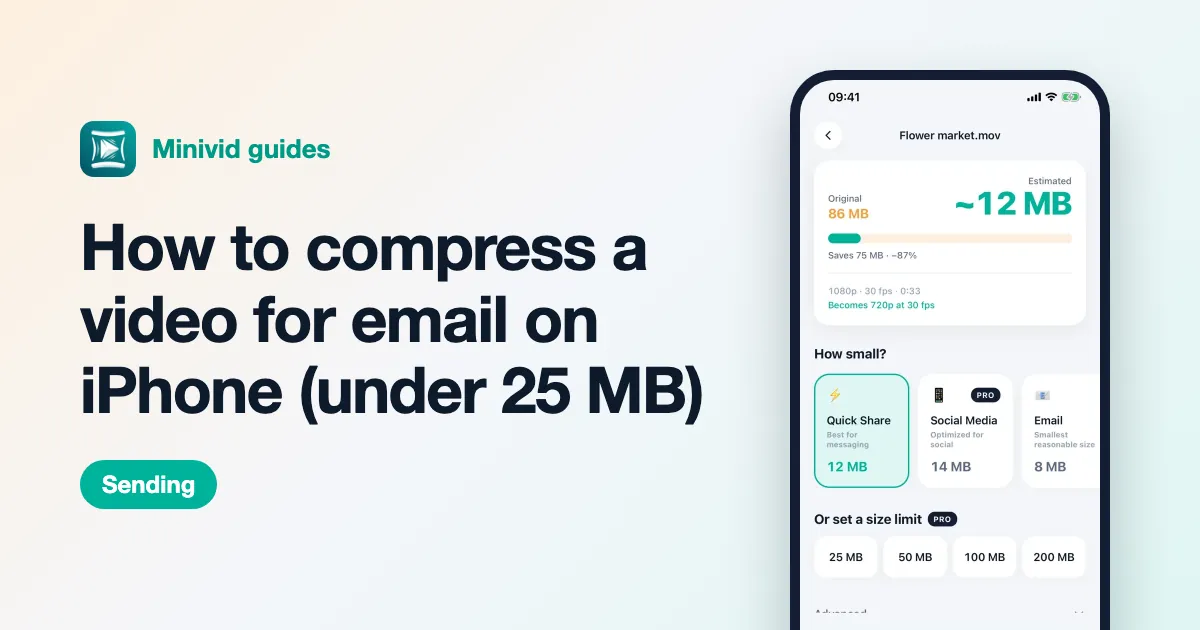
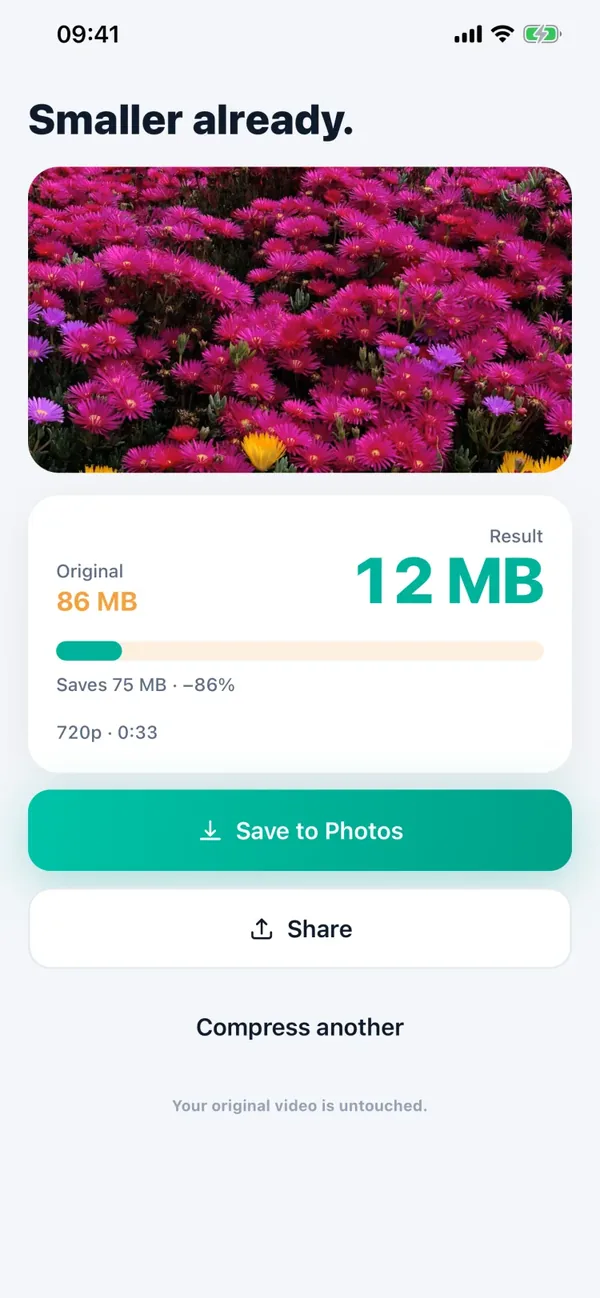
- 3Minivid shows the size the result will have, fitted under 10 MB, before it encodes anything.
- 4Tap Compress for Discord and wait; keep Minivid open while it runs.
- 5Tap Send via Discord, which opens the iOS share sheet, and pick Discord.
If the clip is too long to stay watchable at that size, Minivid says so and suggests trimming. Trimming is free, and the estimate updates as you drag the handles. If Discord has raised the limit on your account, the Custom option lets you type any size, such as 20 MB, instead.
Minivid never signs in to Discord or uploads your video; it writes a smaller copy on your iPhone, and the original is never modified. It uses the iPhone’s own video encoder, so it works in airplane mode too. In the free tier, Send via covers Zalo and Messenger; Discord, every other app and Custom sizes are part of Minivid Pro.
Frequently asked questions
What is the video size limit on Discord?
For a free account it has long been 10 MB per file. Discord has said it is raising the free limit, but the rollout is staged, so many accounts still see 10 MB. Minivid fits videos under 10 MB to be safe; check Discord’s help page for the current figure on your account.
How do I send a video on Discord from iPhone if it is over the limit?
Trim it in Photos, then make it smaller, for example by exporting a 720p copy, until it is under the limit. If that is not enough, paste an iCloud or Google Drive link instead. Minivid can also fit it under Discord’s limit and show the size first.
Will the video look worse after I compress it?
A little, because the file has to carry less data. At 720p, short clips still look good on a phone. Long clips lose more, which is why trimming first gives the best result.
Does Minivid upload my video or sign in to Discord?
No. Minivid compresses on your iPhone and then opens the iOS share sheet, so you send the file yourself. It never connects to your Discord account, and your original video is not changed.
Is sending to Discord with Minivid free?
No. In Minivid’s free tier, Send via covers Zalo and Messenger at 720p. Discord and the other destinations are part of Pro. Trimming a video before you send it is free.
Want to know the size before you compress?
Minivid compresses video on your iPhone and shows the final size before it starts. Your videos are never uploaded.