How to compress a video for email on iPhone (under 25 MB)
Published 1 October 2026 · 6 min read
To email a video from iPhone, make the file clearly smaller than the provider’s limit — about 18 MB for Gmail’s 25 MB cap and about 14 MB for Outlook.com’s 20 MB — because attachments grow by roughly a third when they are encoded for email. Trim the clip, export it at 720p, and check the size in Photos before you attach it; if it still will not fit, use Mail Drop or a link instead.
Below is why the limit is smaller than it looks, a quick way to work out the size you need, and the step-by-step ways to get there without leaving the phone.
What are the email size limits?
Limits apply per message, to all attachments together, and providers change them from time to time, so check their help pages if it matters. The common ones:
- Gmail: 25 MB per message. Larger files are offered as a Google Drive link instead.
- Outlook.com: 20 MB per message.
- Company and older mail servers: often 10 MB, and the recipient’s server can be stricter than yours.
If you do not know what the other side uses, around 10 MB is the size most likely to arrive anywhere.
Why does a 24 MB video bounce from Gmail?
Email was built for text, so attachments are converted to text (base64 encoding) before sending. That makes them about a third larger, plus a little for headers. A 24 MB video becomes roughly 32 MB in transit, and Gmail counts that encoded size.
A rule of thumb: divide the stated limit by about 1.37 and stay under the result.
- Gmail, 25 MB: aim for about 18 MB.
- Outlook.com, 20 MB: aim for about 14 MB.
- A 10 MB server: aim for about 7 MB.
How long a video fits in 18 MB?
A video’s size is its bitrate multiplied by its length. As a formula: size in MB ≈ bitrate in Mbps × seconds ÷ 8.
A worked example: a 60-second clip at 2 Mbps for the picture plus about 0.1 Mbps for sound comes to 2.1 × 60 ÷ 8 ≈ 16 MB. That fits Gmail. The same minute at 1080p from the camera, often 15 Mbps or more, would be well over 100 MB.
Flip it around to find what you can afford: 18 MB × 8 ÷ 60 seconds ≈ 2.4 Mbps in total. Around 2 Mbps looks fine at 720p for people talking or scenery; fast motion needs more, so shorten the clip instead.
These are estimates. Real encoders vary with what is on screen, which is why leaving headroom matters.
How do I check the video’s size on iPhone?
Open the video in Photos and tap the info button (the i in a circle), or swipe up. The panel shows the file size, resolution and frame rate. Check it again after each step below.
How do I shrink a video for email without an app?
Start with the step that costs no quality, then lower the resolution.
- 1Trim: in Photos, tap Edit, drag the yellow handles to keep only what matters, tap Done and choose Save Video as New Clip.
- 2Re-encode with Shortcuts: create a shortcut with the Encode Media action, set Size to 1280×720 (or smaller for a long clip), add Save to Photo Album, turn on Show in Share Sheet, then run it from the video’s Share menu.
- 3Or export from iMovie: add the clip to a new Movie project, tap Done, Share, then Options at the top, choose 720p or 540p and save the video.
- 4Check the size in Photos. If it is still above your target, trim further or try a lower resolution.
Both Shortcuts and iMovie use the iPhone’s own encoder and keep the video on the phone, but neither shows the final size before it finishes, so hitting a target can take a few tries.
What if it still does not fit?
- Mail Drop: in Apple’s Mail app with an iCloud account, a too-large attachment can be sent as Mail Drop instead. The recipient gets a download link valid for 30 days, for files up to 5 GB.
- An iCloud or cloud drive link pasted into the email.
- Split it: trim the video into two clips and send two emails.
Where Minivid helps
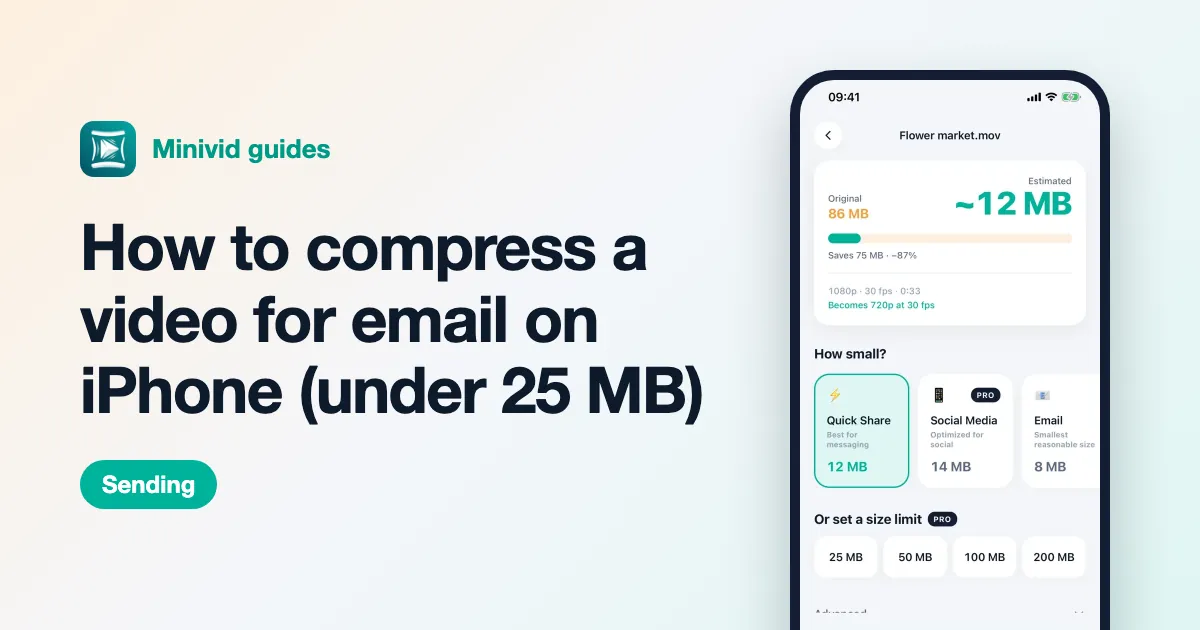
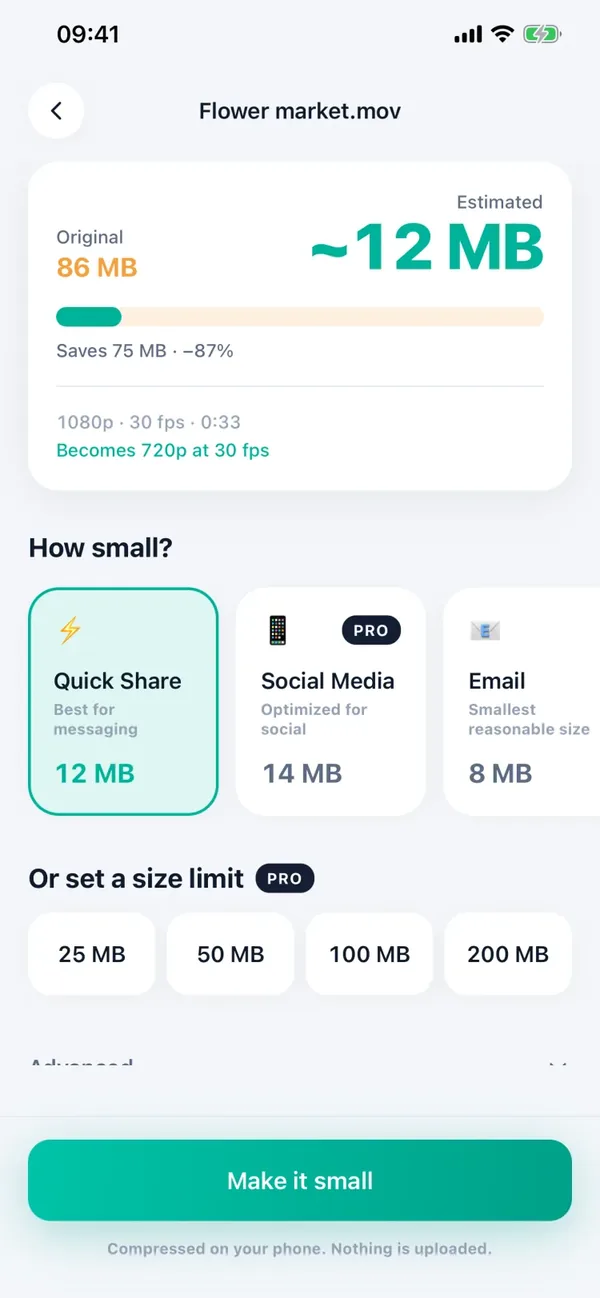
Minivid removes the guessing. Pick a video and it shows the size the result will have before it starts, updating as you change the preset or resolution; the Email preset aims for the smallest reasonable size.
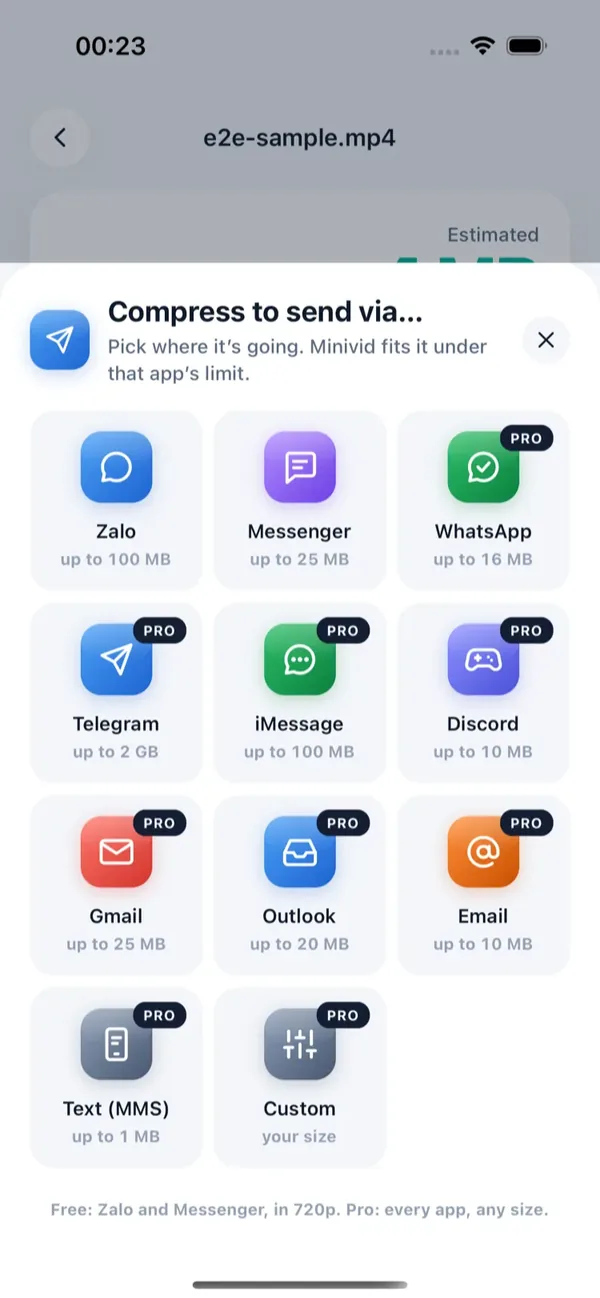
With Pro, Send via… Gmail or Outlook fits the video under that provider’s limit with headroom for the encoding overhead already included, the Email destination aims for 10 MB so it arrives on stricter servers, and compress to an exact size lets you name any other limit. Then the share sheet opens so you can attach it. The free tier covers videos up to 100 MB at 720p, and trimming is free. Everything happens on your iPhone: the video is never uploaded, and the original stays untouched.
Want to know the size before you compress?
Minivid compresses video on your iPhone and shows the final size before it starts. Your videos are never uploaded.