Why can’t an iPhone app see all my videos? How to fix “Selected Photos” access
Published 16 November 2026 · 5 min read
If an iPhone app shows only a few of your videos, you most likely gave it access to Selected Photos instead of All Photos. To change it, open Settings, find the app, tap Photos and choose All Photos, or tap Edit Selected Photos to add more. The wording and the path differ a little between iOS versions.
This guide shows where to change it, why an app may still show too little afterwards, and why you often do not need to grant full access at all. It also says how Minivid, an iPhone app that compresses video on the phone itself, behaves in each case.
Why does an app see only some of my videos?
The first time an app asks to use your photo library, iOS offers a choice: let it see only the photos and videos you pick, or let it see the whole library. If you tapped the first option, the app sees just that selection and nothing else, which is the intended privacy protection, not a fault.
Apps that only need to fetch one video, for example to attach it or compress it, can use Apple’s own picker, which shows your whole library and hands the app only what you choose. Apps that need to look through the library themselves, such as one that ranks your videos by size, need access to it.
How do I give an app access to all my videos?
- 1Open Settings. On recent versions of iOS, tap Apps and then the app’s name; on older versions, scroll down to the app in the main Settings list, or go to Privacy & Security, then Photos, and tap the app.
- 2Tap Photos.
- 3Choose All Photos for full access. The other choices are Selected Photos (limited access), where you can tap Edit Selected Photos to add or remove items, and None.
- 4Go back to the app. Some apps read the library only when they open, so close the app from the app switcher and open it again.
Full access is a real trade: the app can read your whole library. Grant it only to apps you trust, and note that you can switch back to Selected Photos at any time.
What if I would rather keep Selected Photos?
That works, you just have to add what you want the app to see. In the same Settings screen, tap Edit Selected Photos and tick more videos. Many apps also show a button such as Select More Photos, and while limited access is on, iOS may occasionally ask whether to keep the current selection or allow access to all photos.
If you only want to use one video now and then, you may not need to change anything: use the app’s Choose video or Select button, which opens Apple’s picker.
Why is something still missing after I chose All Photos?
- The app reads the library only at launch. Close it from the app switcher and open it again.
- The video lives only in iCloud. With iCloud Photos and Optimize iPhone Storage, the full file may not be on the phone. Some apps cannot report its size or open it until it is downloaded. Open it in Photos first and wait until it has downloaded.
- The app only counts videos. Check that the thing you are looking for is a video, not a Live Photo, which the app may treat as a photo.
- The app simply caps how much it reads. Large libraries can take a while, so give the scan time before assuming something is missing.
- Your photos are not on this iPhone. If you sync from a computer or use another Apple Account, they do not count as part of this library.
If nothing helps, restart the iPhone and update iOS, then try again.
How does Minivid handle this?
Minivid is an iPhone app that compresses video on the phone, and it needs photo access for two different jobs:
- Choose video on the Home screen opens Apple’s own picker. The picker runs outside the app, so Minivid receives only the video you choose, and it works even when Minivid has no photo access.
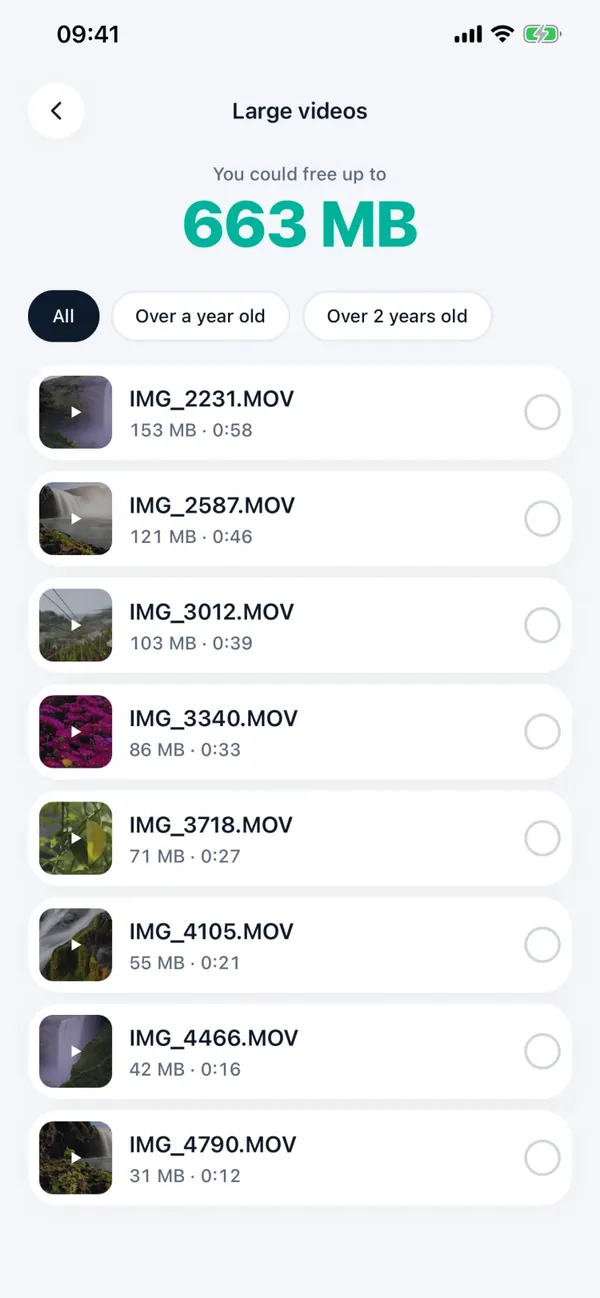
- Find large videos scans your library to list videos largest first, so it needs access. If you shared only a few videos, it sees only those, and shows a hint with an Open Settings button that takes you straight to the permission. If access is denied, it says Minivid needs permission to see your videos, with the same button.
Saving a compressed video back to Photos also needs permission; if it is missing, Minivid says so on the result screen. Everything runs on the iPhone: the video is not uploaded, and Minivid reads the library only to show what takes space and to let you compress it.
The free version covers the Large videos list and compressing one video at a time up to 100 MB at up to 720p; larger videos and selecting several at once are Pro.
Frequently asked questions
How do I change an app from Selected Photos to All Photos on iPhone?
Open Settings, find the app (on recent iOS under Apps, on older versions in the main list or under Privacy & Security, then Photos), tap Photos and choose All Photos.
Can I let an app see just a few more videos?
Yes. Under Selected Photos, tap Edit Selected Photos in Settings and add them, or use the app’s Select More Photos button if it has one.
Does an app need full access to compress one video?
Not necessarily. An app that uses Apple’s photo picker receives only the video you choose, and Minivid’s Choose video works this way. Scanning the whole library, as Find large videos does, needs access.
Why does a video not appear even with All Photos?
It may exist only in iCloud and not be downloaded, the app may need to be reopened, or it may be a Live Photo rather than a video. Open it in Photos to download it, then restart the app.
Does Minivid upload my videos?
No. It reads your library on the iPhone and compresses there; nothing is sent to a server.
Want to know the size before you compress?
Minivid compresses video on your iPhone and shows the final size before it starts. Your videos are never uploaded.