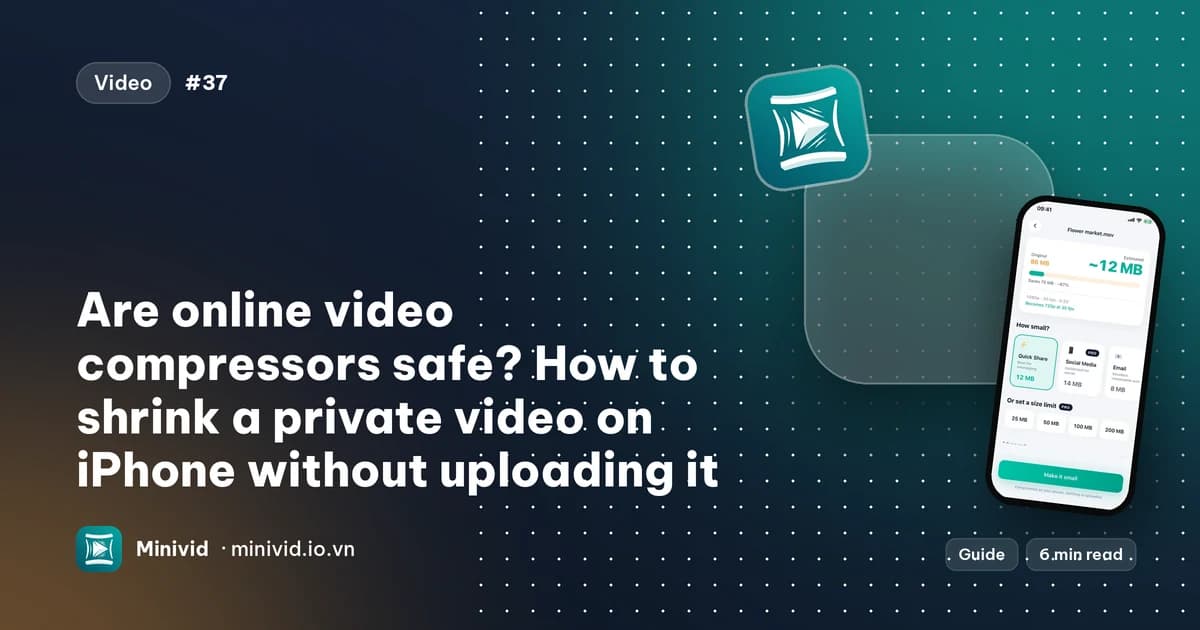
Are online video compressors safe? How to shrink a private video on iPhone without uploading it
Published 21 October 2026 · 6 min read
Many online video compressors upload your video to a server, compress it there and let you download the result, so your file does leave your phone and sits on a company’s computer for a while. Whether that is acceptable depends on the video and on what that company’s privacy policy says. Some tools instead run in the browser, and a few apps work entirely on the device.
This guide shows how to tell which kind a tool is, what to look for before you upload anything, and the ways to make a video smaller on an iPhone without it ever leaving the phone.
What happens when you use an online compressor?
Most sites work in three steps: your browser uploads the video, a server re-encodes it, and you download the smaller file. That means the whole original travels over your connection, which is slow and uses mobile data for a big clip, and a copy exists on a server you do not control until the service deletes it.
Many of these services say in their policy that files are deleted after a set time, often within hours or a day. That is the service’s own statement, so check the policy of the specific tool rather than assuming it.
Which videos should never go to an upload site?
For a holiday clip, who sees it hardly matters. Be more careful with:
- Videos of children, your home or other people who have not agreed to it.
- ID, bank, medical or legal footage, such as a recording for an insurance claim.
- Work footage that is covered by a confidentiality agreement, for example a site or product video.
For these, prefer a way that keeps the file on your own device.
How can I tell whether a tool uploads my video?
- 1Read the wording. “Upload your video”, a progress bar for uploading and a “download” button mean a server is involved. “No upload” and “processed in your browser” mean it is not, but that is the tool’s own claim.
- 2Check the privacy policy for where files are stored, how long they are kept and who can access them. If it does not say, treat the tool as keeping them.
- 3Try the airplane-mode test. Load the tool, switch the connection off and compress a small clip. If it still works, the video is being processed on your device. If it fails, it needed a server.
A tool that only works while connected is not necessarily unsafe, and one that works offline has not necessarily been audited, but the test tells you which kind you are dealing with.
How do I make a video smaller on iPhone without uploading it?
Apple’s own tools run on the phone. They are not as quick to aim at a target size, but nothing leaves the device:
- 1Trim in Photos: tap Edit, drag the yellow handles to keep only what you need, tap Done and choose Save Video as New Clip. Cutting what you do not need is the one change that costs no quality.
- 2Re-encode with Shortcuts: create a shortcut with the Encode Media action, set a smaller Size, add Save to Photo Album and run it from the video’s Share menu.
- 3Export from iMovie: add the clip to a new project, tap Done, Share, then Options, and choose a lower resolution.
These use the iPhone’s own encoder and keep the video on the phone, but none of them shows the final size before it finishes, so you may need a few tries to reach a target.
How does Minivid handle this?
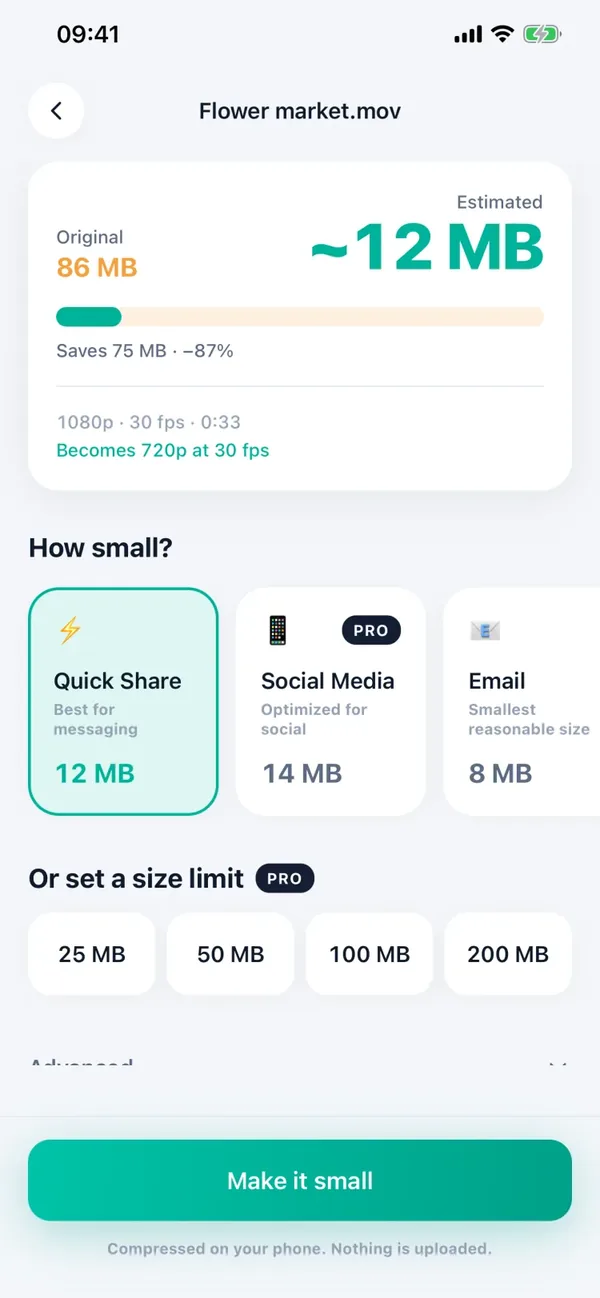
Minivid is an iPhone app that compresses video on the phone using the device’s hardware encoder. There is no server that receives your video and no account to create, and it works in airplane mode, so you can run the test above on it. If a video is stored only in iCloud, it is downloaded from your own iCloud first, which needs a connection.
- 1Pick the video in Minivid and choose a preset. The estimated size appears before anything is encoded.
- 2Tap Make it small. Minivid writes a new file on your iPhone; the original stays unless you choose Replace original and confirm the deletion in the iOS prompt.
- 3Save the result to Photos or share it.
To be exact about what does leave the phone: purchase data so the app knows whether you have Pro, anonymous usage statistics and crash reports, and feedback only if you write it and send it yourself. None of that includes your videos, photos or their contents. The privacy policy lists each item.
What is free and what is Pro?
The free version compresses one video at a time, up to 100 MB, with the Quick Share, Email and Save Space presets, which output up to 720p. Pro removes the size and length limits and adds 1080p and 4K output, exact size limits, batches and HEVC. Seeing the estimate costs nothing.
If you only need a clip trimmed or sent as a link, you do not need any extra app: Photos can trim, and an iCloud link works for most people.
Frequently asked questions
Are online video compressors safe?
It depends on the tool. Most upload your video to a server, so the file leaves your phone and is stored there until the service deletes it. Many say they delete files after some hours, but that is their own statement. Avoid them for private footage and read the privacy policy first.
How can I check whether a compressor uploads my video?
Load the tool, switch to airplane mode and try a small clip. If it still compresses, it works on your device. If it fails or waits for a connection, it needed a server.
Does Minivid upload my video?
No. Minivid compresses on the iPhone itself, has no account and works in airplane mode. A video that exists only in iCloud is downloaded from your own iCloud first.
What does Minivid send off the phone, then?
Purchase data so it knows whether you have Pro, anonymous usage statistics and crash reports, and feedback only if you send it yourself. None of it includes your videos or photos.
Can I make a video smaller on iPhone without any app?
Partly. Photos trims a clip, and Shortcuts (Encode Media) or iMovie can re-encode it at a lower resolution, all on the phone. They do not show the final size before they finish.
Want to know the size before you compress?
Minivid compresses video on your iPhone and shows the final size before it starts. Your videos are never uploaded.