How to change a video from 60 fps to 30 fps on iPhone
Published 20 October 2026 · 5 min read
To change a 60 fps video you already filmed to 30 fps on an iPhone, you need an app that re-encodes it with fewer frames per second. The Photos app can trim a clip but has no frame-rate setting, and the Record Video setting in Settings only changes videos you film from then on.
This guide explains what 60 fps costs in storage, when 30 fps looks the same, and the routes that work: the camera setting for future clips, and Minivid, an iPhone app that compresses video on the phone itself, for clips you already have.
Can I change the frame rate in Photos?
No. Photos trims, crops, rotates and adjusts a video, and saving a trimmed clip keeps its original frame rate. There is no frame-rate option for an existing video there or in the Files app. What you can change is the setting for new videos: Settings, Camera, Record Video lists resolution and frame-rate choices such as 1080p at 30 fps or 4K at 60 fps, and the options available depend on your iPhone model and iOS version.
What does 60 fps cost, and when is 30 fps enough?
60 fps stores twice as many frames every second as 30 fps. Using the per-minute figures Apple lists for High Efficiency recording, a minute of 1080p is about 60 MB at 30 fps and about 90 MB at 60 fps, and a minute of 4K is about 170 MB at 30 fps and about 400 MB at 60 fps. These are guides: the real size depends on your iPhone, iOS version and the scene.
For people talking, scenery, screen recordings and slow movement, 30 fps looks almost identical. Keep 60 fps for fast motion, such as sport, pets running or quick camera pans, where the extra frames make movement look smoother. If you are unsure, make a 30 fps copy and keep the original.
How do I film at 30 fps from now on?
- 1Open Settings and tap Camera.
- 2Tap Record Video and choose a 30 fps option, for example 1080p HD at 30 fps.
- 3If your iPhone shows an Auto FPS toggle below the list, check whether you want it on. It may change the frame rate on its own in some conditions.
This only affects clips you film afterwards. The videos already in your library stay at the frame rate they were recorded at.
How do I make a 30 fps copy of a video I already have?
Minivid lets you cap the frame rate when it compresses a video. Its bitrate is calculated from the resolution and the frame rate, so a lower frame rate lowers the target size, and the estimate shows it before anything is encoded. It never raises the frame rate above the original, and it never goes above the cap you choose.
- 1Pick the video in Minivid. The top card shows the original’s frame rate and length.
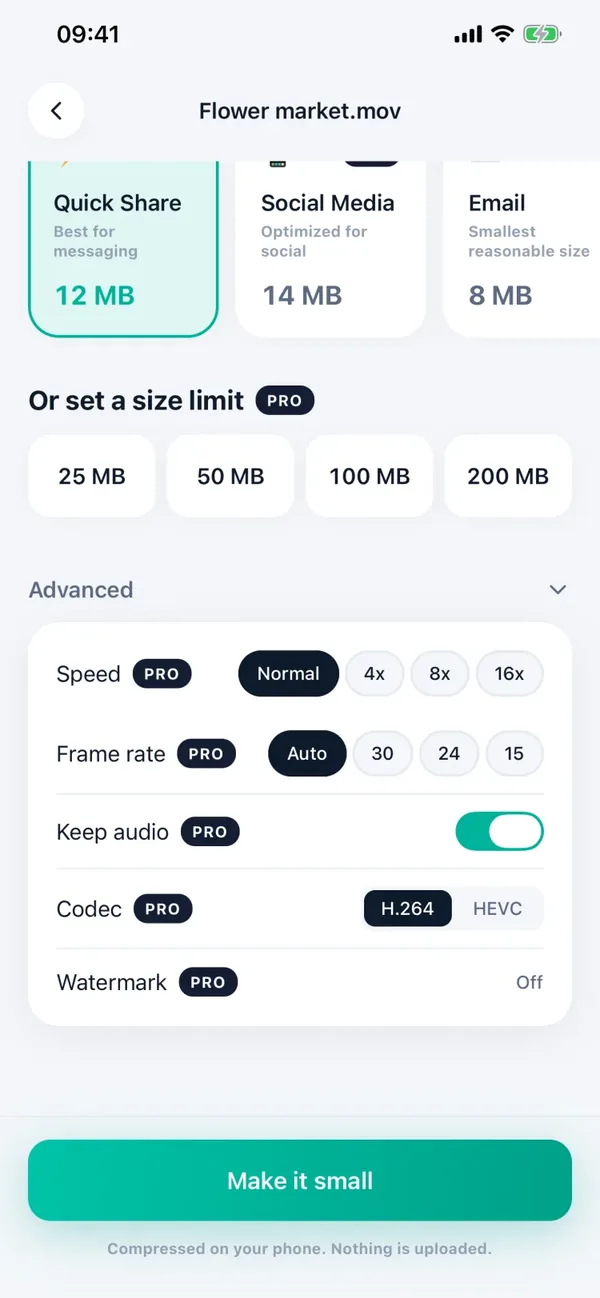
- 2Choose a preset. Quick Share, Email and Save Space are free and never go above 30 fps and 720p, so a 60 fps video is already brought down to 30 fps. Social Media also stays at 30 fps. Keep Quality allows up to 60 fps.
- 3For a specific frame rate, open Advanced and pick Frame rate: Auto, 30, 24 or 15. Choosing a frame rate is a Pro feature, and the estimated size updates as you change it.
- 4Check the estimated size, tap Make it small, then save or share the result.
The new file is written on your iPhone and nothing is uploaded. The original stays until you delete it.
What is free and what is Pro?
The free version compresses one video at a time, up to 100 MB, with the Quick Share, Email and Save Space presets, which output up to 720p and 30 fps, so they bring 60 fps down to 30 fps without any extra setting. Pro adds choosing a frame rate (30, 24 or 15), 1080p and 4K, size limits, HEVC, turning the audio off and larger videos. Seeing the estimate costs nothing.
Lowering the frame rate is not the only way to shrink a clip. If you want to keep the smooth motion, lower the resolution instead, or trim the video first.
Frequently asked questions
Can I change a video from 60 fps to 30 fps in the Photos app?
No. Photos can trim, crop and adjust a video but has no frame-rate setting for clips you have already filmed. Use an app such as Minivid to make a 30 fps copy.
Does changing the camera setting to 30 fps affect old videos?
No. Settings, Camera, Record Video only changes videos you film afterwards.
How much smaller is 30 fps than 60 fps on iPhone?
Using Apple’s per-minute figures for High Efficiency, 1080p is about 60 MB at 30 fps against about 90 MB at 60 fps, and 4K is about 170 MB against about 400 MB. Your own iPhone’s Record Video screen shows its own figures.
Will 30 fps look worse than 60 fps?
For people talking, scenery and screen recordings it looks almost the same. Fast motion, such as sport or quick camera pans, looks smoother at 60 fps, so keep the original for those.
Does Minivid turn a 60 fps video into 30 fps?
Yes. Its Quick Share, Email, Save Space and Social Media presets never go above 30 fps. The free presets are Quick Share, Email and Save Space, and they also stay at 720p or below. Choosing a frame rate of 30, 24 or 15 yourself is a Pro feature.
Want to know the size before you compress?
Minivid compresses video on your iPhone and shows the final size before it starts. Your videos are never uploaded.