How to change a video from 4K to 1080p on iPhone
Published 19 October 2026 · 6 min read
To change a 4K video you already filmed to 1080p on an iPhone, you need an app or a feature that re-encodes it at a lower resolution. The Photos app can trim a clip but has no resolution setting, and the Record Video setting in Settings only changes videos you film from then on.
This guide covers the routes that do work: Shortcuts, iMovie, and Minivid, an iPhone app that compresses video on the phone itself. It also explains what you gain and lose, so you can decide whether 1080p is enough for what you are doing.
Why can’t I change the resolution in Photos?
Photos edits a video without re-encoding it at a different size. Its tools trim, crop, rotate and adjust, and saving a trimmed clip keeps the original resolution. There is no resolution option for an existing video there, or in the Files app. What you can change is the setting for new videos: Settings, Camera, Record Video lets you pick 1080p instead of 4K, and the new choice applies only to clips filmed afterwards.
How much smaller is a 1080p copy?
A lot, because 4K has four times the pixels of 1080p. Using the per-minute figures Apple lists for High Efficiency recording, a minute of 4K at 30 fps is about 170 MB and a minute of 1080p at 30 fps is about 60 MB, so the 1080p copy is roughly a third of the size. At 4K and 60 fps (about 400 MB a minute) the saving is larger still. These are guides: the real size depends on your iPhone, iOS version and the scene.
On a phone, laptop or tablet screen the difference is hard to see. You notice 4K on a large TV, when zooming into the picture, or when you plan to crop or edit the footage afterwards. If any of those apply, keep the original and make the 1080p copy for sending only.
How do I do it with Shortcuts or iMovie?
Both are free from Apple and run on the iPhone, though the menus vary a little between iOS versions.
Shortcuts, using the Encode Media action:
- 1Open the Shortcuts app, tap +, then Add Action and search for Encode Media.
- 2Set its input to Shortcut Input, and in the shortcut’s settings turn on Show in Share Sheet so it accepts videos.
- 3Tap the arrow on the Encode Media action and set Size to 1920×1080 (or choose Ask Each Time).
- 4Add a Save to Photo Album action after it.
- 5In Photos, open the video, tap Share and run the shortcut. The 1080p copy is saved as a new video.
iMovie:
- 1Create a new Movie project and add your clip.
- 2Tap Done, then the Share button.
- 3Tap Options and choose 1080p, then Save Video.
Neither tells you how big the result will be until it has finished, and the copy can lose the original’s date, so check it in Photos before you delete anything.
How do I do it with Minivid?
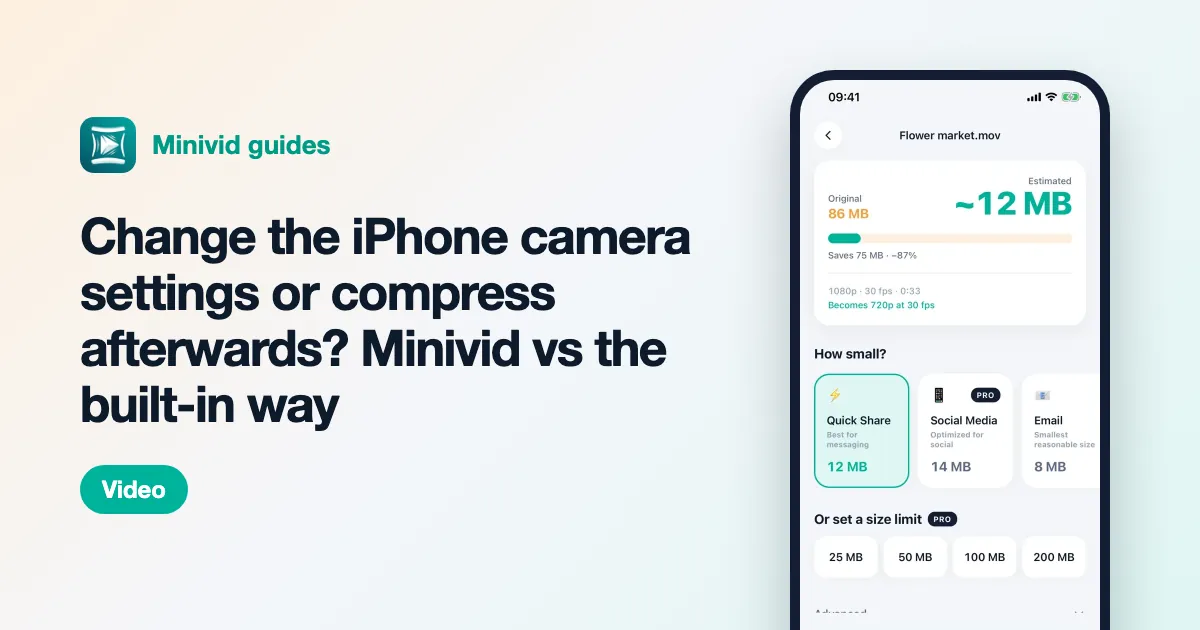
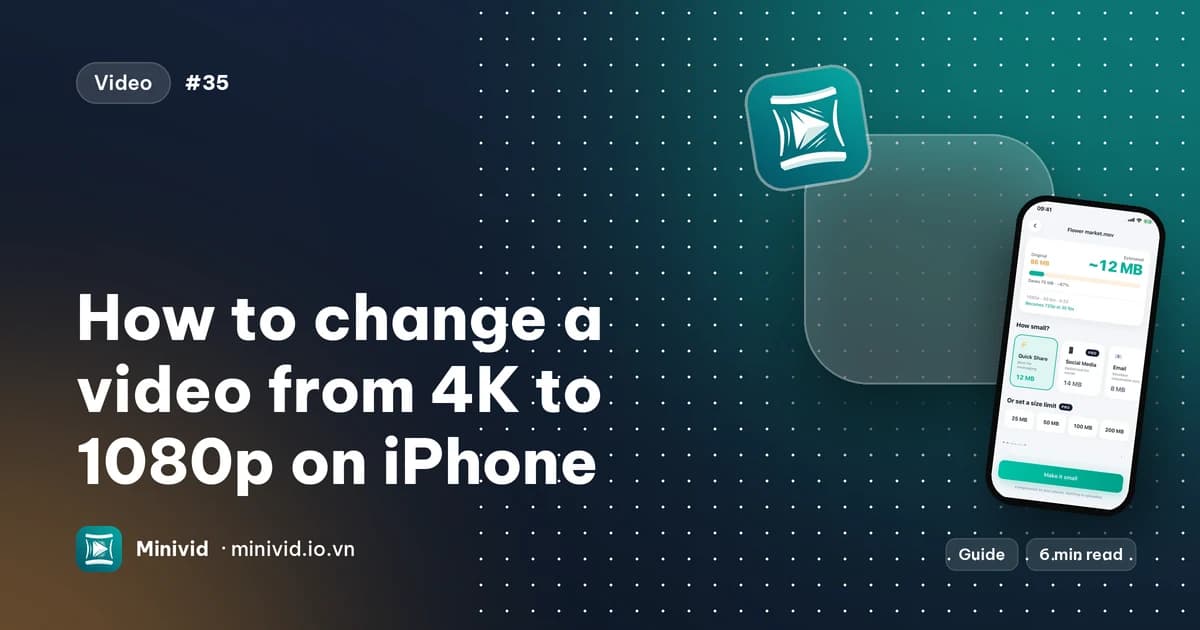
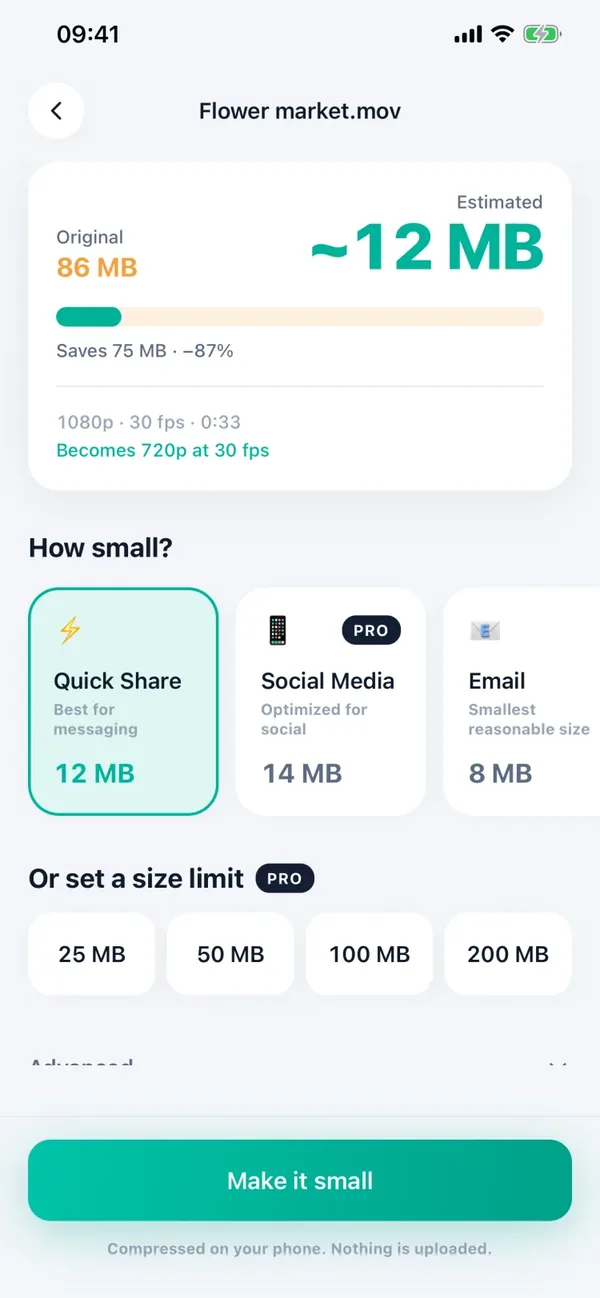
Minivid picks the resolution through its presets rather than a separate resolution switch. Open the video and the top card shows the original and the estimated size, with a line such as “Becomes 720p at 30 fps” telling you the resolution and frame rate the result will have, before anything is encoded.
- 1Pick the video in Minivid.
- 2Choose the Social Media preset, which keeps up to 1080p and up to 30 fps. A 4K clip becomes 1080p; a clip that is already 1080p or smaller is not enlarged.
- 3Check the “Becomes” line and the estimated size, then tap Make it small and save or share the result.
As a rough check, the Social Media preset’s target bitrate works out to roughly 55 MB per minute for a standard 16:9 clip. That is calculated from the preset, not measured, so a real file can differ.
If you want to keep 4K but shrink the file, the Keep Quality preset allows up to 4K and 60 fps. It reduces the size less, and it is not the way to get 1080p.
The result is written on your iPhone as a new file and nothing is uploaded. The original stays until you delete it.
What is free and what is Pro?
The free version compresses one video at a time, up to 100 MB, with the Quick Share, Email and Save Space presets, which output at up to 720p. The Social Media and Keep Quality presets, and therefore 1080p and 4K output, are part of Pro. Seeing the estimate and the resolution costs nothing. If you only need to go from 4K down to 720p, the free presets can do it for a video under 100 MB.
Frequently asked questions
Can I change a video from 4K to 1080p in the Photos app?
No. Photos can trim, crop and adjust a video but has no resolution setting for clips you have already filmed. Use Shortcuts, iMovie or an app such as Minivid to make a lower-resolution copy.
Does changing the camera setting to 1080p affect old videos?
No. Settings, Camera, Record Video only changes videos you film afterwards.
How much smaller is 1080p than 4K on iPhone?
Roughly a third at 30 fps in High Efficiency format: about 60 MB a minute against about 170 MB. At 4K and 60 fps the saving is larger.
Will I notice the drop from 4K to 1080p?
On a phone, laptop or tablet screen it is hard to see. It shows more on a large TV, when you zoom in, or when you crop or edit the footage later, so keep the original for those.
Does Minivid make 4K videos 1080p?
Yes, with the Social Media preset, which keeps up to 1080p and 30 fps. That preset is part of Pro; the free presets output up to 720p.
Want to know the size before you compress?
Minivid compresses video on your iPhone and shows the final size before it starts. Your videos are never uploaded.