How to compress several videos at once on iPhone
Published 17 October 2026 · 6 min read
The Photos app on iPhone has no way to compress several videos at once. To shrink many clips in one run you need a Shortcut you build yourself, or an app that takes a whole selection and re-encodes the clips one after another. Minivid, an iPhone app that compresses video on the phone itself, does the second: select the videos, pick one preset, and it works through them in a queue.
This guide covers what the free built-in routes can do, how a batch run works in Minivid, and the step people forget: nothing is freed until the originals are deleted.
What can the built-in tools do?
- Photos can select many videos, but it can only share, copy, hide or delete them. It has no compress action, so selecting twenty videos does not make any of them smaller.
- The Shortcuts app has an Encode Media action. A shortcut can be built to take several videos and save a smaller copy of each, but you have to build it, it shows no estimated size, and the copies can lose the original’s date (see the guide on videos showing today’s date).
- Turning on Optimize iPhone Storage in iCloud Photos keeps full-size originals in iCloud, which frees phone space, but it does not make the videos themselves smaller.
- For clips you have not filmed yet, Settings, Camera, Record Video lets you pick a lower resolution or frame rate.
How do I find the videos worth compressing?
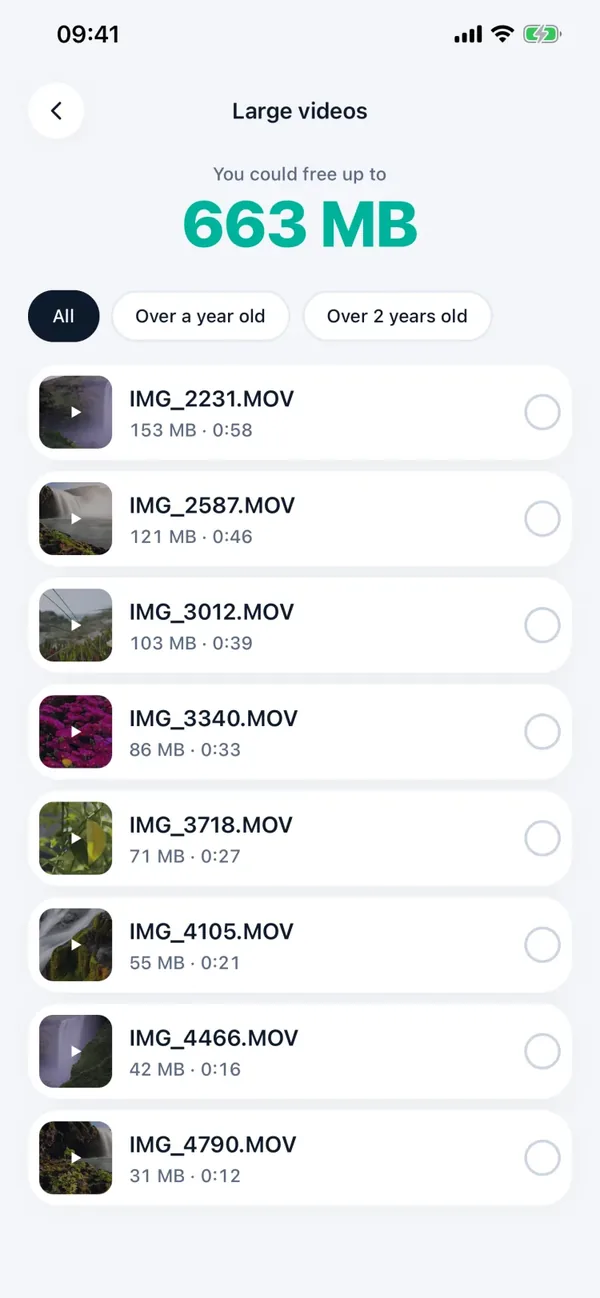
A batch pays off on big, old clips, not on short recent ones. In Photos, open Albums and Videos under Media Types, and note the long clips; the duration is shown in the corner. A list sorted by real size is more reliable, and Minivid’s Large videos screen is that list.
How do I compress several videos at once in Minivid?
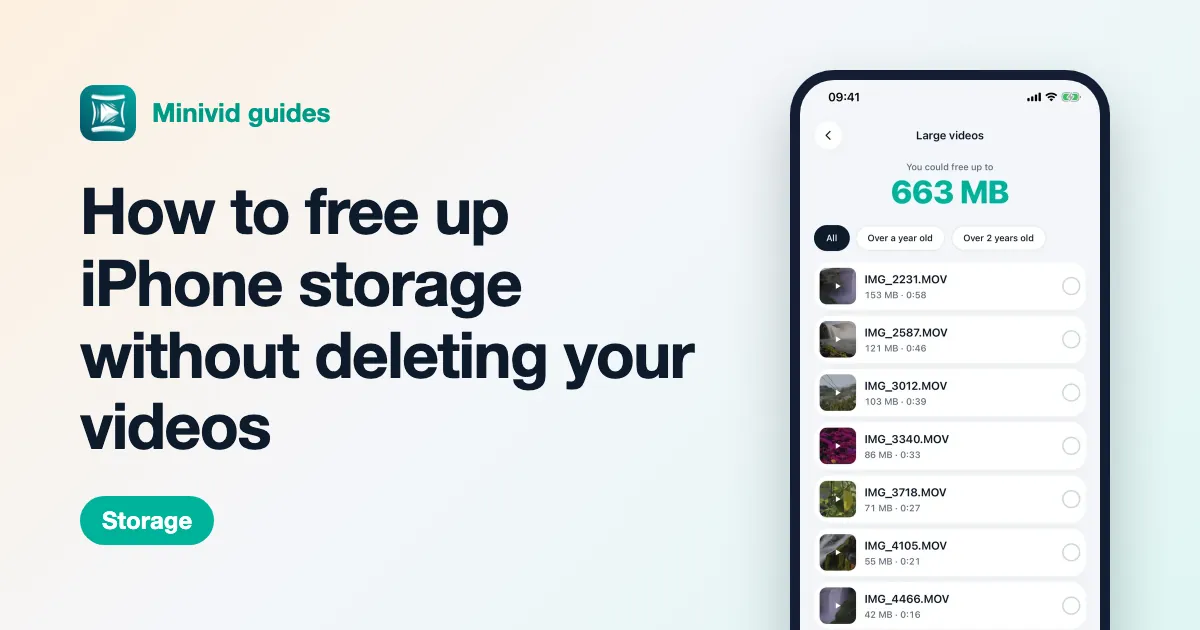
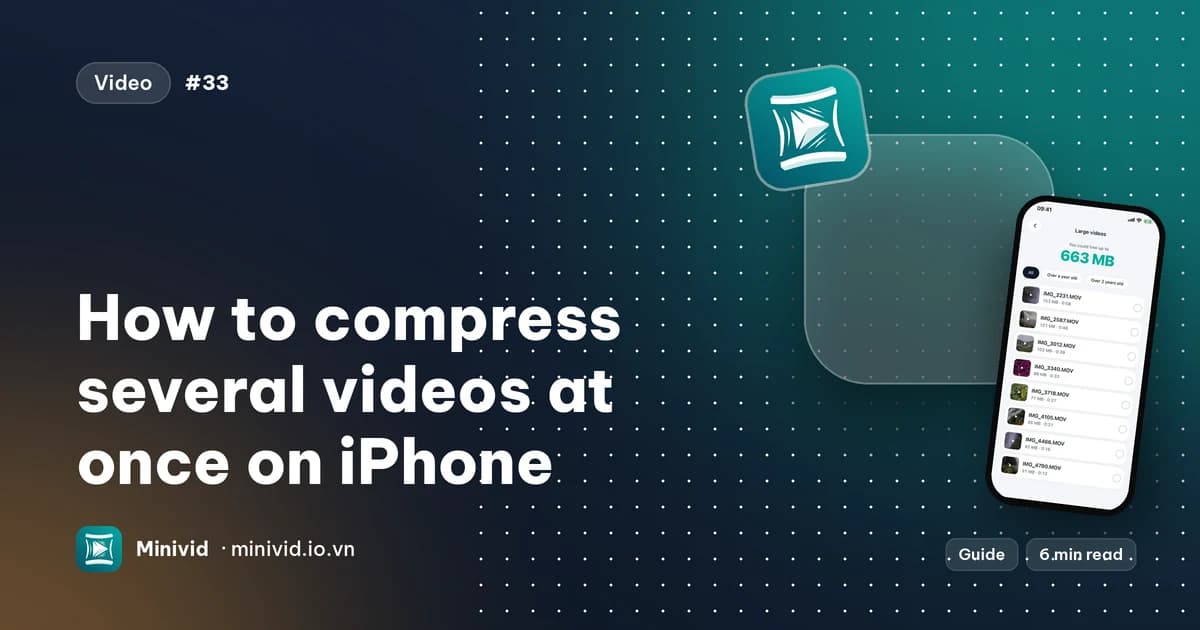
- 1Open Minivid and tap Find large videos. It lists every video in your library, largest first, with the total you could free. Filters show only videos over one or two years old.
- 2Tap videos to select them, or tap Select all.
- 3Under Compress with, pick one preset. It applies to the whole run, so there is no setup screen per video.
- 4Tap Compress, followed by the number of videos. Minivid compresses one video at a time. A video that exists only in iCloud is downloaded first. Keep Minivid open until it finishes, and tap Cancel to stop.
- 5When it ends you get a summary. A clip that could not be compressed is marked as failed, and the rest are unaffected.
Everything happens on your iPhone, nothing is uploaded, and the originals are not changed by compressing.
How do I actually get the space back?
Compressing adds a smaller copy next to each original, so storage goes up until the originals are gone. Minivid says so on the summary screen.
- 1Check a few results first: tap a finished video to play it.
- 2By default Minivid does not save results to Photos by itself (Settings has a Save to Photos automatically switch). Tap Save to Photos to add the copies; each copy keeps the original’s date and place.
- 3Tap Delete originals. Minivid offers this only for videos whose compressed copy is already in Photos, and iOS asks you to confirm.
- 4Deleted videos stay in Recently Deleted for 30 days and still use space. Open Photos, Albums, Recently Deleted and delete them there if you want the space now.
What is free and what is Pro?
Compressing one video at a time is free for videos up to 100 MB, with the Quick Share, Email and Save Space presets at up to 720p. Selecting two or more videos for one run is part of Pro, as are the Social Media and Keep Quality presets and larger videos.
If you are on the free version, the Large videos list, the sizes and deleting from it are still available, and you can compress your biggest clip first.
Frequently asked questions
Can the Photos app compress multiple videos on iPhone?
No. Photos can select many videos but has no compress action. You need a Shortcut or an app.
How do I compress many videos at once on iPhone?
Use an app that takes a selection and re-encodes the clips in a queue. In Minivid, open Find large videos, select the videos, pick a preset and tap Compress. Selecting more than one video is a Pro feature.
Does compressing in bulk free up space straight away?
No. Each smaller copy is added next to its original, so storage grows until you delete the originals, and deleted videos stay in Recently Deleted for 30 days unless you empty it.
Do compressed copies keep the original date?
In Minivid, yes: copies saved to Photos keep the original’s date and place, so they stay in the same spot in your timeline.
Are my videos uploaded when I compress them in bulk?
No. Minivid works on the iPhone itself, and iCloud-only videos are downloaded from your own iCloud first.
Want to know the size before you compress?
Minivid compresses video on your iPhone and shows the final size before it starts. Your videos are never uploaded.