How much space does a minute of iPhone video take, and how to make it smaller
Published 18 October 2026 · 6 min read
A minute of iPhone video takes roughly 60 MB at 1080p and 30 fps, about 170 MB at 4K and 30 fps, and about 400 MB at 4K and 60 fps, when you record in the High Efficiency format. The exact figure depends on your iPhone, your iOS version and how busy the scene is, so treat these as a guide, not a promise.
This guide shows where your own iPhone tells you the numbers, what makes a clip bigger, and how to shrink footage you have already filmed. The last part shows how Minivid, an iPhone app that compresses video on the phone itself, estimates the result before it encodes anything.
How big is a minute of video at each setting?
These are the per-minute figures Apple has published for the Record Video screen, rounded. They are for High Efficiency (HEVC) recording; other sources and newer models list slightly different values.
| Record Video setting | About per minute |
|---|---|
| 1080p HD at 30 fps | 60 MB |
| 1080p HD at 60 fps | 90 MB |
| 4K at 24 fps | 135 MB |
| 4K at 30 fps | 170 MB |
| 4K at 60 fps | 400 MB |
Where do I see the real number on my iPhone?
- 1For a clip you have already filmed, open it in Photos and tap the info button (the i in a circle), or swipe up on the video. The file size is shown there on recent iOS versions. If you do not see it, the Files app shows the size too once the video is saved there.
- 2For future clips, open Settings, then Camera, then Record Video. Each option lists roughly how much space a minute takes, so you can compare them before you choose.
- 3For the whole phone, open Settings, General, iPhone Storage. It lists what the Photos app holds, though not per video.
What you see depends on your iOS version, and some screens are laid out a little differently on iPad.
What makes a video bigger?
- Resolution: 4K has four times the pixels of 1080p, so it needs far more data.
- Frame rate: 60 fps stores twice as many frames per second as 30 fps. At 4K it is the biggest jump in the table.
- Format: in Settings, Camera, Formats, High Efficiency records in HEVC, which makes smaller files than Most Compatible (H.264) at similar quality.
- Content: a busy, moving scene or low light needs more data than a still, bright one, so two clips of the same length can differ in size.
- Special modes: slo-mo and Cinematic clips are larger than the same length at normal speed, and ProRes is vastly larger than any of the above.
How do I keep future videos smaller?
Choose High Efficiency under Settings, Camera, Formats, then pick 1080p at 30 fps under Record Video for everyday clips. Switch to 4K for moments you know you will want in full detail. This costs nothing and needs no app, but it only affects what you film from now on.
How do I shrink a video I already filmed?
- 1Trim first. In Photos, open the video, tap Edit, drag the handles to keep only what matters, tap Done, then Save Video as New Clip. Half the length is about half the size.
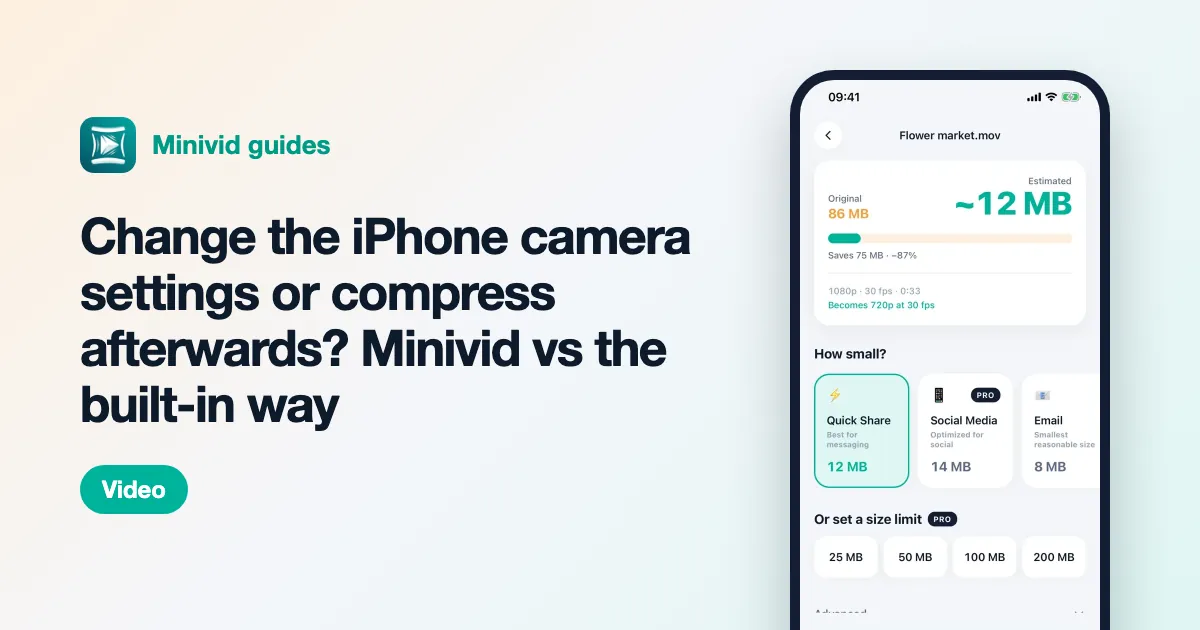
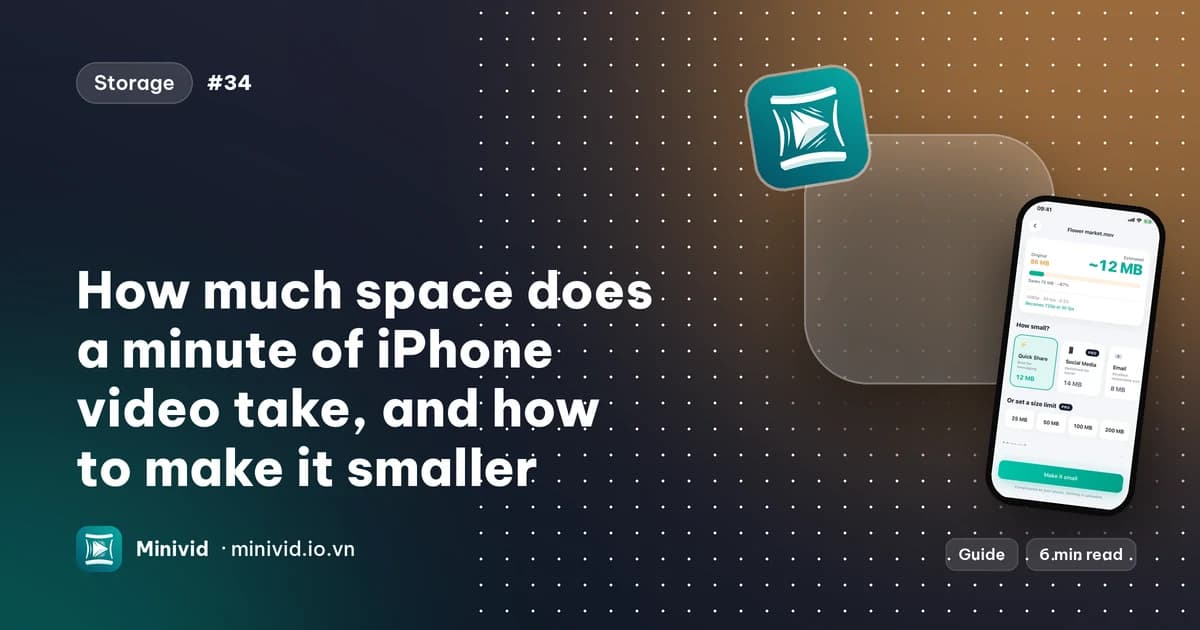
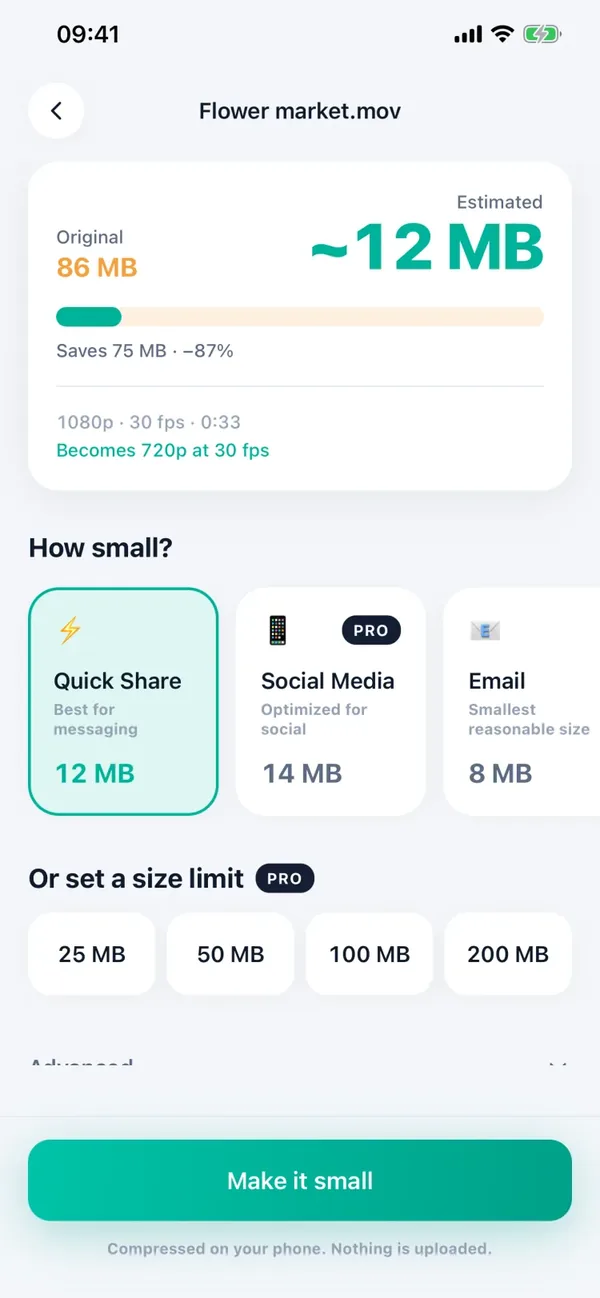
- 2Compress what is left. Photos has no compress button, so use an app. In Minivid, pick the video and you see the estimated result on the same screen before anything is encoded, next to the original size and the preset it will use.
As a rough check, Minivid’s Quick Share preset, which targets 720p at up to 30 fps, works out to roughly 20 MB per minute, and the Save Space preset to roughly 12 MB per minute, when the source is a standard 16:9 clip. Those figures are calculated from the presets’ target bitrates, so a real file can differ a little. In the screenshot, a 33-second, 86 MB 1080p clip is estimated at about 12 MB.
Minivid never aims for a file larger than its source, so an already small clip is not made bigger. Everything runs on your iPhone, nothing is uploaded, and the original is left untouched until you choose to delete it.
What is free and what is Pro?
Compressing one video at a time is free for videos up to 100 MB, with the Quick Share, Email and Save Space presets at up to 720p. Choosing a size limit, the Social Media and Keep Quality presets, HEVC output and larger videos are part of Pro. Reading the estimate costs nothing.
Frequently asked questions
How many MB is one minute of video on iPhone?
Roughly 60 MB at 1080p and 30 fps, 170 MB at 4K and 30 fps, and 400 MB at 4K and 60 fps, in High Efficiency format. Your Record Video screen shows the figures for your own iPhone.
How do I see how big a video is on iPhone?
Open the video in Photos and tap the info button, or swipe up on it. On recent iOS versions the file size is listed there; the Files app also shows it.
Does 4K video take much more space than 1080p?
Yes. At 30 fps a minute of 4K is roughly three times a minute of 1080p, and at 60 fps it is several times more.
Does High Efficiency make iPhone videos smaller?
Yes. It records in HEVC, which makes smaller files than Most Compatible (H.264) at similar quality. Some older devices and apps handle HEVC less well.
Can I see the compressed size before I compress a video?
In Minivid, yes. The compression screen shows an estimated size next to the original before it encodes anything.
Want to know the size before you compress?
Minivid compresses video on your iPhone and shows the final size before it starts. Your videos are never uploaded.