How to compress a video to under 10 MB (or any exact size) on iPhone
Published 11 October 2026 · 7 min read
To get an iPhone video under a size limit such as 10 MB, work out the bitrate the limit allows, then trim the clip and lower its resolution until the file is smaller than that, and check the size in Photos each time. Photos has no “make it 10 MB” button, so an app that lets you name the size, such as Minivid, saves the trial and error; without one, Shortcuts or iMovie can get you there in a few tries.
Upload forms, application portals, support tickets and school systems often set a hard cap and simply reject anything above it. This guide covers how big a clip can be for a given cap, the ways to shrink it on the phone, and how Minivid fits a video under a size you choose.
How long a video fits under 10 MB?
A video’s size is its bitrate multiplied by its length, so you can estimate it: size in MB ≈ bitrate in Mbps × seconds ÷ 8. Turn it around to see what a cap allows: bitrate in Mbps ≈ size in MB × 8 ÷ seconds.
For 10 MB, a 30-second clip can use about 2.7 Mbps for picture and sound together, which looks fine at 720p. A 60-second clip gets about 1.3 Mbps, which is watchable at 480p or so for talking and scenery. At two minutes the budget drops to about 0.7 Mbps, and fast motion will look blocky at any resolution.
These are rough figures, because encoders land a little above or below the bitrate they are given. Leave 10 to 15 per cent of headroom, so for a 10 MB limit aim for 8 or 9 MB.
The practical lesson: for a tight cap, length matters more than any setting. Cutting a clip in half does more than any amount of compression.
Why does the form still say the file is too big?
A few common reasons:
- You checked the size in a different unit. Some sites count 1 MB as 1,000,000 bytes and some as 1,048,576, and Photos and the Files app may not match the form. Staying 10 per cent under covers it.
- The size shown was for a trimmed preview. Photos shows the final size only after you save the trimmed video as a new clip, so check the saved clip, not the one in the editor.
- The form counts all files together, or counts them after encoding for upload.
Always read the form’s exact wording: whether the cap is per file, and whether it names accepted formats such as .mp4 or .mov.
How do I get a video under a size limit without an app?
- 1Trim first, because it costs nothing in quality. In Photos, open the video, tap Edit, drag the yellow handles to keep only what matters, tap Done and choose Save Video as New Clip.
- 2Check the size: open the new clip, then swipe up or tap the info button to see its file size. If it is under your target, stop here.
- 3If it is still too big, re-encode at a lower resolution. With the Shortcuts app, create a shortcut with the Encode Media action, set Size to 1280×720 (or smaller), add Save to Photo Album and turn on Show in Share Sheet, then run it from the video’s Share menu. iMovie can also export at 720p or 540p: add the clip to a new Movie project, tap Done, Share, then Options, and choose the resolution.
- 4Check the size again. Repeat with a lower resolution or a shorter clip until it fits.
Both methods use the iPhone’s own encoder, so the video stays on the phone. The catch is that neither shows the final size before it finishes, so reaching a hard cap can take several rounds.
For videos you have not recorded yet, you can lower the camera’s resolution in Settings, then Camera, then Record Video. That only affects new clips, not ones already in your library.
How do I name the exact size in Minivid?
Minivid shows the size the result will have before it encodes anything, and with Pro you can name the limit and let it pick the settings. The flow for a custom size such as 10 MB:
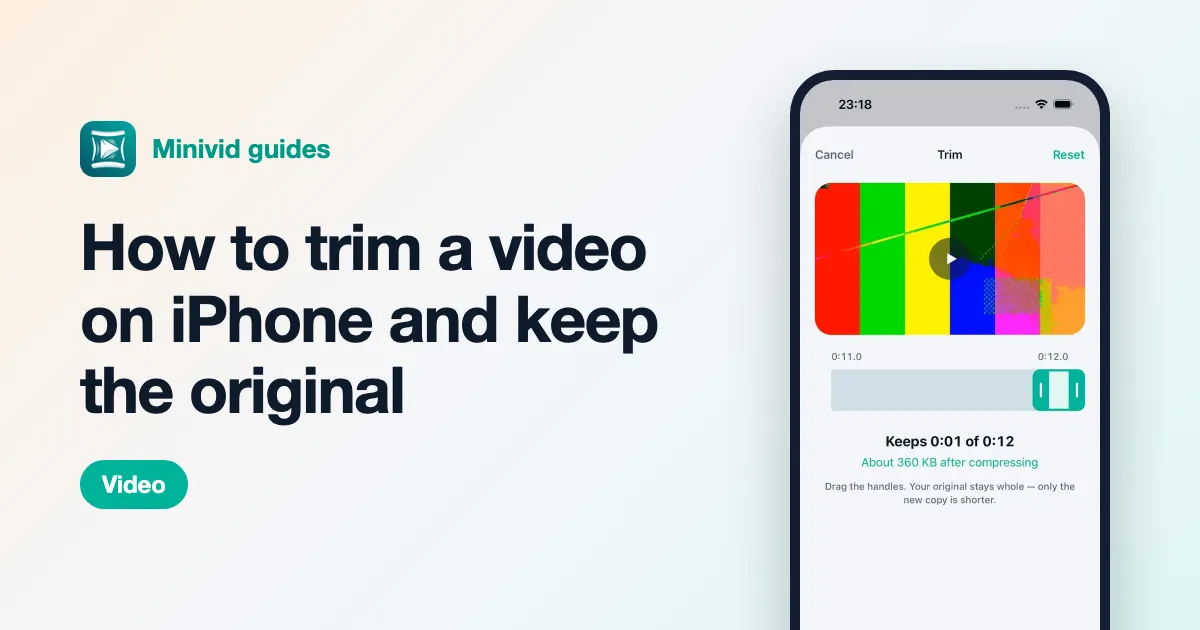
- 1Open Minivid and pick the video. Trim it first if only part of it matters; the estimate updates as you drag the handles.
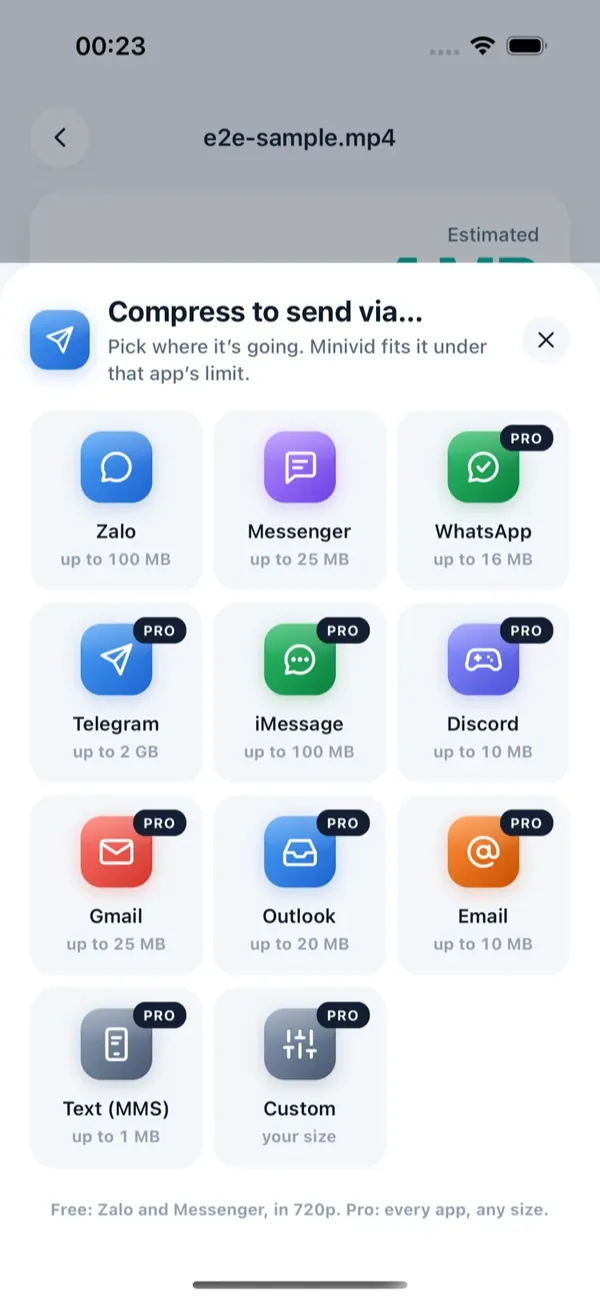
- 2On the settings screen, tap Send via… and choose Custom.
- 3Type the maximum size in megabytes (from 1 to 4,000) and tap Use this size.
- 4Check the line that says it fits under that size, along with the resolution it will use, then tap the Compress button. Keep Minivid open while it runs.
- 5On the result screen, tap Save to Photos, or tap Share and choose Save to Files to get a file you can upload. The result is always an .mp4.
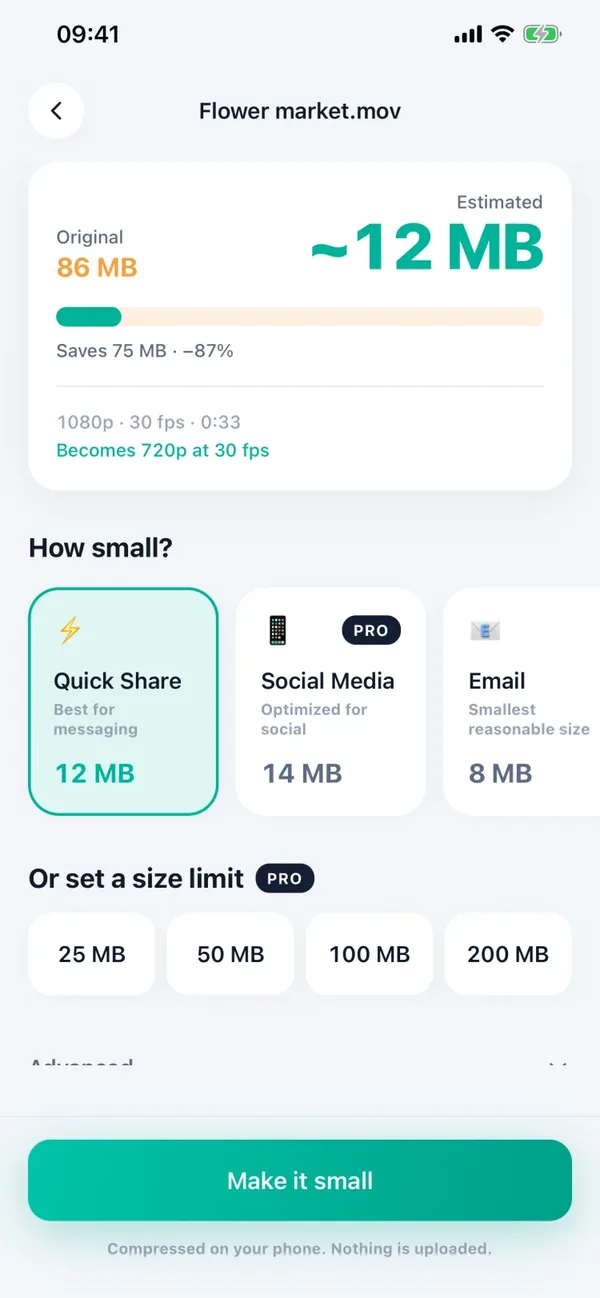
Minivid works backwards from your size: it fixes the bitrate the budget allows, aims for about 95 per cent of the limit so the file lands under it, and then picks the largest resolution at which that bitrate still gives an acceptable picture. If the clip is too long to stay watchable at that size, it says so and suggests trimming rather than producing a smear.
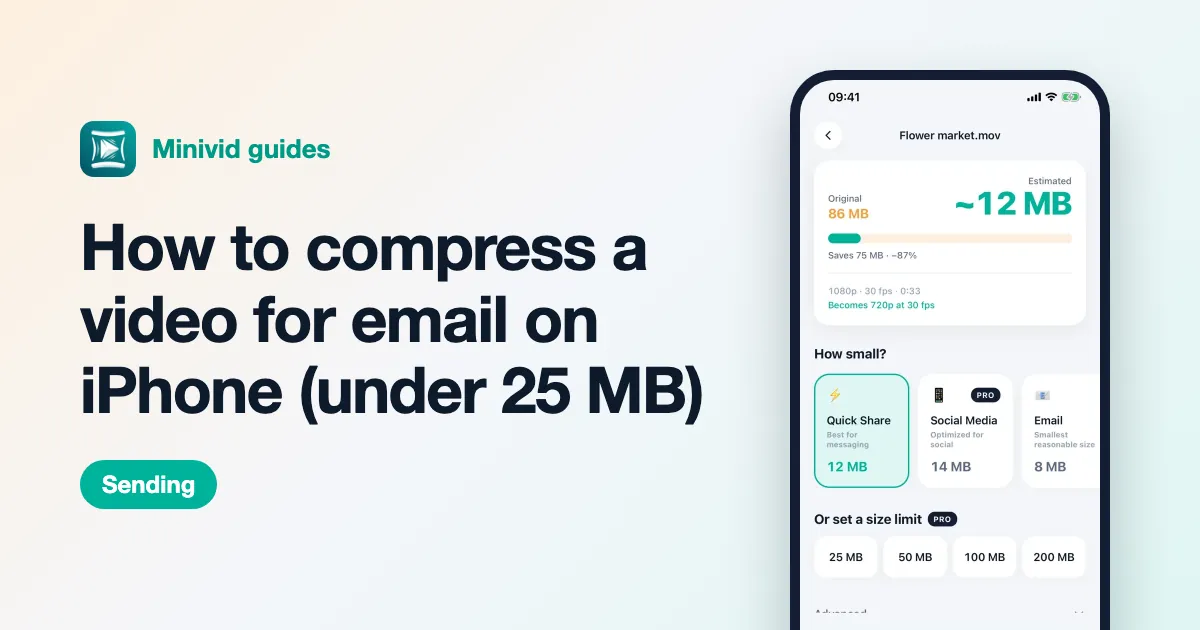
The same settings screen also has size shortcuts for 25, 50, 100 and 200 MB. Your original is never modified, nothing is uploaded, and it works in airplane mode.
What is free and what is Pro?
Naming an exact size, including Custom, is part of Minivid Pro. In the free version you can still compress videos up to 100 MB at up to 720p with the Quick Share, Email and Save Space presets, and each preset card shows the size it would make. Save Space is the smallest, so it is the one to try when you have a cap but no way to name it.
Trimming, in Minivid or in Photos, is free, and it is often the part that gets you under the line.
Other ways to get a file under a limit
- Look for a link field. Some forms accept a link instead of a file; an iCloud or Google Drive link then sidesteps the cap entirely.
- Use a computer. A free tool such as HandBrake lets you set a target bitrate, at the cost of moving the file off the phone.
- Online compressors. They work in Safari, but your video is uploaded to someone else’s server and most have their own size limit, so be careful with anything private, such as ID or medical footage.
Frequently asked questions
How can I compress a video to exactly 10 MB on iPhone?
Photos cannot target a size. You can trim the clip and lower its resolution with Photos, Shortcuts or iMovie and check the file size after each try, or use an app that lets you name the size. In Minivid Pro, choose Send via…, then Custom, and type 10.
Why is my compressed video a little bigger or smaller than I asked for?
Video encoders aim at a bitrate and land within a few per cent of it. Minivid aims for about 95 per cent of the size you name so the file ends up under the limit; if you compress by hand, leave 10 to 15 per cent of headroom.
How long can a video be under 10 MB?
As a rough guide, about 30 seconds looks fine at 720p, about a minute is watchable at a lower resolution, and two minutes will look blocky. Trimming the clip is the most effective fix.
Is compressing to an exact size free in Minivid?
No, naming a size is part of Pro. The free version compresses videos up to 100 MB at up to 720p with the Quick Share, Email and Save Space presets, and shows the estimated size before it starts.
Does Minivid upload my video?
No. The video is compressed on your iPhone and never sent to a server, and the original is left untouched.
Want to know the size before you compress?
Minivid compresses video on your iPhone and shows the final size before it starts. Your videos are never uploaded.