Where did my compressed video go on iPhone? How to find it in Photos (or why it isn’t there)
Published 14 November 2026 · 5 min read
A compressed video is usually in one of two places: saved in Photos, or not saved at all yet. If it was saved, it sits at the date the original was filmed, not at the bottom of your camera roll, which is why it seems to be missing. If it was never saved, it is only a temporary file inside the app and you still have to save it.
This guide shows how to check both, where to look in Photos, and how it works in Minivid, an iPhone app that compresses video on the phone itself. The Photos tips apply to any compressor.
Where should I look for a compressed video in Photos?
Photos orders the library by the date a photo or video was captured, not by when it arrived. A compressed copy of a video you filmed last spring therefore appears next to last spring’s clips, not at the very end of the library where new items usually show up. Scrolling to the bottom and finding nothing does not mean the save failed.
- Open Photos, then Albums, scroll to Media Types and open Videos. Every video is listed there, oldest first.
- Look for the clip at the original’s date. To tell the copy from the original, open each one, tap the info (i) button or swipe up, and compare the file size: the compressed copy is the smaller one.
- Check Albums, then My Albums, for an album the app made. Minivid puts the copies it saves in an album called Minivid, when Photos access lets it.
Why is the compressed video not in Photos at all?
Most compressors, Minivid included, do not add a result to Photos by themselves. They finish the job and leave you on a result screen, and saving is a button you press. If you closed the app, tapped Compress another or used the share sheet without choosing to save, the copy never reached Photos.
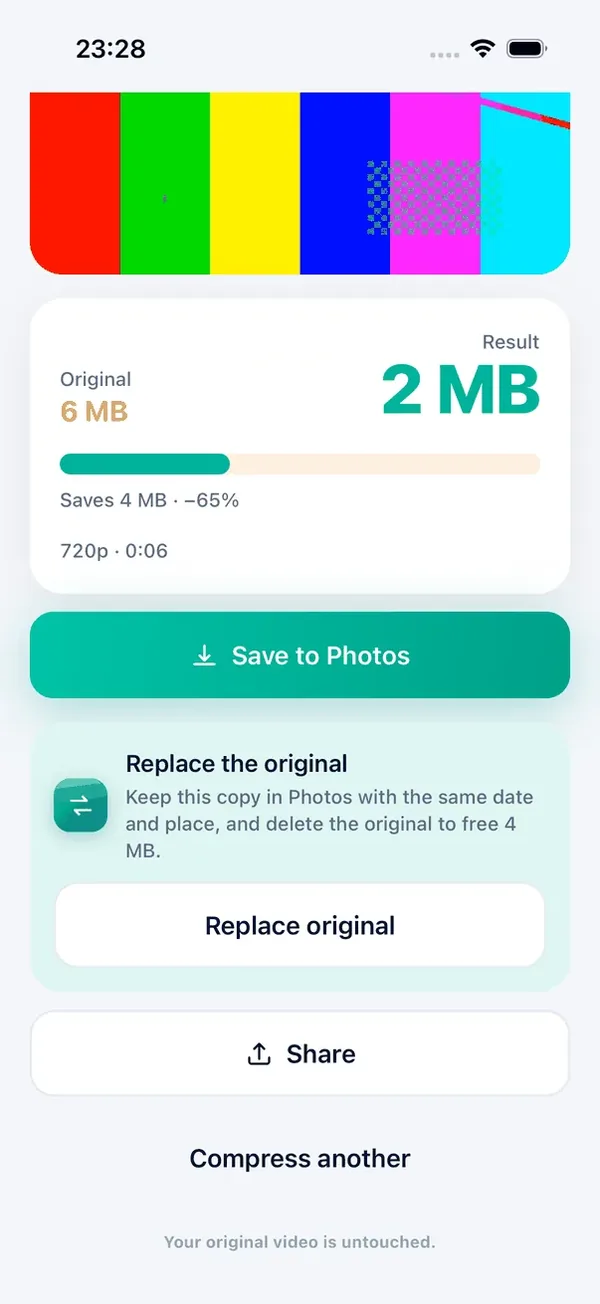
In Minivid, the result screen shows the old and new size and a Save to Photos button. After you tap it, the button changes to Saved to Photos. If you used Send via…, the iOS share sheet opens by itself so you can send the file; that sends it, it does not save it to Photos. Pick Save Video or Save to Files in the share sheet (the exact options depend on your iOS version) if you want to keep a copy.
Can I still save a compressed video I already closed?
Often yes. Minivid lists finished compressions under Recent on its Home screen. Tap one to open its result screen again, where Save to Photos and Share still work. The free version shows your last 3 compressions; Pro keeps the whole list.
There is a catch. The compressed file itself is a working copy stored in the app’s temporary space, and the Recent list only remembers it. Settings has a Clear working files action that deletes those copies, and iOS can also free an app’s temporary files when the phone is short of space. Clear history only empties the list; it does not touch anything already saved to Photos. So save what you want to keep soon after compressing, and do not rely on Recent as an archive. If a file has gone, compress the original again.
What if the Minivid album is missing?
Minivid adds a saved copy to its album only when it is allowed to read your library. If you gave it add-only access to Photos, the copy is still saved but it is not put in an album, so look in Videos at the original’s date instead. You can change the access in Settings, then Minivid, then Photos.
If you allowed only selected photos, the copy is saved normally; you may need to allow the new copy before the app itself can list it.
Is my original still there, and how do I free its space?
Yes. Minivid never changes the original; the result screen says so. That also means the compression has not freed space yet: you now have both. When you have watched the copy and are happy with it, tap Replace original on the result screen. Minivid saves the smaller copy to Photos first, with the original’s date and place, and then iOS asks you to confirm deleting the original.
Deleted videos stay in Recently Deleted for 30 days and keep using space until you empty it there. Our guide on storage that does not go down after deleting videos walks through it.
What is free and what is Pro?
Saving to Photos, sharing and Replace original are not locked behind Pro. Compressing is free for one video at a time, up to 100 MB, at up to 720p. Pro removes those limits and keeps your full Recent list. Nothing is uploaded at any point, and Minivid works in airplane mode.
Frequently asked questions
Where do compressed videos go on iPhone?
That depends on the app. In Minivid, nothing is saved until you tap Save to Photos. The copy then appears in Photos at the original video’s date, and in an album called Minivid when Photos access allows it.
Why is my compressed video not at the bottom of my camera roll?
Photos sorts by capture date. Minivid keeps the original’s date and place on the copy, so it sits with the older videos. Open Albums, Media Types, Videos to see it.
I closed the app before saving. Is the video lost?
Not necessarily. Open Minivid’s Home screen, tap the compression under Recent and use Save to Photos. If the temporary file has been cleared, compress the original again.
Does compressing delete my original video?
No. The original is untouched until you choose Replace original and confirm the delete that iOS asks for.
Does Minivid upload my video?
No. Compression happens on your iPhone and the video never leaves it.
Want to know the size before you compress?
Minivid compresses video on your iPhone and shows the final size before it starts. Your videos are never uploaded.