I deleted videos but my iPhone storage didn’t go down: why, and how to get the space back
Published 12 November 2026 · 5 min read
When you delete a video in Photos, iOS does not erase it straight away. It moves it to the Recently Deleted album and keeps it for 30 days, and during that time it still uses storage. Open Albums, scroll to Recently Deleted, unlock it, tap Select, then Delete All, and the space comes back. That cannot be undone, so look first.
Below: how to check that this is the cause, the exact steps, what else can make storage look unchanged, and how to free more space from videos without deleting the ones you want to keep.
Why doesn’t my iPhone storage go down after I delete videos?
Photos treats a delete as a move to Recently Deleted, not an erase. Apple says deleted photos and videos stay there for 30 days before they are removed for good. Until then the files are still on the phone, so Settings, General, iPhone Storage barely changes.
This is the most common reason, and the easiest to check: open Photos, then Albums, and look for Recently Deleted under Utilities. Each item shows how many days remain.
How do I empty Recently Deleted and get the space back now?
- 1Open Photos and tap Albums.
- 2Scroll down to Utilities and tap Recently Deleted. On recent versions of iOS the album is locked and asks for Face ID, Touch ID or your passcode; on older versions it is not.
- 3Look through it. Anything you empty here is gone for good.
- 4Tap Select, then Delete All, or pick individual items and tap Delete. Confirm.
- 5Open Settings, General, iPhone Storage and check again. The figure can take a moment to refresh, so wait a minute or reopen the screen if it looks unchanged.
The exact labels and layout depend on your iOS version.
What else can keep storage looking the same?
If Recently Deleted was already empty, check these:
- iCloud Photos. With iCloud Photos on, a delete is shared by all your devices, and with Optimize iPhone Storage the phone may hold only smaller copies of older items. Deleting those frees little on the phone. Our guide to iCloud storage and compressing explains the difference.
- Message attachments. In iPhone Storage, tap Messages and review the large attachments: videos sent in chats are stored separately from Photos.
- Other apps. Chat apps, streaming apps and browsers keep downloads and caches. Tap an app in iPhone Storage to see its size and whether it can be offloaded or cleared.
- System data. iOS keeps its own caches and temporary files, and the amount changes on its own. You cannot clear it by hand; a restart sometimes shrinks it.
A video you saved from a browser or a chat into the Files app is not in Photos at all, so deleting it from Photos never touches it; delete it in Files and empty the Recently Deleted folder there too.
How do I free more space from videos without losing them?
Videos are usually the biggest part of a library. Instead of deleting the ones you want, you can replace each with a smaller copy. Minivid is an iPhone app that compresses video on the phone itself, shows the size before it starts, and keeps the original’s date and place on the copy.
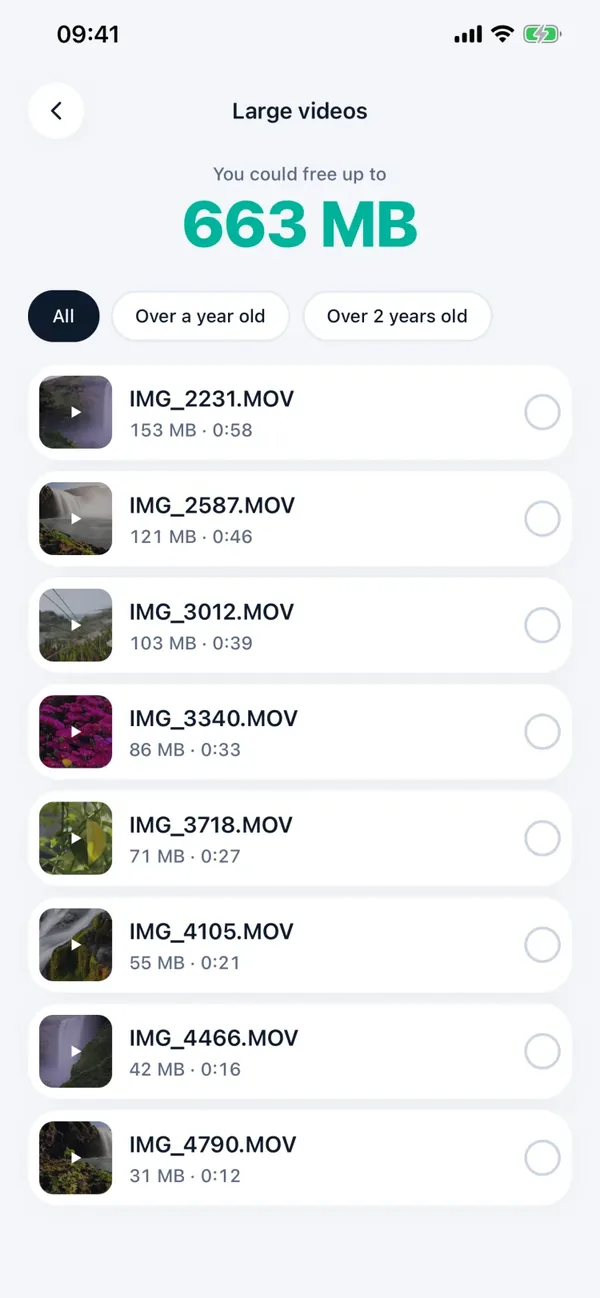
- 1Open Minivid and tap Find large videos. If it asks, allow access to your videos.
- 2Read the list, largest first. Use the filters Over a year old or Over 2 years old to start with old footage.
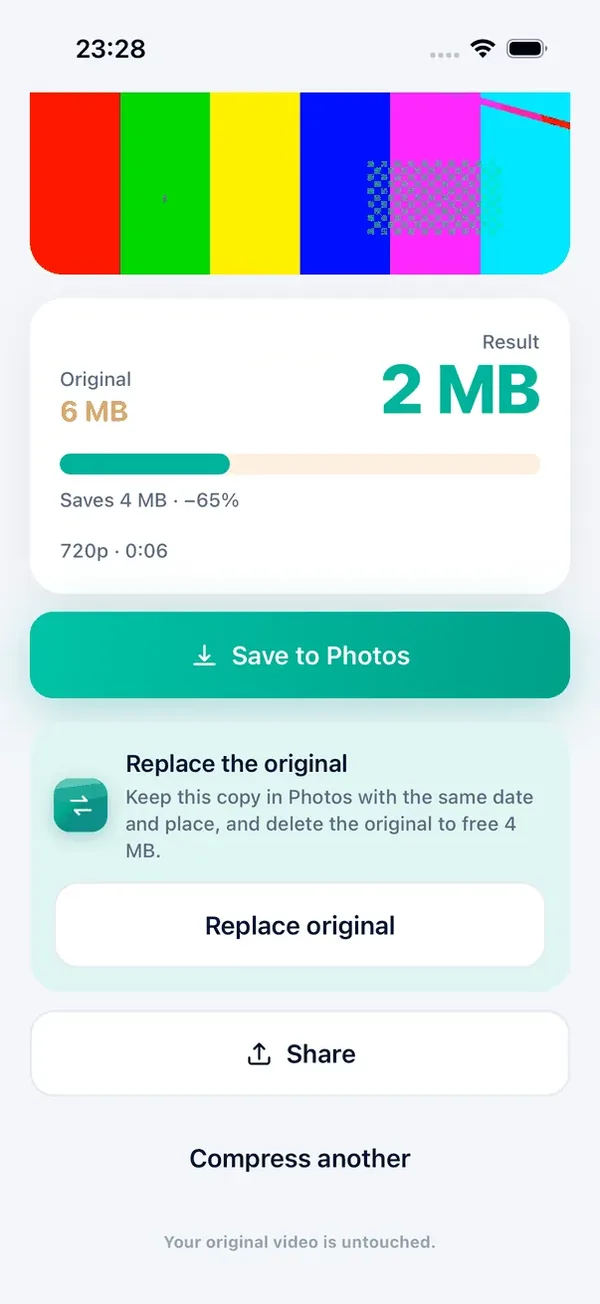
- 3Select a video, tap Compress and check the estimated size.
- 4Watch the result. If it looks fine, tap Replace original. The smaller copy is saved to Photos first, then iOS asks you to confirm deleting the original.
- 5Minivid then tells you the space comes back in 30 days. Open Photos, Albums, Recently Deleted and empty it to get the space now.
Minivid cannot empty Recently Deleted for you; iOS does not let an app do that.
When does the space actually come back?
It depends on what you did:
| What you did | Space comes back when |
|---|---|
| Deleted a video in Photos | After Recently Deleted is emptied, or after 30 days |
| Emptied Recently Deleted | Right away (the Storage figure may need a moment) |
| Replaced an original with a smaller copy in Minivid | After the original is deleted and Recently Deleted is emptied; you keep a smaller copy |
| Deleted a video that iCloud Photos had optimised | Little on the phone, since only a small copy was stored there |
What is free and what is Pro in Minivid?
The Large videos list and sizes are free. Compressing one video at a time is free for a video up to 100 MB, at up to 720p. Larger videos and selecting several at once are part of Pro.
Frequently asked questions
Why is my iPhone storage still full after deleting videos?
Deleted videos stay in the Recently Deleted album for 30 days and keep using space. Empty it in Photos, Albums, Recently Deleted, to get the space back now.
Is deleting from Recently Deleted permanent?
Yes. Once you delete an item there, you cannot get it back from Photos, so check the album before emptying it.
Why is the Storage number not updating?
It can take a moment to refresh after you empty Recently Deleted. Wait a minute, reopen iPhone Storage or restart the phone. If it barely moves, the space is probably elsewhere, such as messages, apps or system data.
Can I free space from videos without deleting them?
Often yes. Replacing a large old video with a smaller copy frees more than deleting small items, and you keep the footage.
Does Minivid upload my videos?
No. It compresses on your iPhone and uploads nothing. It never changes the original until you choose Replace original and confirm the deletion.
Want to know the size before you compress?
Minivid compresses video on your iPhone and shows the final size before it starts. Your videos are never uploaded.