Not enough storage to update iPhone? Free up space
Published 9 November 2026 · 6 min read
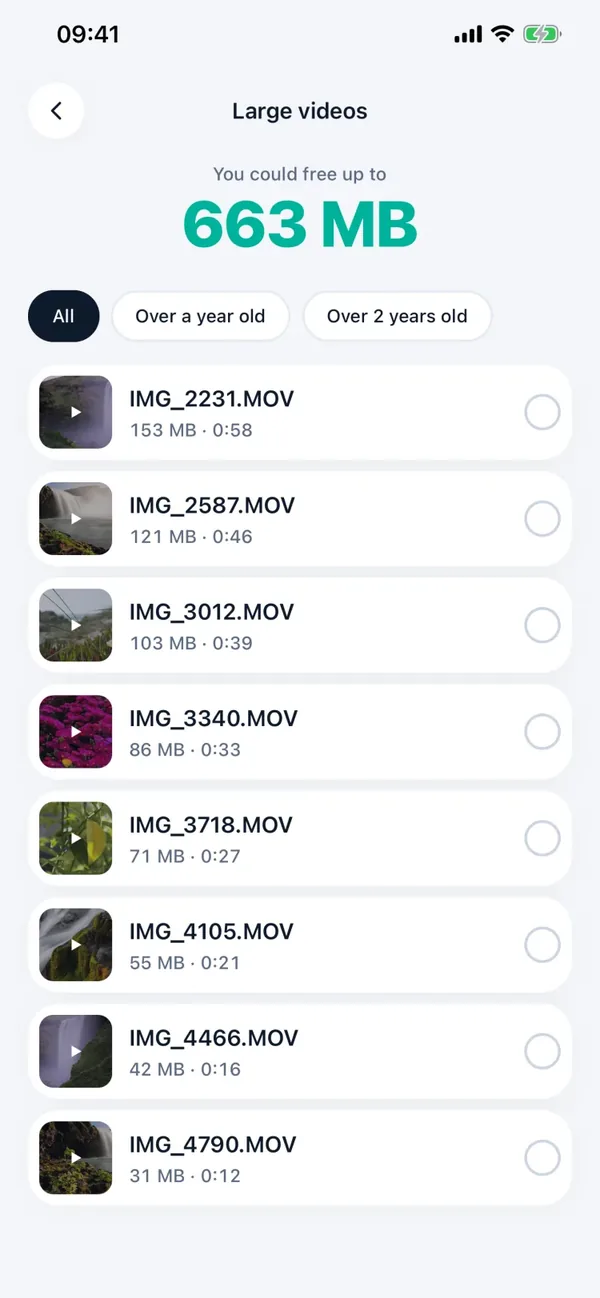
If your iPhone says there is not enough storage to update, you need to free up more room than the update asks for, and the fastest place to find it is usually video. Check the update’s size in Settings, empty Recently Deleted, clear the small stuff, then shrink or remove your largest videos. Minivid lists your videos largest first and replaces a heavy one with a smaller copy on the iPhone itself, so you keep the footage.
Below are the steps in the order that costs you the least: what to check first, what is safe to clear, and how to get a big chunk back from videos without losing the ones you care about.
Why does my iPhone say there is not enough storage to update?
An iOS update downloads first and then needs extra working room to unpack and install. So the free space you need is more than the size of the download alone, and the amount differs between updates and between phones.
Open Settings, then General, then Software Update. The update lists its size and, if there is a problem, tells you what to do. Then open General, then iPhone Storage, to see how much free space you have now. The gap between the two is the number to close. Apple’s own support pages say how much room an update needs, so check them if the numbers are unclear.
How do I free up space to update, step by step?
Work down this list and check the free space in iPhone Storage after each step. Stop as soon as you have enough.
- 1Empty Recently Deleted. Deleted photos and videos stay there for 30 days and keep using space. In Photos, open Albums, scroll to Recently Deleted, unlock it, tap Select, then Delete All. Do this only when nothing in there is needed.
- 2Review large message attachments. In iPhone Storage, tap Messages and look at the large attachments; videos sent in chats pile up for years.
- 3Offload apps you do not use. In iPhone Storage, tap an app and choose Offload App. It removes the app and keeps its data, so you can reinstall it later.
- 4Remove duplicates and old screen recordings from Photos.
- 5Deal with your biggest videos, which is where most of the space usually is. The next sections show how.
- 6Run the update again from Settings, General, Software Update.
Do not delete the only copy of anything you cannot replace. If it matters, back it up first.
Which videos are taking the most space?
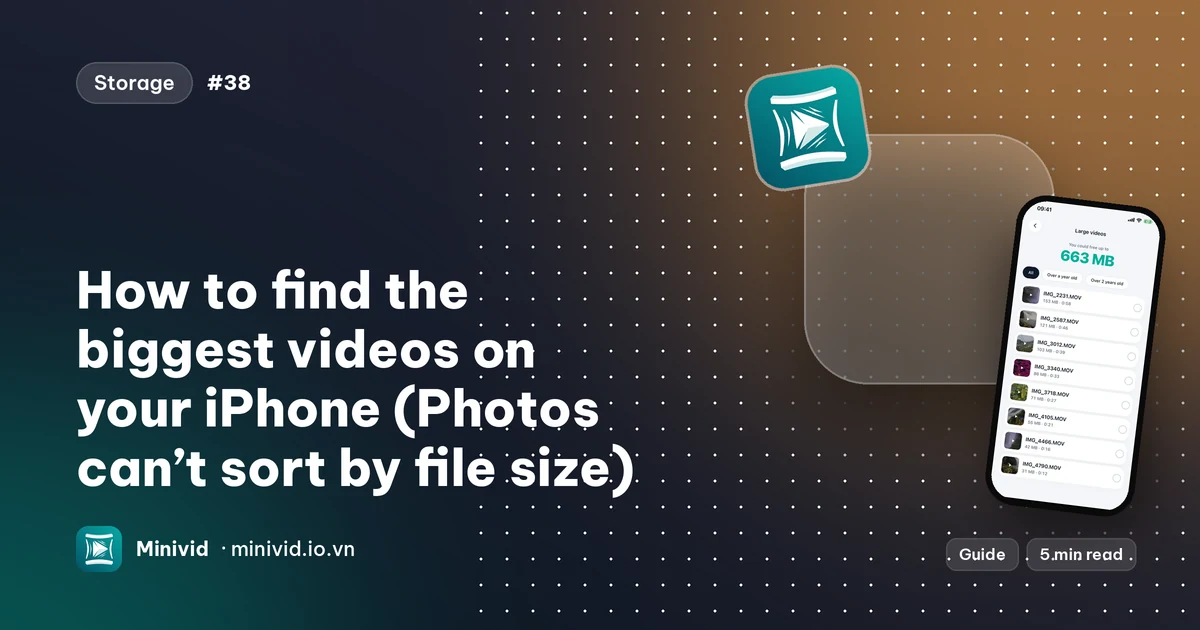
Photos cannot sort videos by file size, so this takes a workaround. Open Photos, Albums, Videos, and look at the duration on each thumbnail: long clips are the likeliest to be big. Open a video and tap the info (i) button or swipe up to see its exact size.
Length is only a rough guide, because size also depends on resolution and frame rate. A short 4K clip at 60 fps can be bigger than a longer 720p one.
How do I shrink big videos with Minivid?
Minivid is an iPhone app that compresses video on the phone itself. Nothing is uploaded, and the original is not changed until you decide to remove it.
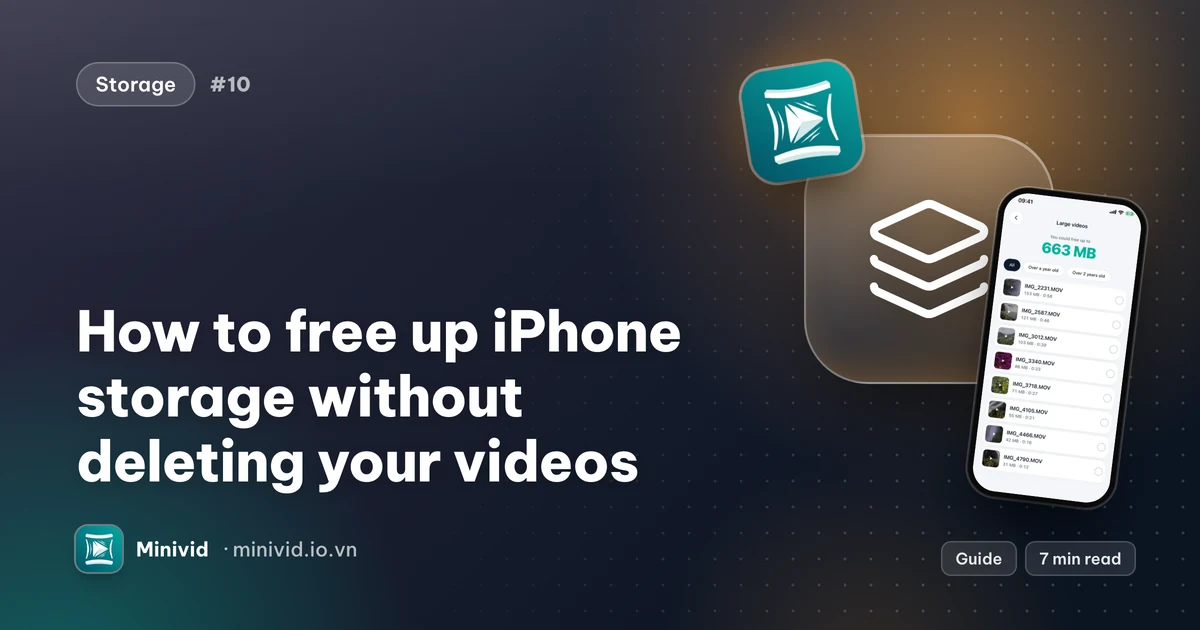
- 1Open Minivid and tap Find large videos. If it asks, allow access to your videos.
- 2Read the list, largest first. The “You could free up to” figure is the combined size of the videos listed, not a promise of what compression will save. Use the filters Over a year old or Over 2 years old to start with old footage.
- 3Tap a thumbnail to play a clip, then select it and tap Compress. Pick a preset and check the estimated size shown before you start.
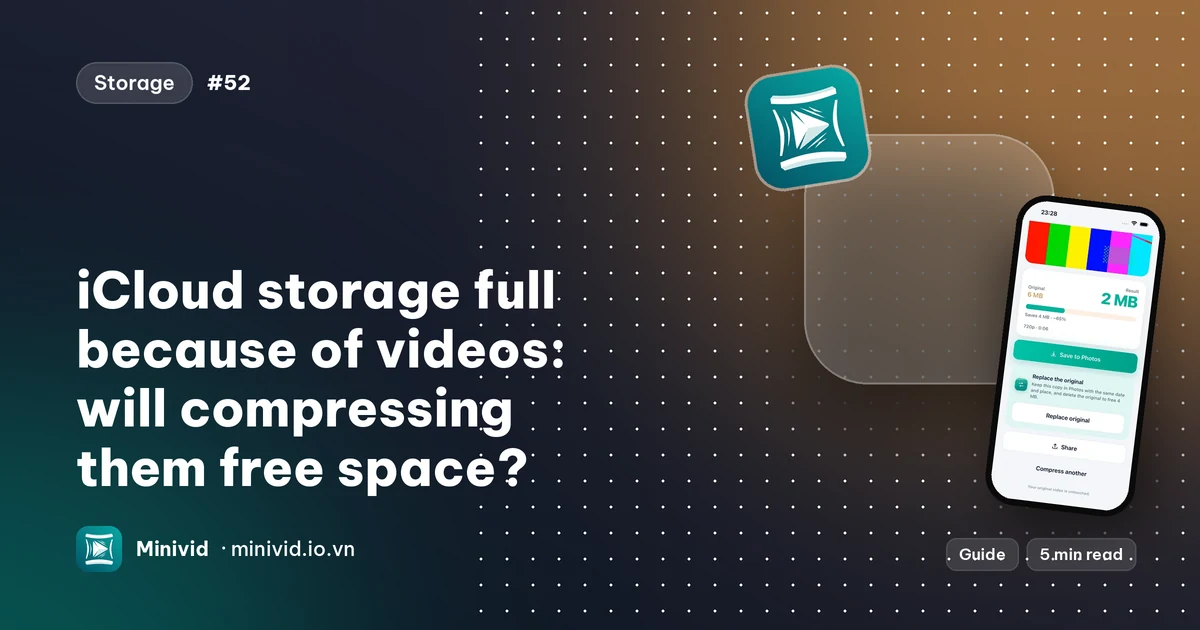
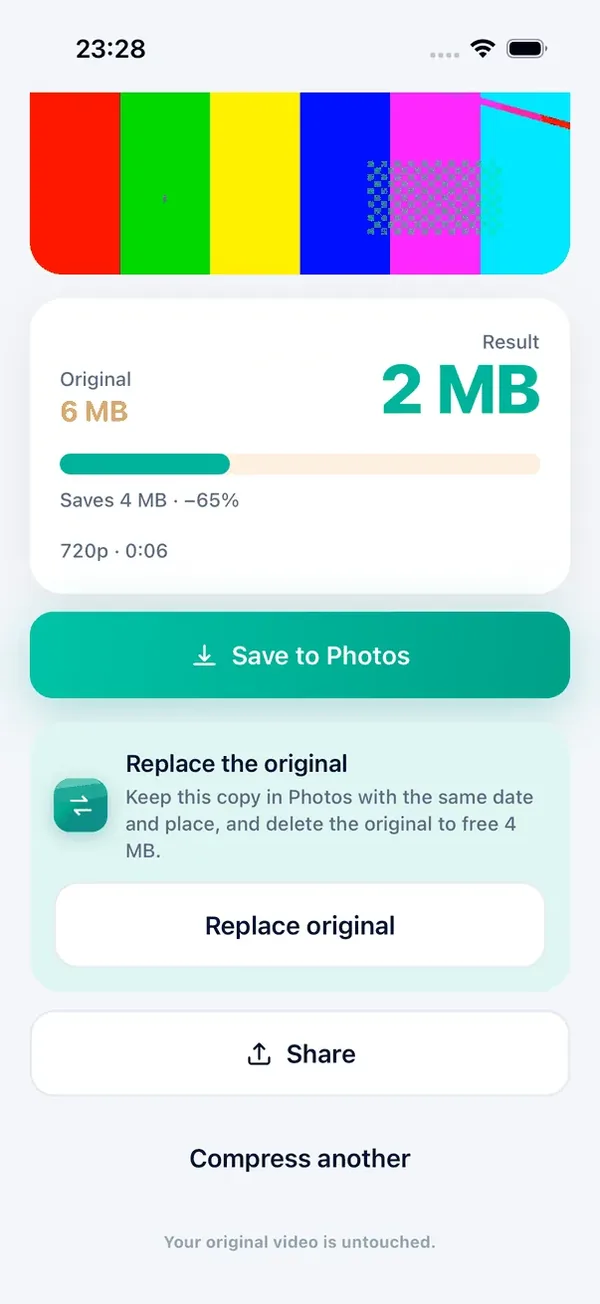
- 4Watch the result. If it looks fine, tap Replace original. The smaller copy is saved to Photos with the original’s date and place, then iOS asks you to confirm deleting the original.
- 5Open Photos and empty Recently Deleted again. The space comes back only after that, because iOS keeps deleted items for 30 days.
- 6Check iPhone Storage, then try the update.
Which method frees the most, and what does it cost me?
Roughly, from least to most effort:
| Method | What you give up | Space comes back when |
|---|---|---|
| Empty Recently Deleted | Items you already deleted | Immediately |
| Offload an app | The app, until you reinstall it (data is kept) | Immediately |
| Delete a video | The video itself | After Recently Deleted is emptied |
| Compress, then Replace original in Minivid | Some detail in the video; date and place are kept | After the original is deleted and Recently Deleted is emptied |
What if there is still not enough room?
- Try again after a restart, and make sure you are on Wi-Fi with enough battery.
- Your iPhone may offer to temporarily remove apps to make room for the update and put them back afterwards. If that choice appears, read what it says before you accept.
- You can also update from a Mac or a Windows PC with the phone connected; Apple’s support site explains the steps for your computer.
- If iCloud Photos is on, remember that Optimize iPhone Storage already keeps smaller copies on the phone. Compressing a video does not make iCloud smaller by itself; our guide to iCloud storage and compressing explains why.
What is free and what is Pro in Minivid?
The Large videos list, the sizes and the filters are free. Compressing one video at a time is free for a video up to 100 MB, at up to 720p. Larger videos, selecting two or more videos for one run and the other presets are part of Pro. If a video is over the free limit, Minivid still compresses it, clamped to the free limits, and shows what Pro would do.
Frequently asked questions
How much free space does an iOS update need?
It varies by update and by phone, because iOS needs room to download and then to unpack and install. Settings, General, Software Update shows the update’s size and any message; compare it with the free space under iPhone Storage.
Why does my iPhone still say storage is full after I deleted videos?
Deleted videos stay in Recently Deleted for 30 days and keep using space. Empty it in Photos, Albums, Recently Deleted, to get the space back now.
Can I free space for the update without deleting my videos?
Often yes. Shrinking a large old video with a compressor and replacing the original frees more than deleting small items, and you keep the footage. Offloading unused apps and clearing message attachments also help.
Does Minivid upload my videos?
No. It reads and compresses your videos on the iPhone and uploads nothing. It never changes the original until you choose Replace original and confirm the deletion.
Can I update my iPhone from a computer instead?
Yes. You can connect the iPhone to a Mac or a Windows PC and update from there. Follow Apple’s support instructions for your computer.
Want to know the size before you compress?
Minivid compresses video on your iPhone and shows the final size before it starts. Your videos are never uploaded.