iCloud storage full because of videos: will compressing them free space?
Published 6 November 2026 · 5 min read
Short answer: only if you then delete the big original. With iCloud Photos on, a compressed video is just another video that gets uploaded, so compressing and keeping both makes your iCloud bigger, not smaller. The space comes back when the original is gone from your library and from Recently Deleted.
This guide shows how to check what is really filling iCloud, why Optimize iPhone Storage does not help with that, and how to swap a big video for a smaller copy without losing anything.
Is it videos that are filling iCloud?
iCloud space is shared by Photos, iCloud Drive, Mail, device backups and app data, so check before you spend an evening on videos.
- 1Open Settings, tap your name, then iCloud. The bar at the top shows what uses the space, and Photos is listed with its size. On some iOS versions you tap Manage Account Storage to see the full list; the wording differs a little between versions.
- 2If Photos is the biggest item, videos are very likely the reason, because a single minute of 4K video can outweigh hundreds of photos.
- 3If Backups, iCloud Drive or Mail is the biggest item, compressing videos will not fix it. Look there instead.
Apple’s free iCloud plan is 5 GB, which a few long videos can fill.
Why doesn’t Optimize iPhone Storage fix it?
With iCloud Photos on, Optimize iPhone Storage keeps smaller versions on the phone and the full-size originals in iCloud. It frees space on the iPhone, but the originals still count against your iCloud storage, so the iCloud bar does not move.
iCloud Photos also keeps your devices in step: deleting a video on one device deletes it everywhere. That is why a deletion is permanent after 30 days, and why you should check a copy before removing the original.
What happens to iCloud when you compress a video?
- Compress and keep both: the smaller copy is saved to Photos and uploaded, so iCloud usage goes up a little.
- Compress, then delete the original: the original moves to Recently Deleted, where it still counts against iCloud for up to 30 days. When you empty Recently Deleted, or the 30 days pass, the space comes back, and what you keep is the smaller copy.
- iCloud Photos off: your videos are not synced, so compressing does not change your iCloud Photos usage. If a device backup includes your photos and videos, a smaller library makes the next backup smaller.
So the saving is the size of the original minus the size of the copy. For a long 4K clip that can be a lot; for a clip that is already small it is little.
How do I swap a big video for a smaller copy safely?
- 1Start with the biggest and oldest videos. Photos cannot sort by size, so use Albums, then Videos, and look at the durations, or use the guide on finding your biggest videos.
- 2Make a smaller copy. The Shortcuts app’s Encode Media action and iMovie’s export can both do it; a copy made this way may land on today’s date rather than the original date, so check where it appears in your timeline.
- 3Play the copy full screen. Only then delete the original.
- 4Open Photos, Albums, Recently Deleted, and delete the original there too. Until you do, iCloud still counts it.
- 5Go back to Settings, iCloud and check the Photos size again. It can take a little while to update.
If iCloud is completely full, uploads of new items may wait until there is room, so free a little space first by emptying Recently Deleted.
How does Minivid fit in?
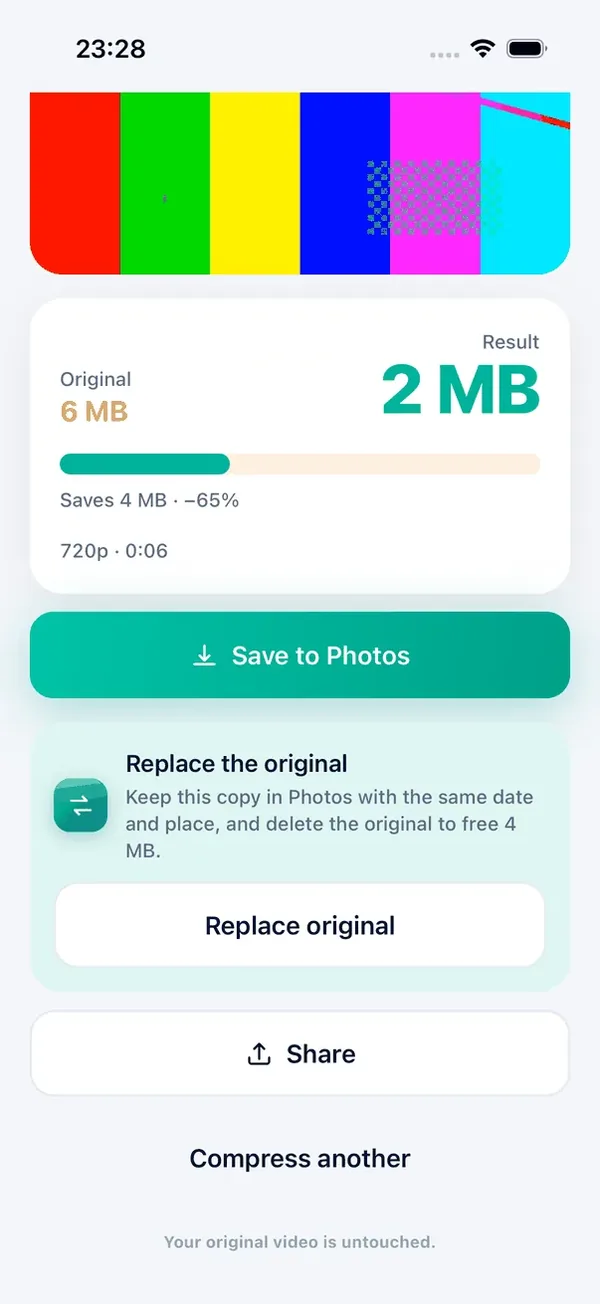
Minivid compresses video on the iPhone, with nothing uploaded. After a video is compressed, the Replace the original card saves the smaller copy to Photos first, with the original’s date and place, and only then asks iOS to confirm deleting the original. Minivid does not change the original itself.
Afterwards it reminds you that the space comes back only when Recently Deleted is emptied, and opens Photos for you. The card does not appear for a trimmed or sped-up video, because that is a different video, not a replacement.
What does it cost, and what are the limits?
The free version compresses one video at a time, up to 100 MB, at up to 720p, and Replace original is available in it. Pro removes the size limit and adds 1080p and 4K output, the Social Media and Keep Quality presets, HEVC and compressing several videos at once.
The saving depends on the video; Minivid shows the estimated size before you start, so you can see what you would get back.
Frequently asked questions
Does compressing a video free up iCloud storage?
Not by itself. With iCloud Photos on, the compressed copy is uploaded too. Space comes back when you delete the original and empty Recently Deleted.
Does Optimize iPhone Storage reduce iCloud usage?
No. It frees space on the iPhone by keeping smaller versions there, but the full-size originals still count against your iCloud storage.
Why is my iCloud still full after I deleted videos?
Deleted videos stay in Recently Deleted for up to 30 days and still count against iCloud until you empty it there.
Is it safe to delete the original after compressing?
Only after you have watched the copy. With iCloud Photos on, deleting a video removes it from all your devices, and after 30 days it cannot be recovered.
Does Minivid delete my original?
Only if you tap Replace original and confirm. It saves the copy first and then asks iOS to confirm the deletion; the original is never changed.
Want to know the size before you compress?
Minivid compresses video on your iPhone and shows the final size before it starts. Your videos are never uploaded.