How to find the biggest videos on your iPhone (Photos can’t sort by file size)
Published 22 October 2026 · 5 min read
The Photos app has no way to sort or filter videos by file size, so there is no built-in list of your biggest videos. The closest built-in clues are the length shown on each thumbnail, the file size under the info button of a single video, and the Photos total in Settings. An app that reads the size of every video, such as Minivid’s Large videos screen, gives you the real list, largest first.
This guide shows what you can do with Apple’s own tools, why length is only a rough guide, and how to get a size-sorted list on the phone itself.
Can I sort videos by size in the Photos app?
No. Photos lets you open the Videos album under Media Types, but it does not offer a size sort or a “larger than” filter. Whatever sort options your version of iOS shows for albums, none of them is file size. What the app does show is the duration in the corner of each video thumbnail.
Settings, General, iPhone Storage tells you how much space Photos uses in total, but it does not list the individual videos in your library.
What can I check with Apple’s own tools?
- Settings, General, iPhone Storage: the Photos total shows whether your library is the problem in the first place.
- Photos, Albums, Videos: long clips are the likeliest to be big. Look at the duration on each thumbnail.
- The info button on a video: open the video, tap the info (i) button or swipe up, and the file size is listed with the file name. This is practical for a handful of clips, not for a whole library.
- The Shortcuts app: the Find Photos action can filter to videos and sort them. The sort options depend on your iOS version, so check what the menu offers. Where it sorts by duration rather than size, you get a longest-first list, which is a proxy, not a size list.
- The Files app can sort by size, but only for files stored there, such as videos you saved from a browser or a chat. It does not look inside your Photos library.
Why is the longest video not always the biggest?
File size is bitrate times length, and the bitrate varies a lot. A 20-second 4K clip at 60 fps can be bigger than a five-minute 720p clip, and a screen recording or a dark, still scene is far smaller than a moving outdoor scene of the same length. Using the per-minute figures Apple lists for High Efficiency recording, a minute is about 60 MB at 1080p 30 fps and about 400 MB at 4K 60 fps. Your own phone’s Record Video screen shows its own numbers.
So sorting by length finds many of the big clips but not all of them, and it can put a long, small clip above a short, heavy one.
How do I list my videos by size with Minivid?
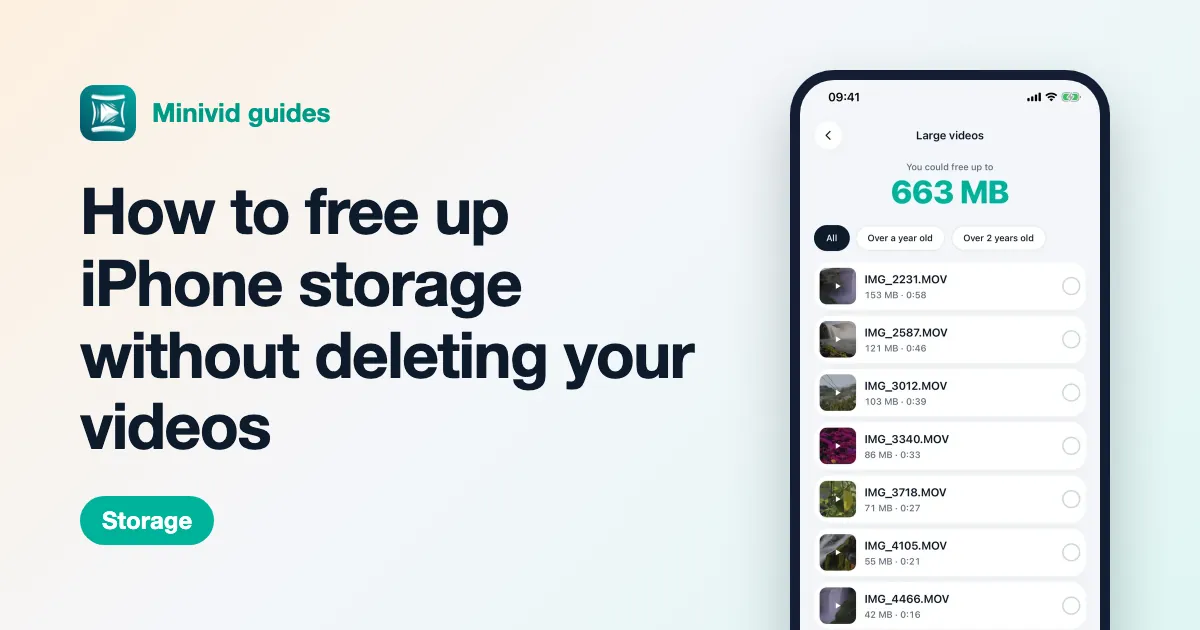
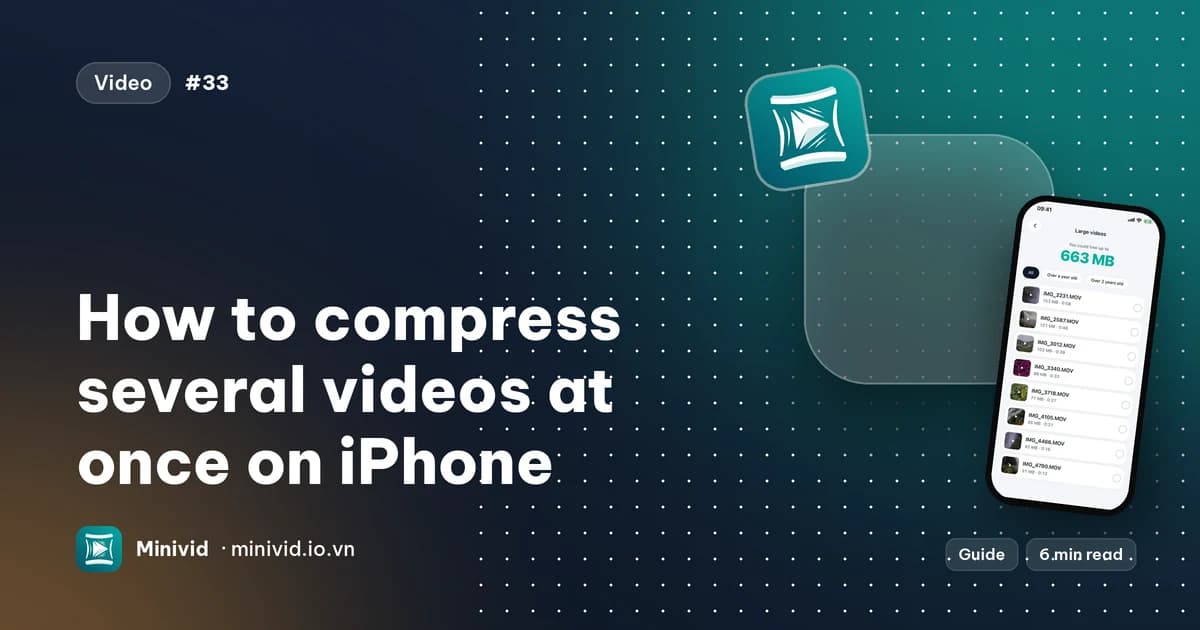
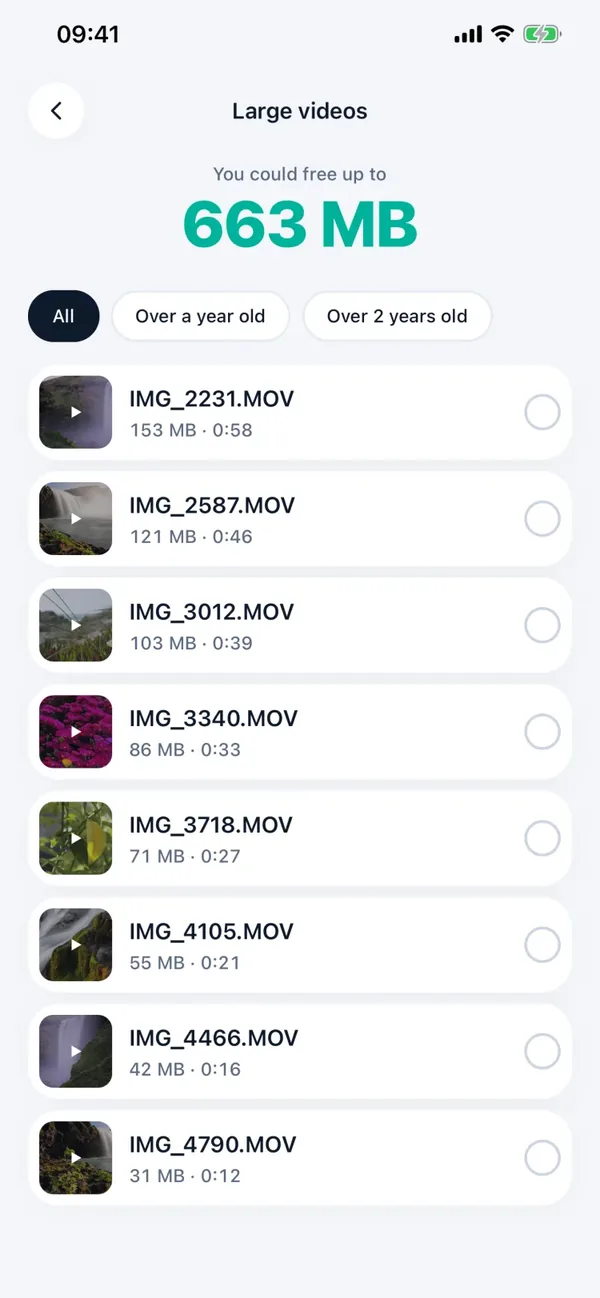
Minivid is an iPhone app that compresses video on the phone itself. Its Large videos screen reads the size and duration of the videos in your library and sorts them, largest first. Nothing is uploaded.
- 1Open Minivid and tap Find large videos. If it asks, allow access to your videos. If you gave access to only some videos, it sees only those, and you can allow more in Settings.
- 2Wait for the scan. Each row shows a thumbnail, the file name, the size and the duration. The number at the top, “You could free up to”, is the combined size of the videos currently listed, not a promise of what compressing will save.
- 3Use the filters All, Over a year old and Over 2 years old to look at older clips first. Old footage is usually the easiest to shrink.
- 4Tap a thumbnail to play the video before you decide. Tap the row to select it.
Minivid reads up to 3,000 videos. Some videos that exist only in iCloud do not report a size until they are downloaded, so Minivid leaves them out of the list rather than show a wrong size.
What can I do with the biggest videos once I find them?
Select one or more rows and the bottom bar offers three things:
- Compress: pick a preset and Minivid writes a smaller copy on the phone. The original stays until you remove it. Compressing adds a copy, so free space does not grow until the originals are gone.
- Add to album: put the selection into an album you already made in Photos, which is a quick way to gather clips you want to back up or review later.
- Delete from Photos: iOS asks you to confirm. Deleted videos stay in Recently Deleted for 30 days and still use space until you empty it there.
Do not delete a video you cannot replace until you have a copy you have watched and trust. Our guide to freeing up space without deleting your videos walks through that order.
What is free and what is Pro?
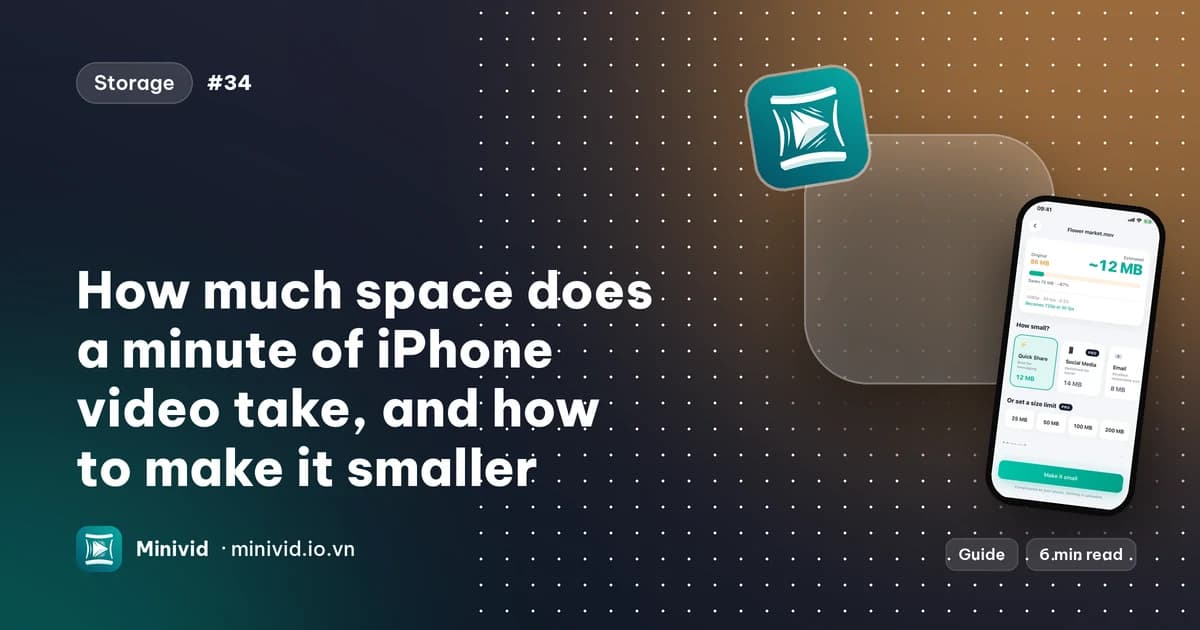
The Large videos list, the sizes, the filters, adding to an album and deleting from it are available in the free version. Compressing one video at a time is free for a video up to 100 MB, with the Quick Share, Email and Save Space presets at up to 720p. Selecting two or more videos for one compression run is part of Pro, as are larger videos and the other presets.
Frequently asked questions
Can I sort videos by file size in the Photos app?
No. Photos has no sort or filter by file size. You can see the duration on each thumbnail and the file size of one video at a time under its info button.
How do I see how much space one video takes on iPhone?
Open the video in Photos and tap the info (i) button or swipe up. The file size is listed with the file name.
Is the longest video always the biggest?
No. Size depends on resolution, frame rate and the scene as well as length, so a short 4K clip at 60 fps can be bigger than a longer 720p one.
How do I list my biggest videos on iPhone?
Use an app that reads the size of every video. In Minivid, tap Find large videos to see your videos largest first, with filters for clips over a year or two years old.
Does Minivid upload my videos to find the large ones?
No. It reads the size and duration of the videos on your iPhone and nothing is uploaded. Some iCloud-only videos report no size until they are downloaded, so they can be missing from the list.
Want to know the size before you compress?
Minivid compresses video on your iPhone and shows the final size before it starts. Your videos are never uploaded.