How to compress a video that is in the Files app, Safari or a chat on iPhone (not in Photos)
Published 3 November 2026 · 5 min read
A video you downloaded in Safari, received in a chat or saved in the Files app is not in your Photos library, so the usual advice (edit it in Photos, export it from iMovie) does not reach it. Touching and holding it in Files and choosing Compress only makes a .zip, which barely changes the size of a video.
This guide shows the way that works: send the video to an app that re-encodes it, using the Share button. It also covers the easy alternative of saving the video to Photos first, and what to check once it is smaller.
Why doesn’t Files have a way to shrink a video?
Files can move, rename, preview and zip files, but it has no option to re-encode a video at a lower resolution or bitrate. A zip archive does not help here, because a video is already compressed (HEVC or H.264); expect a result close to the original size.
Photos can trim a video and keep the original size, but it does not offer a smaller size either. So for a video in Files, the options are: save it into Photos and compress it there, or share it straight to an app that compresses.
How do I compress a video from Files, Safari or a chat with the Share button?
Minivid, an iPhone app that compresses video on the phone, adds itself to the share sheet. It accepts one video at a time. Menu wording can differ a little between iOS versions:
- 1Find the video: in Files, in the Downloads folder if it came from Safari, or in the chat app that received it.
- 2Tap Share, or touch and hold the file and choose Share.
- 3In the row of apps, choose Minivid. If you do not see it, scroll to the end of the row, tap More and switch Minivid on.
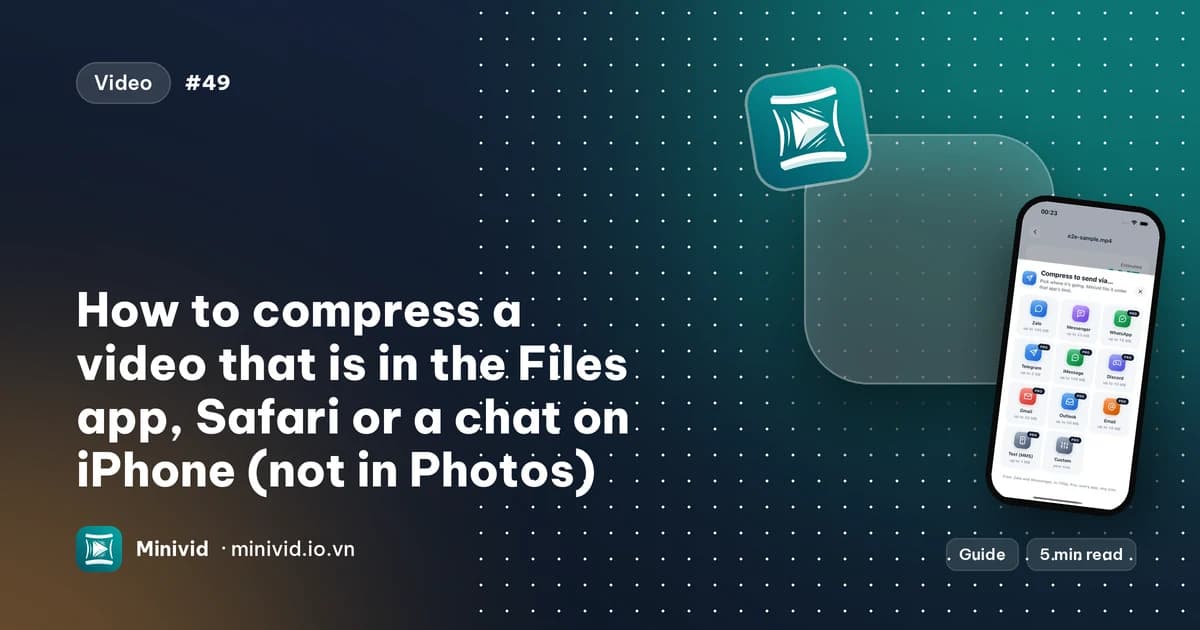
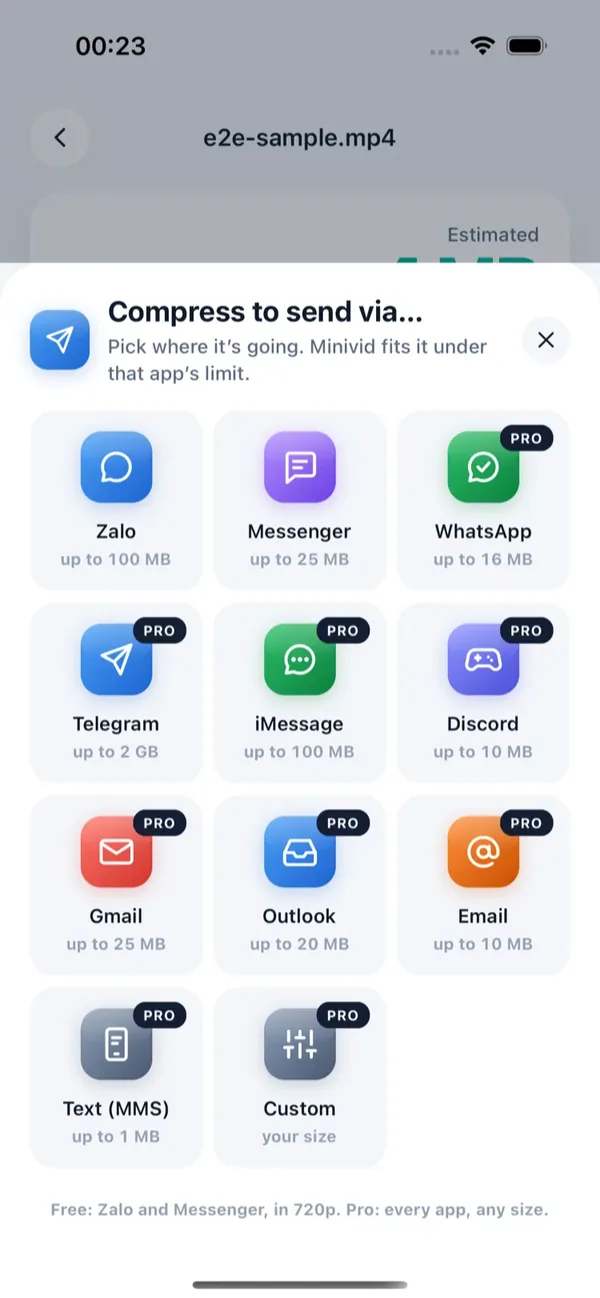
- 4Minivid opens with its “Compress to send via…” sheet. Pick the app the video is going to, or close the sheet and choose a preset to see the estimated size first.
- 5Compress, then send the result from the share sheet that opens, or tap Save to Photos.
Minivid copies the shared video into its own storage and compresses it on the phone. Nothing is uploaded, and the file you shared is not changed. The file in Files or in the chat stays where it was, so delete it yourself once you are happy with the smaller one.
Can I save the video to Photos first instead?
Yes, and it is the better route for a batch or when the Share button does not list your app. In Files, tap Share and choose Save Video, and the video lands in Photos. From there you can compress it in any app that reads your library, and Minivid can also compress several videos in one run (a Pro feature).
One difference: a video that was in your Photos library can be replaced by its smaller copy in one step inside Minivid, which also keeps the original’s date and place. A video from Files has no Photos original to replace, so you remove the old file by hand.
What does it cost, and what are the limits?
Reading the estimated size costs nothing. In the free version, Minivid compresses one video at a time, up to 100 MB, at up to 720p, and the “Send via…” sheet is free for Zalo and Messenger. Pro removes the size limit, adds 1080p and 4K, a size you name yourself, HEVC and the other destinations such as WhatsApp, Gmail, Discord and iMessage.
If a video from Files is over 100 MB, the free version will not take it; a long screen recording or a clip from a camera is the usual case.
What to check after it is smaller
- Play the new file before you delete the old one: check the picture, the sound and the end of the video.
- Compare the sizes. A video that was already compressed, such as one saved from a chat app, may shrink only a little. Re-encoding it at a high setting can even make it bigger, so choose a smaller preset or a size limit.
- Check the orientation, especially for videos that came from another device. See the related guide on sideways videos if it looks wrong.
- A video that only exists in iCloud Drive or another cloud folder has to finish downloading to the phone before it can be shared; wait for the download.
Frequently asked questions
Can I compress a video in the Files app on iPhone?
Not into a smaller video. Files’ Compress option makes a zip archive, which barely changes a video’s size. Share the video to an app that re-encodes it, or save it to Photos and compress it there.
How do I compress a video I downloaded from Safari?
Open it from the Downloads folder in Files, tap Share and choose an app that compresses video. In Minivid, choose where it is going, or a preset, and compress.
Does Minivid work on videos that are not in Photos?
Yes. Share the video to Minivid from Files, Safari or another app, one video at a time. It is compressed on the phone and nothing is uploaded.
Does the original get deleted?
No. The file you shared stays where it was. Delete it yourself once you have checked the smaller copy.
Is it free?
Within the free limits: one video at a time, up to 100 MB, at up to 720p. Pro removes the limits and adds 1080p, 4K, HEVC and an exact size.
Want to know the size before you compress?
Minivid compresses video on your iPhone and shows the final size before it starts. Your videos are never uploaded.