How to compress a video on iPad (and why zipping it doesn’t help)
Published 23 October 2026 · 5 min read

To compress a video on iPad, re-encode it at a lower resolution or bitrate and save the result as a new copy. Zipping the file in the Files app does not do this: a video is already compressed, so a zip is usually about the same size. Trimming the clip, an export from iMovie or Shortcuts, or an app such as Minivid, which is made for iPhone and iPad and shows the estimated size before it starts, all give a genuinely smaller file.
This guide covers the myth first, then the ways to shrink a video on an iPad and what to expect from each.
Does zipping a video make it smaller?
In the Files app, touching and holding a file and choosing Compress makes a .zip archive. That works well for documents, but a video is already stored in a compressed format (HEVC or H.264), and a zip cannot squeeze it much further. Expect a result close to the original size, sometimes a little more or less. It is useful for bundling several files into one, not for getting under a size limit.
To make a video really smaller you have to change the video itself: fewer pixels, a lower bitrate, a shorter clip, or all three.
How do I see how big the video is on iPad?
Open the video in Photos and tap the info (i) button, or swipe up. The panel lists the file size with the file name. Check it again after each step below. In iPad Settings, General, iPad Storage shows how much space Photos uses in total.
What can I do without an app?
- Trim it. In Photos, tap Edit, drag the handles to keep only the part you need, tap Done and choose Save Video as New Clip. Less footage means a smaller file, and nothing about the quality changes.
- Shortcuts. Make a shortcut with the Encode Media action, set a smaller size such as 1280×720, and add Save to Photo Album. It writes a re-encoded copy, but it does not show the final size before it finishes.
- iMovie. Add the clip to a project and export it from Share, where an options screen lets you pick a lower resolution. The exact menus depend on your iPadOS and iMovie versions.
None of these shows the size you will end up with, so reaching a particular limit can take a few tries.
How do I compress a video on iPad with Minivid?
Minivid is a universal app, so the same app runs on iPad, and its screens adapt to the window width, including Split View. It compresses on the device with the iPad’s own hardware encoder.
- 1Open Minivid and choose the video from your library.
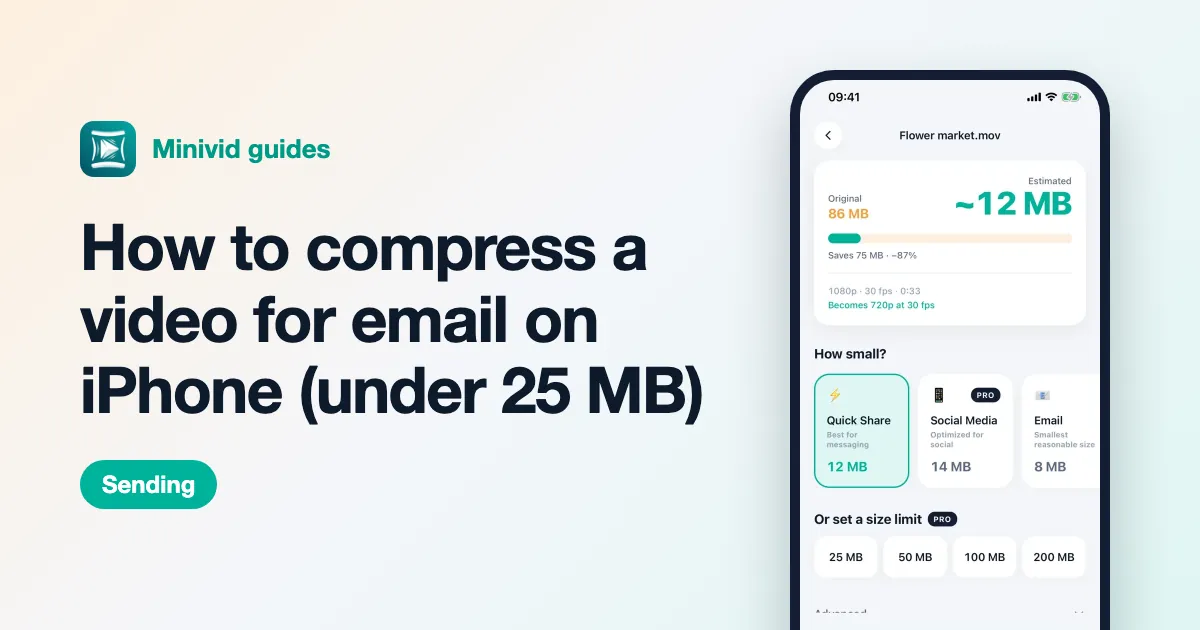
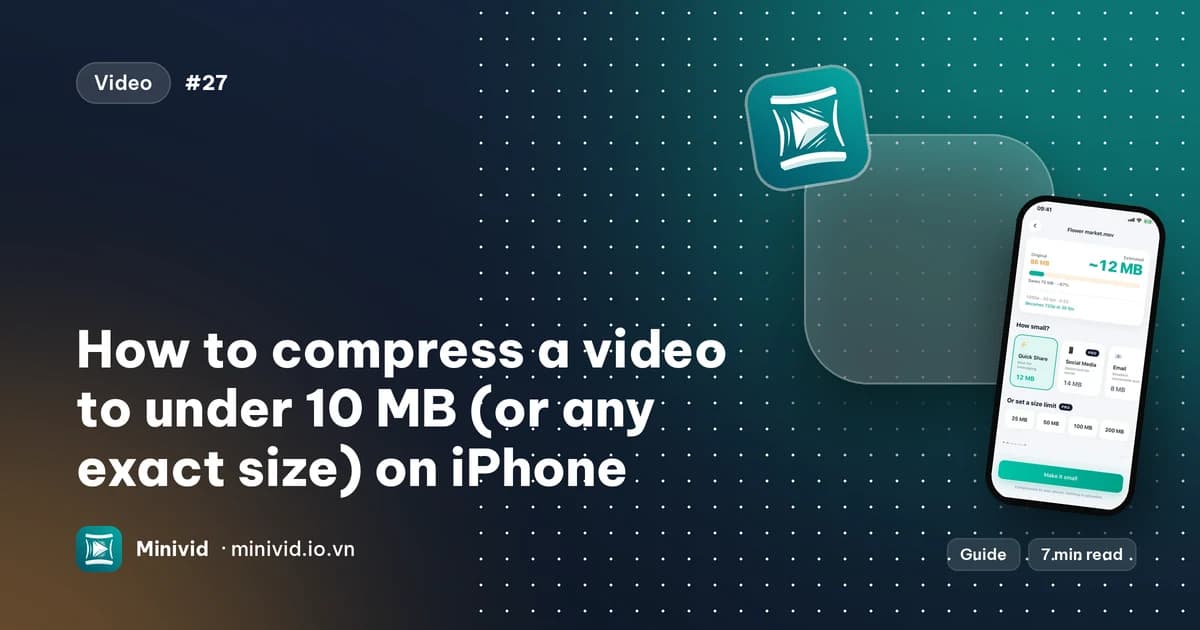
- 2On the settings screen, the Original size sits next to the Estimated size, and a line such as “Becomes 720p at 30 fps” says what will change. Pick a preset (Quick Share, Social Media, Email, Save Space or Keep Quality), or set a size limit. The estimate updates as you change it.
- 3Tap Trim first if you only need part of the clip.
- 4Tap Make it small and keep Minivid open while it runs.
- 5On the result screen, tap Save to Photos, or use Share to send it or save it to Files. The original is never changed.

What is free and what is Pro?
In the free version, Minivid handles videos up to 100 MB and writes the result at up to 720p, with the Quick Share, Email and Save Space presets. Pro removes both limits and adds the Social Media and Keep Quality presets and exact size limits.
Will an online compressor do it on iPad?
Websites work in Safari, but your video is uploaded to someone else’s server, and many have a size limit or a watermark. For anything private, compressing on the iPad itself avoids sending the video anywhere. Minivid works in airplane mode; a video that exists only in iCloud is downloaded first.
How do I stop recording huge videos?
On iPads that offer it, Settings, Camera, Record Video lets you pick a lower resolution and frame rate, and Formats can switch between High Efficiency and Most Compatible. The options depend on the iPad model. This only affects new recordings, not videos already in your library.
Frequently asked questions
Can I compress a video on iPad?
Yes. Re-encode it at a lower resolution or bitrate with Shortcuts, iMovie or an app such as Minivid, and save the result as a new copy. Trimming the clip also makes it smaller.
Does zipping a video in Files make it smaller?
Barely or not at all. A video is already compressed, so a zip is usually close to the original size. Zip is for bundling files, not for shrinking video.
Does Minivid work on iPad?
Yes. It is made for iPhone and iPad, and the screens adapt to the iPad’s window size.
Does Minivid upload my video?
No. The video is compressed on the iPad and nothing is uploaded; your original is left untouched.
Is compressing on iPad free?
Within the free limits: videos up to 100 MB, with the result at up to 720p. Pro removes those limits.
Want to know the size before you compress?
Minivid compresses video on your iPhone and shows the final size before it starts. Your videos are never uploaded.