Why won’t my video compress on iPhone? Fixes for stuck or failed compression
Published 24 October 2026 · 5 min read

When a video won’t compress on iPhone, the cause is almost always one of four things: the full video is only in iCloud and has not been downloaded, the phone is short of free space for the new copy, the app was sent to the background or the screen locked mid-job, or the file is simply very large. Check them in that order; each takes under a minute.
This guide explains each cause and the fix, then what Minivid does in the same situations. The first three fixes need no app at all.
Is the video only in iCloud?
With iCloud Photos on and Optimize iPhone Storage selected, the phone can keep a small preview and leave the full-quality video in iCloud. A compressor or editor needs the full file, so it has to download it first. If you are offline, on a weak connection or iCloud is full, that download stalls and the job looks stuck or fails.
Open the video in Photos. If it shows a progress circle or loads slowly, it is not fully on the phone. Stay on Wi-Fi and wait for it to finish, then try again. To keep full-quality copies on the phone, open the Photos settings (Settings, Photos, or under Apps on newer iOS versions) and choose Download and Keep Originals, as long as there is room for them.
Is there enough free space for the copy?
Compressing writes a new file next to the original, so the phone needs room for both until you delete one. Check Settings, General, iPhone Storage. A few hundred megabytes of free space is rarely enough for a long 4K clip, and an export can fail partway when space runs out.
Two quick ways to get space back: empty the Recently Deleted album in Photos, because deleted videos keep using space there for about 30 days, and delete apps or downloads you no longer need. For a bigger clean-up, see the guide on freeing up storage without deleting videos.
Did the app go to the background or the screen lock?
Encoding a video is heavy work and iOS limits what an app may do once you leave it. If you switch apps or let the screen lock, many compressors pause or stop, and the job may restart from the beginning or fail. Keep the app open and the screen on until it finishes. Turning on Low Power Mode can also slow things down, so switch it off for a long clip.
A long 4K video can take several minutes on an older iPhone. A clip that is clearly moving, with a progress bar or time estimate, is not stuck.
Is the file just very large or unusual?
Long 4K at 60 fps, slow-motion and Dolby Vision clips are the heaviest. If a very big file fails, trim it first so each piece is shorter, or compress it at a lower resolution. Videos from other apps or cameras in unusual formats may not open at all on iOS; in that case, play one in Photos or Files first to see whether the phone can read it.
If the video was edited, exported or saved from another app, also see why a compressed video can end up bigger than the original.
What does Minivid do when something goes wrong?
Minivid compresses on the iPhone with its hardware encoder, and the original is never modified. If a compression stops before it finishes, nothing is saved and the original stays untouched; its message suggests trying again, and a smaller preset if that does not help. While it runs, the screen asks you to keep Minivid open, and you can cancel at any time.
If it cannot read a file, it says so and notes that the video may still be downloading from iCloud or be in a format the phone cannot play. A video that exists only in iCloud is downloaded before it is compressed. If saving fails, the app asks for permission to save to Photos, which you can allow in Settings.
- 1Open Minivid and choose the video. If it is in iCloud, let it finish downloading.
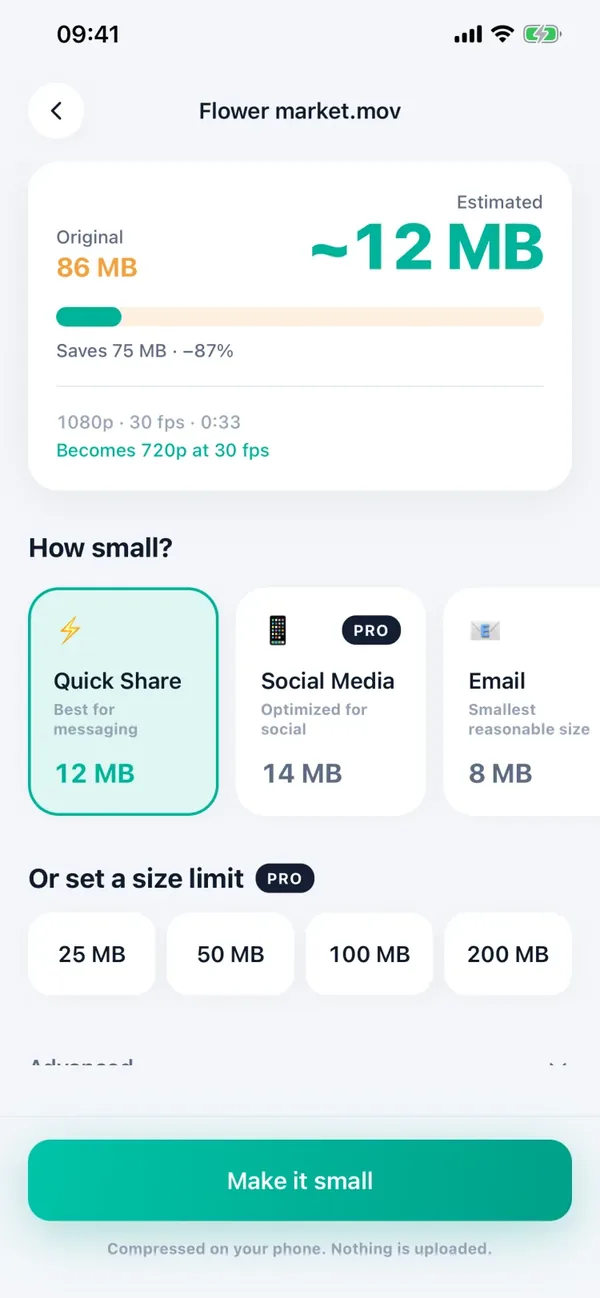
- 2Check the Estimated size on the settings screen, and use Trim first if you only need part of the clip.
- 3Tap Make it small and keep Minivid open on screen until it finishes.
- 4If it stops, tap Try again, or tap Change settings and pick a smaller preset such as Save Space.
What is free and what is Pro?
In the free version, Minivid handles videos up to 100 MB and writes the result at up to 720p. A bigger video, or a result above 720p, needs Pro. If a video is refused for size, that is the free limit and not a fault with the file.
Frequently asked questions
Why does my video get stuck while compressing on iPhone?
Usually the full video is still in iCloud and has to download first, the phone is low on space for the new copy, or the app went to the background. Stay on Wi-Fi, free some space and keep the app open on screen.
Can I leave the app while a video compresses?
It is safer not to. iOS limits what apps can do in the background, and many compressors pause or stop. Minivid asks you to keep it open while it runs.
Does a failed compression damage my original video?
No. A compressor writes a new copy. If Minivid stops, nothing is saved and the original is untouched.
How much free space do I need to compress a video?
Enough for the new file next to the original, plus a margin. A short clip needs little; a long 4K clip can need hundreds of megabytes or more.
Why does Minivid say it could not read my video?
The video may still be downloading from iCloud, or be in a format the phone cannot play. Wait for the download, or check that the video plays in Photos.
Want to know the size before you compress?
Minivid compresses video on your iPhone and shows the final size before it starts. Your videos are never uploaded.