Why is my compressed video bigger than the original on iPhone, and how to fix it
Published 15 October 2026 · 6 min read
A compressed video ends up bigger than the original when the tool re-encodes it at a higher bitrate than the file already had. This happens most with clips that were already compressed (a video saved from a chat app, a screen recording, an exported edit), when the codec changes from HEVC to H.264, or when a tool applies a fixed quality instead of looking at the source. The fix is to compare before you replace anything, and to pick a setting that can only go down.
This guide explains the common causes, how to check which one you hit, and what to do next. The first parts need only the apps already on your iPhone. The last part shows how Minivid, an iPhone app that compresses video on the phone itself, avoids the problem.
Why can compressing make a video bigger?
Compressing a video means writing a new file, and a new file is not automatically smaller. Its size is roughly the bitrate times the length: size in MB is about the bitrate in Mbps times the seconds, divided by 8. If the new bitrate is above the old one, the new file is bigger, however much the word “compress” suggests otherwise.
- The video was already compressed. A clip saved from WhatsApp, Telegram or Instagram, a screen recording and a video exported from an editor often have a low bitrate already. A tool that re-encodes at its usual quality can land above that.
- The codec changed. iPhones record HEVC when Formats is set to High Efficiency, which reaches a similar look at a smaller size than H.264. Re-encoding HEVC into H.264 at a similar quality can give a bigger file.
- The setting did not go down. Keeping 4K or 60 fps, or choosing a “high quality” export, keeps most of the data.
- The tool does not look at the source. Some export options apply a fixed target rather than capping at what the file had.
A short clip makes it harder to spot, because 30 MB against 28 MB feels like the same number. The size shown on screen is what counts.
How do I check what happened?
Compare the two files on the same screen, using the same method for both:
- 1In Photos, open each video and swipe up or tap the info button. Recent versions of iOS show the file name and size there; the exact layout depends on your iOS version. In the Files app, touch and hold a file and choose Get Info.
- 2Check the codec of new recordings in Settings, then Camera, then Formats. High Efficiency means HEVC, Most Compatible means H.264.
- 3Compare resolution and frame rate if the info panel shows them. If both stayed the same and the file grew, the bitrate or the codec is the cause.
Do this before you delete the original. If the copy is bigger, you have lost nothing but a few seconds, and the original is still your best file.
What can I do about it?
- Keep the original and delete the copy. If a clip is already small, there may be nothing left to gain.
- Trim it. Fewer seconds always means a smaller file, whatever the bitrate. In Photos, tap Edit, drag the yellow handles, tap Done and choose Save Video as New Clip.
- Lower the resolution or the frame rate, which is the one thing that cuts the data for sure. 1080p or 720p is plenty for a phone screen, and 30 fps looks almost the same as 60 fps for people talking.
- Keep the codec the same, or move to a smaller one. If the original is HEVC, avoid an H.264 export unless the other person needs it, for example on an older PC or TV.
- Compress once, from the original. A copy of a copy loses quality and may not shrink at all.
Without an extra app, Shortcuts has an Encode Media action and iMovie exports at a lower resolution. Neither shows the size before it finishes, so check the result as above.
How does Minivid avoid a bigger file?
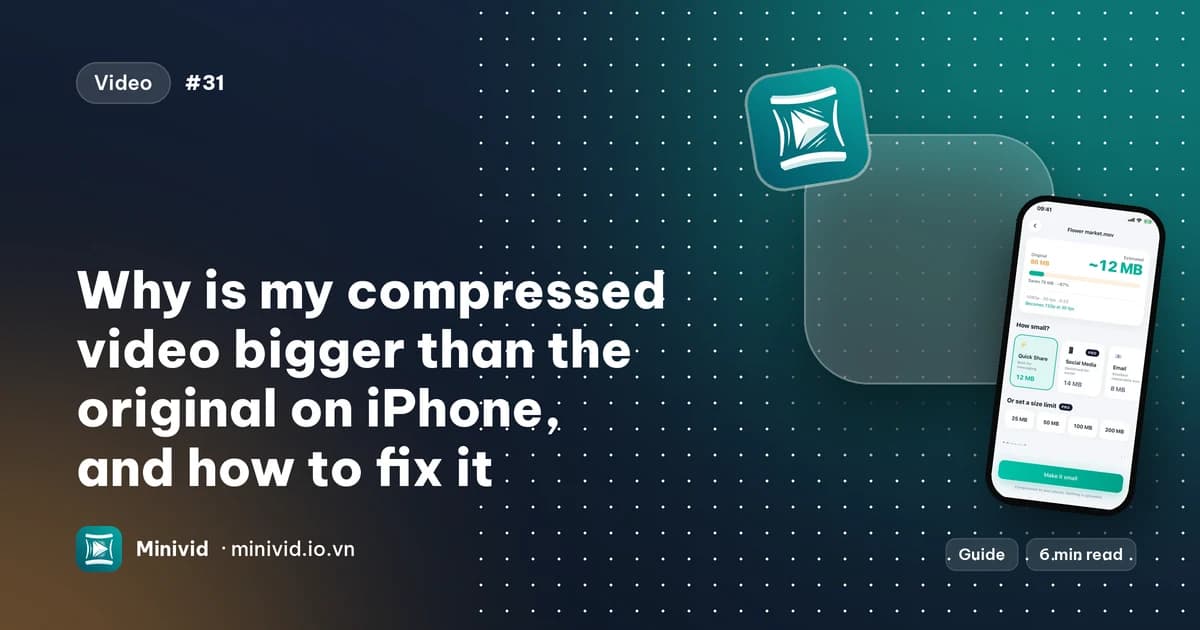
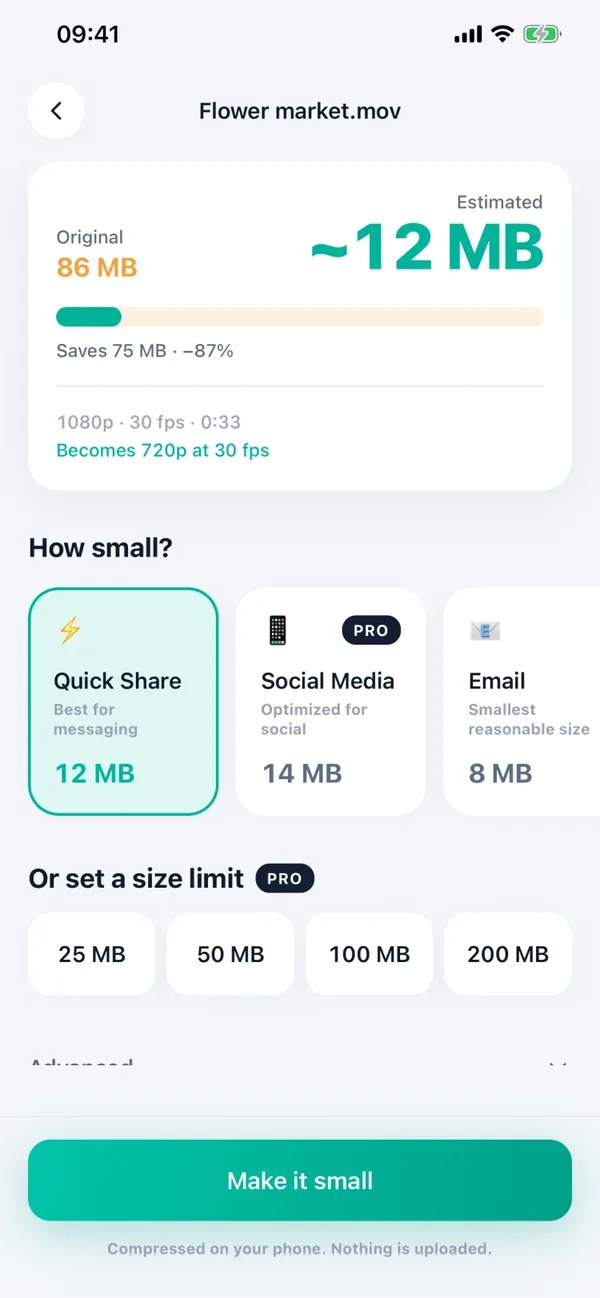
- 1Open Minivid and pick the video. It shows the original size and the estimated size of the result before anything starts.
- 2Pick a preset (Quick Share, Email or Save Space are free; Social Media and Keep Quality are Pro) and watch the estimate update. Change the resolution or frame rate if you want it smaller.
- 3Tap Compress and keep Minivid open while it runs, then check the result screen, which shows the new size next to the old one.
For the presets, the app never sets the video bitrate above 95% of the source’s video bitrate, so the estimate stays under the original size. A video that is already tiny therefore gets little or no saving rather than a bigger file. Replace original is only offered when the copy is smaller, and your original is never modified unless you choose it.
By default Minivid writes H.264 in an .mp4. If your original is HEVC and you want the most from every megabyte, HEVC output is part of Pro. Everything happens on your iPhone, nothing is uploaded, and it works in airplane mode.
What is free and what is Pro?
In the free version you can compress videos up to 100 MB at up to 720p with the Quick Share, Email and Save Space presets, with the estimated size shown first. Pro adds 1080p and 4K output, HEVC, larger videos and compressing to an exact size.
Checking sizes, trimming in Photos and keeping the original are free for everyone and need no app.
Frequently asked questions
Why is my compressed video bigger than the original?
The new file was written at a higher bitrate than the original had. That happens with videos that were already compressed, when HEVC is re-encoded as H.264, or when the export keeps a high resolution, frame rate or quality.
Can I make a small video smaller?
Sometimes. A video that is already at a low bitrate has little left to give. Trimming it or lowering the resolution or frame rate are the ways that still work.
Does converting HEVC to H.264 make a file bigger?
It can. HEVC reaches a similar look at a smaller size than H.264, so the same quality in H.264 usually needs more data. Convert only when the other person needs H.264.
How do I check a video’s size before sending it?
Open it in Photos and swipe up (or tap the info button) for the file size on recent iOS versions, or use Get Info in the Files app. Minivid also shows the estimated size before it compresses.
Does Minivid ever make a video bigger?
For its presets, Minivid keeps the video bitrate below the source’s, and it shows the estimated size before encoding. If the result is not smaller, keep the original. Minivid never uploads your video and does not change the original.
Want to know the size before you compress?
Minivid compresses video on your iPhone and shows the final size before it starts. Your videos are never uploaded.