How to convert a MOV video to MP4 on iPhone
Published 9 October 2026 · 6 min read
To convert a MOV video to MP4 on iPhone, you need an app that re-encodes the clip and writes a new .mp4 file; the Photos app has no “save as MP4” choice, and simply renaming the file does not convert it. Minivid, an iPhone app that compresses video on the phone itself, always writes its result as an MP4 (H.264 video by default), so compressing a clip also gives you the MP4.
First, check that you really need to convert. iPhones record .MOV files, and most places that ask for a video accept them. The cases where it matters are an upload form that lists only .mp4, a Windows or Android player that stumbles on the file, or a file that is simply too big. This guide covers each.
Why does my iPhone record MOV instead of MP4?
MOV is Apple’s QuickTime container, and the iPhone camera has always used it. A container is only the wrapper; the actual picture is stored inside as video, usually HEVC or H.264. MP4 is a close relative of MOV: a different wrapper that many devices and websites treat as the default.
You can see which video format your camera uses in Settings, then Camera, then Formats. High Efficiency records HEVC, which gives smaller files. Most Compatible records H.264, which older players handle better. Either way, the file comes out as a .MOV.
Do I actually need MP4?
Often not. Chat apps, email, YouTube, Instagram and most social sites accept an iPhone .MOV as it is. Before converting anything, work out which of these is really going wrong:
- A form or website only allows .mp4. This is a file-type rule, so a real MP4 solves it.
- The video will not play on a Windows PC, an older TV or an Android phone. Often the cause is the HEVC video inside, not the .MOV wrapper. Re-encoding to H.264 inside an MP4 fixes both.
- The file is too large. Converting alone does not shrink it. You need to re-encode at a lower resolution or bitrate, which is also what makes an MP4.
Why renaming .MOV to .MP4 is not a conversion
Changing the extension in the Files app changes only the name. The contents stay exactly as they were. Some players will open it anyway because both formats share a similar structure, but a website that checks the file will often still reject it, and the video inside may still be HEVC. Do not rely on it for something that matters, such as a job application or a school upload.
How do I convert MOV to MP4 on iPhone, step by step?
Photos and the share sheet do not let you choose a file format, so the practical routes are an app that re-encodes the clip or a computer. Here is the route on the phone itself, with Minivid:
- 1Open Minivid and pick the video from your library.
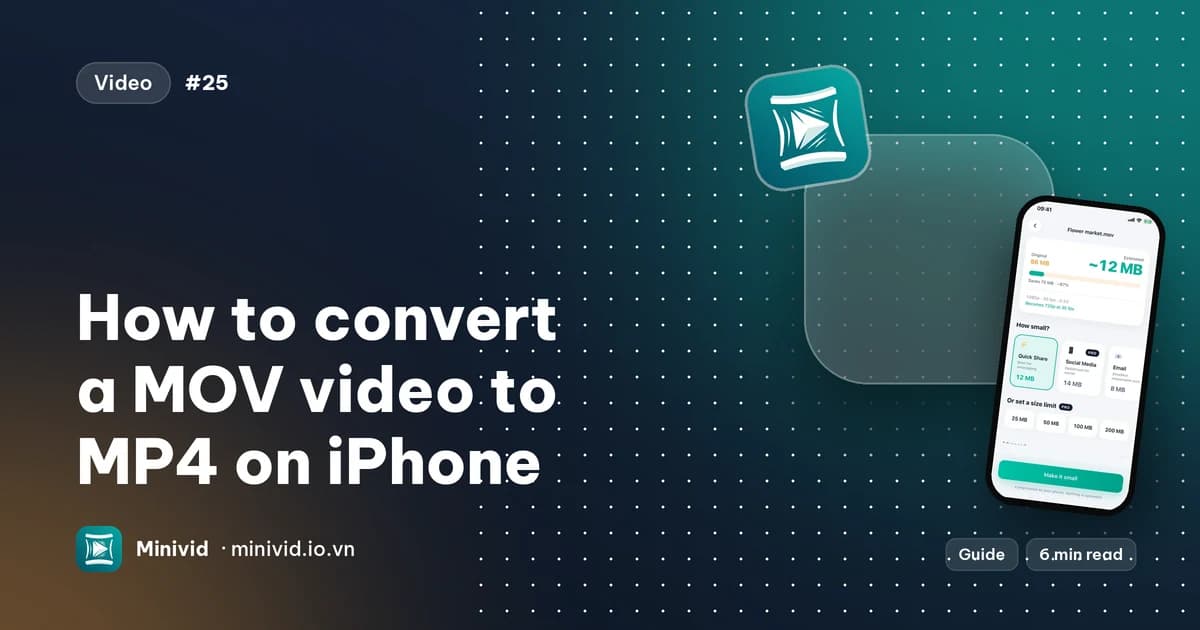
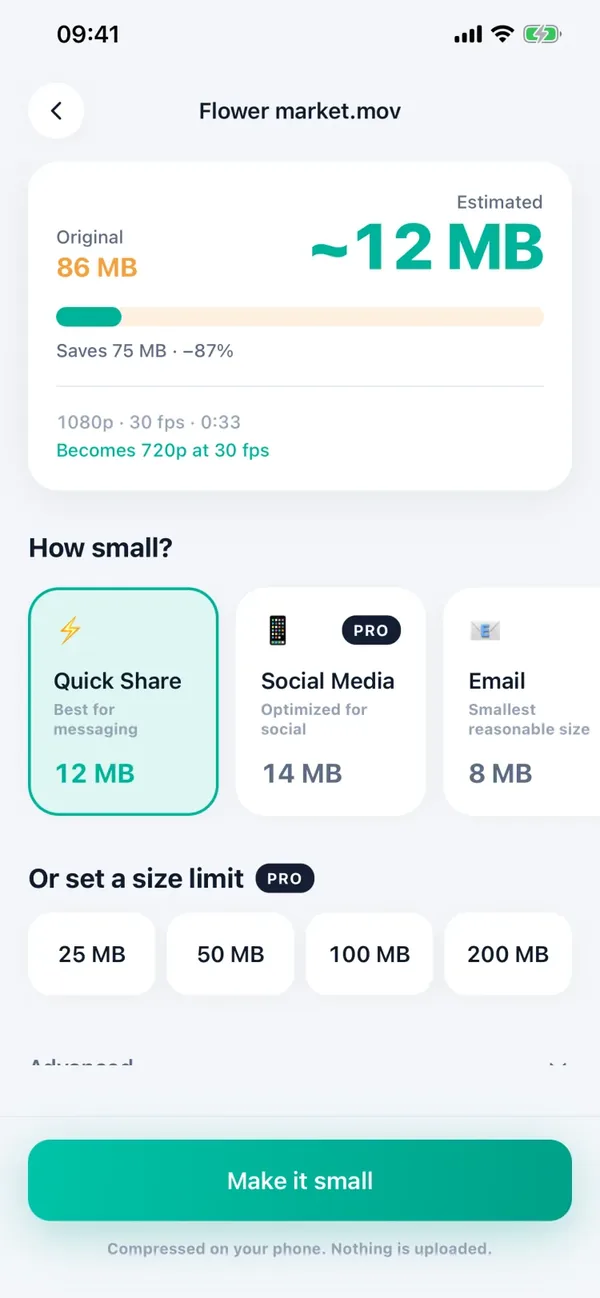
- 2On the settings screen, choose a preset. The estimated size of the result is shown before anything starts, and it updates as you change the settings.
- 3Tap Compress and keep Minivid open while it runs.
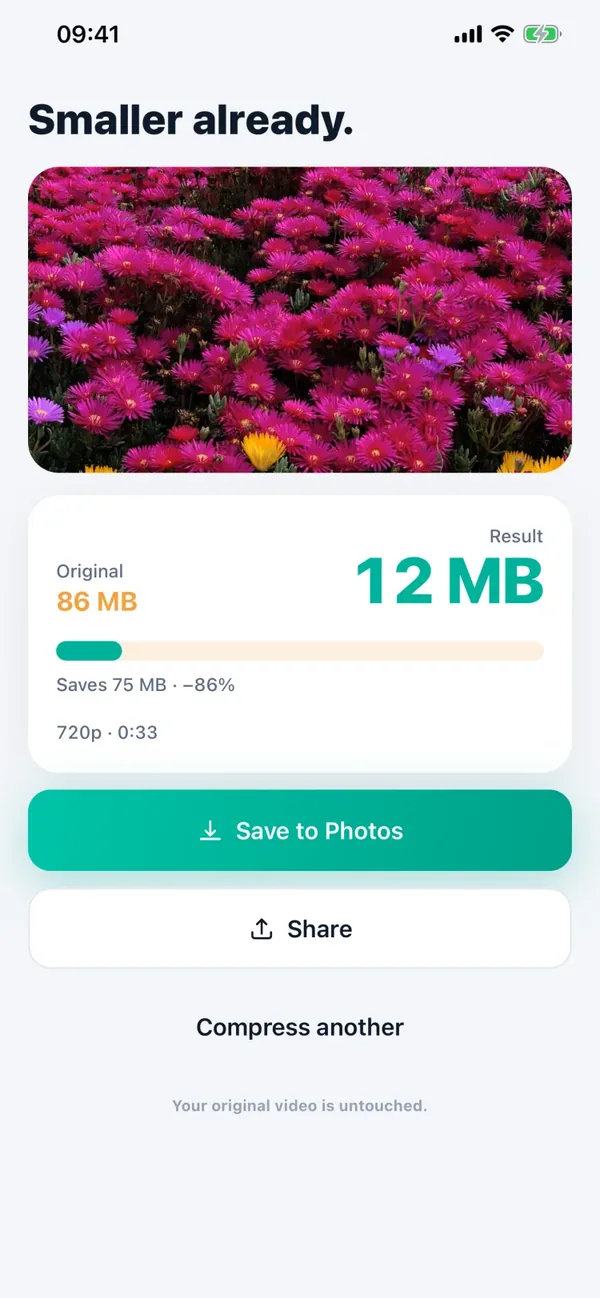
- 4On the result screen, tap Save to Photos to put the video back in your library, or tap Share and choose Save to Files to keep it as a file you can upload or send. Shared files are named minivid_ followed by a number, ending in .mp4.
The result is a new file; your original .MOV is never modified. Nothing is uploaded, because the video is encoded by the iPhone’s own hardware encoder, so it also works in airplane mode.
Two things to know. This is a re-encode, not a lossless copy of the old file in a new wrapper, so the picture can look slightly different, and the Keep Quality preset (part of Pro) stays closest to the original. And it is always an MP4: Minivid does not offer MOV output.
Which codec ends up inside the MP4?
By default Minivid encodes H.264, which plays almost everywhere, including older Windows PCs, smart TVs and websites. That is the safe choice when you are not sure what the other person uses.
Pro adds HEVC, which makes a smaller file at similar quality, still inside an MP4. Use it for your own library or for recent devices, and stay with H.264 for a form, an old player or someone else’s computer.
What is free and what is Pro?
In the free version, Minivid handles videos up to 100 MB and writes the result at up to 720p. That is enough for most forms and chat uploads. Pro removes both limits, so you can keep 1080p or 4K in the MP4, and it also adds the HEVC option.
If the video is longer than you need, trimming it in Photos first is free and reduces the size before you convert.
Other ways to convert
- A computer. A free desktop tool such as HandBrake can export MP4 from a .MOV you have copied across, and keeps more control over quality. It means moving the file off the phone first.
- Online converters. They work in Safari, but the video is uploaded to someone else’s server and most have a size limit, so be careful with anything private.
- Another video app. Many editors export MP4 by default. Check that the export is a real MP4 and see what the app does with your video and account before you use it.
Frequently asked questions
Can I convert MOV to MP4 on iPhone without an app?
Not in a reliable way. Photos does not let you pick a file format, and renaming the extension in Files does not change what is inside. An app that re-encodes the video, such as Minivid, writes a real .mp4 file.
Does converting MOV to MP4 reduce quality?
Converting means re-encoding, so the picture can look slightly different, though at a sensible setting the change is hard to notice on a phone screen. The original .MOV is never changed, so you can always compare the two.
Why won’t my iPhone video play on Windows or Android?
Usually because the video inside is HEVC and the player does not support it. Re-encoding to H.264 in an MP4, which is Minivid’s default, plays almost everywhere. You can also record in H.264 from now on by choosing Most Compatible under Settings, Camera, Formats.
Does Minivid upload my video when it converts it?
No. The video is encoded on your iPhone and never sent to a server, and your original is left untouched.
Is converting to MP4 with Minivid free?
Yes, within the free limits: videos up to 100 MB, with the result at up to 720p. Pro removes those limits and adds the HEVC option.
Want to know the size before you compress?
Minivid compresses video on your iPhone and shows the final size before it starts. Your videos are never uploaded.