How big a video can you send on iMessage from iPhone, and what to do when it won’t send
Published 14 October 2026 · 6 min read
Apple does not publish an iMessage video size limit, and sources that quote one disagree. In practice a clip of roughly 100 MB or less sends without trouble between iPhones, and much bigger ones may be slow, compressed or fail depending on the connection. If a video will not send, the quickest fixes are to trim it, to send an iCloud link instead, or to make the file smaller before you send it.
This guide explains what actually decides whether a video goes through in Messages, what to try first, and how Minivid, an iPhone app that compresses video on the phone itself, can fit a clip under about 100 MB. The first parts need no app at all.
Is there an iMessage video size limit?
Apple does not state a maximum file size for videos in Messages. Guides online quote anything from 100 MB upwards, and some report much larger files going through, so treat any single number as approximate. Apple may also change how Messages handles large attachments between iOS versions.
What is reliable is the pattern. Short clips send at once. Long or 4K clips are big (a minute of 4K from a recent iPhone is often several hundred megabytes), so they take longer to upload, can be compressed by Messages along the way, and are the ones that fail on a weak connection.
Minivid’s iMessage destination aims for about 100 MB. That is a cautious working figure based on what is widely reported, not an Apple rule.
Why won’t my video send in Messages?
- The clip is large and the connection is slow or unstable. A Wi-Fi network with no real internet, or weak mobile data, makes a big upload stall or fail.
- The conversation is green, not blue. A green bubble means the message goes as a text (MMS or RCS), not as iMessage, and a text allows far smaller files. If the other person is on Android, or has iMessage off, this is usually the cause. Our guide on blurry iPhone videos on Android covers it.
- iMessage itself is down or switched off. Check Settings, then Messages, and make sure iMessage is on.
- The Messages app is glitching. Force-quitting and reopening it, or toggling Airplane mode for about 15 seconds, sometimes clears a stuck upload.
A quick test: send a plain text. If that also fails, the problem is the connection or the service, not the video.
How do I make a video smaller without extra apps?
- 1Trim it. In Photos, open the video, tap Edit, drag the yellow handles so only the part that matters is selected, tap Done, and choose Save Video as New Clip. The original stays untouched. Less time means a smaller file, with no loss of quality.
- 2Record at a lower setting next time. In Settings, go to Camera, then Record Video, and pick 1080p at 30 fps instead of 4K for everyday clips.
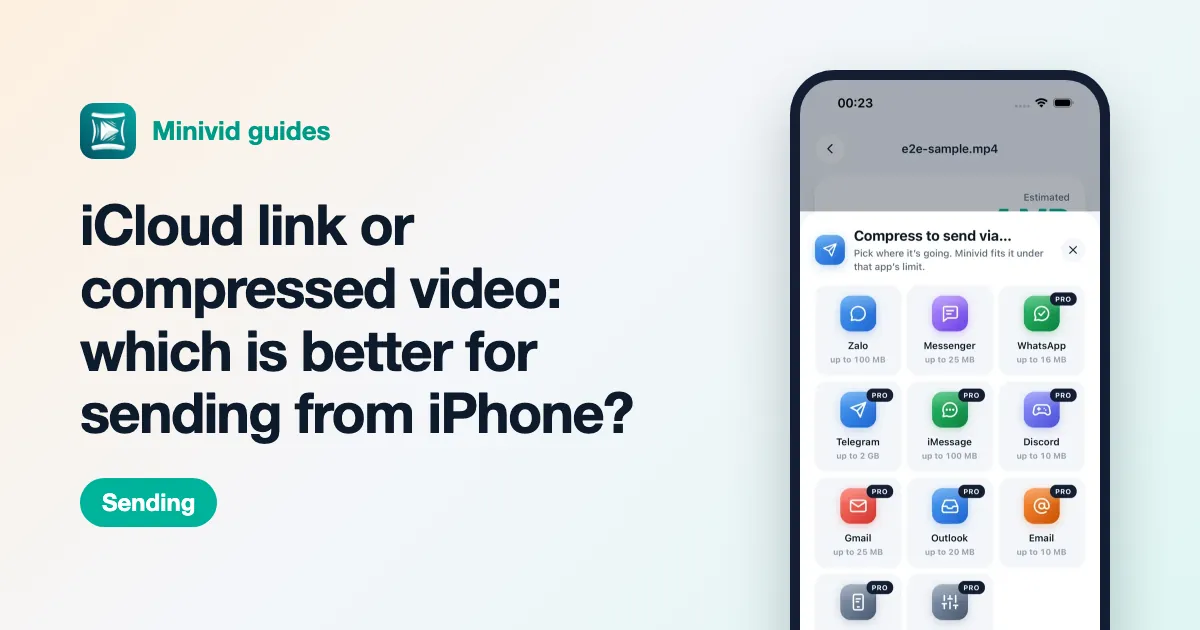
- 3Send a link instead. In Photos, share the video and choose Copy iCloud Link, then paste the link into the message. The other person watches it in a browser or in Photos at full quality, and the size limit of Messages no longer matters. The link works while the video stays in iCloud, which uses your iCloud storage.
- 4Use AirDrop if the other person is next to you and has an Apple device.
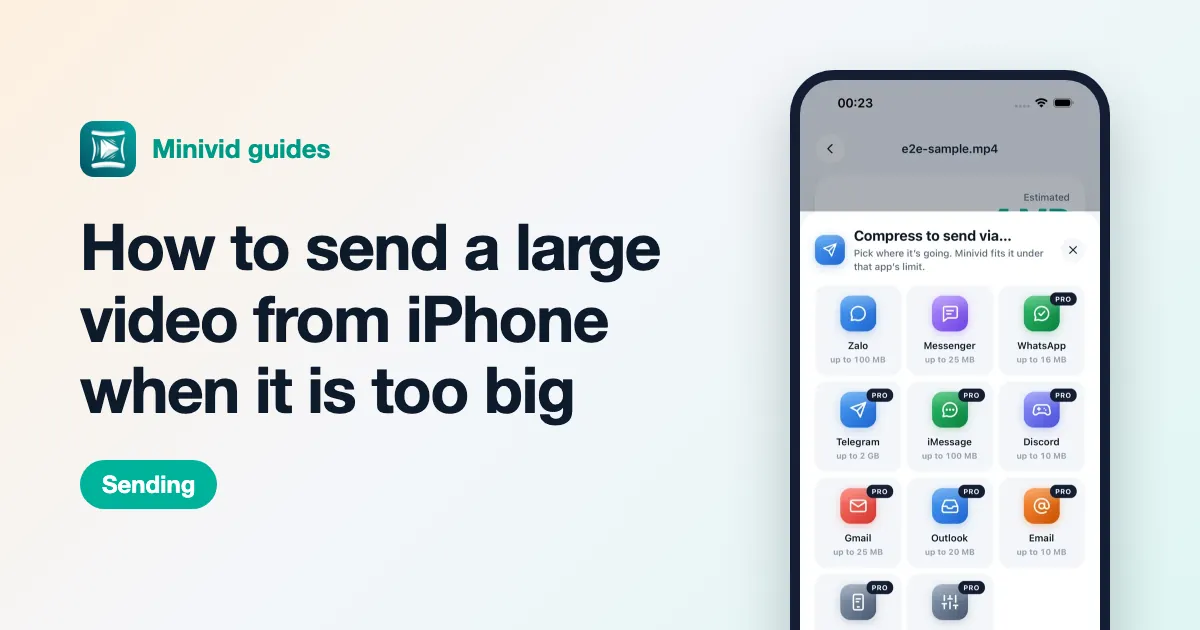
How do I fit a video under about 100 MB with Minivid?
- 1Open Minivid and pick the video. Trim it first if only part of it matters; the size estimate updates as you drag the handles.
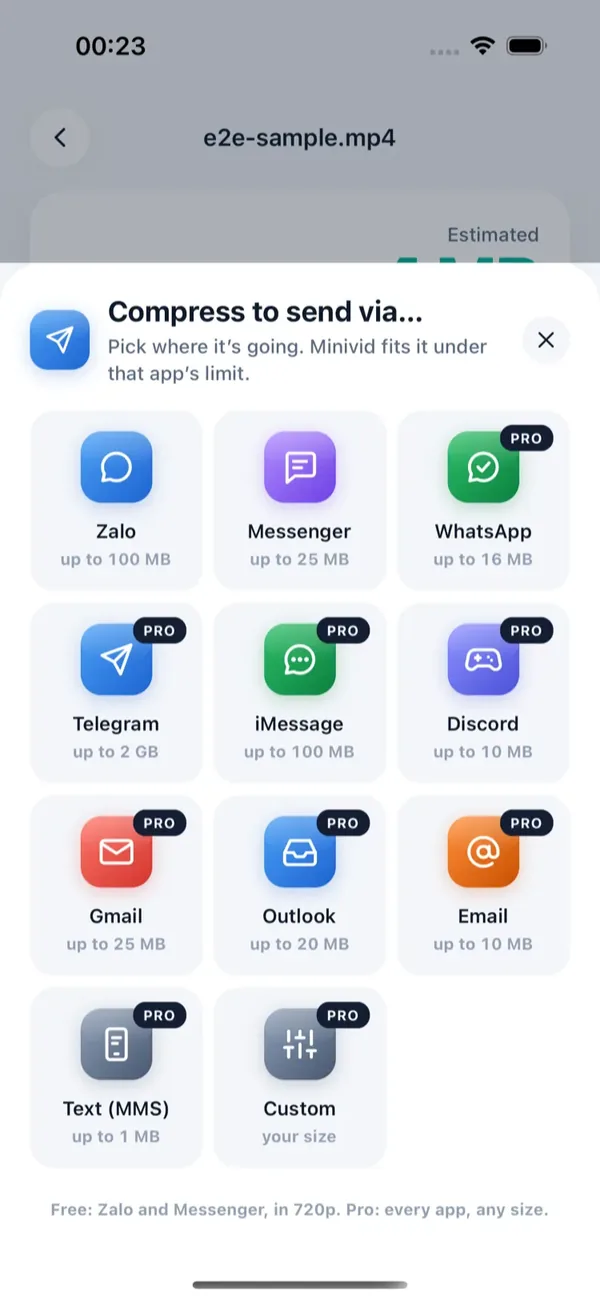
- 2Tap Send via… and choose iMessage.
- 3Check the line that shows the size the result will have and the resolution, then tap Compress and keep Minivid open while it runs.
- 4On the result screen, tap Share, choose Messages in the iOS share sheet, and pick the person.
The iMessage destination keeps up to 1080p and fits the clip under about 100 MB; a short clip that is already small is kept at higher quality. The result is an .mp4 written on your iPhone. Your original is never modified, nothing is uploaded by Minivid, and it works in airplane mode. Minivid does not send the message itself; you send the result from the share sheet.
What is free and what is Pro?
Send via iMessage is part of Minivid Pro. In the free version, Send via covers Zalo and Messenger, and you can still compress videos up to 100 MB at up to 720p with the Quick Share, Email and Save Space presets, with the estimated size shown before anything starts. Trimming, in Minivid or in Photos, is free.
You do not need Minivid to get a video through: trimming and iCloud links, above, work for everyone.
Frequently asked questions
What is the iMessage video size limit?
Apple does not publish one. A clip of around 100 MB or less usually sends without trouble; bigger ones may be slow, compressed or fail. Treat any exact number you read online as approximate.
Why does my video not send on iMessage?
Common causes are a big file on a weak connection, a green (text) conversation that allows only small files, iMessage being switched off, or a glitch in Messages. Sending a plain text tells you whether it is the connection.
How do I send a long video on iMessage?
Trim it in Photos, send an iCloud link instead of the file, or shrink it first. Minivid’s Send via… iMessage destination aims for about 100 MB at up to 1080p.
Does iMessage reduce video quality?
It can compress large videos when sending, and a green-bubble text conversation compresses them heavily. An iCloud link or AirDrop keeps the original.
Is sending via iMessage free in Minivid?
No, the iMessage destination is part of Pro. The free version compresses videos up to 100 MB at up to 720p, and its Send via covers Zalo and Messenger. Minivid never uploads your video, and your original is not changed.
Want to know the size before you compress?
Minivid compresses video on your iPhone and shows the final size before it starts. Your videos are never uploaded.