Why can’t I find a screenshot by searching its text on iPhone, and what to try
Published 1 November 2026 · 4 min read
You remember a screenshot had a booking code, an address or a Wi-Fi password, you type a word from it into Photos, and nothing comes up. Searching the words inside images does work on recent iPhones, but it is not perfect. This guide covers what it needs and what to try when it misses.
What Photos needs to find text
The feature is called Live Text. Apple’s support page says it needs an iPhone XS, iPhone XR or later with iOS 15 or later. On older models the Photos search box simply will not match words inside pictures.
On a supported iPhone, check Settings, General, Language & Region and make sure Live Text is on. Apple documents the list of languages Live Text reads on its feature availability page, and it changes between iOS versions, so check there if your screenshots are in a less common language.
How to search for it
- 1Open Photos and tap Search.
- 2Type one or two distinctive words from the screenshot, such as a name or part of a code, rather than a whole sentence.
- 3Look through the results for the screenshot. Matches from text can appear further down than matches on dates or places.
Some guides also describe searching from the Home Screen search (swipe down); matches may be listed under a heading such as Text Found in Photos. Where and how this appears depends on your iOS version.
Why a screenshot might not show up
- Not read yet. iOS reads images in the background, so a new screenshot, or a library that was just restored or synced, may not be searchable straight away. Leaving the phone charging on Wi-Fi for a while is a common suggestion, but I could not find Apple documenting exact timing.
- The text is small, stylised or low contrast. Text on a busy background or in an unusual font is easy for the reader to miss.
- The words are not what you remember. Search a shorter, more specific word, or try a different one from the same screenshot.
- The language is not supported, or the iPhone is too old, as above.
- Restarting the phone and updating iOS are the usual first fixes for any search that stops working; neither is guaranteed.
A fallback: search them in Minivid
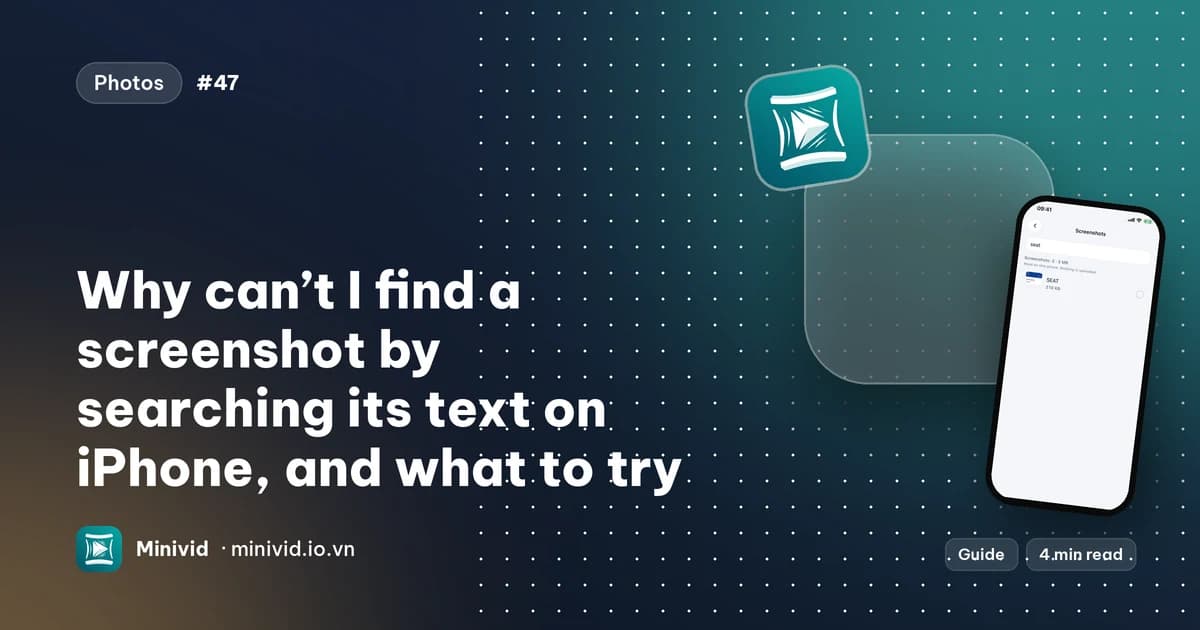
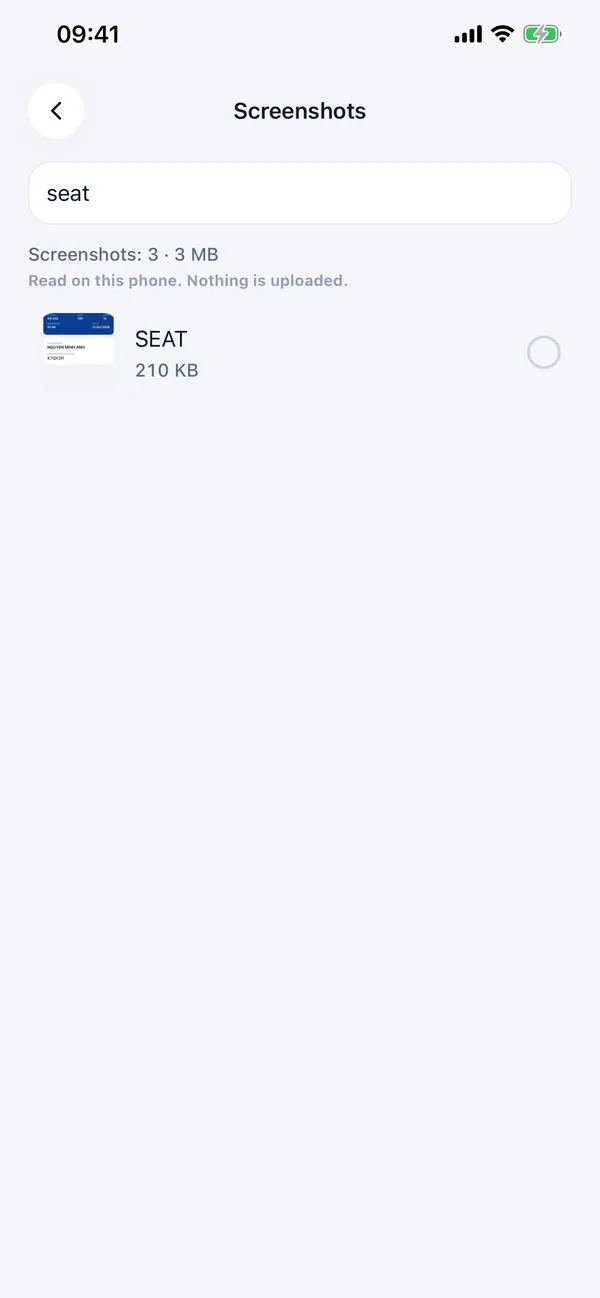
Minivid has a Search your screenshots tool. It finds every screenshot on the iPhone, reads the words in each one on the phone itself, and shows how many there are and how much space they take. Nothing is uploaded, and the text is not sent anywhere. It is included in the free version in full.
Type what the screenshot says. Every word you type has to appear in the screenshot, in any order, and capital letters and Vietnamese accents are ignored. Reading takes roughly a quarter of a second per screenshot, so a big library needs a minute; screenshots not read yet are marked Not read yet, and you can come back later.
One honest limit: Minivid asks for English and Vietnamese text. Screenshots mostly in another language, such as German or French, may not be found by Minivid, and Photos’ own Live Text is the better route for those. Minivid searches screenshots only, not ordinary photos, and the tool is for iPhone and iPad.
- 1Open Minivid and choose Search your screenshots.
- 2Wait while it reads, then type a word you remember.
- 3Open the match. If you want to clear others out, select them and delete; as everywhere in iOS, deleted items stay in Recently Deleted for 30 days.
Stop needing to search next time
- Put anything important, such as a booking code or password, in Notes or Files instead of leaving it in a screenshot.
- Mark favourites: open the screenshot and tap the heart, then find it under Favorites in Albums.
- For a cleanup of old ones, see the guide on deleting screenshots in bulk.
Frequently asked questions
Can you search for text inside screenshots on iPhone?
Yes, on an iPhone XS, XR or later with iOS 15 or later, Photos’ search can match words inside images through Live Text. Results are not perfect.
Why does Photos search not find my screenshot?
Common reasons: the image has not been read yet, the text is small or low contrast, the iPhone or iOS version is not supported, or the language is not supported. Try a shorter, more specific word.
Does Minivid read text in all languages?
No. It asks for English and Vietnamese. For screenshots in other languages, Photos’ Live Text is the better option.
Is searching screenshots in Minivid free?
Yes, the screenshot search is included in the free version in full.
Are my screenshots uploaded?
No. They are read on the phone and never uploaded.
Want to know the size before you compress?
Minivid compresses video on your iPhone and shows the final size before it starts. Your videos are never uploaded.