Why is my iPhone video so slow to upload to YouTube, and should you compress it first?
Published 30 October 2026 · 4 min read

An iPhone records big files, and a home upload connection is usually much slower than its download speed. Put the two together and a ten-minute 4K clip can take a long time to reach YouTube. This guide covers what to check first and the case where a smaller copy really does help.
Why the upload is slow
Upload speed, not download speed, decides how long it takes, and on many home and mobile connections it is a fraction of the download figure. A test such as your provider’s speed page shows both numbers.
The other half is file size. Roughly, time is size divided by upload speed, so a file three times bigger takes three times longer. A 4K clip at 60 fps is far bigger than the same clip at 1080p and 30 fps.
What to try before touching the file
- Use Wi-Fi rather than mobile data, and stay close to the router. Check that Low Data Mode is off for that network in Settings, Wi-Fi.
- Keep the app that is uploading open, and keep the phone awake and charging. iOS can pause background work, and an upload can stop when the app is not in front.
- If the upload stops, start it again and pick the same file. YouTube’s help pages describe a way to resume an interrupted upload; check there for how long it stays resumable.
- “Processing” after the upload finishes is a separate wait that happens on YouTube’s side. Higher resolutions usually take longer, and it can be slow at busy times, so a video that shows as uploaded is not stuck on your phone.
When a smaller copy helps
Making a smaller copy first does not make the video look better on YouTube, because YouTube converts every upload itself. It helps in one situation: the original is huge, your upload speed is low, and you would rather wait for a smaller file. Then a copy at 1080p and 30 fps is a sensible size, and for most videos watched on a phone it is hard to tell from 4K.
If your connection is fine and the upload finishes, upload the original. If the video is 4K on purpose, for example for a screen where the detail matters, do not shrink it.
Keep the original until you have watched the uploaded video on YouTube.
Which format YouTube likes
YouTube’s help pages recommend MP4 with H.264 video and AAC audio, and say that uploading in a recommended format is faster. iPhone videos are .MOV files and often HEVC, which YouTube accepts, but I have not checked the current list of supported formats here, so look at YouTube’s upload help page before you rely on a format. A copy made by Minivid is an MP4 with H.264 video by default.
Making a smaller copy with Minivid
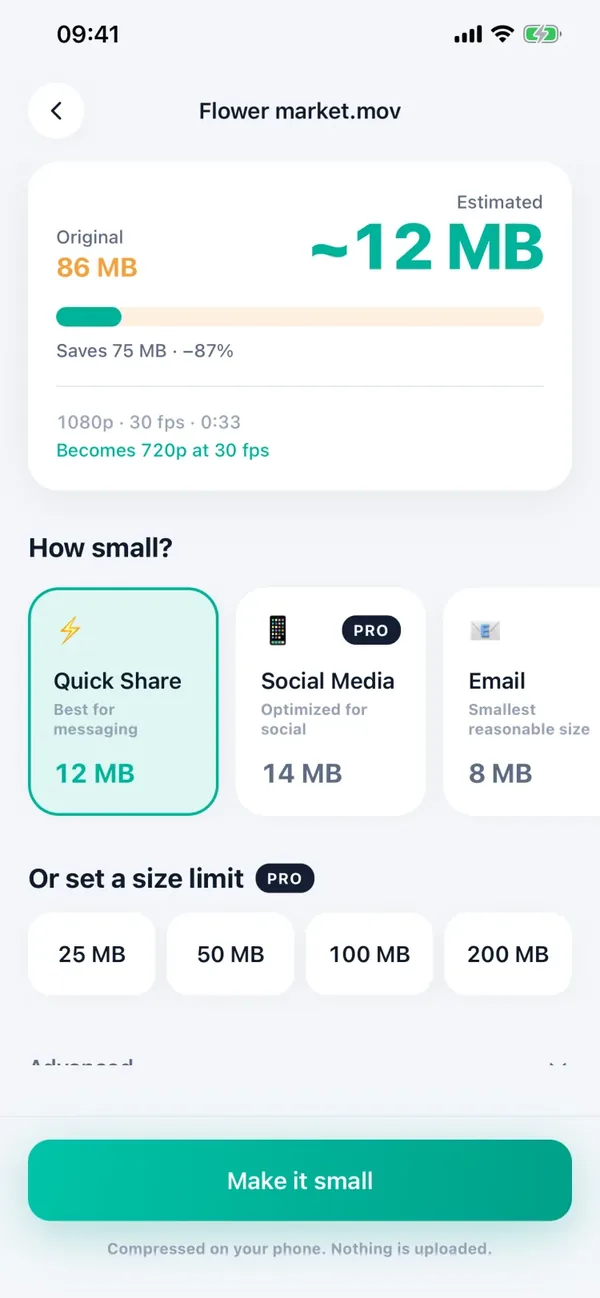
Minivid shows the Estimated size before you start, writes a new copy and never changes the original. Compression runs on the iPhone and nothing is uploaded; it also works in airplane mode.
The Social Media preset limits the longest edge to 1920 pixels and 30 fps, which fits this use. It is a Pro preset. Free works with one video at a time up to 100 MB at 720p, which is a visible step down from 1080p on a big screen, so for sharp 1080p use Pro.
- 1Open Minivid and choose the video.
- 2Check the Estimated size and pick the Social Media preset.
- 3Tap Make it small and keep Minivid open until it finishes.
- 4Play the result full screen, then upload that copy to YouTube.
Frequently asked questions
Why is my iPhone video so slow to upload to YouTube?
Mostly because upload speed is much lower than download speed and iPhone videos are large, especially 4K at 60 fps. Time is roughly file size divided by upload speed.
Should I compress a video before uploading it to YouTube?
Usually not, because YouTube converts it anyway and compressing does not make it look better. It helps when the original is very large and your upload speed is low; a 1080p, 30 fps copy is a reasonable size.
My YouTube upload says processing for a long time. Is it stuck on my phone?
No. Once the upload is done, processing happens on YouTube’s servers and can take longer for high resolutions.
Does Minivid have a YouTube setting?
No YouTube-specific one. The Social Media preset, which is Pro, keeps the longest edge at 1920 pixels and 30 fps.
Does Minivid upload my video?
No. It compresses on the device and works in airplane mode.
Want to know the size before you compress?
Minivid compresses video on your iPhone and shows the final size before it starts. Your videos are never uploaded.