Why is my iPhone video blurry on Instagram, and should you compress it first?
Published 28 October 2026 · 4 min read
The video looked sharp in Photos, and on Instagram it is soft, blocky or smeared. Instagram is not showing your file; it is showing its own re-encoded copy. This guide covers what you can change, and the one case where compressing first helps, which is not the one most people expect.
Why Instagram makes video look worse
Instagram converts every video you upload into its own formats and sizes before anyone sees it. You cannot switch that off, and a re-encode always throws some detail away. That is why a clip can look slightly softer on Instagram than in Photos even when everything is set up well.
What you do control is how much extra damage is added on top: the upload quality setting, the file you start from, and how many times it was re-saved before it got there.
Fix 1: turn on high-quality uploads in Instagram
Instagram has a setting that lets it adapt upload quality to your connection, and reports say it is off by default for high quality. Look in the Instagram app’s settings for a media quality or data usage section, turn on “Upload at highest quality” and turn off “Use less mobile data”. The menu path and wording have changed between app versions, so search the settings for “quality” if you do not see it. Do this first; it costs nothing and fixes many cases.
Fix 2: upload the original, not a copy that was already re-saved
Every re-encode loses a little. A video that came back through WhatsApp, Telegram or a screen recording, or that was exported from an editor at a low setting, is already softer than the camera original, and Instagram then compresses it again.
- Pick the video straight from Photos, not from a chat or a download.
- Film with the Camera app and share to Instagram from Photos, rather than recording inside Instagram, if you want more control over the source.
- If you edit, export once at 1080p and 30 fps, not several times.
Fix 3: check HDR and a very high frame rate
Newer iPhones can record HDR video, which some apps and sites show washed out or with odd colour after re-encoding. On models that have it, Settings, then Camera, then Record Video lets you switch HDR Video off. A 4K, 60 fps clip also gives Instagram far more to throw away than a 1080p, 30 fps one. Where the clip does not need that, film at a lower setting next time.
When compressing first helps, and when it hurts
Compressing before you upload does not make the result sharper. Any compression is one more re-encode, and Instagram will still re-encode afterwards. If the video uploads fine, upload the original.
Compressing first helps in a different situation: the clip is very long or very large (for example 4K at 60 fps), the upload stalls or fails on a slow connection, and you would rather send a smaller file than wait. Then a copy at 1080p and 30 fps is a sensible size to hand over; going lower than that will show.
Keep the original until you have watched the Instagram post full screen.
What Minivid can do here
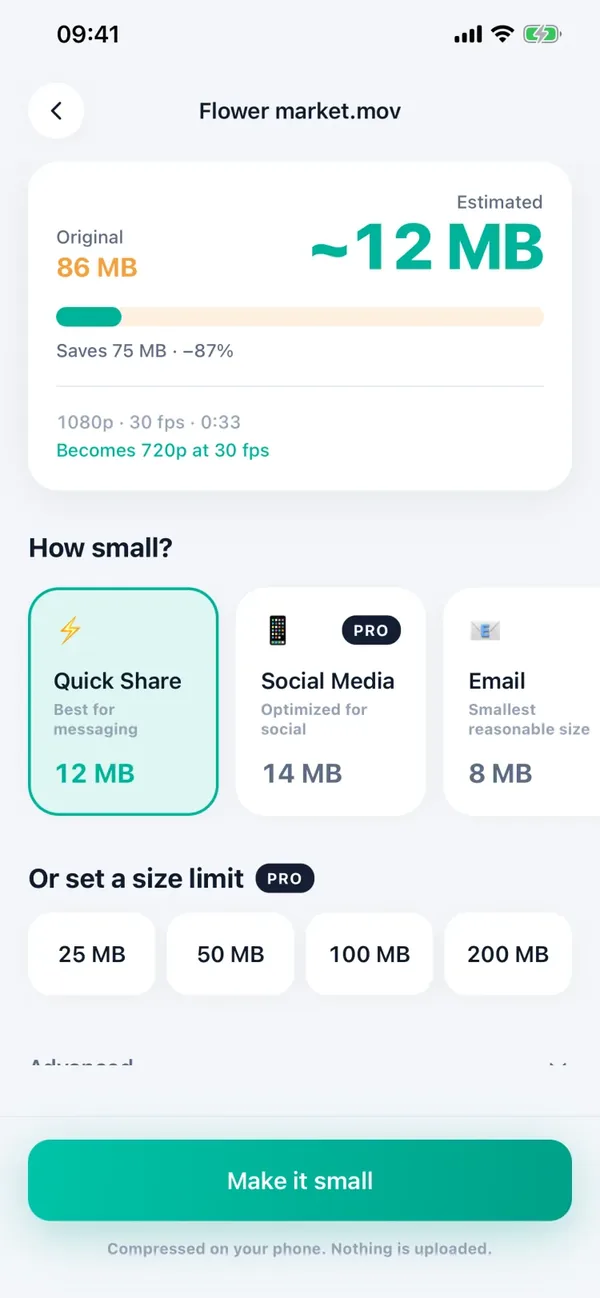
Minivid shows the Estimated size before you start, writes a new copy and never changes the original. Compression runs on the device and nothing is uploaded; it also works in airplane mode.
The Social Media preset limits the longest edge to 1920 pixels and 30 fps, which fits this use. It is a Pro preset. Free works with one video at a time up to 100 MB at 720p, and 720p will look softer on a phone than 1080p, so for the sharpest result upload the original or use Pro.
- 1Open Minivid and choose the video.
- 2Check the Estimated size and pick the Social Media preset.
- 3Tap Make it small and keep Minivid open until it finishes.
- 4Play the result full screen before you upload it.
Frequently asked questions
Why is my iPhone video blurry on Instagram?
Instagram re-encodes every upload, so some loss is normal. It gets worse with “Use less mobile data”, with a file that was already re-saved through a chat app or editor, and with a weak connection while uploading.
How do I upload a high-quality video to Instagram from iPhone?
Turn on “Upload at highest quality” in Instagram’s settings, turn off “Use less mobile data”, and upload the video straight from Photos at 1080p and 30 fps if you edit it. The menu wording varies by app version.
Should I compress a video before posting it on Instagram?
Usually not. Compressing does not make it sharper, because Instagram re-encodes it anyway. It helps only when the file is so large that the upload stalls or fails.
Does Minivid have an Instagram setting?
No Instagram-specific one. The Social Media preset, which is Pro, keeps the longest edge at 1920 pixels and 30 fps.
Does Minivid upload my video?
No. It compresses on the device and works in airplane mode.
Want to know the size before you compress?
Minivid compresses video on your iPhone and shows the final size before it starts. Your videos are never uploaded.