Why is my iPhone video sideways or upside down after compressing or sending, and how to fix it
Published 27 October 2026 · 4 min read

You filmed a video holding the phone upright, it looked right in Photos, and then it turned up on its side after you compressed it, sent it or opened it on a computer. The video is usually fine; a tool along the way ignored one piece of information in the file. This guide explains which, and how to fix it.
Why a video turns sideways
An iPhone camera sensor records landscape pixels. When you film in portrait, the phone does not rotate those pixels; it stores the video as landscape plus a rotation flag that says “show this turned by 90 degrees”. Photos, the iPhone player and most modern apps read the flag. Some software does not: older players, some editors and converters, some websites and some upload forms. When such a tool re-saves the video without carrying the flag across, the rotation is lost and the video is sideways or upside down from then on.
So there are two different cases. If the file is fine and only one player shows it sideways, that player ignores the flag. If the copy is sideways everywhere, including in Photos, the tool that made the copy dropped the flag.
Step 1: find out which case you have
- 1Open the copy in Photos on the iPhone. If it looks right there, the file is fine.
- 2Open the same file in a second place, such as the Files app, a computer or the app where it looked wrong.
- 3If only one of them is wrong, the problem is that app or site, not the video. Try another player, or send the video a different way.
- 4If it is sideways in Photos too, the copy itself lost its rotation. Go to Step 2.
Step 2: rotate it back in Photos
- 1Open the video in Photos and tap Edit.
- 2Tap the crop button, then tap the rotate button (a square with a curved arrow) in the corner until the video is upright. Its exact position can differ between iOS versions.
- 3Tap Done. Photos keeps the unedited version, so Edit, then Revert, undoes it.
This fixes the copy in Photos, but it is a fix after the fact. If you made the sideways copy with a tool that drops the flag, use a different tool next time.
How to stop it happening again
- Check one short clip first. Compress or convert a few seconds in a portrait video and look at it in Photos before you run the long one.
- Be careful with converters and online tools that re-encode the file. Many of them handle rotation well, but it is the step where it most often goes wrong, and an online one also means uploading the video.
- Keep the original until you have checked the copy full screen, from start to end.
What Minivid does about orientation
Minivid reads the rotation of the video you pick and carries it into the compressed copy, so a portrait video comes out upright. The app’s own encoder test includes a portrait clip stored as landscape pixels with a 90-degree rotation, and checks that the result comes out upright at the smaller size.
Minivid does not have a rotate tool. If a video was already sideways before you compressed it, the copy will be sideways too; fix that in Photos first. Minivid never changes the original and compresses on the device with nothing uploaded.
- 1Open Minivid and choose the video.
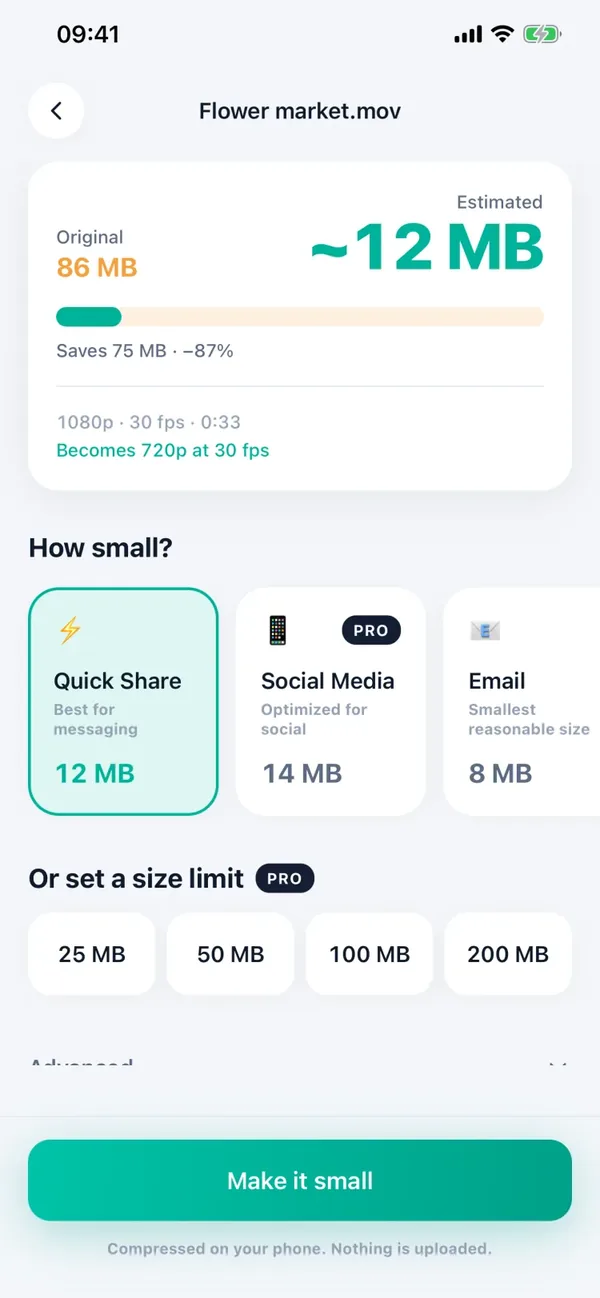
- 2Check the Estimated size and pick a preset.
- 3Tap Make it small and keep Minivid open until it finishes.
- 4Play the result full screen before you delete the original. Free covers one video at a time up to 100 MB at 720p.
Frequently asked questions
Why is my iPhone video sideways on my computer?
An iPhone stores a portrait video as landscape pixels plus a rotation flag. Some players and editors ignore the flag. Check the same file in Photos; if it looks right there, the file is fine and only that program is wrong.
Will compressing a video with Minivid turn it sideways?
It is not meant to. Minivid keeps the video’s rotation, and its encoder test checks that a portrait video comes out upright. If the original was already sideways, the copy will be too.
How do I rotate a video on iPhone?
Open it in Photos, tap Edit, tap the crop button and then the rotate button until it is upright, and tap Done. Revert in Edit undoes it.
Does Minivid have a rotate button?
No. Use Photos to rotate a video before or after compressing it.
Does Minivid upload my video?
No. It compresses on the device and works in airplane mode.
Want to know the size before you compress?
Minivid compresses video on your iPhone and shows the final size before it starts. Your videos are never uploaded.