How to see your iPhone’s free storage on the Home Screen or Lock Screen
Published 29 October 2026 · 4 min read
Most people only look at their free space when the phone says it is full, which is the worst moment to start cleaning. A widget that shows the number all the time lets you act earlier. This guide covers the built-in way to check, how to add a free-space widget to the Home Screen or Lock Screen, and how to read what it shows.
The built-in way: Settings, General, iPhone Storage
Open Settings, tap General, then iPhone Storage. After a moment you see a bar of what uses the space and a list of apps sorted by size. This is the reference view and it works on every iPhone.
Its drawback is that it is several taps away and you have to remember to look. I am not aware of a free-space widget built into iOS, but the list of widgets differs between iOS versions, so check the widget gallery on your phone before assuming.
Option: a free-space widget from an app
Several apps offer a storage widget. Minivid, an iPhone app that compresses videos on the device, includes one that is free for everyone, Pro or not. It comes in two places:
- Home Screen, small or medium size, from iOS 14: the free space as a big number, the total capacity, a bar, and your storage goal.
- Lock Screen, from iOS 16: a circular ring with the free space in the middle, a rectangular widget with three short lines, or a single line above the clock.
- 1Home Screen: touch and hold an empty spot, tap Edit, then Add Widget, search for Minivid and swipe to the storage widget in the size you want.
- 2Lock Screen: touch and hold the Lock Screen, tap Customize, then Lock Screen, tap the widget area and pick Minivid.
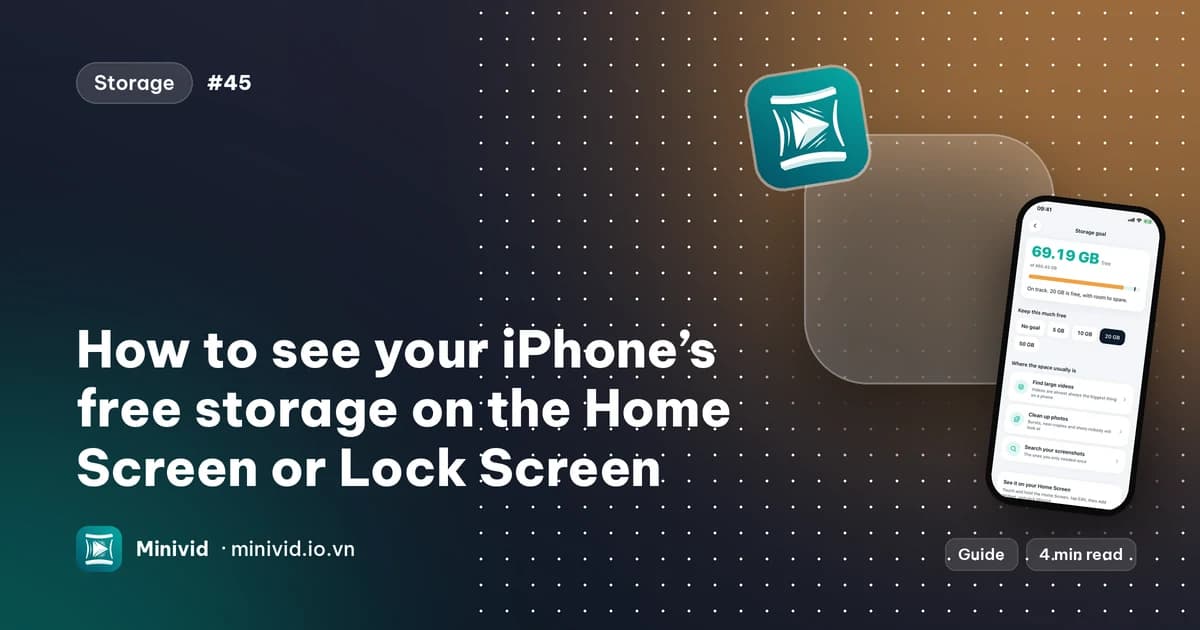
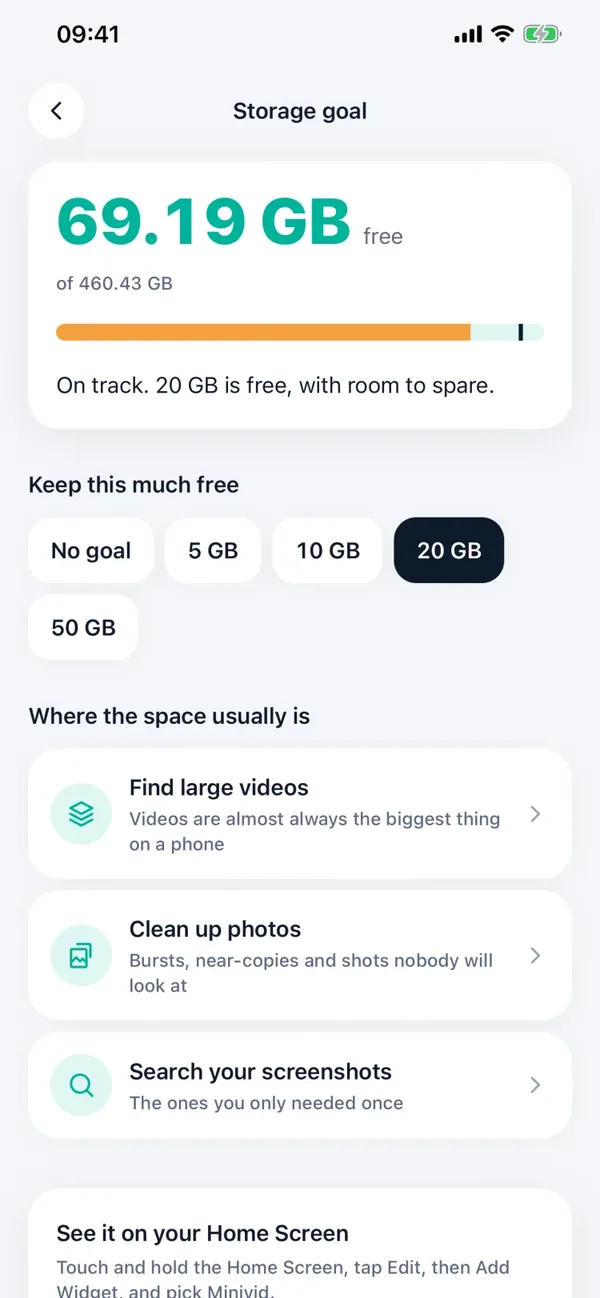
- 3Optional: open Minivid, go to Home, then Storage goal, and choose how much you want to keep free: 5, 10, 20 or 50 GB, or no goal. The widget then tells you whether you are on track or how much you are short.

How to read the numbers
- The large number is your free space on the phone; the line under it is the total capacity.
- “On track” or “short of goal” compares that number with the goal you picked. With no goal the widget just shows the space.
- On the medium Home Screen widget, “Could clear” is an upper bound for your largest videos and screenshots as Minivid last measured them, so treat it as “up to”. It needs access to Photos to measure.
- The widget reads free space on the phone itself and refreshes about every half hour; iOS decides when a widget actually updates, so it can lag slightly behind.
The figure can differ a little from Settings. iOS reports free space in more than one way, and apps use different units and rounding. Minivid uses the amount iOS says is available for important data, which includes space the system can reclaim if it needs to. If an exact match matters, use the Settings number as the reference.
What a tap does, and what to do when it is low
A tap on the widget opens Minivid. On the small Home Screen widget it goes to Clean now when there is something to clean, and to the storage goal otherwise; on the Lock Screen it goes to your large videos when you are short of the goal. Nothing is deleted or compressed by the tap.
When space is low, videos are usually the biggest item. Find the largest ones, shrink the old clips you want to keep, and remember that deleted items stay in Recently Deleted for 30 days and still use space until you empty it. The guides on freeing storage and on finding the biggest videos walk through each step.
Privacy and cost
The widget reads free space on the device and nothing is uploaded; it keeps working in airplane mode. The widget and the storage goal are free. Compressing videos from there follows the normal limits: free covers one video at a time up to 100 MB at 720p, and Pro removes those limits.
Frequently asked questions
Can I see my iPhone storage on the Home Screen?
Yes, with a widget from an app such as Minivid: touch and hold the Home Screen, tap Edit, Add Widget and pick the storage widget. Settings, General, iPhone Storage is the built-in view.
Can I show free storage on the Lock Screen?
From iOS 16, yes. Minivid offers a ring, a three-line widget and a one-line widget for the Lock Screen: touch and hold the Lock Screen, tap Customize, then Lock Screen, and pick Minivid.
Why does the widget show a different number from Settings?
iOS reports free space in more than one way, and apps differ in units and rounding. Minivid shows the space iOS says is available for important data, which can include space the system can reclaim. Use Settings as the reference.
Does the storage widget upload anything?
No. It reads free space on the iPhone itself and works in airplane mode.
Is Minivid’s storage widget free?
Yes, the widget and the storage goal are free for everyone. Compressing videos follows the normal limits: free covers one video at a time up to 100 MB at 720p.
Want to know the size before you compress?
Minivid compresses video on your iPhone and shows the final size before it starts. Your videos are never uploaded.