How to find and delete screenshots in bulk on iPhone
Published 1 October 2026 · 6 min read
To delete screenshots in bulk on iPhone, open Photos, go to Albums › Media Types › Screenshots, tap Select and drag your finger across the grid to select a whole run at once, then tap the trash button. Before you do, search Photos for the words in the screenshots you still need — a booking code, a Wi-Fi password — so you can keep those.
The space only comes back once Recently Deleted is emptied. This guide covers each step, a reusable shortcut for the next cleanup, and how to stop the pile growing back.
Where are all my screenshots on iPhone?
iOS files every screenshot into its own album automatically:
- 1Open the Photos app.
- 2Go to Albums (on newer iOS versions, scroll down the library to Collections or Media Types).
- 3Under Media Types, tap Screenshots.
Screen Recordings sit right next to it in the same list. They are usually fewer, but each one is a video, so a handful of old recordings can weigh more than a thousand screenshots.
How do I keep the screenshots I still need?
Most screenshots were needed once: a map, a payment confirmation, a meme. A few hold something you would hate to lose. Find those first:
- 1In Photos, tap Search.
- 2Type a word you remember from the screenshot — the name of a bank, “ticket”, “password”, a flight number. Photos recognises text in images on recent iPhones, so screenshots containing that word show up.
- 3Open each one you want to keep and tap the heart to make it a Favourite, or add it to an album such as “Keep”.
Favouriting does not stop you deleting a photo, but it makes the keepers easy to spot and skip in the next step. For anything truly important — a document, a code — consider saving it somewhere better suited, such as the Notes or Files app.
How do I select and delete many screenshots at once?
- 1In the Screenshots album, tap Select at the top right.
- 2Tap the first screenshot you want to remove and, without lifting your finger, drag sideways and then down. Photos selects every screenshot your finger passes, a whole screen at a time — keep dragging to the bottom edge and it scrolls for you.
- 3Tap any screenshot you want to keep to deselect it.
- 4Tap the trash button and confirm.
On a big album, work in batches of a few hundred. It is easier to check, and if something goes wrong you lose less of your work.
Can a shortcut delete old screenshots for me?
Yes. The Shortcuts app can find and delete screenshots in one tap, which is handy if you clean up every month:
- 1Open Shortcuts and tap + to make a new shortcut.
- 2Add the Find Photos action. Tap Add Filter, set it to Is a Screenshot, and add a second filter such as Date Taken is not in the last 30 days.
- 3Add the Delete Photos action after it.
- 4Name the shortcut, for example “Clear old screenshots”, and run it.
iOS always asks you to confirm before a shortcut deletes photos, and they go to Recently Deleted like any other deletion, so a mistake can still be undone. Action and filter names can differ slightly between iOS versions.
Why is my storage unchanged after deleting?
Deleted photos move to Recently Deleted and keep using space for 30 days. To free it now:
- 1In Photos, open Albums › Utilities › Recently Deleted and unlock it with Face ID or your passcode.
- 2Tap Select, then Delete All — once you are sure nothing there is needed.
If you use iCloud Photos, deleting removes the screenshots from iCloud and your other devices too, and the iCloud space comes back at the same time.
How do I stop screenshots piling up again?
- Share screenshots straight from the preview. After taking one, tap the thumbnail in the corner, mark it up and share it, then tap Done and choose Delete Screenshot — it never reaches your library.
- Copy text instead of capturing it. Live Text lets you copy an address or code from the camera or any image, so you need fewer screenshots in the first place.
- Do a five-minute sweep at the end of each month, or run the shortcut above.
Where does Minivid help?
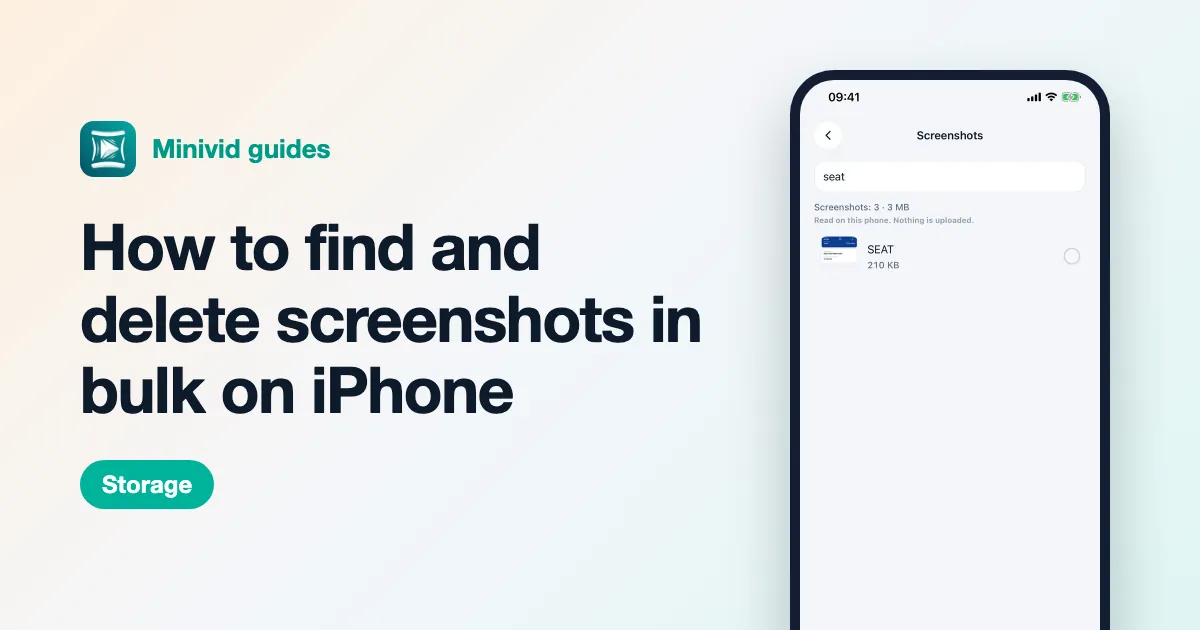
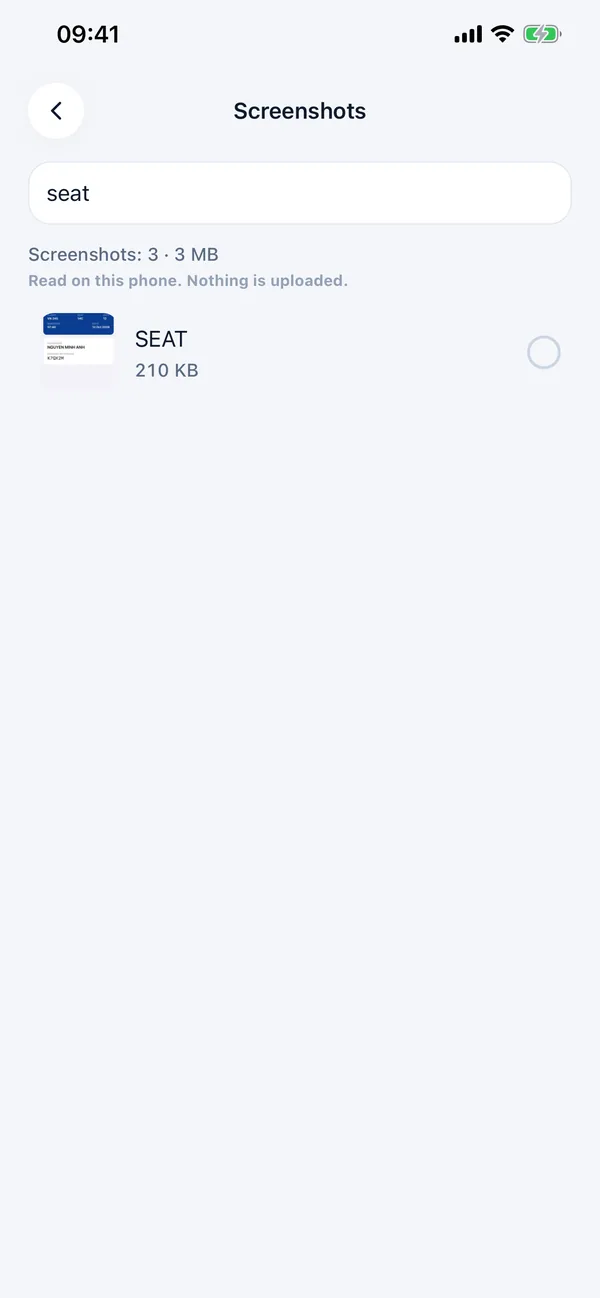
Minivid has a free Search your screenshots tool. It reads every screenshot on your iPhone — the text recognition runs on the phone, and nothing is uploaded — and shows how many you have and how much space they take. Type what a screenshot says and Minivid finds it, so keeping the one with the Wi-Fi password and deleting the rest takes a search and a tap.
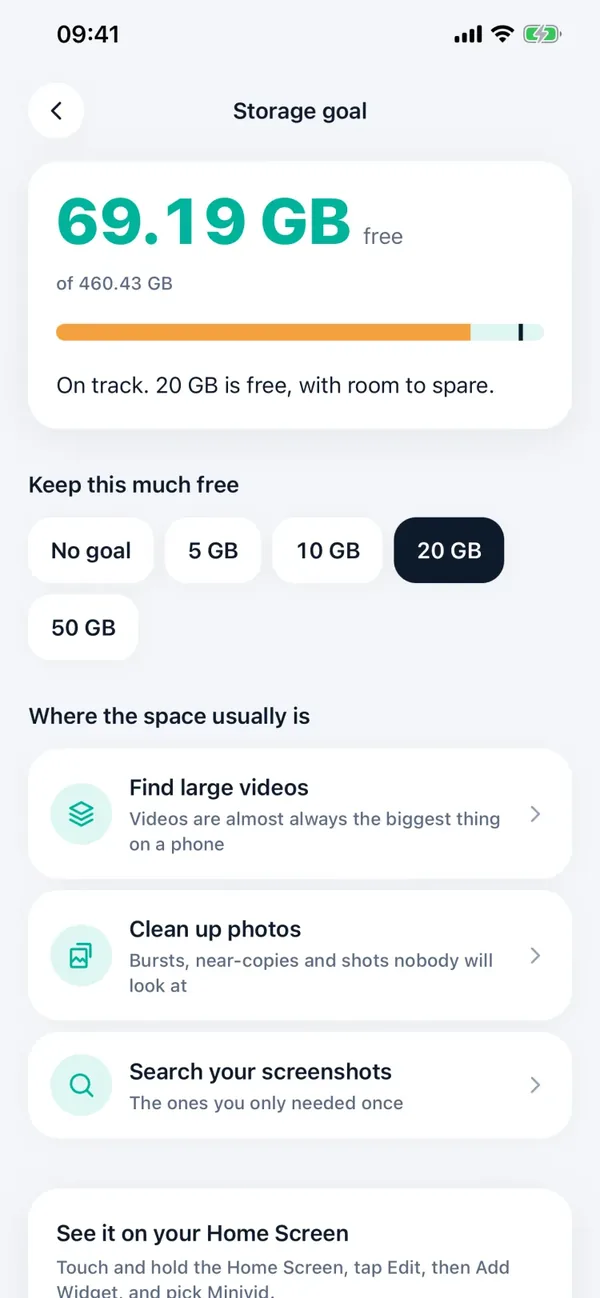
Select the ones you do not need and delete them; like everywhere else in iOS, they wait in Recently Deleted for 30 days before the space comes back. The Storage goal screen points you here too, next to large videos and similar photos, as one of the places space usually hides.
How do I see what else is taking space?
Screenshots are rarely the biggest thing on a phone — videos usually are. Settings › General › iPhone Storage shows how much Photos uses in total. Minivid’s Storage goal screen lets you pick how much space you want to keep free, shows how close you are, and lists where the space usually is: large videos, near-identical photos and screenshots.
Want to know the size before you compress?
Minivid compresses video on your iPhone and shows the final size before it starts. Your videos are never uploaded.