How to hide and lock private photos and videos on iPhone
Published 1 October 2026 · 6 min read
The built-in way to hide photos on iPhone is to select them, tap the More button (…) and choose Hide: they leave your Library and move to the Hidden album. Since iOS 16 that album needs Face ID, Touch ID or your passcode to open by default — check it under Settings › Photos › Use Face ID.
For most people that is enough. This guide walks through the steps, points out what the Hidden album doesn’t cover, and explains when an encrypted vault makes more sense — and the price you pay for it.
How do I hide photos and videos in the Photos app?
- 1Open Photos and tap Select at the top.
- 2Choose the photos and videos to hide.
- 3Tap the More button (three dots), choose Hide, and confirm.
Hidden items no longer appear in your Library, in regular albums or in the Photos widget on the Home Screen. They live in the Hidden album under Utilities (on newer iOS versions, scroll to the bottom of the library to find Utilities).
To unhide something, open the Hidden album, select it, tap More and choose Unhide.
How do I lock the Hidden album with Face ID?
Since iOS 16, the Hidden and Recently Deleted albums are locked out of the box. To check:
- 1Open Settings and tap Photos.
- 2Turn on Use Face ID (or Use Touch ID, or Use Passcode on devices without Face ID).
For extra discretion, turn off Show Hidden Album on the same screen. The album then disappears from the list in Photos until you turn the option back on.
Keep in mind that anyone who knows your iPhone passcode can open it too, because the passcode is always Face ID’s fallback.
Can I lock the whole Photos app?
Since iOS 18 you can require Face ID to open an app:
- 1On the Home Screen, touch and hold the Photos icon.
- 2Choose Require Face ID (or Touch ID, or Passcode).
- 3Confirm.
From then on, opening Photos always asks you to authenticate. It suits people who often hand their phone over to show one picture or let someone make a call. The downside is that you unlock it every time too, and some places that show photos, such as the photo picker inside other apps, can still show items that aren’t hidden.
Are hidden photos backed up?
Yes, and that’s usually a good thing. Hidden items are still part of your library:
- With iCloud Photos on, they sync to your other iPads and Macs on the same account, hidden there too.
- iCloud and computer backups include them, so a new or lost phone doesn’t mean lost photos.
The flip side is that anyone who can sign in to your Apple Account on another device, or who knows your passcode, has a way to see them. If your worry is someone who shares your account or your computer, weigh that.
When is an encrypted vault worth using?
The Hidden album solves “don’t let anyone scroll past this”. A separate vault, outside the library, fits better when:
- You don’t want the item to sync to other devices or sit in iCloud Photos.
- You want it to show up nowhere except in the vault, including apps that have access to your library.
- It’s a sensitive document, such as a photo of an ID card or passport, that only needs to live on one phone.
The big trade-off: what isn’t in a backup can’t be restored from one. Only put things in a vault if you accept that risk, or keep another copy somewhere safe.
Where does Minivid help?
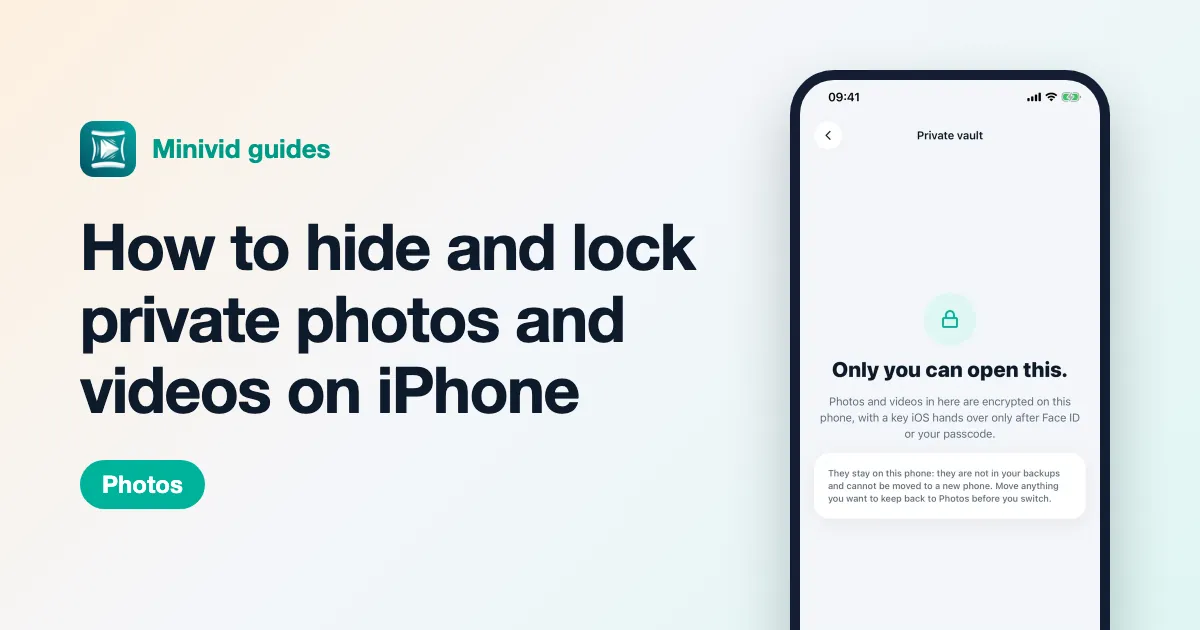
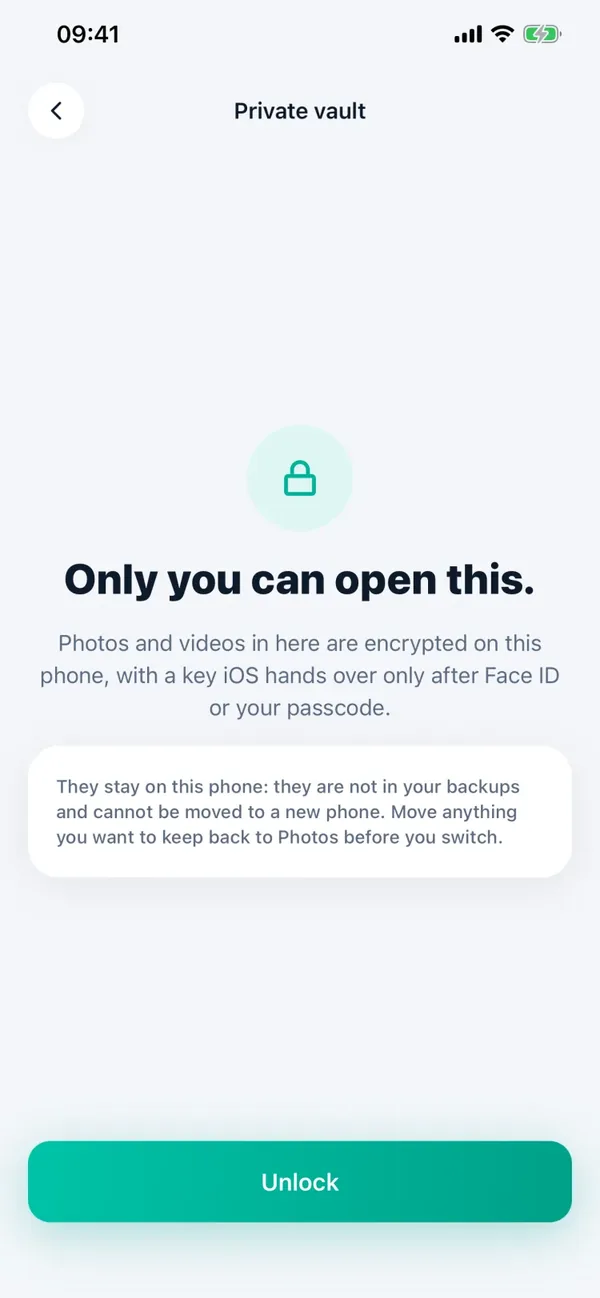
Minivid has a Private vault: photos and videos in it are encrypted on your iPhone, with a key iOS releases only after Face ID or your passcode — so the iPhone needs a passcode set before the vault can be used. After you add items, Minivid asks whether to remove the originals from Photos; they stay there until you say yes.
Know the cost up front: vault items are not in your backups and can’t be moved to a new phone. Before you switch phones, use Move to Photos to bring them back to your library, and note that Delete in the vault is for good. The free version holds up to 10 items; Pro has no limit. If all you need is to keep photos away from curious eyes, iOS’s Face ID–locked Hidden album is enough, and it is backed up.
Want to know the size before you compress?
Minivid compresses video on your iPhone and shows the final size before it starts. Your videos are never uploaded.