Can’t copy an iPhone video to a USB drive: “file too large for the destination file system”?
Published 11 November 2026 · 6 min read
When a video will not copy to a USB drive and the message says the file is too large for the destination file system, the drive is almost always formatted as FAT32. FAT32 cannot hold a single file bigger than 4 GB, however much free space the drive shows. You can reformat the drive as exFAT, split the video into shorter parts, or make the video smaller than 4 GB. Minivid does the last one on the iPhone.
Below: why the error appears, how to check the drive, the fix that keeps the video as it is, and how to get a long clip under the limit.
Why does a USB drive say the file is too large when it has free space?
The message is about the drive’s file system, not its free space. FAT32 is an old format that many USB sticks and SD cards ship with, because it works on nearly everything. It stores each file with a 32-bit size, so one file can be at most 4 GB (a little under 4.3 billion bytes). A drive can have 100 GB free and still refuse a 5 GB file.
A long 4K iPhone video reaches that size quickly: a few minutes at high quality can be several gigabytes. The same drive happily takes a hundred shorter clips, which is why the error can look random.
How do I check whether the drive is FAT32?
On a Windows PC, right-click the drive in File Explorer, choose Properties and read File system. On a Mac, select the drive in Finder and choose File, then Get Info, and read Format; Disk Utility shows it too. FAT32 is sometimes labelled “MS-DOS (FAT)” on a Mac.
If it says exFAT, NTFS or APFS, the 4 GB limit is not the cause and the problem is something else, such as a full drive or a read-only card.
What is the fix that keeps the video as it is?
Reformat the drive as exFAT on a computer. exFAT has no practical 4 GB limit and is read by current versions of Windows and macOS. Apple says the Files app on iPhone can use external drives formatted as APFS, Mac OS Extended, FAT or exFAT, but support can depend on your iOS version and the drive, so check it works before you rely on it.
- 1Copy everything you want to keep off the drive first. Formatting erases it.
- 2On Windows, right-click the drive, choose Format, pick exFAT and start. On a Mac, open Disk Utility, select the drive, choose Erase and set the format to ExFAT.
- 3Copy the files back, then the large video.
The catch: some devices, including some TVs, car stereos, cameras and game consoles, read only FAT32. If the drive is for one of those, reformatting is not an option and the video has to be smaller than 4 GB.
How do I get the video under 4 GB on iPhone?
A smaller file also copies faster and is easier to send later. The steps with tools already on the iPhone:
- 1Check the size. Open the video in Photos and tap the info button (the i in a circle) to see the file size.
- 2Trim it. In Photos, tap Edit, drag the yellow handles to keep only what you need, tap Done and choose Save Video as New Clip. Your original stays as it is.
- 3If it is still over 4 GB, lower the resolution or the frame rate. The Shortcuts app’s Encode Media action can export a smaller version, and iMovie can export at a lower resolution. Neither shows the final size before it finishes.
- 4Check the size of the new clip again before copying it.
As a rough guide, size in MB is about the bitrate in Mbps times the seconds, divided by 8. A video that is 20 minutes long at 25 Mbps comes to roughly 3.75 GB, so a long recording can sit close to the line.
How do I do it in Minivid?
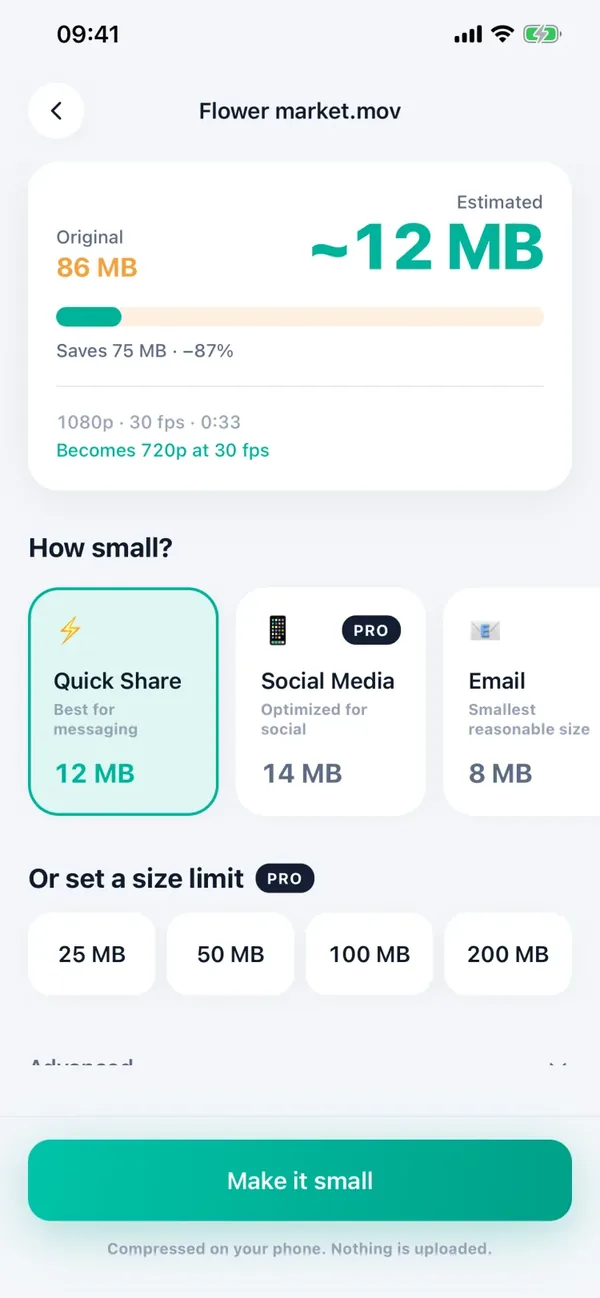
Minivid is an iPhone app that compresses video on the phone itself. It shows the size the result will have before it encodes anything, and with Pro you can type the size you want, up to 4,000 MB, which fits under the FAT32 limit.
- 1Open Minivid and pick the video. Trim it first if only part matters.
- 2On the settings screen, tap Send via… and choose Custom.
- 3Type 3500 as the maximum size in megabytes and tap Use this size. That leaves headroom under 4 GB.
- 4Check the line that says it fits, then tap Compress and keep Minivid open while it runs.
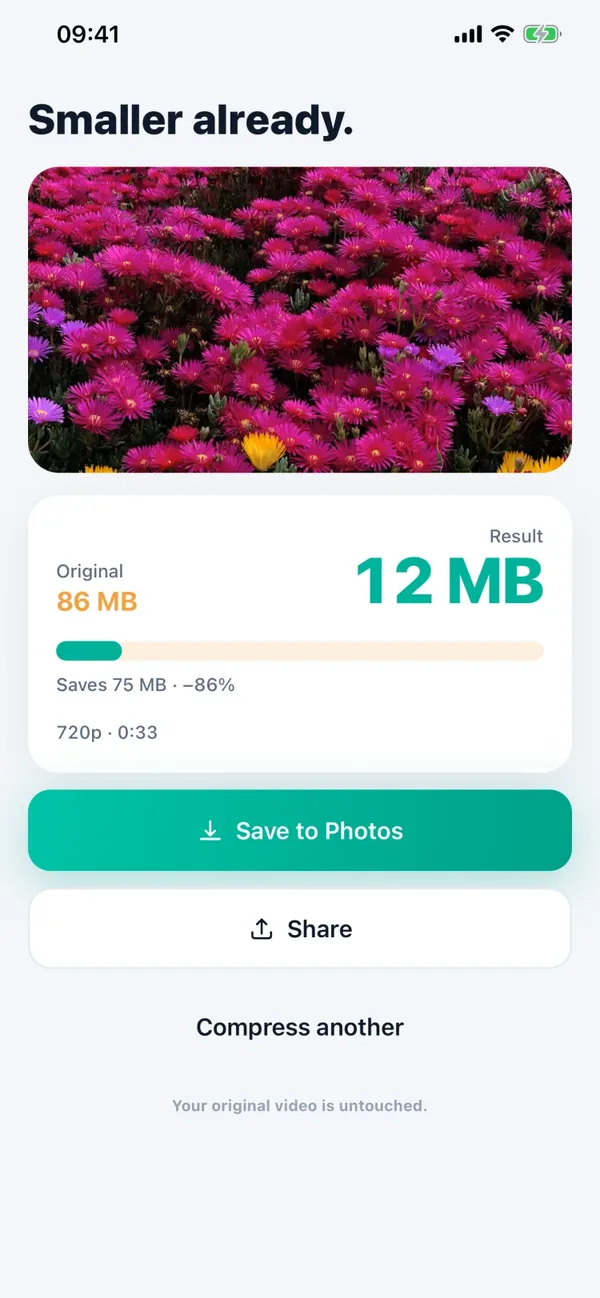
- 5On the result screen tap Share and choose Save to Files, then pick the USB drive, or save it and copy it from a computer. The result is an .mp4.
Minivid aims for about 95 per cent of the size you name. Your original is never modified, nothing is uploaded, and it works in airplane mode.
Which fix should I choose?
Pick by what the drive is for:
| Situation | Best fix | What it costs |
|---|---|---|
| The drive is only for computers | Reformat as exFAT | Erases the drive, so copy its files off first |
| The drive goes into a TV, car stereo or console that needs FAT32 | Make the video smaller than 4 GB | A re-encode, so the picture can differ slightly |
| You cannot reformat, and it is one long recording | Trim it into parts, then compress each | More than one file to play |
What is free and what is Pro in Minivid?
The free version compresses one video at a time, up to 100 MB, at up to 720p, so it will not help with a multi-gigabyte original. Pro removes the size limit, adds 1080p and 4K, and unlocks the Custom size used above. Trimming is free. Reading the estimated size costs nothing.
Frequently asked questions
Why does my USB drive say the file is too large when it has space?
Because the drive is probably FAT32, which cannot store a single file over 4 GB regardless of free space. Reformatting as exFAT, or making the file smaller, fixes it.
Will reformatting the USB drive delete my files?
Yes. Formatting erases everything on the drive, so copy what you want to keep to a computer first.
Can I copy a 5 GB iPhone video to a FAT32 drive?
Not as one file. Split it or compress it to under 4 GB, or reformat the drive as exFAT.
Does Minivid upload my video when it makes the smaller copy?
No. It encodes on your iPhone and uploads nothing. The original is never changed.
Is typing an exact size free in Minivid?
No. Custom sizes are part of Pro. The free version covers one video up to 100 MB at up to 720p.
Want to know the size before you compress?
Minivid compresses video on your iPhone and shows the final size before it starts. Your videos are never uploaded.