Why won’t my iPhone video play on a Windows PC (sound but no picture)?
Published 10 November 2026 · 6 min read
When an iPhone video plays only sound, shows a black screen or will not open on a Windows PC, the cause is usually the video format inside the file, not the file itself. Newer iPhones record in HEVC (also called H.265), and Windows does not always include a decoder for it. You can install the decoder, open the file in a player that has its own, or make a copy in H.264, which plays almost everywhere. Minivid makes that copy on the iPhone.
Below: how to confirm it is the codec, the quick fixes on the PC, and how to send a file that works on the first try.
Why does an iPhone video play with no picture on Windows?
An iPhone video is a .MOV file, a wrapper around the actual video. With the camera set to High Efficiency, the video inside is HEVC. That format makes smaller files, but a Windows PC needs an HEVC decoder to show it. If the PC has none, some players still play the sound, or show a black screen, or report an error.
To check what your iPhone records, open Settings, then Camera, then Formats. High Efficiency means HEVC. Most Compatible means H.264. Older clips from the same phone may be H.264, so it is normal for only some videos to fail.
How do I fix it on the Windows PC?
Try these in order. Each is independent of the iPhone.
- 1Open the video in VLC. VLC is a free player with its own codecs, so it often plays the file with no extra setup. Download it only from the official VideoLAN site.
- 2Install HEVC support from the Microsoft Store. Search for “HEVC Video Extensions”. Microsoft’s listing has been sold for a small fee, and a free “from Device Manufacturer” version exists for some PCs; which one the Store shows can depend on your PC and region, and it may already be installed. Restart the player or the Photos app afterwards.
- 3Update Windows and the graphics driver. HEVC playback can rely on both, and an old driver is a known cause of a black picture.
- 4Avoid codec packs from unknown sites. Fixing this does not need one, and downloads outside the Store and the official player sites carry real risk.
Which steps apply can depend on your Windows version, so if the Store listing looks different, follow what it shows.
What if the video must play on any computer or TV?
If you are sending the file to someone else, you cannot fix their PC. The reliable route is a copy in H.264 inside an MP4, a combination that plays on old Windows PCs, smart TVs and websites. Converting means re-encoding the video; renaming .MOV to .MP4 changes only the name and the HEVC video stays inside.
How do I make a copy that plays everywhere with Minivid?
Minivid is an iPhone app that compresses video on the phone itself. By default it writes an .mp4 with H.264 video. Nothing is uploaded, and your original is never changed.
- 1Open Minivid and pick the video.
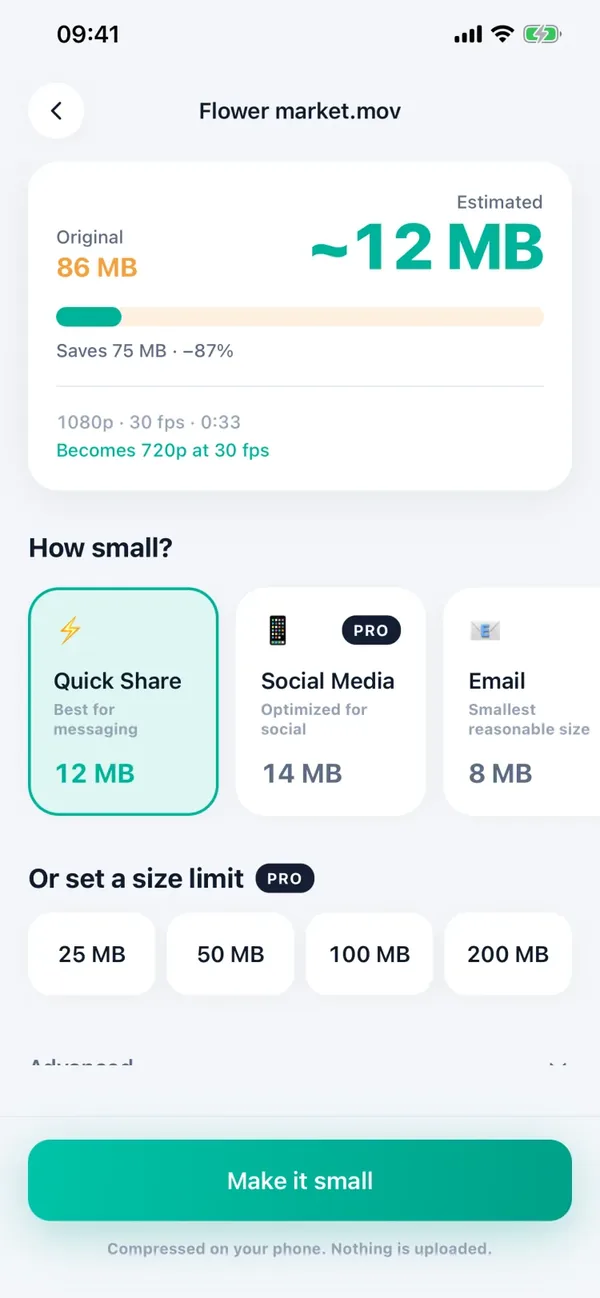
- 2On the settings screen choose a preset. The estimated size is shown before anything starts.
- 3Tap Compress and keep Minivid open while it runs.
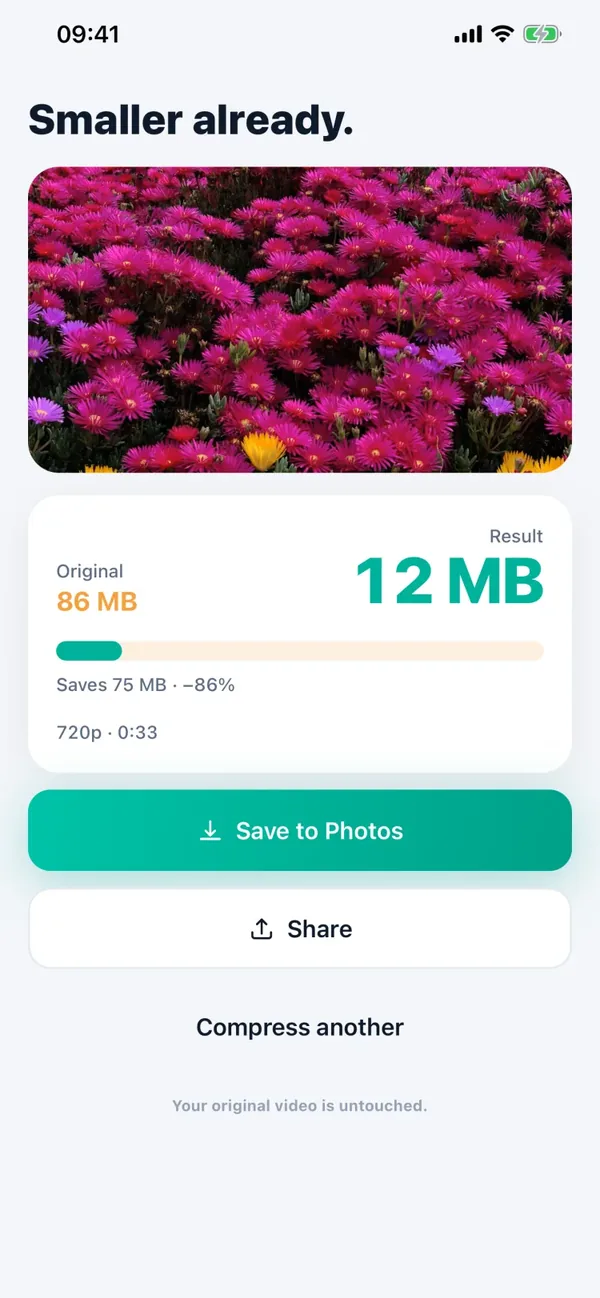
- 4On the result screen tap Share and choose Save to Files, or send it from the share sheet. The file ends in .mp4.
- 5Open the .mp4 on the Windows PC to check it plays.
The copy is also smaller, which helps if the reason you were moving the file was its size.
Which fix should I use?
Pick by who needs to watch the video:
| Situation | Best fix | What it costs |
|---|---|---|
| It is your own PC | VLC, or HEVC support from the Store | A free player, or a small fee for the Store extension on some PCs |
| You are sending it to someone | Send an H.264 MP4 copy | A re-encode, so the picture can differ slightly |
| You record a lot for a Windows PC | Settings, Camera, Formats, Most Compatible | Larger files; 4K at 60 fps and some slow-motion modes need High Efficiency |
How do I stop this happening with new videos?
Set Settings, Camera, Formats to Most Compatible and new clips are recorded in H.264. It only affects videos you record afterwards, not the ones already in your library, and it makes the files bigger. Some high-quality modes, such as 4K at 60 fps, are not offered in that setting, so check what your model allows.
What is free and what is Pro in Minivid?
The free version compresses one video at a time, up to 100 MB, at up to 720p, and always writes H.264. Pro removes the size limit and adds 1080p and 4K, and also HEVC output. For a copy that must play on a Windows PC, keep H.264, which is the default. Reading the estimated size costs nothing.
Frequently asked questions
Why does my iPhone video play only sound on Windows?
Usually because the video inside is HEVC and the player has no HEVC decoder, so it plays the audio but cannot show the picture. Opening it in VLC, installing HEVC support from the Microsoft Store, or using an H.264 copy fixes it.
Is the HEVC extension for Windows free?
It depends. Microsoft has sold HEVC Video Extensions for a small fee, and a free “from Device Manufacturer” version exists for some PCs. What the Store shows can vary, so check your PC before you pay, and avoid downloads from unofficial sites.
Will renaming .MOV to .MP4 make it play?
No. Renaming changes only the name; the HEVC video stays inside the file. You need to re-encode it, for example to H.264 in an MP4.
Does Minivid upload my video when it makes the copy?
No. It encodes on your iPhone and uploads nothing. The original is never changed.
Which codec does Minivid use?
H.264 in an .mp4 by default, which plays almost everywhere. HEVC output is part of Pro.
Want to know the size before you compress?
Minivid compresses video on your iPhone and shows the final size before it starts. Your videos are never uploaded.