HEVC or H.264 on iPhone: which should you choose, and when does it matter?
Published 13 November 2026 · 6 min read
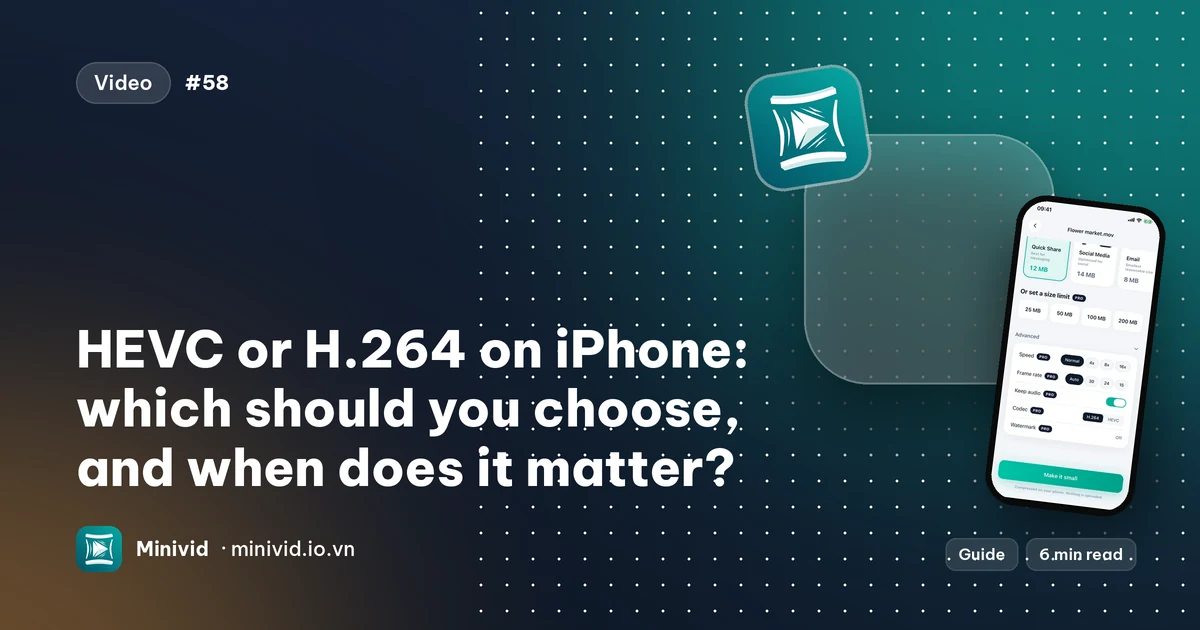
HEVC (also called H.265) and H.264 are two ways of storing the same video. HEVC makes a smaller file at similar quality; H.264 is larger but plays on almost everything. For videos that stay on your iPhone, HEVC is the sensible choice. For a video that has to play on someone else’s computer, TV or a website, H.264 is the safer one.
Below: what the difference means in practice, how to see which format a video uses, which one to pick for common jobs, and how to choose it when you compress with Minivid.
What is the difference between HEVC and H.264?
Both are codecs: the method used to squeeze a video into a file. H.264 is older and is understood by nearly every phone, computer, TV and website. HEVC is the newer method. It needs less data to reach a similar picture, which is why it is used to keep iPhone videos small, but a device must be able to decode it.
How much smaller depends on the clip. Minivid’s own size estimate assumes HEVC needs roughly two thirds of the data H.264 does for the same target quality; treat that as a rule of thumb, not a promise, because busy footage and calm footage behave differently.
Which one is my iPhone using?
For new recordings, open Settings, then Camera, then Formats. High Efficiency records video in HEVC (and photos in HEIF). Most Compatible records video in H.264 (and photos in JPEG). The exact labels can vary a little between iOS versions.
That setting only affects what you record from now on. Older clips keep the format they were recorded in, so a library often holds both. Videos you receive from other apps or downloaded files can be either as well.
When should I use HEVC, and when H.264?
The question is not which codec is better; it is who has to play the file. Pick by the job:
| What you are doing | Better choice | Why |
|---|---|---|
| Keeping videos on your iPhone or iPad, or in your own iCloud | HEVC | Smaller files, and your Apple devices play it |
| Sending to a friend with a recent iPhone or Mac | Either | Both play there; HEVC is smaller to send |
| Sending to someone with an older PC, a Windows PC or an unknown device | H.264 | Plays without extra software |
| Playing on a TV, car stereo or console from a USB drive | H.264 | Many players only handle H.264; check the device’s list of supported formats |
| Uploading to a website, form or portal that asks for MP4 | H.264 | The safest match for “MP4” requirements |
| Posting to a social app that re-encodes video anyway | Either | The app converts it; a smaller file mostly uploads faster |
Why does converting HEVC to H.264 sometimes make the file bigger?
Because H.264 needs more data for the same picture. If you re-encode an HEVC clip to H.264 and keep the same visual quality, the new file can be larger than the original. To make it smaller you also lower the resolution, the frame rate or the quality target. Our guide on compressed videos that come out bigger than the original walks through the other causes.
This is why you do not need to convert a whole library to H.264 “just in case”. Convert a copy only when someone needs it.
How do I choose HEVC or H.264 when I compress with Minivid?
Minivid is an iPhone app that compresses video on the phone itself and shows the estimated size before it starts. It writes an .mp4 file, and the codec inside is your choice.
- 1Open Minivid and pick the video.
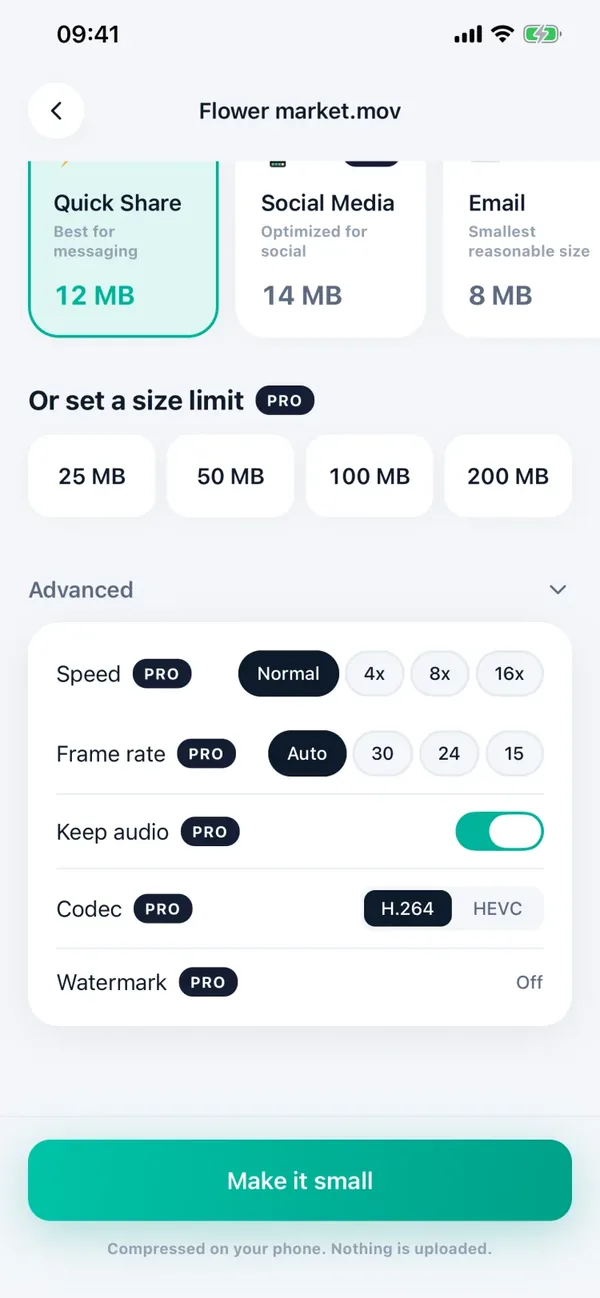
- 2On the settings screen, open Advanced.
- 3Find Codec and choose H.264 or HEVC. The estimated size updates as you change it.
- 4Tap Make it small, keep Minivid open while it runs, then save to Photos or share the file.
H.264 is the default, and choosing HEVC needs Pro. The original video is never changed, nothing is uploaded, and it works in airplane mode.
What is free and what is Pro in Minivid?
The free version always writes H.264. It compresses one video at a time, up to 100 MB, at up to 720p. Choosing HEVC is part of Pro, which also removes the size and resolution limits. If you are not sure what the other person uses, H.264, the free default, is the right pick anyway.
Frequently asked questions
Is HEVC the same as H.265?
Yes. HEVC stands for High Efficiency Video Coding and is also called H.265. On an iPhone it is the format behind the High Efficiency camera setting.
Is HEVC better quality than H.264?
Not by itself. At the same quality HEVC needs less data, so the file is smaller. At the same file size HEVC can look better, but on a phone screen the difference is often hard to see.
Should I switch my iPhone camera to Most Compatible?
Only if you often send videos to devices that cannot play HEVC. It makes new videos larger and it does not change old ones. Some high-quality modes, such as 4K at 60 fps, may not be offered in that setting.
Will an HEVC video play on Windows or a TV?
Sometimes. It depends on the device, the player and the software installed. If you get sound but no picture, an H.264 MP4 copy is the reliable fix.
Which codec does Minivid use?
H.264 in an .mp4 by default. HEVC, also in an .mp4, is available with Pro. Nothing is uploaded and the original is never changed.
Want to know the size before you compress?
Minivid compresses video on your iPhone and shows the final size before it starts. Your videos are never uploaded.