How to extract the audio from a video on iPhone
Published 1 October 2026 · 6 min read
iPhone has no one-tap “save audio” button, but you can extract a video’s sound for free with the Shortcuts app: build a shortcut with the Encode Media action set to Audio Only, followed by Save File, and run it from the Share button on any video. You get an .m4a file in the Files app and the video is left unchanged.
This guide walks through building that shortcut, what iMovie can and cannot do here, and what to watch for so the audio comes out at the quality you expect.
Can the Photos app save a video’s audio on its own?
No. Photos can mute a video (Edit, then the speaker button), but it has no option to save the soundtrack as its own file.
Some tutorials show a “Separate Audio” or “Extract Audio” option in the share sheet. That is not part of iOS: it is a shortcut someone built and shared, which appears in the share sheet once you add it. You can build the same thing yourself in a couple of minutes, as below, and know exactly what it does.
How do I extract audio with the Shortcuts app?
Shortcuts is Apple’s free automation app and is installed on most iPhones; download it again from the App Store if you removed it. You build this shortcut once.
- 1Open Shortcuts, go to the Shortcuts tab and tap + to create a new shortcut.
- 2Tap the ⓘ button (or the shortcut’s name, then Details) and turn on Show in Share Sheet. In the editor, set the input it accepts to Media.
- 3Tap Add Action, search for Encode Media and add it. Its input is the Shortcut Input.
- 4Tap the arrow on the Encode Media action to show its options and turn on Audio Only.
- 5Add a Save File action after it. Leave Ask Where to Save on so you can pick a folder each time.
- 6Name the shortcut, for example Extract Audio, and tap Done.
To use it, open a video in Photos, tap Share, scroll down and tap Extract Audio. Choose a folder in Files, such as On My iPhone, and tap Open. After a few seconds the soundtrack is saved there as an .m4a file. The video in Photos is not changed.
What about iMovie?
iMovie, which is free from Apple, can separate a clip’s audio on the timeline: add the video to a Movie project, tap the clip, then tap Actions › Detach. The sound becomes its own track that you can move, cut or delete.
That is useful for editing — removing a stretch of wind noise, or putting the sound of one clip under another. But iMovie on iPhone exports a video, not an audio-only file, so for saving just the sound the Shortcuts route above is the simpler one.
Does extracting the audio lower its quality?
Encode Media re-encodes the sound to AAC in an .m4a file. For speech, and for most music recorded on a phone, the result is indistinguishable from the original.
Two things are worth knowing:
- The audio cannot be better than what the video recorded. A concert filmed from the back of the room will sound like that.
- Each re-encode loses a tiny amount. If you plan to edit the audio and export it again, start from the original video each time rather than from a file you already exported.
Which videos can I extract audio from?
- Videos you recorded, and videos saved to Photos or Files from messages, AirDrop or email.
- Not streaming content or protected videos — those are not files on your iPhone, and no app can read their sound.
- Videos stored only in iCloud are downloaded first, which takes a moment on a slow connection.
If the audio is someone else’s work, such as a song or a recorded talk, keep it for personal use unless you have permission to share it.
What can I do with the audio file?
- Listen to a talk or lesson without keeping the video on screen.
- Send a voice message someone filmed as a much smaller audio file.
- Use it in another app that opens files from Files, for example an audio editor or a ringtone maker.
- Keep the sound of a moment after deleting a long video you no longer need — but listen to the file first.
Where does Minivid help?
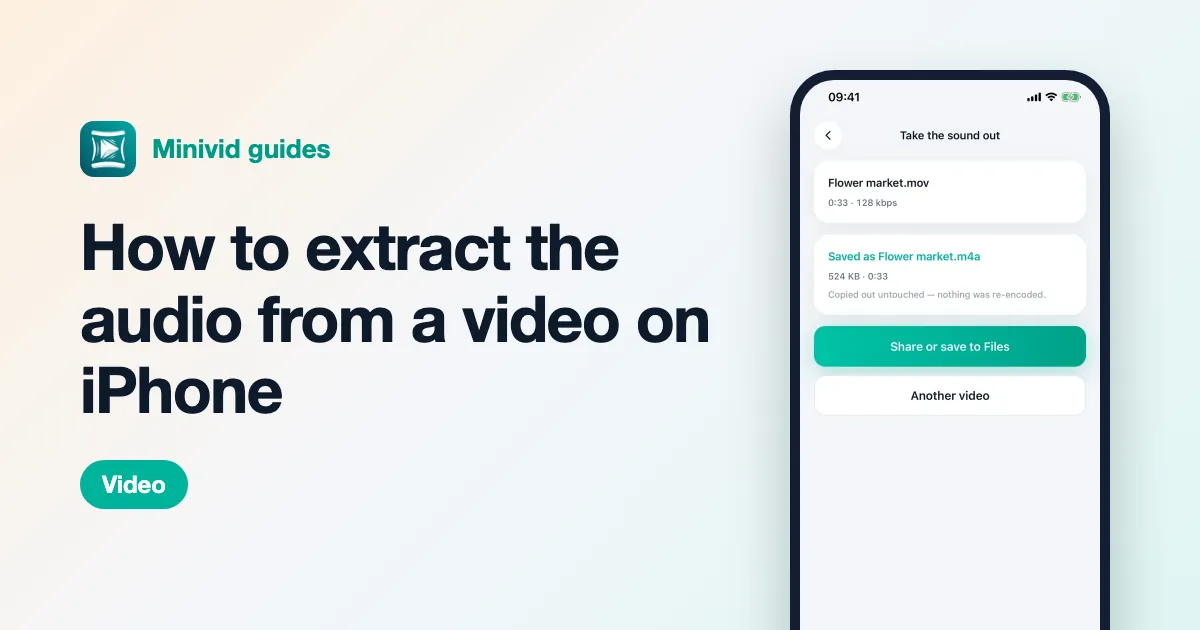
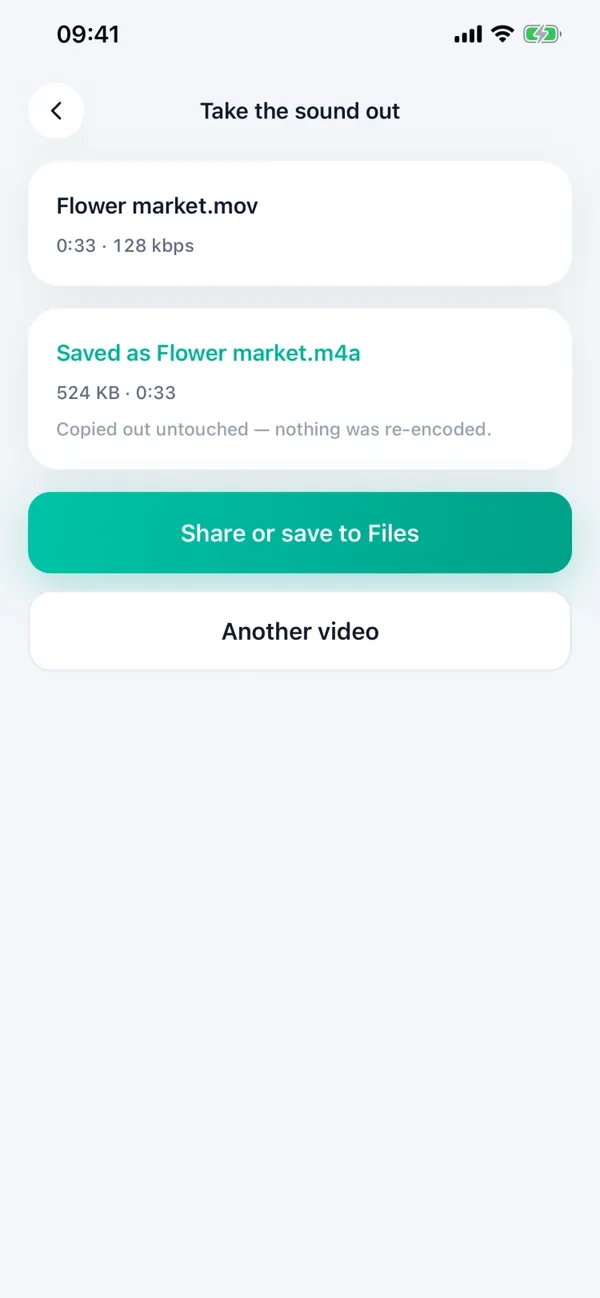
Minivid has a Take the sound out tool for exactly this. Pick a video and it saves the soundtrack as its own file, which you can share or save to Files. The audio is copied out untouched rather than re-encoded, so it is exactly what the video recorded, and it is quick even for long videos.
The video itself is left exactly as it was. Like everything in Minivid, it runs on your iPhone and nothing is uploaded, and the tool is free.
Want to know the size before you compress?
Minivid compresses video on your iPhone and shows the final size before it starts. Your videos are never uploaded.