How to remove sound from a video on iPhone
Published 3 October 2026 · 6 min read
To remove sound from a video on iPhone, open it in Photos, tap Edit, tap the speaker button at the top so it shows a line through it, then tap Done: the video now plays and shares without sound. To mute only one part, use iMovie; to save a copy with the sound track removed and the file made smaller in the same step, Minivid can do it on the phone.
There are plenty of ordinary reasons to want a silent video: wind roaring over a beach clip, a private conversation in the background of a family video, a TV playing music you should not post, or a product clip that customers will watch muted anyway. Below are the built-in ways first, what each one really does to the file, and when an app saves you time.
How do I mute a video in the Photos app?
This works on any recent iPhone and takes a few seconds:
- 1Open Photos and tap the video.
- 2Tap Edit.
- 3Tap the yellow speaker button in the top-left corner. It turns grey with a line through it, which means the sound is off.
- 4Tap Done.
From now on the video plays silently in Photos, and when you share it from Photos, the person receives it without sound. The video stays in the same place in your library, with the same date.
Is the sound really gone after muting in Photos?
Not from the original. Photos edits are non-destructive: it keeps the original video, sound included, so you can change your mind later. Open the video, tap Edit and then Revert, and the sound is back.
That is usually what you want, but it has two side effects worth knowing:
- The file does not get smaller. Your iPhone keeps the original, so muting frees no storage.
- The original sound is still on your iPhone, and in iCloud Photos if it is on. If the point is that a conversation should not exist anymore, a muted edit is not enough; you need a new copy without the sound track, and then you delete the original.
How do I mute just one part of a video?
Photos mutes the whole clip or nothing. For a single moment, such as a few seconds of someone saying a phone number, use iMovie, Apple’s free video editor:
- 1Open iMovie, start a new Movie project, select the video and tap Create Movie.
- 2Move the timeline so the white line sits where the noisy part starts. Tap the clip, tap Actions (the scissors) and choose Split.
- 3Do the same where the noisy part ends, so it becomes its own small clip.
- 4Tap that small clip, tap Volume (the speaker button) and turn the sound down to mute.
- 5Tap Done, then the Share button, and choose Save Video. iMovie saves a new video; the original stays as it was.
iMovie also lets you replace the sound with music from its Audio section, if a silent clip feels too empty.
Which method should I use?
A quick comparison:
| Method | What is muted | Original sound kept? | File smaller? |
|---|---|---|---|
| Photos, Edit, speaker button | The whole video | Yes, you can Revert | No |
| iMovie, Split and Volume | Any part you choose | Yes, iMovie saves a new copy | Depends on the export size |
| Minivid, Keep audio off | The whole video | Yes, until you replace or delete it | Yes, it is also compressed |
How does Minivid make this easier?
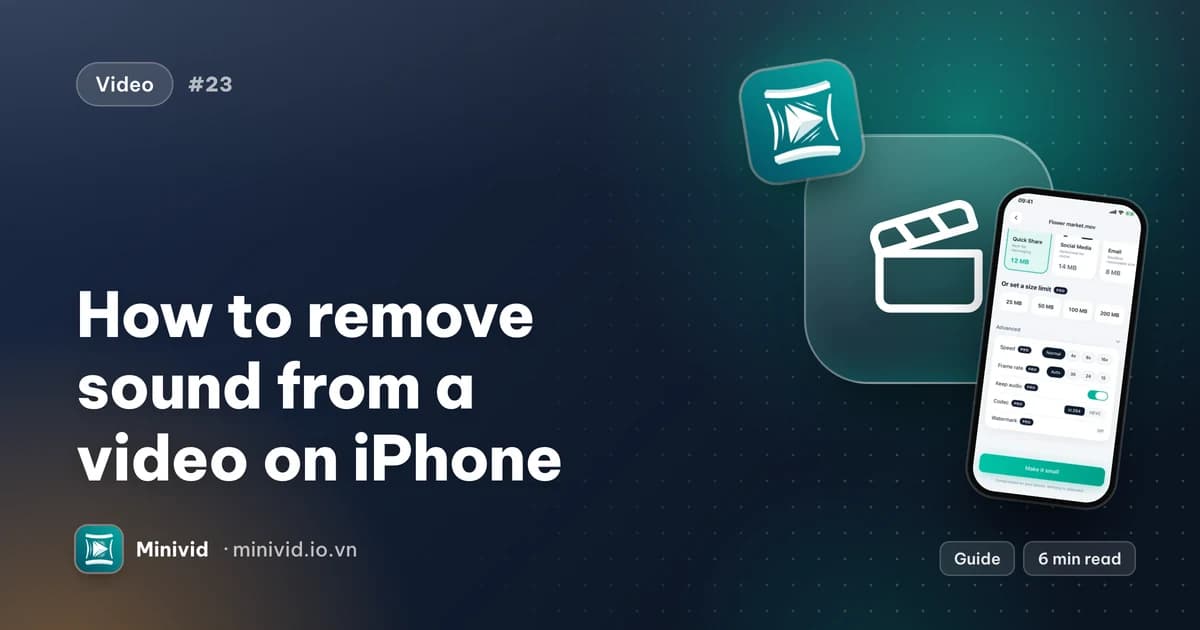
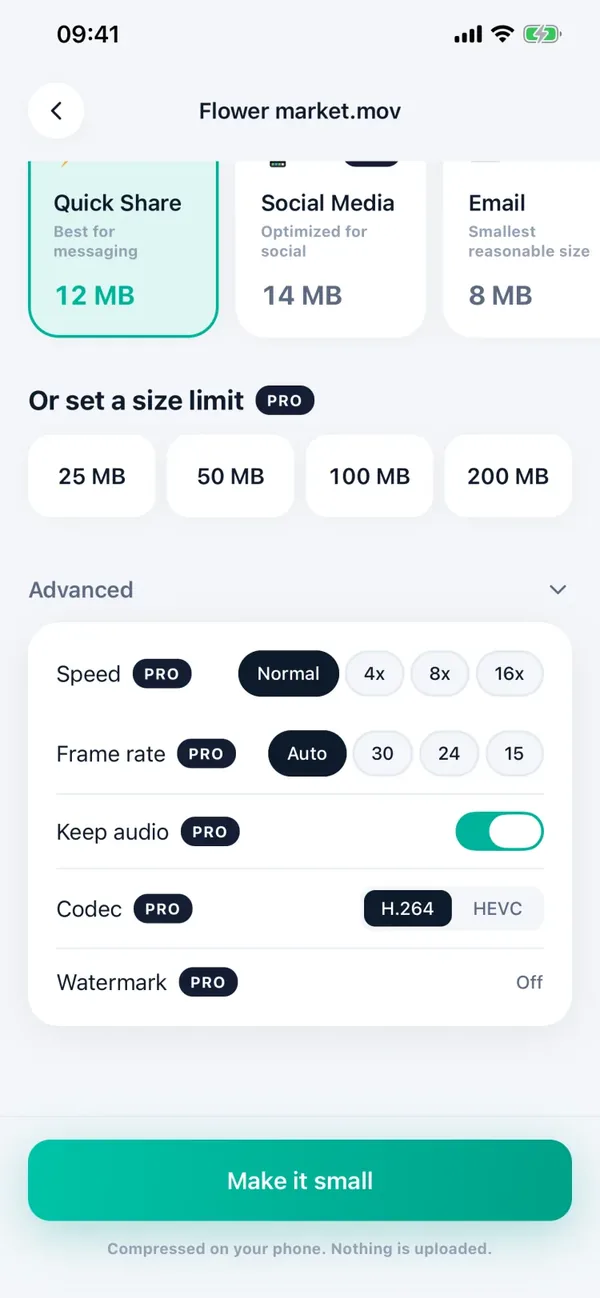
Minivid is an iPhone app that compresses video on the phone itself. When you compress, the Advanced settings have a Keep audio switch; turning it off writes a new copy with no sound track at all, compressed to a smaller size in the same step. Here is the flow:
- 1Open Minivid and choose the video.
- 2Pick a size, such as Quick Share for messaging.
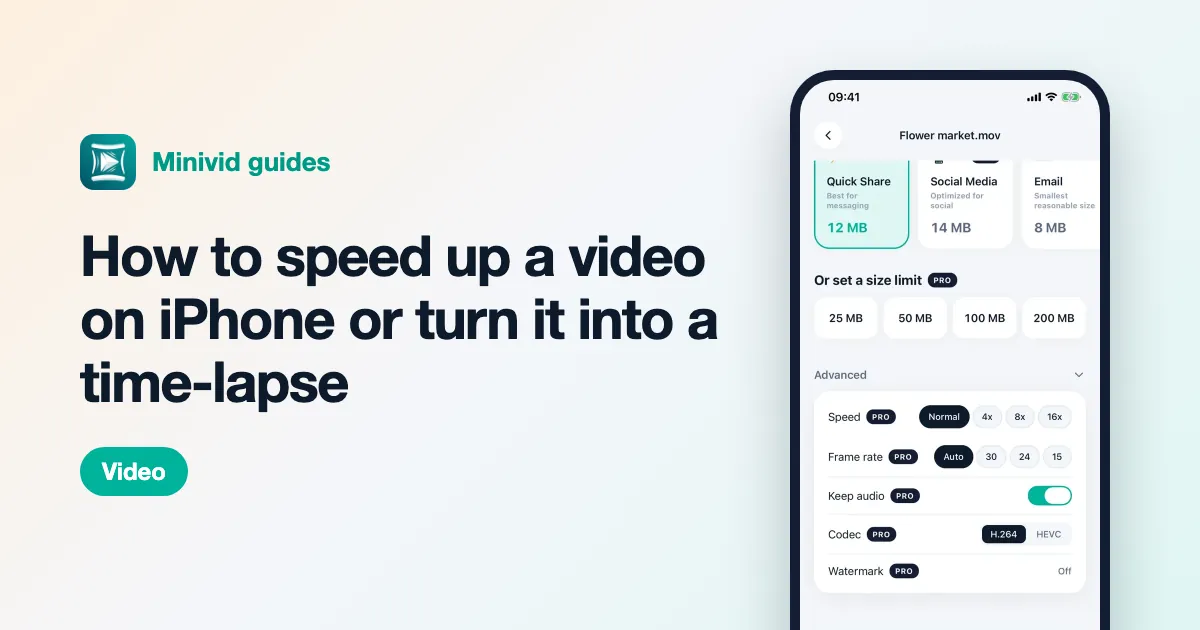
- 3Open Advanced and turn off Keep audio. The estimated size updates before anything is encoded.
- 4Tap Make it small and keep Minivid open while it runs.
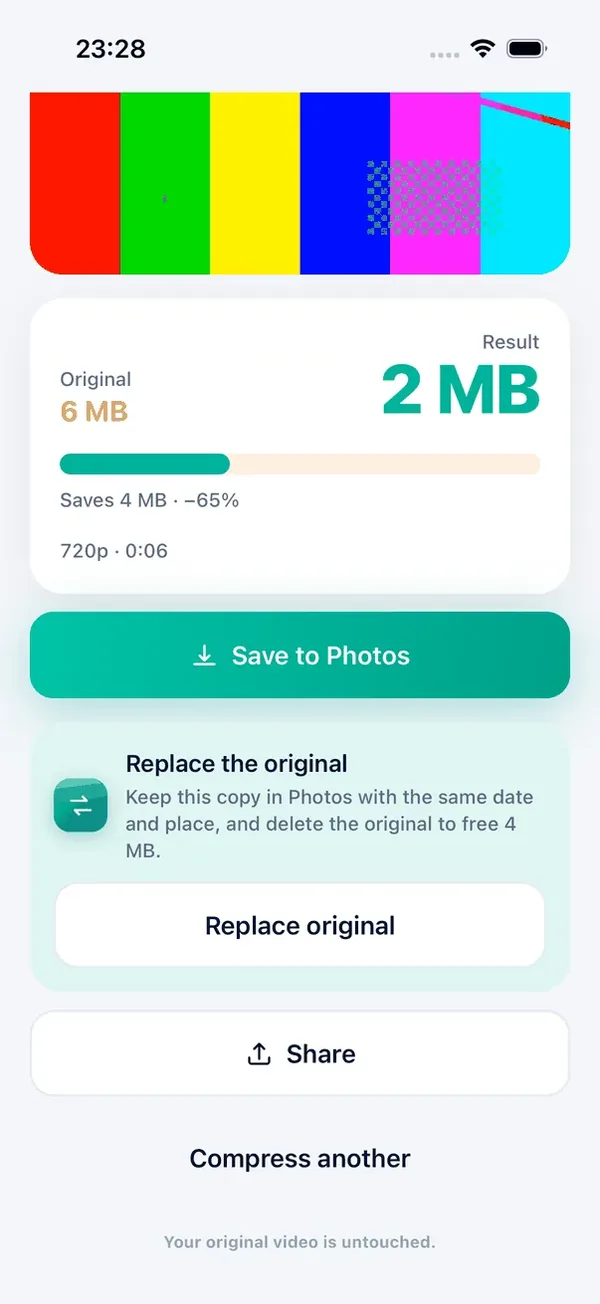
- 5Save the result to Photos, or tap Replace original: Minivid keeps the new copy in Photos with the same date and place and deletes the original. Like any deleted video, the original waits in Recently Deleted for up to 30 days; empty it there if the old sound should be gone for good.
If you often post silent clips, Settings has Keep audio by default, so you do not have to switch it off each time.
Removing the audio track is part of Minivid Pro. The free tier compresses videos up to 100 MB at 720p, trims and replaces originals, but keeps the sound. Everything happens on your iPhone with its own video encoder, and your video is never uploaded.
Does removing the sound make the video much smaller?
A little, not a lot. Sound takes far less space than picture: at common settings it is roughly 1 to 2 MB per minute, while a minute of 4K video can be several hundred megabytes. Removing the sound on its own rarely solves a “file too large” problem.
What does shrink a video is lowering the resolution and bitrate, and cutting what you do not need. That is why it helps to do both at once: drop the sound and compress, or trim first and then compress.
If you want the opposite, keeping only the sound, such as a talk or a song from a concert, Minivid can also save a video’s audio as its own file, and that part is free.
Frequently asked questions
How do I turn off the sound on a video on iPhone?
Open the video in Photos, tap Edit, tap the speaker button at the top left so it shows a line through it, and tap Done. The video then plays and shares without sound.
Can I get the sound back after muting in Photos?
Yes. Photos keeps the original. Open the video, tap Edit, then Revert, or tap the speaker button again and tap Done.
Why is my muted video still the same size?
Because Photos keeps the original video with its sound so the edit can be undone. To get a smaller file without sound, export a new copy, for example with iMovie or Minivid, and delete the original.
Can I mute only a few seconds of a video?
Not in Photos, which mutes the whole clip. In iMovie, split the clip around the part you want silent, tap that part and turn its volume down, then save the video.
Is removing sound in Minivid free?
No. Turning off Keep audio is a Pro feature. The free tier compresses videos up to 100 MB at 720p with the sound kept, and muting in the Photos app is always free.
Want to know the size before you compress?
Minivid compresses video on your iPhone and shows the final size before it starts. Your videos are never uploaded.