Why does my iPhone video have no sound after compressing, trimming or sending?
Published 7 November 2026 · 5 min read
A video has no sound after you compress, trim or send it for one of a few reasons: the sound was muted in an edit, the new copy was made without a sound track (a time-lapse never has one), the sound was never recorded, or the other person’s app is simply playing it muted. The quickest way to tell is to play the original and the copy on your own phone, then play the copy on a second device.
This guide walks through that check, lists the usual causes in the order worth testing them, and says which ones Minivid can and cannot cause.
Step one: does the original have sound?
Everything else depends on this, so test it first.
- 1Open the original in Photos and play it full screen with the volume up. Check that the ringer volume and your headphones are not the problem by playing any other video.
- 2Tap Edit. If the speaker button at the top left shows a line through it, the video is muted by an edit. Tap it once so the line disappears, then tap Done. Photos keeps the original, so this does not damage anything.
- 3If the original plays silently and the speaker button is not crossed out, the sound was probably never recorded. People report this with screen recordings made without the microphone, and with clips filmed while the iPhone was using a Bluetooth device or a car’s audio system. Those clips cannot be fixed afterwards; film a new one.
Step two: find where the sound was lost
Play the copy on your own iPhone first. Then send it to yourself, or open it on another phone or a computer.
- Silent on your iPhone too: the copy was made without sound. Go to the causes below.
- Fine on your iPhone, silent for the other person: the problem is on the way or at their end. Ask them to tap the speaker or volume icon in the app, because many apps start a video muted, and to try the video on a different device.
- Fine in Photos, silent only after you send it through one particular route: use another route, such as a chat app, an email attachment or a link, and compare.
What usually removes the sound
- Muted in Photos before sending. A video you muted with the speaker button plays and shares without sound. This is the most common cause, and the fix is the same Edit, speaker button, Done sequence as above.
- A time-lapse or sped-up video. A clip played at 4x, 8x or 16x has no sound, because sped-up audio is just a squeal. If you made one on purpose, nothing is wrong; if you wanted speech, speed was the wrong tool.
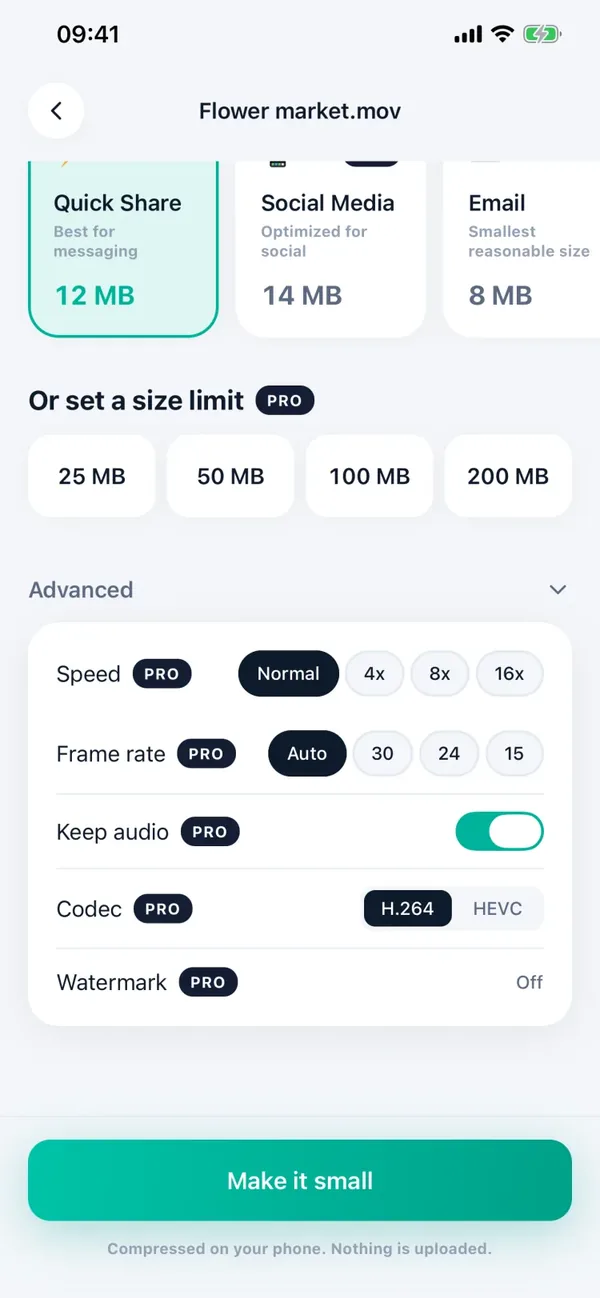
- An app or setting that dropped the audio. Some apps have a switch for it. In Minivid it is Keep audio, which is on by default and can only be turned off with Pro.
- Text messages. A video sent as a text message (MMS) to a phone that is not on iMessage is squeezed hard to fit a carrier limit, and some people report the sound going missing too. A green bubble is the sign. Send it through a chat app or a link instead, or read the guide on blurry iPhone videos on Android.
- Trimmed videos in some versions of iOS. Some users report that a trimmed video plays with sound on their own phone but arrives muted. If you meet this, save the video as a new copy with a different tool and send that instead; this depends on your iOS version, and it may not happen on yours.
- Shared albums and uploads. Some people report that a video put into a shared album or an upload form loses its sound there. Compare with the original again, and if it only happens in one place, that place is the cause.
How to fix it
- 1If the cause is a mute edit, remove the line through the speaker button in Edit and tap Done.
- 2If the copy was made without sound, go back to the original and make the copy again with the sound kept. In Minivid, leave Keep audio on, as it is by default, and do not use the time-lapse option.
- 3If the sound is fine on your phone and lost on sending, send the video a different way, and send a smaller copy if the route has a size limit.
- 4If the original has no sound, the sound is gone for good. Film it again.
- 5After any fix, play the new copy with the volume up before you delete the original.
What does Minivid do with the sound?
Minivid compresses video on the iPhone itself. When you compress, the sound track is kept by default and re-encoded as AAC audio, and the estimated size shown before you start already includes it. If the source video has no sound, the copy has none either.
There are two cases where the result is silent. A time-lapse (4x, 8x, 16x speed) has no sound, and the speed screen says so. And if you turn Keep audio off in Advanced, which is part of Pro, the copy has no sound track; Settings also has Keep audio by default if you want to change it for every video. A plain trim keeps the sound for the part you keep.
Minivid never changes the original, so if a copy comes out silent, the original with its sound is still in Photos. Nothing is uploaded; the work is done by the iPhone’s own video encoder.
In the free version you can compress one video at a time, up to 100 MB, at up to 720p, and the sound is always kept. Pro removes the size limit and adds 1080p, 4K, HEVC and the Keep audio switch.
Frequently asked questions
Why does my iPhone video have no sound when I send it?
Usually it was muted with the speaker button in Photos, sent as a text message that squeezed it, or the other person’s app is playing it muted. Play the original, then the copy, then the copy on another device to see where the sound is lost.
Why is there no sound after I sped up a video?
A sped-up clip has no sound, because audio at 4x or faster is just a squeal. Minivid’s time-lapse is silent for that reason.
Does compressing a video remove the sound?
Not in Minivid by default: the sound is kept unless you turn Keep audio off, which is a Pro option. If the source video has no sound, the copy has none either.
How do I turn the sound back on in a video on iPhone?
Open it in Photos, tap Edit, and tap the speaker button at the top left until the line through it is gone, then tap Done.
Can I get the sound back if it was never recorded?
No. If the original plays silently and the speaker button is not crossed out, the audio was not captured, and the clip has to be filmed again.
Want to know the size before you compress?
Minivid compresses video on your iPhone and shows the final size before it starts. Your videos are never uploaded.