Is there a free video compressor for iPhone with no watermark? What to check before you install one
Published 25 October 2026 · 5 min read

A free video compressor is only useful if the video you get back is one you can actually send. Some apps let you compress for free and then put their logo across the picture, or show you the result and ask you to pay before you can save it. This guide shows how to tell which kind you are installing, what you can do with no app at all, and where Minivid’s free version stops.
How free compressors usually get you to pay
There are four common patterns, and none of them is obvious from the app icon:
- A logo or banner burned into the video. It is part of the picture, so you cannot crop it out later without losing part of the frame.
- Export locked behind payment. You pick the settings, wait for the result, and only then meet the paywall.
- A free tier that is quietly tiny. Short clips only, low resolution, or one video a day.
- A trial that turns into a subscription. If an app asks for a card before you have seen the result, read the price and the renewal period first.
How to check before you commit
- 1Read the App Store page. Look for the words “watermark”, “free trial”, and the in-app purchases list near the bottom. Several plans, or a weekly plan, usually means the free version is a demo.
- 2Test with a short clip first, not your 20-minute video. Compress something you do not mind losing.
- 3Play the result full screen before you delete the original. Check every corner of the picture and the last few seconds, where logos and end cards tend to sit.
- 4Check what is sent. If a compressor needs an account or an upload, your video is on someone else’s server. The airplane-mode test in the guide on online compressors shows whether an app really works on the phone.
Free ways to make a video smaller with no extra app
iOS already has three routes. None adds a watermark, and all of them run on the phone:
- Photos: trim the clip (Edit, drag the yellow handles, Done, Save Video as New Clip). A shorter clip is a smaller file.
- Shortcuts: the Encode Media action re-encodes a video at a size you choose, such as 1280×720.
- iMovie: Share, then Options, then a lower resolution.
The catch is that none of them shows the size of the result in advance, so reaching a specific limit can take a few tries. The guide on compressing without losing quality has the full steps.
What Minivid’s free version includes
Minivid adds no watermark, logo or banner of its own to a video. The only text that can appear on a video is a watermark you type yourself, which is a Pro feature and is off by default. The free version has no ads and needs no account or card to try.
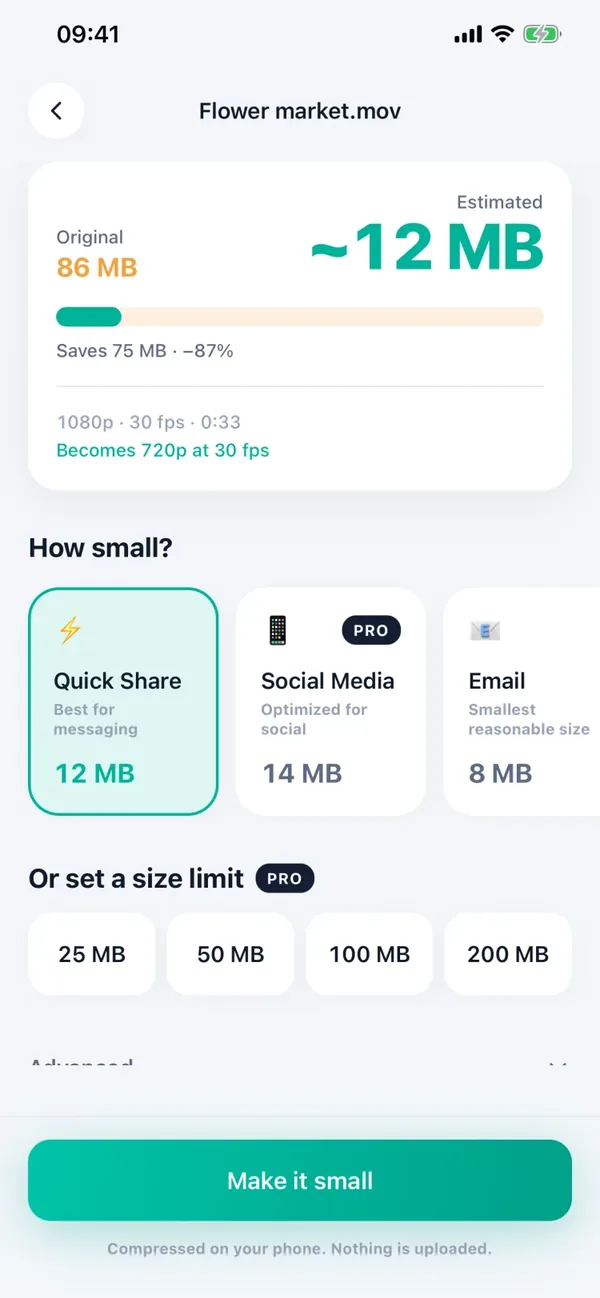
Free covers one video at a time, up to 100 MB, with the result at up to 720p. The Quick Share, Email and Save Space presets are free. It shows the estimated size before it starts, compresses on the device with nothing uploaded, and never changes the original. The result can be saved to Photos or shared.
Pro is for the cases the free limits block: videos over 100 MB, output above 720p (1080p and 4K), the Social Media and Keep Quality presets, an exact size such as 25 MB, HEVC, and compressing several videos in one go.
- 1Open Minivid and choose a video of 100 MB or less.
- 2Pick Quick Share, Email or Save Space and check the Estimated size.
- 3Tap Make it small and keep Minivid open until it finishes.
- 4Tap Save to Photos or Share, and play the result before you delete the original.
Which one should you use?
For one short clip that only needs to be a little smaller, trimming in Photos is enough. For a clip up to 100 MB where you want to see the size first, Minivid’s free version does it with no watermark. If you regularly work with big files, higher resolutions or exact limits, that is where a paid plan pays off, in Minivid or in any other app, and it is worth reading the price before you start.
Frequently asked questions
Does Minivid put a watermark on compressed videos?
No. Minivid adds no watermark or logo of its own. The only text on a video is one you choose to add yourself, which is a Pro feature and is off by default.
Is Minivid really free?
The free version has no ads and needs no account or card. It compresses one video at a time, up to 100 MB, with the result at up to 720p. Larger files, 1080p and 4K, and some presets need Pro.
Why does a free compressor add a watermark?
To push you toward the paid version. If you only need a smaller file, check the App Store page for the word watermark and test a short clip first.
Can I compress a video on iPhone with no app at all?
Yes. Trim it in Photos, re-encode it with the Encode Media action in Shortcuts, or export a lower resolution from iMovie. None of them adds a watermark, though none shows the result size in advance.
Does Minivid upload my video?
No. It compresses on the device with the hardware encoder and works in airplane mode.
Want to know the size before you compress?
Minivid compresses video on your iPhone and shows the final size before it starts. Your videos are never uploaded.