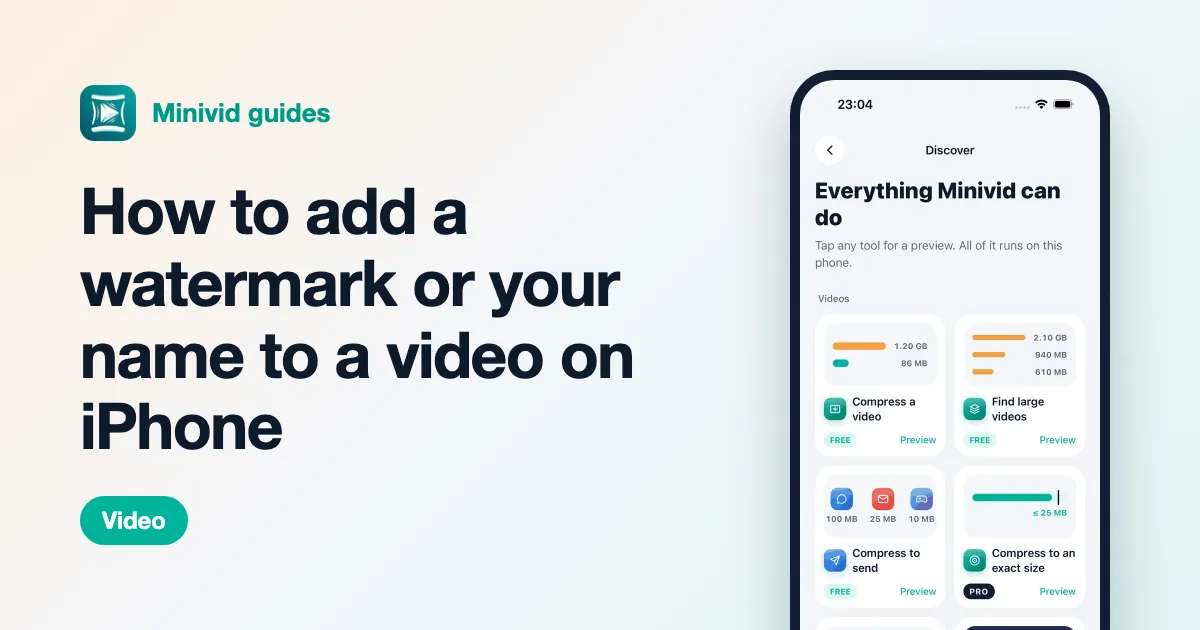
How to add a watermark or your name to a video on iPhone
Published 1 October 2026 · 6 min read
To add your name or handle to a video on iPhone without extra apps, use a title in iMovie: add the video to a new movie, tap the clip, tap the Titles button (the T), pick a style and type your text, then save the video. The text is burned into a new copy; the original stays clean in your library.
iMovie’s titles are designed for captions, so a few extra steps keep the text on screen from start to finish and out of the way. This guide covers those steps, where to put a watermark, and what it does not protect against.
Why add a watermark to a video?
Most people who ask want one of three things:
- Credit when a video is reposted — a shop name or handle that travels with the clip.
- A quiet way to show where a product video came from when customers forward it to friends.
- A marker on a draft, such as “Preview” or a date, before the final version is sent.
A short line of text in a corner does all three. A big logo across the middle mostly just makes the video harder to watch.
How do I add text to a video with iMovie?
- 1Open iMovie, tap Start New Project, then Movie.
- 2Select the video and tap Create Movie.
- 3Tap the clip in the timeline so the tools appear at the bottom.
- 4Tap the Titles button (the T icon) and pick a style. Plain styles look most like a watermark.
- 5Tap the text in the preview and type your name, shop name or handle. Keep it short.
- 6Tap Done, tap the Share button and choose Save Video.
The saved video is a new file with the text in every frame of that clip. Your original video is not changed.
How do I keep the watermark on for the whole video?
An iMovie title belongs to a clip. If your movie is one clip, the text stays for the whole video. If you have split it or added several clips, each one needs its own title:
- 1Tap each clip in turn and add the same title style with the same text.
- 2Play the movie through once to check there is no clip without it.
If that is a lot of clips, a simpler route is to finish the edit first, save the video, then start a new project with that single saved video and add the title once. The cost is one more re-encode, so choose the original resolution under Options when you save.
Where should a watermark go?
- A corner, not the centre. The subject is almost always in the middle.
- Away from where platforms put their own buttons and captions. On vertical videos for social apps, the bottom and the right edge are often covered.
- Small and plain. If people notice the watermark before the video, it is too big.
In iMovie, each title style decides where its text sits, so try two or three styles and pick the one that lands closest to where you want it.
Can a watermark stop people from copying my video?
Not really. Anyone can crop a corner off, cover it, or re-record the screen. What a watermark does is make honest sharing carry your name, and make a lazy copy obvious. That is worth having, but it is not protection.
Two habits help more than a bigger logo:
- Keep the clean original. Send the watermarked copy and keep the version without text for yourself.
- Send smaller copies. A 720p copy is fine to watch on a phone and less useful to someone who wants to re-use your footage.
The Photos app’s Markup tool, by the way, only works on photos, not videos — so for video, a title is the built-in way.
Where does Minivid help?
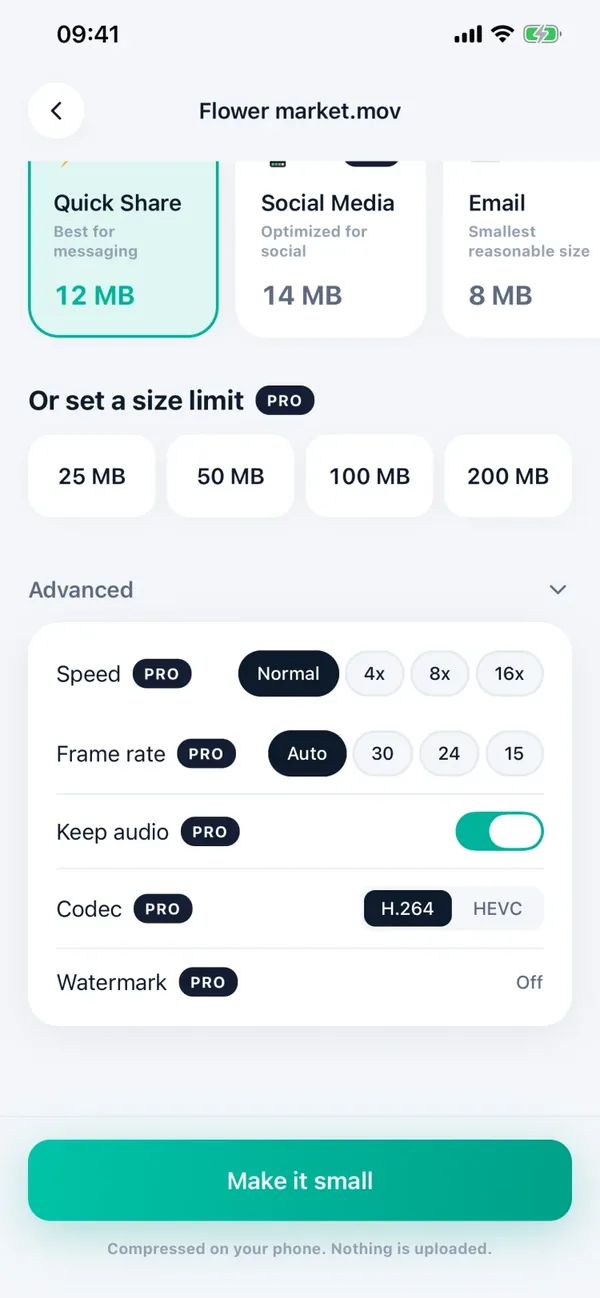
If you add your name to videos you are about to send, Minivid does it in the same step as compressing. On the setup screen, open Advanced, tap Watermark, type your name or handle and choose a corner — top left, top right, bottom left or bottom right. It is stamped on every frame of the whole video, so there are no clips to repeat it on, and the result is already small enough to send.
Watermark is part of Minivid Pro; you can open it and look around for free. Like everything in the app, it runs on your iPhone — nothing is uploaded — and the original video is never changed. If you only watermark the odd video and do not need it smaller, iMovie’s titles do the job for free.
Want to know the size before you compress?
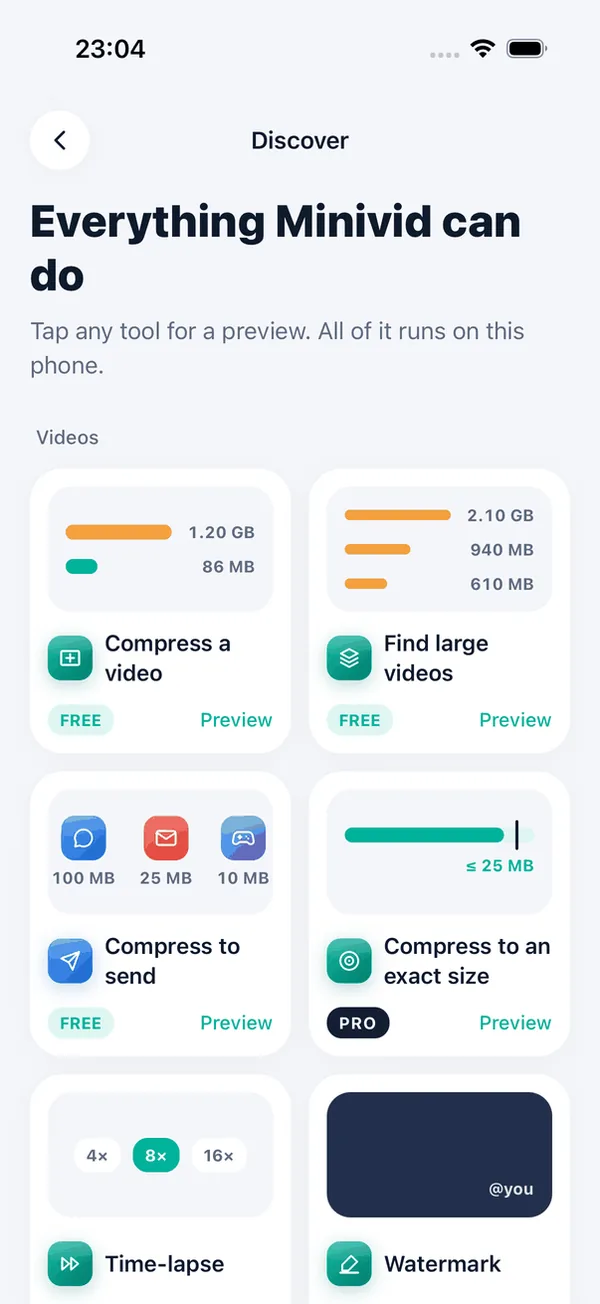
Minivid compresses video on your iPhone and shows the final size before it starts. Your videos are never uploaded.